As of November 2026, the best planning tool for most remote and hybrid teams to start with is Trello, because its free plan is easy and works well. ClickUp and Monday.com fit teams that need timelines, workloads and automations. Notion fits teams that plan inside their own docs and wikis, and nTask is the cheapest paid option, from about $3 per user per month. All five have a free plan or free tier, so try one on a real project before you pay. Prices change often, so check the vendor’s pricing page before you buy.
Remote and hybrid teams need good tools to stay organized and get work done. Below are five strong project planning tools, what each one does best, what it costs today, and how Microsoft’s and Google’s own planning options compare.
Free planning template: a Gantt and task tracker you can use today
You can get a free Gantt chart and task tracker without signing up for anything new. Google Sheets and Microsoft Excel both include free, official Gantt templates. For a small project, a template does most of what a paid planning tool does.
- Google Sheets: open Sheets, go to File > New > From template gallery, and pick the Gantt chart template in the project management section. It works with any free Google account.
- Microsoft Excel: open Excel, go to File > New, type “Gantt” in the template search box, and choose Simple Gantt Chart. It runs in the Excel desktop app and in Excel for the web.
- Build your own tracker: make one row per task, with these columns: Task, Owner, Start date, Due date, Depends on, Status, % complete. Then use conditional formatting to shade the cells between each start and due date. That shading is your Gantt bar.
Share the sheet with edit rights for the team and freeze the top row. That covers the basics. When the sheet has more than about 50 rows, or people keep asking “who changed this?”, it is time to move to one of the tools below.
What are planning tools, and why do remote teams need them?
Planning tools are apps that schedule tasks, assign owners and show progress, such as Trello, Microsoft Planner and ClickUp. For remote teams, they replace the quick chat at someone’s desk with one shared view of who is doing what by when.
Managing people remotely and keeping work on schedule is harder than in an office. Nobody can lean over a desk to ask what is due next, and a teammate in another time zone may be offline when you need an answer. A shared planning tool fixes much of this. Everyone sees the same tasks, owners, deadlines and progress, so fewer updates have to be chased by message or meeting.
The tools below were chosen for how well they support distributed teams. The criteria were ease of use, real-time collaboration, planning views such as timelines and Gantt charts, value for money, and whether the tool scales as a team grows. They are based on each vendor’s published features and pricing, and they are explained in full further down the page.
The wider shortlist of 11 planning tools
Eleven tools made the shortlist. Five get a detailed review below, and the other six are strong in narrower areas and are covered in the comparison section.
- Notion
- nTask
- Trello
- Monday.com
- ClickUp
- Airtable
- Jira
- Basecamp
- Google Workspace
- Loom
- Wrike
Asana, Microsoft Planner, Microsoft Project, Smartsheet and Miro are covered in “Other options worth a look” further down.
1. Notion
Best for: teams that want their plans, docs and wikis in one place.
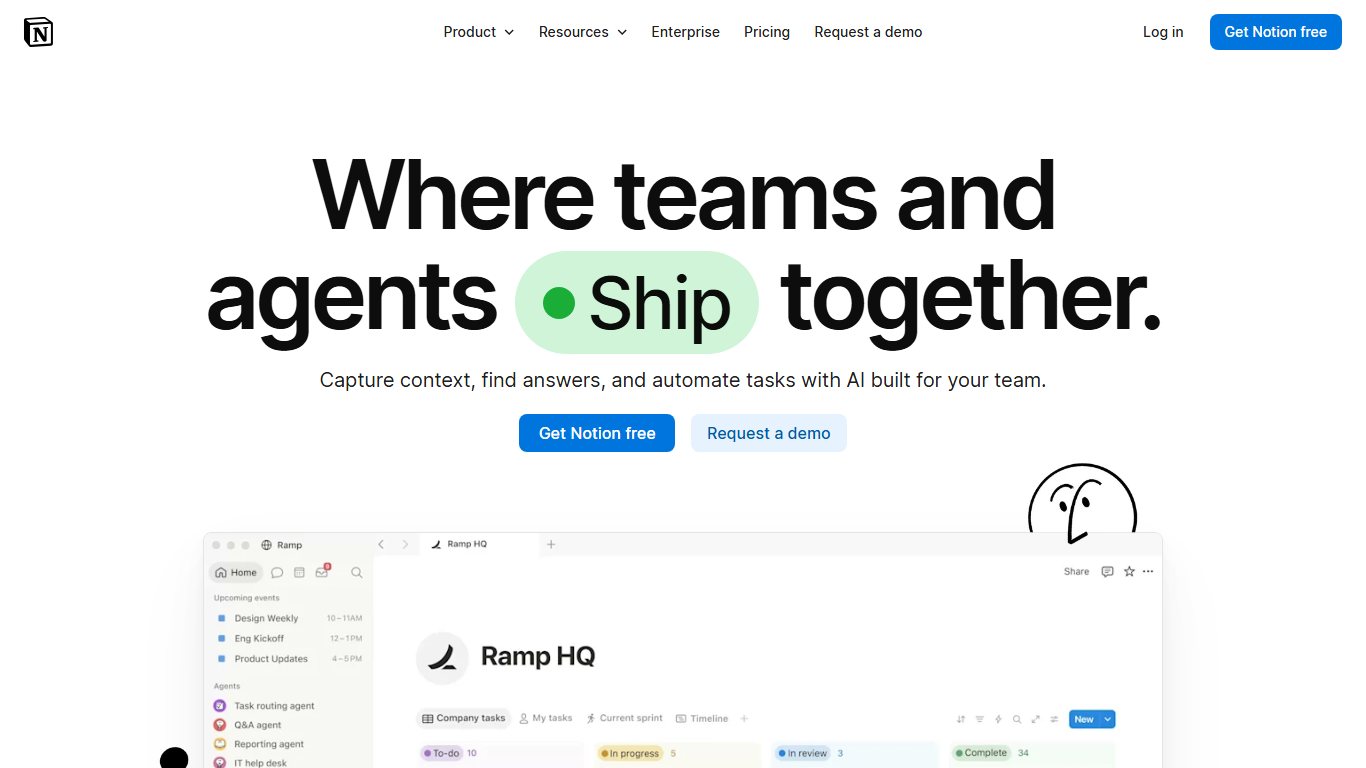
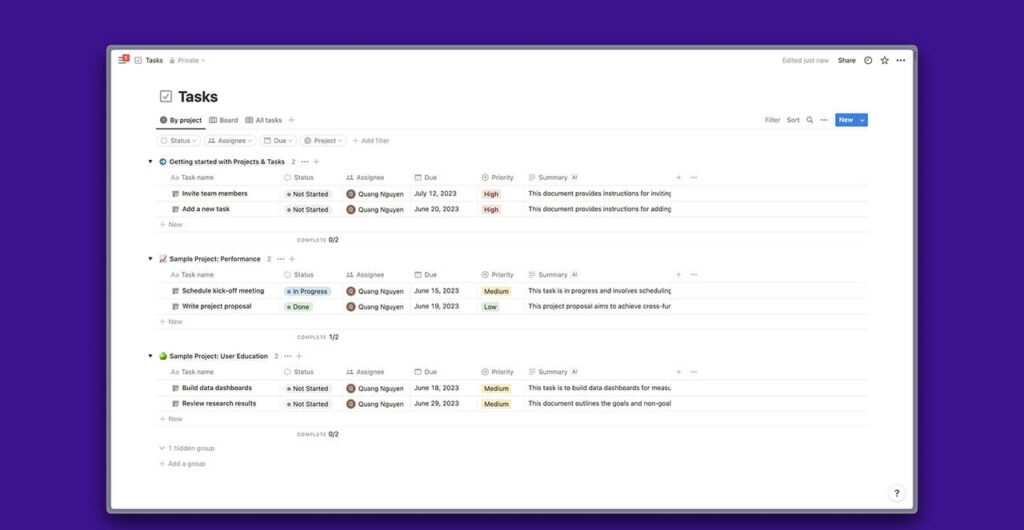
Notion is a workspace that combines documents, wikis and databases, and it works well as a project management tool. Its drag-and-drop editor makes it simple to plan and arrange content. A single projects database can be shown as a board, a table, a calendar or a timeline, so each person can view the same tasks in the format that suits them.
Benefits for remote and hybrid managers
Notion keeps project plans, meeting notes and task lists in one place. Remote managers get a clear view of where a project stands, even when the team is spread across cities or countries. Because the plan sits next to the documentation, new team members can catch up without a handover call.
Key features and pricing
- The Free plan works for individuals and very small teams.
- The Plus plan costs $10 per seat per month billed annually, or $12 billed monthly.
- The Business plan costs $20 per seat per month billed annually, or $24 billed monthly, and adds advanced permissions and Notion’s built-in AI features.
- Enterprise pricing is quoted by Notion’s sales team.
- Eligible students and teachers at accredited colleges and universities can get Notion’s free Education Plan, a one-member Plus plan, after verifying with their school email address.
Pros and trade-offs
- Pro: One database can be shown as a board, timeline or calendar, so nobody has to keep two lists in sync.
- Pro: Docs, meeting notes and tasks live together, which helps people who join a project late.
- Trade-off: There is no built-in workload view, so it is harder to see who is overloaded.
- Trade-off: It is a blank canvas. Someone has to build and look after the setup, or it gets messy fast.
2. nTask
Best for: small teams on a tight budget that want Gantt charts and meeting notes.

nTask has a free plan, which makes it a good choice for organizations of any size or field that want to try a planning tool without paying anything up front. Its simple design makes everyday project management easier. It focuses on the early stages of a project, from the first idea to the working plan.
Benefits for remote and hybrid managers
nTask lets you create and manage tasks both inside and outside projects, which gives remote managers more freedom in how they assign work. Team members can comment on tasks, turn a comment into a separate task or merge work back together. That keeps discussion attached to the work instead of scattered across chat apps.
Key features and pricing
- Meeting management tools let you plan meetings, record decisions and turn follow-ups into tasks.
- Gantt charts show project timelines and how tasks depend on each other.
- nTask has a free Basic plan plus three paid tiers. Premium costs $3 per user per month billed annually ($4 monthly), Business costs $8 per user per month billed annually ($12 monthly), and Enterprise is custom-priced. The free plan covers the core features, so it suits teams on a tight budget.
Pros and trade-offs
- Pro: It is the cheapest paid entry point here, at $3 per user per month on annual billing.
- Pro: Meetings, decisions and follow-up tasks stay in the same tool.
- Trade-off: It has fewer integrations and templates than ClickUp or Monday.com.
- Trade-off: It is a smaller vendor, so there is less community help and fewer third-party guides.
3. Trello
Best for: beginners and teams that want a simple visual board, free.
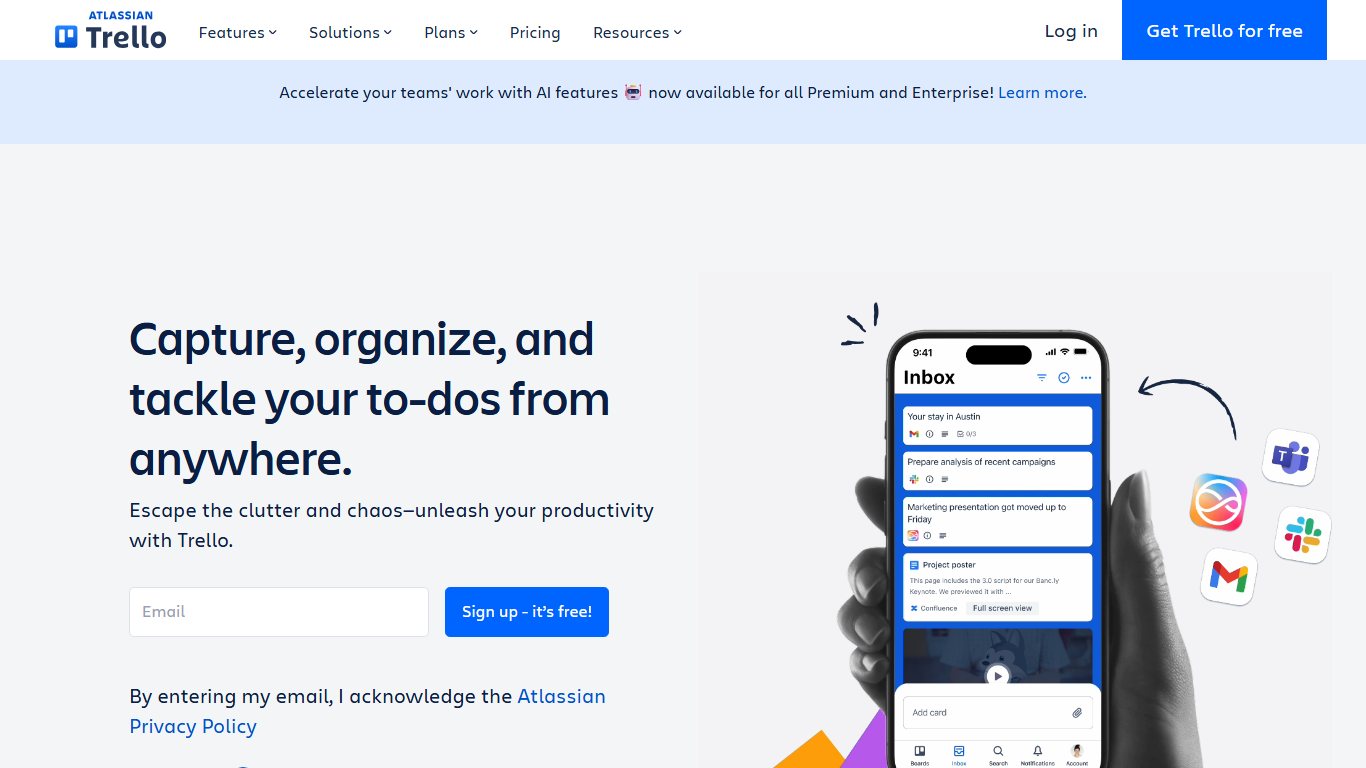

Trello earns its place because its free plan is genuinely useful and it takes minutes to learn. Atlassian, the company behind Jira, owns Trello. It uses a Kanban-style approach: each project is a board, each stage is a list, and each task is a card that you drag from one list to the next as work moves forward.
Benefits for remote and hybrid managers
Cards, lists and boards help teams turn ideas into tracked tasks quickly. Because everything is visual, anyone can open a board and see what is stuck, what is in progress and what is done. Managers and remote staff can talk about the work in the card’s comments instead of in long email threads.
Key features and pricing
- Trello’s open API and its Power-Ups make it easy to connect to other apps and systems.
- The Free plan covers up to 10 collaborators per Workspace and up to 10 boards per Workspace. Paid plans have unlimited boards.
- Standard costs $5 per user per month billed annually ($6 monthly). Premium costs $10 per user per month billed annually ($12.50 monthly) and adds views such as Timeline, Calendar, Table, Dashboard and Map. Enterprise costs $17.50 per user per month, billed annually, and the per-user price drops as the seat count grows.
Pros and trade-offs
- Pro: Anyone can learn it in one sitting, which matters most for teams with non-technical members.
- Pro: The free plan is enough for a small team running a few projects.
- Trade-off: The Timeline view needs Premium, and there are no built-in task dependencies.
- Trade-off: The 10-collaborator limit on the free plan means growing teams have to pay sooner than they expect.
4. Monday.com
Best for: teams that like spreadsheet-style tracking with dashboards.
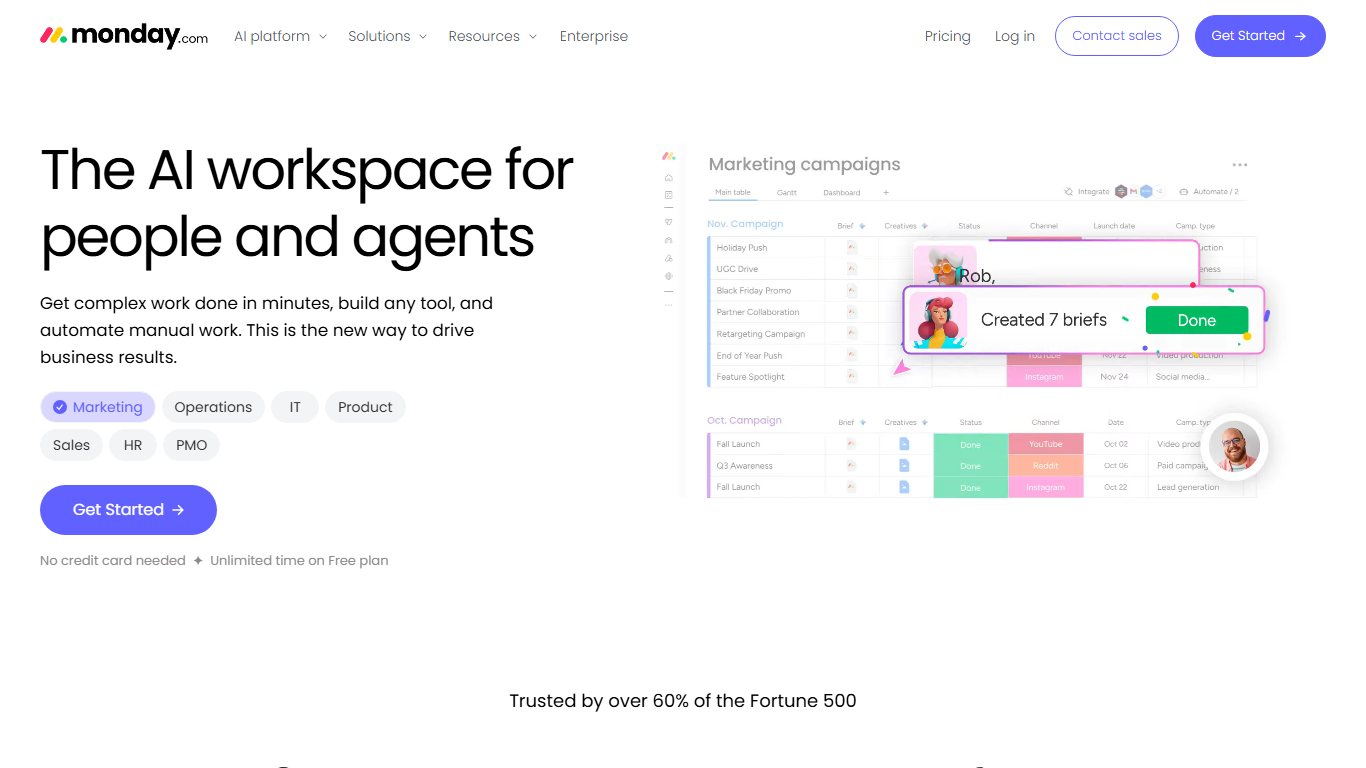

Monday.com is a popular project and workflow management platform. Its boards look like a friendly spreadsheet, with columns for owners, status, dates and priority. Each task has a clear owner, a description and a status, so everyone knows what has to be done and how the project is progressing. The timeline and Gantt views show how the project unfolds over time.
Benefits for remote and hybrid managers
Task owners and color-coded status columns help remote managers and their teams work together without constant check-ins. Dashboards and the timeline view let managers follow several projects at once, even when staff work in different locations.
Key features and pricing
- Timeline and Gantt views, available from the Standard plan up, help managers track deadlines across a project.
- You can attach documents and spreadsheets to items and add notes and updates to each one, so context stays with the task.
- A free plan covers up to 2 seats. Paid plans need at least 3 seats. Basic costs $9 per seat per month, Standard $12 and Pro $19, all billed annually. Monthly billing costs more, and Enterprise is custom-priced.
Worked example: what a 6-person team pays
Seats on Monday.com are sold in set bundles (3, 5, 10, 15 and so on), not one at a time. A 6-person team has to buy the 10-seat bundle. On Standard at $12 per seat per month on annual billing, the 10 seats cost $120 a month, or $1,440 a year, and the four seats nobody uses account for $48 a month, or $576 a year. The same 6 people on ClickUp Unlimited would cost $42 a month on annual billing. Check the seat bundles before you compare per-seat prices.
Pros and trade-offs
- Pro: The colorful status columns are easy to read at a glance, even for people who rarely log in.
- Pro: It has strong dashboards for managers who follow several projects at once.
- Trade-off: The 3-seat minimum and seat bundles raise the real cost for small or odd-sized teams.
- Trade-off: Gantt and timeline views need Standard or higher.
5. ClickUp
Best for: teams that want one tool for tasks, docs, goals and time tracking.
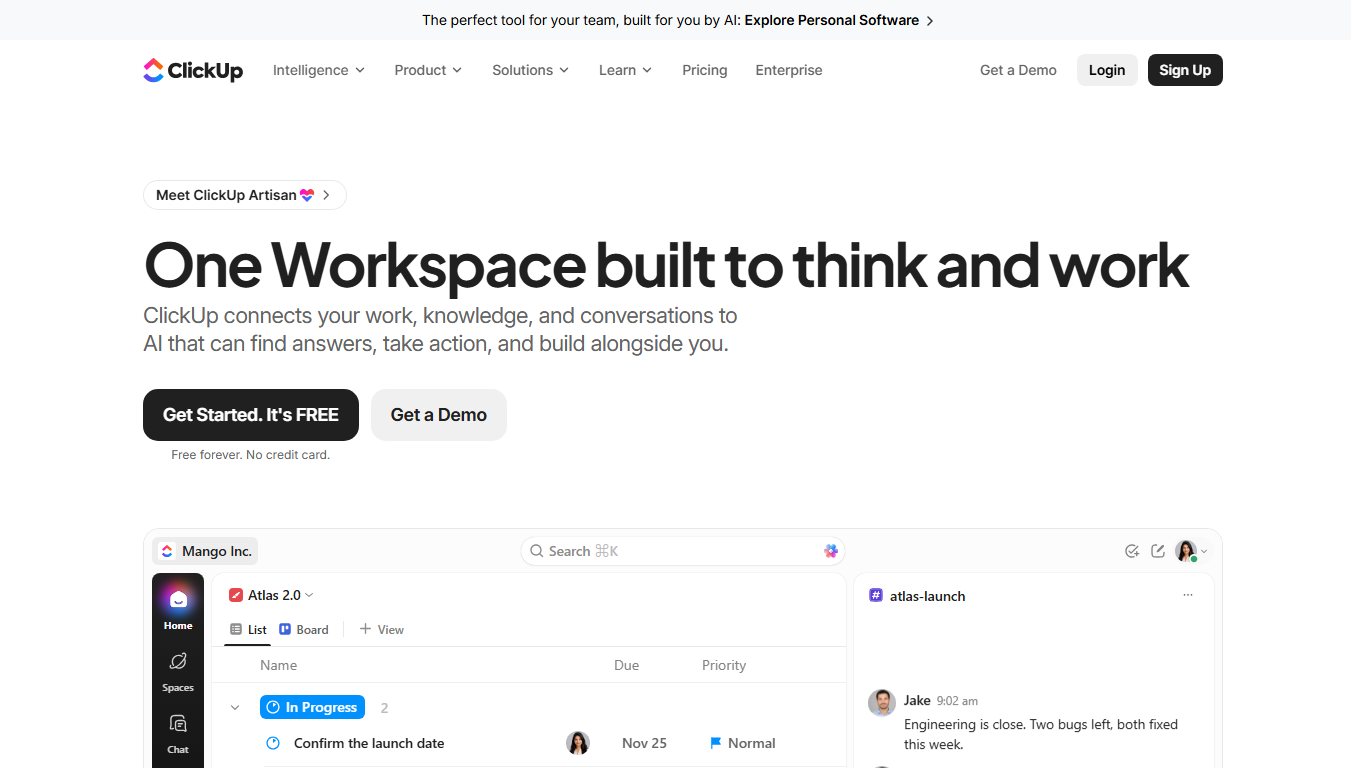
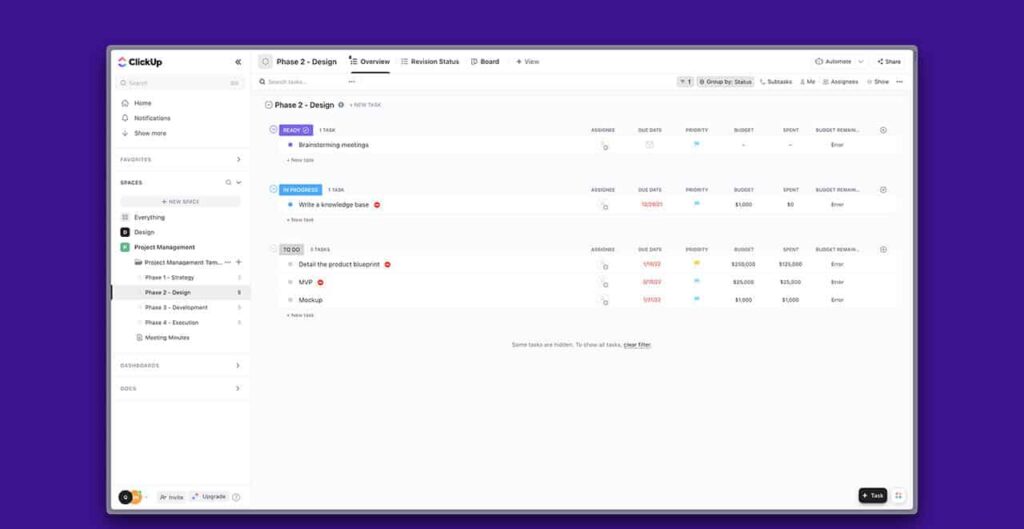
ClickUp is built so teams can find everything they need for a project in one place: tasks, docs, goals, chat and time tracking. One big advantage is its large integration library, with connections to well over a thousand apps, including Microsoft Teams, HubSpot and Slack. That cuts down on switching between tools and gives teams one source of truth.
Benefits for remote and hybrid managers
ClickUp suits managers of remote or hybrid teams because it has a feature for nearly every planning job. Clear roles and permissions make it easier to work with partners inside and outside the company, since only people with access can see sensitive information. Its Clips feature records your screen, and a recording can be turned into a task. That makes it easy to give instructions with clear visual context.
Key features and pricing
- The Template Center has many ready-made templates for different uses, so new projects start faster.
- Workload and capacity views help teams spread work evenly and make the most of their people.
- The Free Forever plan has unlimited members but limited storage and features. Unlimited costs $7 per user per month billed annually ($10 monthly) and unlocks unlimited Gantt charts and storage. Business costs $12 per user per month billed annually ($19 monthly) and adds the full Workload view. Enterprise is custom-priced, and ClickUp’s AI features are an extra add-on.
Pros and trade-offs
- Pro: It has the most planning features for the price, including dependencies, Gantt charts and workload views.
- Pro: There is no seat minimum, so you pay only for the people you add.
- Trade-off: There are so many options that new users can feel lost. Plan a short setup session.
- Trade-off: The free plan limits storage and how often some views can be used, so most active teams end up paying.
Other options worth a look
Five other well-known tools are strong choices for specific teams. They did not make the top five for remote and hybrid teams in general because they are either tied to one ecosystem (Microsoft Planner), cost more per user at entry level (Asana), or are built for a narrower job such as enterprise scheduling or whiteboarding (Microsoft Project, Smartsheet, Miro).
| Tool | Best for | Free plan limit | Entry paid price |
|---|---|---|---|
| Asana | Teams that want polished timelines and goals | Personal plan, up to 2 users on new accounts | Starter, $10.99 per user per month billed annually ($13.49 monthly) |
| Microsoft Planner | Organizations already on Microsoft 365 | Basic Planner is included in most Microsoft 365 business plans | Planner Plan 1, $10 per user per month billed annually |
| Microsoft Project | Gantt-heavy, enterprise schedules | No free plan | Planner and Project Plan 3, $30 per user per month billed annually |
| Smartsheet | Enterprise teams that think in spreadsheets and Gantt charts | Check Smartsheet’s current plans | Quoted on Smartsheet’s pricing page |
| Miro | Visual strategic planning and workshops | Free plan with a limited number of editable boards | Paid plans priced per member |
Asana is a strong, mature tool. Its Timeline view and task dependencies start on Starter, and the Workload view is on Advanced at $24.99 per user per month billed annually. The catch for small teams is that new free accounts now stop at 2 users, down from the much larger free team limit Asana used to offer.
Smartsheet suits large teams that already plan in grids and need Gantt charts, resource views and approvals at scale. Miro is an online whiteboard, not a task tracker, but it is very good for strategy sessions, roadmaps and workshops. Many teams plan in Miro and then move the tasks into one of the five tools above.
What is the best free planning tool?
Trello is a good free planning tool for small teams, because its free plan covers up to 10 collaborators per Workspace. ClickUp’s Free Forever plan is the better pick if you need Gantt charts and dependencies and have the time to learn a busier tool.
The free plans differ in ways that matter:
| Tool | Free plan users | What the free plan leaves out |
|---|---|---|
| Trello | Up to 10 collaborators per Workspace | Timeline view, more than 10 boards per Workspace |
| ClickUp | Unlimited members | Unlimited storage and unlimited Gantt use |
| Notion | Best for individuals and very small teams | Advanced permissions and some collaboration limits |
| Monday.com | Up to 2 seats | Timeline, Gantt and automations |
| nTask | Free Basic plan | Advanced features on paid tiers |
| Asana | Up to 2 users on new accounts | Timeline, dependencies, workload |
If you need a planning tool free of charge for a team of three to ten people, start with Trello. If you are planning alone, Notion’s free plan or a Google Sheets Gantt template is enough. College and university students and teachers should look at Notion’s free Education Plan first.
The honest counter-argument: a free plan is a trial with no end date, not a long-term home for a growing team. If you already know you will need timelines and workload views within six months, test the paid tier from day one so you do not have to move everything later.
Does Microsoft have a planning tool?
Yes. Microsoft Planner is included in most Microsoft 365 business plans, and Microsoft Project is the advanced scheduling option for complex, Gantt-heavy work. Both now sit in the same family of Planner licenses.
Planner in Microsoft 365
The basic version of Planner comes with Microsoft 365 Business Basic, Business Standard and Business Premium, as well as most enterprise plans. It gives you boards, task lists, charts and a schedule view. For many small teams, that is all the planning they need, and it costs nothing extra.
Premium Planner plans
Microsoft sells paid Planner tiers on top of Microsoft 365:
| Plan | Price (billed annually) | What it adds |
|---|---|---|
| Planner Plan 1 | $10 per user per month | Timeline (Gantt) view, task dependencies, backlogs and sprints, custom fields, goals |
| Planner and Project Plan 3 | $30 per user per month | Advanced dependencies with lead and lag, baselines, critical path, resource management, portfolios, the Project desktop app |
| Planner and Project Plan 5 | $55 per user per month | Portfolio and demand management, enterprise reporting, Power BI analytics |
Microsoft Copilot features are a separate add-on and raise the cost.
How to open Planner on desktop and in Teams
You can use Planner three ways:
- In the browser: sign in to Microsoft 365 and open Planner from the app launcher (the grid of dots at the top left).
- In Microsoft Teams: select Apps in the left rail, search for Planner, and select Add. You can also add a plan as a tab in a channel with the + button at the top of the channel.
- On your phone: install the Microsoft Planner app for iPhone or Android.
There is no separate Planner app for Windows or Mac. On desktop, the Teams app is the closest thing to one. The full Microsoft Project desktop app comes with Plan 3 and Plan 5.
Does Google have a planning tool?
Google does not sell a dedicated project planning tool. Instead, Google Workspace covers planning with Google Sheets Gantt templates, Google Calendar and Google Tasks, which together work well for small teams and personal planning.
- Google Sheets: the free Gantt chart template in the template gallery covers simple project schedules. Many Google Workspace business plans also offer a timeline view in Sheets (Insert > Timeline) that turns rows with dates into a timeline.
- Google Calendar: good for deadlines, milestones and shared team calendars, especially across time zones.
- Google Tasks: a simple to-do list built into Gmail, Calendar and Docs. You can assign tasks from a comment in Docs and see them in Tasks.
All three are free with a personal Google account. Google Workspace Business Starter costs about $7 per user per month on an annual plan, or $8.40 on the flexible monthly plan, and Business Standard costs $14 or $16.80. Prices exclude tax and can vary by country.
Google’s tools have limits. They have no workload view, no automatic task dependencies and no portfolio view. Once a project has many moving parts, a dedicated tool such as Trello, ClickUp or Asana connects to Google Workspace and does the heavy lifting.
Best planning tool apps for phone and desktop
Every tool on the main list has iPhone and Android apps, and most also have desktop apps for Windows and Mac. Offline support differs more than app availability does, so check it if your team travels or works on patchy connections.
| Tool | iPhone and Android | Desktop | Offline use |
|---|---|---|---|
| Notion | Yes | Mac and Windows apps, plus web | Offline mode for pages saved for offline use |
| nTask | Yes | Web | Needs a connection for most work |
| Trello | Yes | Mac and Windows apps, plus web | Mobile apps work offline and sync later |
| Monday.com | Yes | Mac and Windows apps, plus web | Needs a connection |
| ClickUp | Yes | Mac, Windows and Linux apps, plus web | Limited offline mode in the mobile app |
| Microsoft Planner | Yes | Web and Microsoft Teams | Needs a connection |
| Asana | Yes | Mac and Windows apps, plus web | Needs a connection for most work |
For a planning tool app that people will actually open on their phones, Trello and Monday.com have the simplest mobile screens. ClickUp’s app can do the most, but it feels crowded on a small screen.
Download apps only from the Apple App Store, Google Play, the Microsoft Store or the vendor’s own website. Never install “unlocked” or modified versions from other sites.
Who should use a planning tool?
Any manager who needs to keep track of a team’s work schedule will find a planning tool useful. It helps most when people work remotely or in different time zones, where daily conversations with a teammate on the other side of the country are hard to arrange.
A planning tool keeps you organized and makes it clear who is doing what by when. It does not guarantee that work gets finished on time, but it shows missed deadlines early, while there is still time to fix them.
Managers can also use these tools to check that deadlines are met and that tasks and projects stay on track. Small teams and individuals benefit too. A freelancer juggling several clients can run a whole business from one Trello board or Notion page.
Best planning tool by use case
The right tool depends on who is planning and what they plan. Here are the quick answers for the most common situations.
Teachers and students
Notion is a strong pick for education, because eligible students and teachers at accredited colleges and universities can get its free Education Plan with a verified school email address. Trello’s free plan also works well for class projects, since a board with “To do”, “Doing” and “Done” lists is easy for students to understand.
Strategic planning and workshops
Miro is the best fit for strategy sessions, retrospectives and roadmap workshops, because the whole team can add sticky notes and diagrams to the same board at once. Once the plan is agreed, move the actions into a task tool so each one gets an owner and a due date.
Personal planning
Notion and Google Calendar cover most personal planning. Use Notion for goals, habit trackers and project pages, and Google Calendar to block time for each task. Google Tasks is enough for a simple daily to-do list.
Microsoft 365 organizations
Microsoft Planner is the obvious choice if your company already pays for Microsoft 365, because the basic version is included and it works inside Teams. Upgrade to Planner Plan 1 only when you need the timeline view and task dependencies.
Program evaluation planning (logic models and evaluation plans for grants or nonprofits) is a separate niche with its own frameworks, and none of these general tools is built for it.
How do you choose a planning tool?
Choose a planning tool by checking five things in this order: ease of use, teamwork features, planning features, value and scalability. Ease of use comes first because a tool nobody opens fails no matter how many features it has.
1. Ease of use
A simple, efficient interface is a must. If the team finds the tool confusing, they will go back to email and spreadsheets, and the tool fails no matter how many features it has.
2. Teamwork features
A good planning tool supports real-time collaboration: assigning tasks, sharing files, commenting and shared project boards.
3. Features and performance
Make sure the tool has the features you need to organize and deliver your work. Useful examples are Gantt charts, timeline and calendar views, automations, time tracking and reporting. Check which plan includes each one, because many tools lock timelines and workload views behind a paid tier.
4. Value
A capable planning tool does not have to be expensive. Every tool on this list has a free tier, and paid plans start at around $3 to $10 per user per month on annual billing. Check whether a plan has a minimum seat count, as Monday.com does.
5. Scalability
The tool should grow with your team and adapt as your needs change, from a handful of users to whole departments.
Start with a simple plan before you pick a tool
You do not always need a sophisticated tool. Starting is often the hardest part of a project, and the fix is usually on paper rather than in software.
Break the project into smaller subtasks first. A large project feels much more manageable once it is split into clear steps with owners and rough deadlines. For a step-by-step guide to building the schedule itself, see Best ways to make a project timeline.
Once you have that list, choose how to assign the tasks to your team and track progress in whichever format suits you: a Trello board, a Notion database, a Google Sheets Gantt template or a Gantt chart in nTask.
Comparison of the planning tools
Each of the 11 tools has its own features for different kinds of teams and management styles. Here is how the five main picks and Microsoft Planner compare, with prices as of November 2026.
| Tool | Best for | Free plan | Entry paid plan (billed annually) | Standout feature |
|---|---|---|---|---|
| Notion | Teams that plan inside their docs and wikis | Yes | Plus, $10 per seat per month | One database shown as board, table, calendar or timeline |
| nTask | Small teams on a tight budget | Yes (Basic) | Premium, $3 per user per month | Meeting management and Gantt charts |
| Trello | Beginners and simple Kanban workflows | Yes, up to 10 collaborators | Standard, $5 per user per month | Drag-and-drop boards and Power-Ups |
| Monday.com | Teams that like spreadsheet-style tracking | Yes, up to 2 seats | Basic, $9 per seat per month (3-seat minimum) | Status columns and dashboards |
| ClickUp | Teams that want one tool for everything | Yes (Free Forever) | Unlimited, $7 per user per month | Huge integration library and Clips |
| Microsoft Planner | Microsoft 365 organizations | Basic Planner included in most Microsoft 365 business plans | Planner Plan 1, $10 per user per month | Works inside Microsoft Teams |
Planning features compared
Timelines, dependencies and workload views are where these tools differ most, and where the plan you pick matters.
| Tool | Gantt or timeline view | Task dependencies | Workload view | Seat minimum |
|---|---|---|---|---|
| Notion | Timeline view on all plans | Yes, in the timeline view | No built-in view | None |
| nTask | Gantt charts on paid plans | Yes, in Gantt charts | Not on Basic or Premium | None |
| Trello | Timeline on Premium | No built-in dependencies | No built-in view | None on Standard or Premium |
| Monday.com | Standard and up | Standard and up | Pro and up | 3 seats on paid plans |
| ClickUp | Limited on Free, unlimited from Unlimited | Yes, all plans | Full view on Business | None |
| Microsoft Planner | Planner Plan 1 and up | Planner Plan 1 and up (advanced types on Plan 3) | Plan 3 (resource management) | None, but tied to Microsoft 365 |
Monday.com, ClickUp and Trello have strong task management and collaboration features, which makes them a natural fit for remote and hybrid teams. nTask and Notion are good for keeping communication and documentation close to the work. Jira, another Atlassian product, is built for software development teams that work in sprints.
Wrike has a wide range of features for detailed project planning. Basecamp, from 37signals, and Google Workspace offer simple, all-in-one setups for messaging, files and to-dos. Loom, now owned by Atlassian, records short video messages that replace many live meetings. Airtable is a mix of database and spreadsheet, and it suits projects that involve a lot of data.
Choosing the right tool for your team
The right planning tool depends on your team’s needs, how much customization you want and your budget. A five-person team that wants a visual board can run on Trello’s free plan for a long time. A 50-person team that needs workload views, automations and reporting will get more out of ClickUp Business or Monday.com Pro. A company that already pays for Microsoft 365 should try Planner before buying anything else.
The best next step is a small test. Pick two tools from the table, run the same real project in each for two weeks with the people who will use it every day, and keep the one the team actually opens without being reminded.
FAQ
What is a project planning tool?
A project planning tool is software that helps you organize, schedule and track tasks and projects. It shows who owns each task, when it is due and how far along it is. These tools are especially useful for coordinating remote or hybrid teams that rarely work in the same room.
What is the best free project planning tool?
For most small teams, Trello’s free plan is the easiest place to start, since it covers up to 10 collaborators per Workspace. ClickUp’s Free Forever plan has more features but takes longer to learn. Notion and nTask’s free plans also work well for individuals and very small teams.
Who should use planning tools?
Managers, team leaders and anyone who coordinates work across several people benefit from them, especially when the team is remote or hybrid. Freelancers and individuals can use them for personal projects and client work too.
Why are planning tools important for remote and hybrid teams?
They give a team spread across locations one shared view of tasks, deadlines and progress. That cuts down on status meetings and lost messages. Managers can also spot blocked or overdue work early and move people where they are needed.
Is ClickUp or Monday.com better for a small team?
ClickUp is usually cheaper for small teams, at $7 per user per month on the annual Unlimited plan, and it has no seat minimum. Monday.com’s paid plans need at least 3 seats, but many people find its spreadsheet-style boards easier to learn. If budget matters most, start with ClickUp. If ease of use matters most, try Monday.com.
Which planning tool is best for software teams?
Jira is the standard choice for software development, with sprint planning, backlogs and bug tracking built in. Teams that also need simple boards for non-technical colleagues often pair it with Trello, since both are Atlassian products and connect easily.
Is Microsoft Planner free?
Basic Planner is included at no extra cost in most Microsoft 365 business and enterprise plans, so you get it if your company already pays for Microsoft 365. The timeline view and task dependencies need Planner Plan 1, which costs $10 per user per month on annual billing.
What is the difference between Microsoft Planner and Microsoft Project?
Planner is for everyday team tasks, with boards and simple schedules, plus timelines and dependencies on Plan 1. Project is for complex schedules, with baselines, critical path and resource management, and its capabilities are included in the Planner and Project Plan 3 ($30 per user per month) and Plan 5 ($55 per user per month) subscriptions, paid yearly.
Can Google Sheets work as a planning tool?
Yes, for small projects. The free Gantt chart template in Google Sheets gives you a shared schedule with owners and dates. It has no automatic dependencies or workload view, so move to a dedicated tool once the project grows past a few dozen tasks.
Is Asana still free for teams?
Asana’s free Personal plan now covers up to 2 users on new accounts, so it suits individuals and pairs rather than teams. Paid plans start with Starter at $10.99 per user per month on annual billing.
What is the best planning tool for teachers?
Notion is a strong choice, because eligible teachers and students at accredited colleges and universities can get its free Education Plan with a verified school email address. Trello’s free plan is a simple alternative for class boards and group projects.
Sources
- Notion pricing
- Notion Help Center: Notion for education
- Trello pricing
- Monday.com pricing
- ClickUp pricing
- nTask pricing
- Asana pricing
- Microsoft Planner plans and pricing
- Google Workspace plans and pricing