
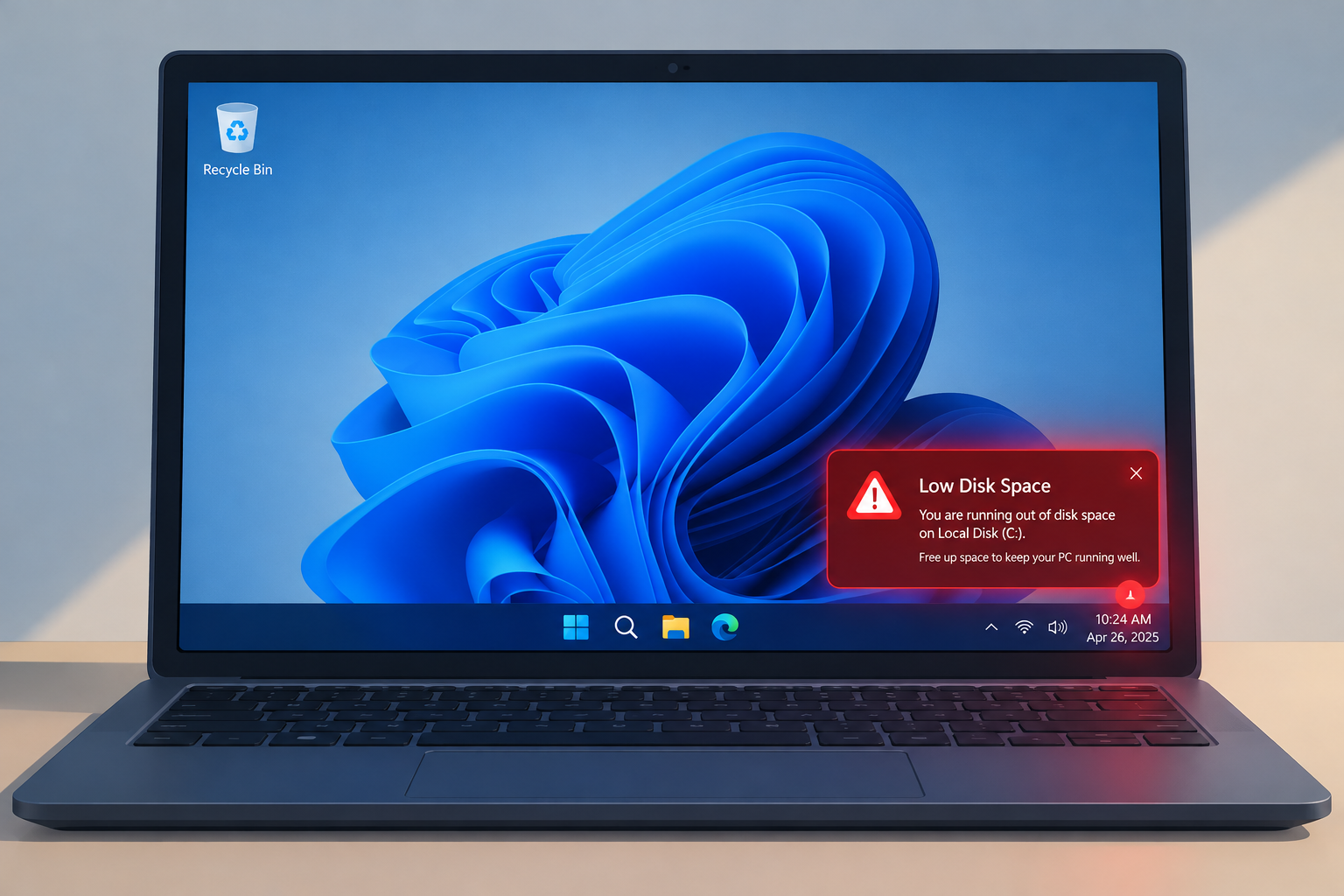
Every PC has a limited amount of internal storage, on either a hard disk drive (HDD) or a solid state drive (SSD), and it can run out. Media files, game installs and Windows updates keep getting bigger and use up space. Many people also don’t realize that temporary internet files and deleted files still sitting in the Recycle Bin take up room too.
What the low disk space error means
Windows shows the low disk space warning when the C: drive, where Windows is installed, is running out of free space. If you keep adding files without deleting the ones you don’t need, the drive eventually fills up and the warning appears.
A full C: drive causes real problems:
- Windows Update can’t download or install updates.
- You can’t save new files or install new programs on that drive.
- The PC can slow down, because Windows needs free space for temporary files and virtual memory.
Most of the time you can clear a full drive in a few minutes using tools already built into Windows. Removing files and programs you don’t need also cuts the clutter and makes your folders easier to browse.
This matters more on Windows 10, which reached end of support on October 14, 2025. Devices enrolled in Microsoft’s Extended Security Updates program still get security patches, and those updates need free space to install.
How to free up space on your PC
The fixes below start with the quickest and safest. Try them in order and check how much free space you have after each one.
Use the Disk Cleanup tool
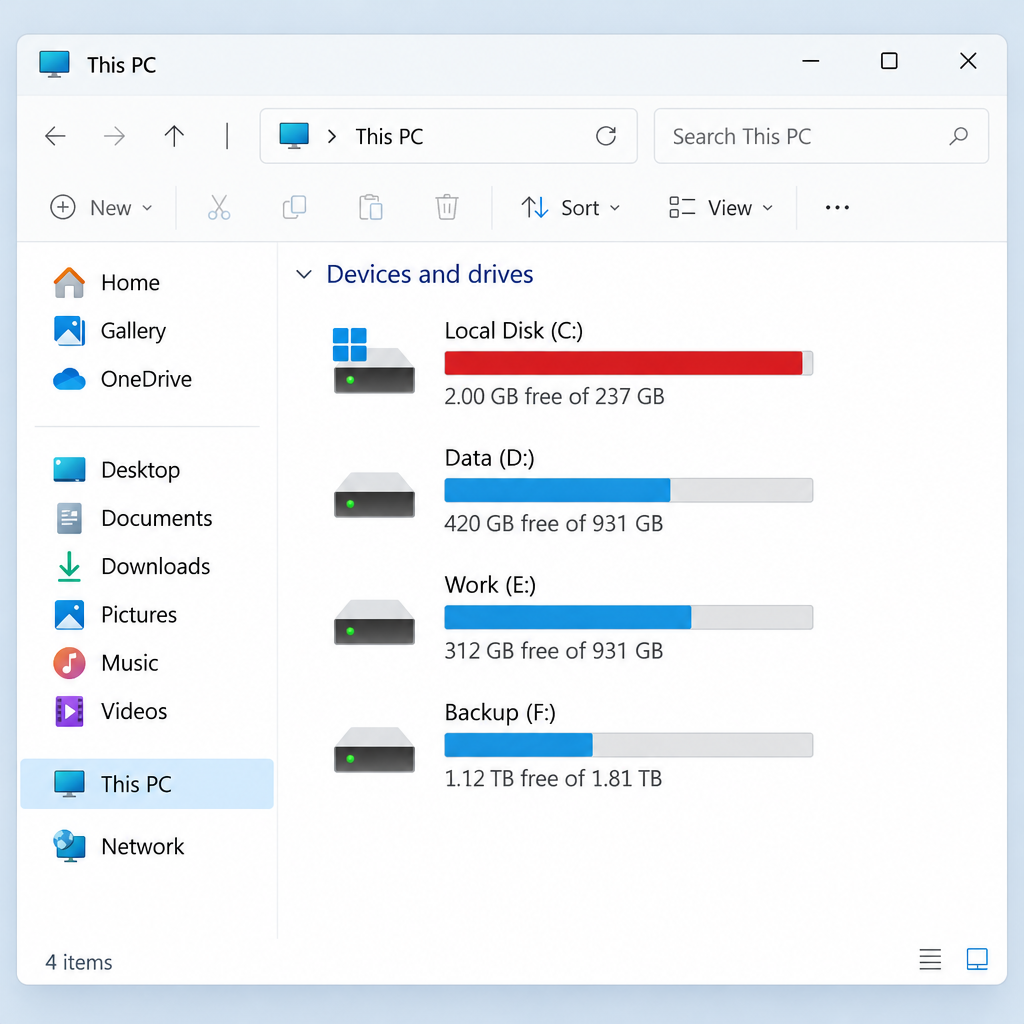
Disk Cleanup is one of the easiest ways to free up space. It deletes temporary files, old update files, the Recycle Bin contents and other items Windows doesn’t need. It is a legacy tool, but it still ships with Windows 11 and Windows 10.
- Open File Explorer and select This PC. You’ll see all your drives, along with how much free and used space each one has.
- Right-click the drive you want to clean up (usually Local Disk (C:)) and select Properties.
- On the General tab, select the Disk Cleanup button. You can also open the tool by pressing Windows key + R, typing cleanmgr and pressing Enter, or by searching for Disk Cleanup from Start.
- A list of file types that can be removed appears. Tick the boxes for the files you want to delete, such as Temporary Internet Files, Temporary files and Recycle Bin.
- To remove old Windows update files as well, select Clean up system files, choose the C: drive again if asked, and tick Windows Update Cleanup when it shows up. This option needs an administrator account.
- Select OK, then Delete Files to confirm.
The tool can take a few minutes to finish. The Windows Update Cleanup step usually takes the longest.
Turn on Storage Sense
Storage Sense is the newer, automatic version of Disk Cleanup. It’s built into Settings and deletes temporary files and old Recycle Bin items for you. Microsoft says it only works on the system drive, which is usually C:.
- Open Settings > System > Storage.
- Turn on Storage Sense.
- Select Storage Sense to choose how often it runs: every day, every week, every month, or during low free disk space (the default).
- To free up space right away, select Run Storage Sense now.
In Windows 11, Settings > System > Storage > Cleanup recommendations is worth a look too. It lists large or unused files, unused apps and files already synced to OneDrive, and you can remove them in one go.
Remove programs you don’t use
People often install games and apps and then forget about them. Games take up the most space, and removing old ones you no longer play can free up a lot of room.
Windows 11:
- Open Settings > Apps > Installed apps.
- Set Sort by to Size (large to small) so the biggest apps appear first.
- Select the three dots (…) next to the app you want to remove, then select Uninstall.
- Select Uninstall again to confirm.
Windows 10:
- Type apps in the search box on the taskbar and open Apps & features.
- You’ll see a list of installed apps and how much space each one uses. Sort it by size.
- Select the app you want to remove, then select Uninstall.
- A message warns that the app and its related info will be uninstalled. Select Uninstall again to confirm.
Repeat these steps for any other apps you want to remove. Some apps need the PC to restart before they’re fully gone. Games installed through Steam, the Xbox app or other launchers can also be uninstalled from inside the launcher, and that removes their downloaded content too.
Copy files to an external storage device
Videos, photos and other media files use up a lot of space. A single file may not be big, but they add up over time. Windows also saves every download to the Downloads folder by default, and that folder gets bloated if you never clear it out. Moving files you don’t need every day frees up space, and you can still open them later from the external drive.
- Plug in an external HDD, SSD or USB flash drive.
- On the external drive, create folders that match the files you’re moving, such as Downloads, Documents and Pictures.
- Open File Explorer and go to the folder you want to clear out on your PC.
- Select the files you want to move. You can pick them one at a time, or press Ctrl + A to select everything in the folder.
- Right-click the selected files and choose Copy. (In Windows 11, the Copy icon is at the top of the right-click menu.)
- Go to the matching folder on the external drive, right-click an empty area and choose Paste.
- The files now exist in both places. Before you delete anything, open the external drive and check that every file copied over and opens.
- Delete the original files from your PC.
- Empty the Recycle Bin so the files are actually removed from the drive.
Keep in mind that one external drive is a single point of failure. For photos and documents you care about, keep a second copy, either on a cloud service like OneDrive or on another drive.
If nothing works
Some drives fill up again quickly even after a full cleanup. If yours does, open Settings > System > Storage and check the categories breakdown to see what’s using the space. A large “Other” or “System & reserved” category, or space that disappears without explanation, can point to a problem worth asking the PC maker or Microsoft Support about. If the drive is simply too small for what you use it for, the long-term fix is a larger SSD or a second internal drive. A repair shop can clone your current drive onto a new one, so you don’t have to reinstall Windows.
FAQ
How much free space should I keep on my C: drive?
Keep at least 10 to 15 percent of the drive free, and more if you can. Windows needs room for updates, temporary files and virtual memory. Feature updates in particular need several gigabytes of free space to download and install.
Is it safe to delete files in Disk Cleanup?
Yes. The items Disk Cleanup lists are temporary or leftover files Windows doesn’t need to run. The one to think about is Windows Update Cleanup. After you remove it, you may not be able to uninstall recent updates, so wait until your PC has run well for a few days after an update before you delete it.
Is Disk Cleanup still available in Windows 11?
Yes. Disk Cleanup still comes with Windows 11, and you can open it by searching for it from Start or by running cleanmgr. Microsoft points people toward Storage Sense and Cleanup recommendations in Settings, which do most of the same work automatically.
Does emptying the Recycle Bin free up space?
Yes. Deleted files stay on the drive and keep using space until you empty the Recycle Bin. Right-click the Recycle Bin icon on the desktop and choose Empty Recycle Bin, or let Storage Sense empty it on a schedule.
Why does my PC say low disk space when I just cleaned it?
Some program is probably filling the drive again: cloud sync apps downloading files, game launchers saving updates, or large temporary files. Check Settings > System > Storage to see which category is growing. Also check that OneDrive’s Files On-Demand is on, so cloud files don’t all download to the PC.
Sources
- Manage drive space with Storage Sense (Microsoft Support)
- Free up drive space in Windows (Microsoft Support)












