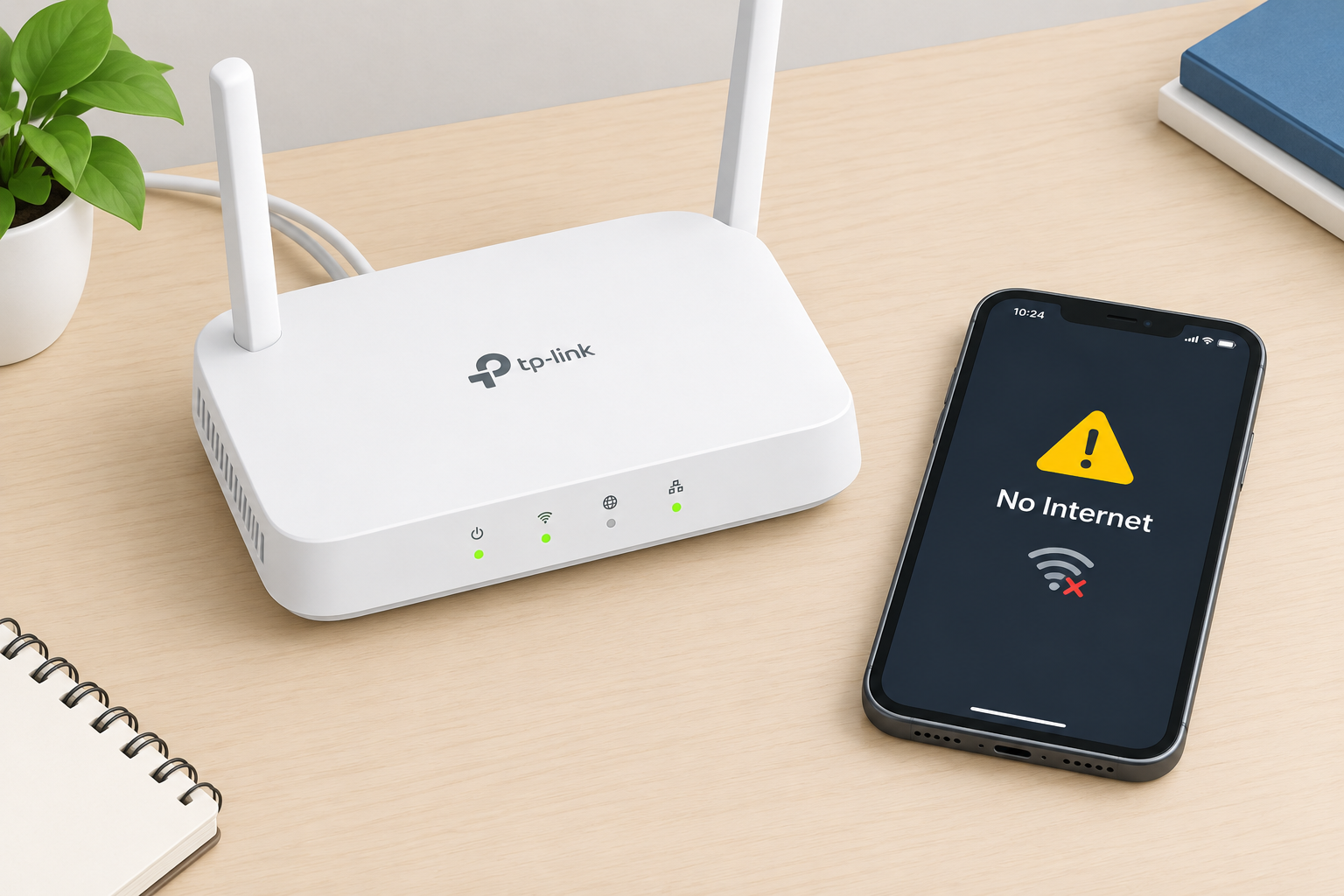
When a device connected to a TP-Link router shows “Limited access”, “No internet” or “No internet, secured”, first check whether the internet works when you connect straight to the modem. If it doesn’t, the problem is with your provider. If it does, look at the router: cables and signal, the WDS bridge settings (the bridge must use the same channel as the main router and connect with that router’s Wi-Fi password), DNS (Google’s 8.8.8.8 and 8.8.4.4), and DHCP. Only turn off DHCP on a TP-Link that is working as a secondary bridge or access point. If you turn it off on your main router, devices can’t get an address and the fault gets worse.
TP-Link is one of the biggest makers of home and office networking gear. TP-Link Systems Inc. is now headquartered in Irvine, California. The company says it has fully split from TP-LINK Technologies Co., Ltd., which serves mainland China. The hardware is generally reliable, but connection faults still happen. Most of them you can fix yourself, and a few need TP-Link support.
What a router does and why limited access appears
A router forwards data between networks. At home, its main job is to share one internet connection with several computers, phones and tablets over cable (LAN) or Wi-Fi. Modern routers do more than that. They can share files on the local network, and they can bridge or extend another access point’s or modem’s Wi-Fi.
Sometimes a device shows a limited connection, no connection, or keeps dropping off even though the router’s lights look normal. Older Windows versions call this “Limited access”. Windows 10 and Windows 11 say “No internet” or “No internet, secured”. It shows up most often when a TP-Link router is used as a wireless bridge (WDS Bridge) or connected over LAN to another router. The usual causes and fixes are below, quickest and safest first.
Causes and fixes
Work through these in order. Each one rules out a whole group of causes before you change any deeper settings.
1. A problem with your internet provider
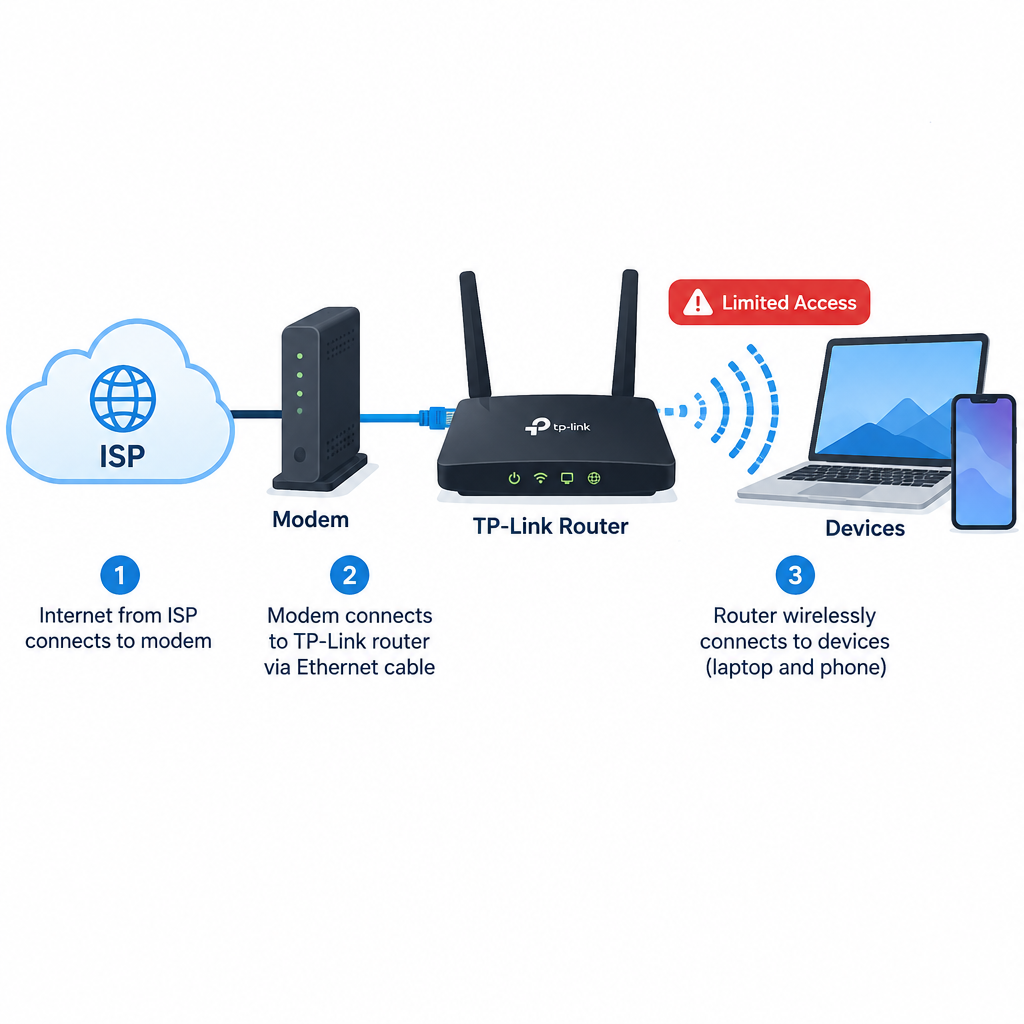
If your provider’s connection is down, you’ll see “No internet” or “Limited” whether you connect through the TP-Link router or directly to the modem. Connect a PC straight to the modem with a cable to find out which it is.
- Wait a few minutes in case the connection comes back on its own.
- Turn off both the modem and the router. Turn the modem on first and wait about two minutes until its internet light is steady. Then turn on the router.
- If the PC works when plugged into the modem but not through the router, your provider may lock the service to one device’s MAC address. On current Archer firmware, go to Advanced > Network > Internet > MAC Clone and choose Use Current Computer MAC Address. Do this from the PC that worked when connected directly.
- If the internet is still down when you’re connected directly to the modem, contact your provider.
If the internet works fine at the modem, move on to the router fixes below.
2. A loose cable or weak signal
If the router connects over LAN, make sure each Ethernet cable is pushed fully into its port and isn’t damaged. If it connects to the main network over Wi-Fi, as a bridge or extender does, it needs a strong signal from the main router. A weak signal gives you a limited connection or none at all. Move the TP-Link closer to the main router, ideally with fewer walls in between, and test again.
3. The wrong bridge (WDS) setup
When you use the router for bridging (extending or repeating Wi-Fi), it has to be on the same wireless channel as the main modem or access point. It also has to connect using that network’s Wi-Fi password. A different channel or a wrong password causes “No connection” or “Limited”. The bridge’s own network name (SSID) can be different.
TP-Link’s guides make a few points clear:
- You only set up WDS on the extending router, not on the main one.
- On many Archer models, the setting is under Advanced > System Tools > System Parameters, where you turn on WDS Bridging for the 2.4 GHz or 5 GHz band. You can’t use 2.4 GHz and 5 GHz bridging at the same time.
- After you save, some models ask to change the channel and match it automatically. On older models you scan for the main network, note its channel and set it yourself.
- Check Advanced > Status > Wireless. If the WDS status says Run, the bridge is working.
Menu names vary between firmware versions, so check the WDS FAQ for your exact model and hardware version on TP-Link’s support site.
4. DNS problems
If the connection is up but websites won’t load, the DNS servers may be failing. Switching to Google Public DNS often fixes this. You can set it on the router, which covers every device, or on a single Windows PC.
On the TP-Link router: On current Archer firmware, go to Advanced > Network > DHCP Server and enter the addresses in Primary DNS and Secondary DNS. On older routers with the green interface, the path is DHCP > DHCP Settings. This only changes the DNS that devices on your network receive. The router’s own WAN DNS is under Advanced > Network > Internet.
On Windows 11: Go to Settings > Network & internet. Choose Wi-Fi (then your network’s properties) or Ethernet. Next to DNS server assignment, click Edit, switch to Manual, turn on IPv4 and enter the addresses. This needs an administrator account.
Through Control Panel (Windows 10 and 11): Go to Control Panel > Network and Sharing Center > Change adapter settings. Right-click your Ethernet or Wi-Fi adapter and choose Properties. Select Internet Protocol Version 4 (TCP/IPv4), click Properties, then choose Use the following DNS server addresses. You can set Internet Protocol Version 6 (TCP/IPv6) the same way, but only if your provider supports IPv6.
Google Public DNS addresses:
- IPv4:
- 8.8.8.8
- 8.8.4.4
- IPv6:
- 2001:4860:4860::8888
- 2001:4860:4860::8844
Write down your current DNS settings before you change them so you can switch back. If you set the DNS on the router, leave each PC on Obtain DNS server address automatically so the router’s setting applies.
DNS also gets used for content filtering, but changing DNS isn’t the same as running the best parental control software. TP-Link’s own router controls or a dedicated app do that job better.
5. DHCP conflicts
Say you use a TP-Link router as a repeater, extender, WDS bridge (WDS means Wireless Distribution System) or second LAN router, and you get limited or no connection. There’s a good chance two DHCP servers are clashing and causing IP conflicts, or the router is failing to hand out addresses. Firmware bugs and mismatched devices can cause this too.
The fix is to turn off DHCP on the secondary TP-Link only, so the main router hands out every address. Never turn off DHCP on the router that connects to your modem.
- Log in to the TP-Link at tplinkwifi.net, or type 192.168.0.1 (sometimes 192.168.1.1) into the browser’s address bar. Your device must be connected to that router.
- Finish all the other settings you need first, such as WDS and Wi-Fi names.
- Change the TP-Link’s LAN IP (under Network > LAN on many models) to an unused address in the main router’s range. For example, if the main router is 192.168.1.1, use 192.168.1.2. This also avoids a clash when the modem and router both use the same default address.
- Turn off the DHCP server (under DHCP in the sidebar on older firmware, or Advanced > Network > DHCP Server on newer firmware) and save.
- Reboot the router. From now on, use the new LAN IP to reach its settings.
If you can’t get back into the settings, you have two options. You can give your PC a manual IP address in the same range, or you can factory reset the router by holding the Reset button until it restarts. A reset erases every setting, so only do it if you’re ready to set the router up again from scratch.
If nothing works
Update the firmware before you assume the hardware is faulty. On routers with TP-Link Cloud, go to Advanced > System > Firmware Upgrade (on some models it’s Advanced > System Tools > Firmware Upgrade) and click Check for Upgrades. If your model doesn’t support online upgrades, download the file from TP-Link’s support page for your exact hardware version. Do the upgrade over a cable, never Wi-Fi, and don’t switch the router off while it runs.
If only one Windows PC has the problem and every phone and tablet connects fine, the fault is in that PC, not the router. Windows Update failures or missing Dll Files are signs of that. Repair Windows first. If updates fail with that specific code, a guide on how to fix error code 0x800f0988 covers it. If the router still gives limited access after a reset and a firmware update, the hardware may be faulty. Contact TP-Link support with your model and hardware version.
FAQ
Why does my TP-Link router say connected but no internet?
The router has a link to your devices, but it isn’t getting a working connection from the modem or provider. Connect a PC straight to the modem to test. If it works there, look at MAC Clone, DNS and IP conflicts on the router. If it doesn’t, call your provider.
What is the default login address for a TP-Link router?
Most TP-Link routers open at tplinkwifi.net or 192.168.0.1, and some use 192.168.1.1. Type it into the browser’s address bar, not a search box, while connected to the router. You don’t need a working internet connection to reach the page.
Should I disable DHCP on my TP-Link router?
Only if it’s a secondary device, such as a WDS bridge, access point or second router behind your main one. Your main router must keep DHCP on, or nothing on the network will get an IP address.
Do the SSID and password have to match for WDS bridging?
The bridge has to connect using the main router’s Wi-Fi password, and it has to use the same channel. Its own broadcast name (SSID) and password can be different.
Is Google DNS safe to use on a TP-Link router?
Yes. Google Public DNS (8.8.8.8 and 8.8.4.4) is a free, widely used public service. Write down your provider’s DNS settings first so you can switch back if you need to.
Will a factory reset fix limited access?
It can, because it clears bad DHCP, WDS or DNS settings. It also erases your Wi-Fi name, password and every other setting, so try the fixes above first.
Sources
- TP-Link: How to Log In to Your TP-Link Router
- TP-Link: Router not connecting to the internet
- TP-Link: How to use the WDS Bridging function to extend your wireless network
- TP-Link: How to upgrade the firmware on TP-Link Wi-Fi routers
- Google Public DNS: Get Started
- TP-Link Systems Inc. fact sheet