GIFs are a quick, light way to share a moment from a video. Making one from a clip is easier than most people expect, and the steps below cover Mac, iPhone, iPad and the web.
The quick route on a Mac
On a Mac, the quickest route is to get the clip with Pulltube and then turn it into a GIF with Permute. Both apps come with a Setapp subscription and can also be bought separately.
Once the GIF is ready, you can share it straight away. Social networks such as Facebook and X (formerly Twitter) accept GIF posts. Businesses use GIFs to show off products and services, and a GIF is a simple way to add some movement to a website or a slide deck.
How to choose a video for your GIF
Start by picking the right clip. Pay attention to how long it is and what it shows.
Good GIFs are short and get the point across fast. Most work best at around 2 to 6 seconds, and shorter is often better because file size grows quickly with every second. Clips with one clear action, like a funny reaction or a single move, work best because they loop well.
You can use any video you recorded yourself. You can also use clips from the web, but only ones you have the right to use. YouTube’s Terms of Service, for example, don’t allow downloading videos unless YouTube shows a download button or link, or the rights holder gives permission. Your own uploads, Creative Commons clips and videos you have permission to use are all safe choices.
Pulltube can download videos from sites that allow it. You copy the video’s URL, paste it into Pulltube, pick a resolution and click Download. Setapp lists the current version as 1.8.7, and it needs macOS 13 Ventura or later.

For a GIF you only need one short scene, so there’s no need to download the whole video. Pulltube can trim before it downloads. Open the trimming controls in the preview window, choose the start and end of the segment you want, then click Trim and export. Some reviews on Setapp say the trim preview has been unreliable at times. If it doesn’t work, download the full clip and trim it in another app.

To trim your own recordings, try Capto. It’s a screen recording and editing app for Mac that cuts clips quickly, and it can also take screenshots and record your screen with a voiceover. If you also work with still images from your phone, there’s a separate guide on how to convert heic images to png iPhone users can follow.

Convert video to GIF on your Mac
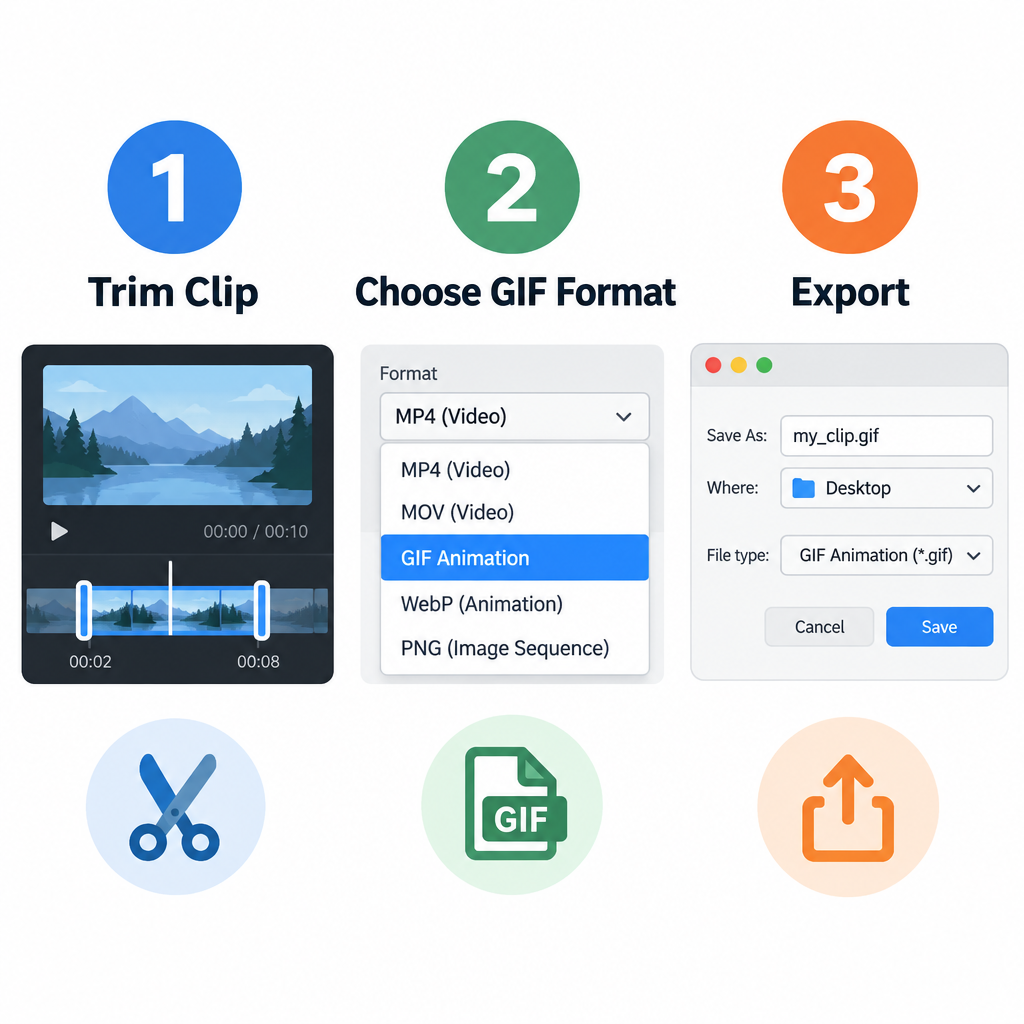
Once your clip is trimmed, you can turn it into an animated GIF. A Mac can do this for free.
Use Keynote (free)
Keynote, Apple’s presentation app, can export a slide as an animated GIF. It’s free on every Mac and sits in the Applications folder. If it’s missing, you can download it again from the Mac App Store.
- Open Keynote and create a new presentation with a plain theme.
- Delete any text boxes on the first slide, then drag your video onto it.
- To shorten the clip, select the video, click Format, open the Movie tab and use Edit Movie to set the start and end points. You can add text on top of the video if you like.
- Choose File > Export To > Animated GIF.
- Choose the slide range, resolution, frame rate and auto-advance timing, then click Next.
- Name the file, choose where to save it, and click Export.
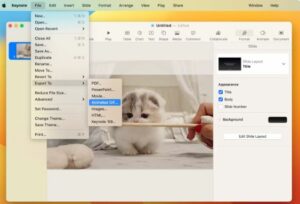
If your slide background is set to No Fill, Apple’s Keynote guide says you can also pick a transparent background for the GIF.
Use Permute (faster)
If Keynote feels like too many steps, Permute is a simpler choice. It’s a Mac media converter from Chaotic Software, and turning a video into a GIF takes a few clicks.
- Download Permute and open it.
- Click the “+” button, or drag the video you want to convert onto the window.
- Click the trim tool to pick the part of the video you want. Drag the handles at the start and end of the selection to set where the GIF begins and how long it runs.
- Pick GIF Animation from the format menu at the top of the window.
- Click the Start button to convert the video.
- Permute saves the GIF on your Mac, by default in the same folder as the original video.

That’s it. Permute converts quickly and handles a wide range of video formats.
How to make GIFs from videos on iPhone or iPad
iPhone and iPad can make GIFs for free with the built-in Shortcuts app. Apple’s Gallery in Shortcuts includes ready-made GIF shortcuts, so there’s nothing to build yourself.
To convert a video to an animated GIF on your iPhone or iPad:
- Open the Shortcuts app. It comes installed, and if you deleted it you can get it back from the App Store.
- Tap the Gallery tab and type “GIF” in the search bar.
- You’ll see shortcuts such as “Video to GIF” and “Make GIF”. Video to GIF converts videos. Make GIF builds a GIF from several photos or a Live Photo. Tap Add Shortcut on the one you want, and it appears under Shortcuts.
- Run Video to GIF, pick the video you want to convert, trim it if needed, then tap Done. You can then share the GIF or save it to Photos.

The clip needs to be at least a second long. Some users find the GIF quality from these shortcuts only average, so for sharper results, transfer the clip to a Mac and use Keynote or Permute.
Most quick phone tasks like this work in a similar way. Like the best document scanner apps, the Shortcuts app turns a camera file into something you can share in a couple of taps.
To move a GIF from your Mac to an Android phone, you can use an Android manager such as AnyDroid from iMobie. It lets you browse and manage the files on your Android device from your computer.

Make a GIF from a video online for free
Plenty of free web tools turn videos into GIFs. Two popular ones are GIFMaker and GIPHY. Depending on the tool, you can resize the GIF, add captions and change the animation speed.
GIPHY’s GIF Maker accepts uploaded files and video links, but you need a GIPHY account. Your GIF is also public and searchable on GIPHY unless you change that setting.
Privacy is the biggest drawback of free online tools, because you have to upload your video to someone else’s server. Don’t use them for private family clips or work footage. They also tend to offer fewer options than Mac apps, and big uploads can be slow.
The easiest way to convert video to GIF on a Mac
For most people, Permute is the easiest way to go from video to GIF on a Mac. It’s quick, reliable and handles almost any video format. Keynote is the best free option if you only make a GIF now and then.
To get a video from a site that allows downloads, Pulltube does the job quickly. To trim your own recordings, use Capto.
All three apps are part of Setapp, a subscription that now includes more than 270 apps for Mac, iPhone and iPad. Setapp offers a 7-day free trial, so you can try the apps before you pay. Prices vary by plan, so check Setapp’s pricing page for the current monthly rate.
FAQ
Can I convert a video to a GIF on a Mac without installing anything?
Yes. Keynote comes free on every Mac and can export any slide, including one with a video on it, through File > Export To > Animated GIF. You can trim the clip and add text before you export.
How do I turn a video into a GIF on iPhone?
Open the Shortcuts app, go to the Gallery tab, search for “GIF” and add the Video to GIF shortcut. Run it, choose a video, trim it and tap Done. You can then share the GIF or save it to Photos.
How long should a GIF be?
Most good GIFs last about 2 to 6 seconds, and GIPHY recommends keeping them to 6 seconds or less. GIF files get big fast, and many sites and messaging apps limit file size. A short clip that loops cleanly almost always looks better than a long one.
Is it legal to make a GIF from a YouTube video?
YouTube’s Terms of Service don’t allow downloading videos unless YouTube offers a download button or link, or you have the rights holder’s permission. Use your own videos or clips you are allowed to use. For anything else, sharing the original video link is the safer choice.
Are free online GIF makers safe to use?
The well-known ones are generally fine for public clips, but your video goes to their servers. GIPHY makes your GIFs public by default and requires an account. For private videos, convert on your own device with Keynote, Permute or Shortcuts.
Why does my GIF look grainy?
GIFs can only show 256 colours per frame, so smooth gradients and dark scenes look rough. Keep the clip short, lower the resolution a little and choose scenes with strong, simple colours for the cleanest result.
Sources
- Apple Keynote User Guide for Mac: Create an animated GIF
- Setapp: Pulltube
- Setapp: Capto
- Setapp: How to convert MP4 to GIF
- Setapp Support: Membership and trial