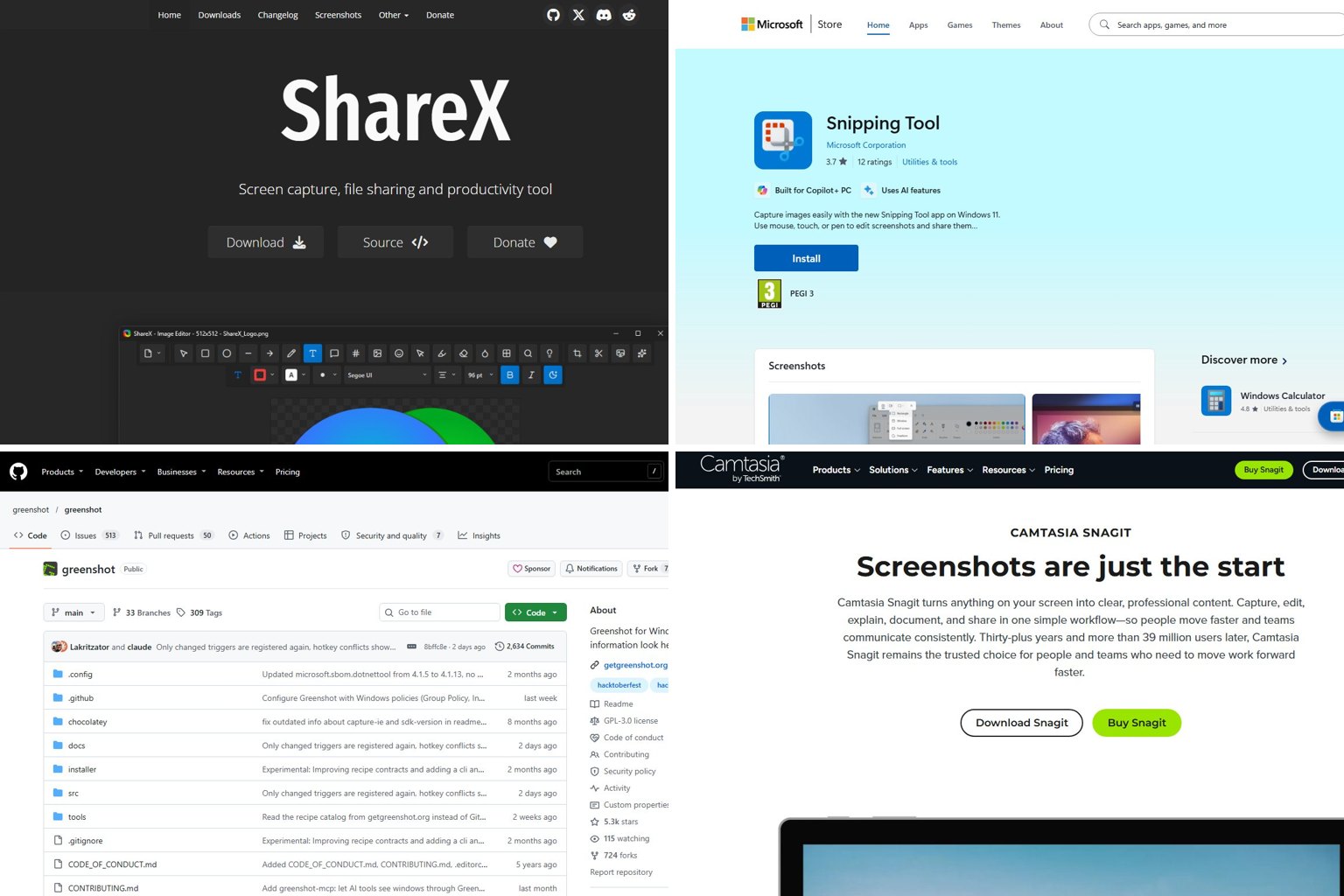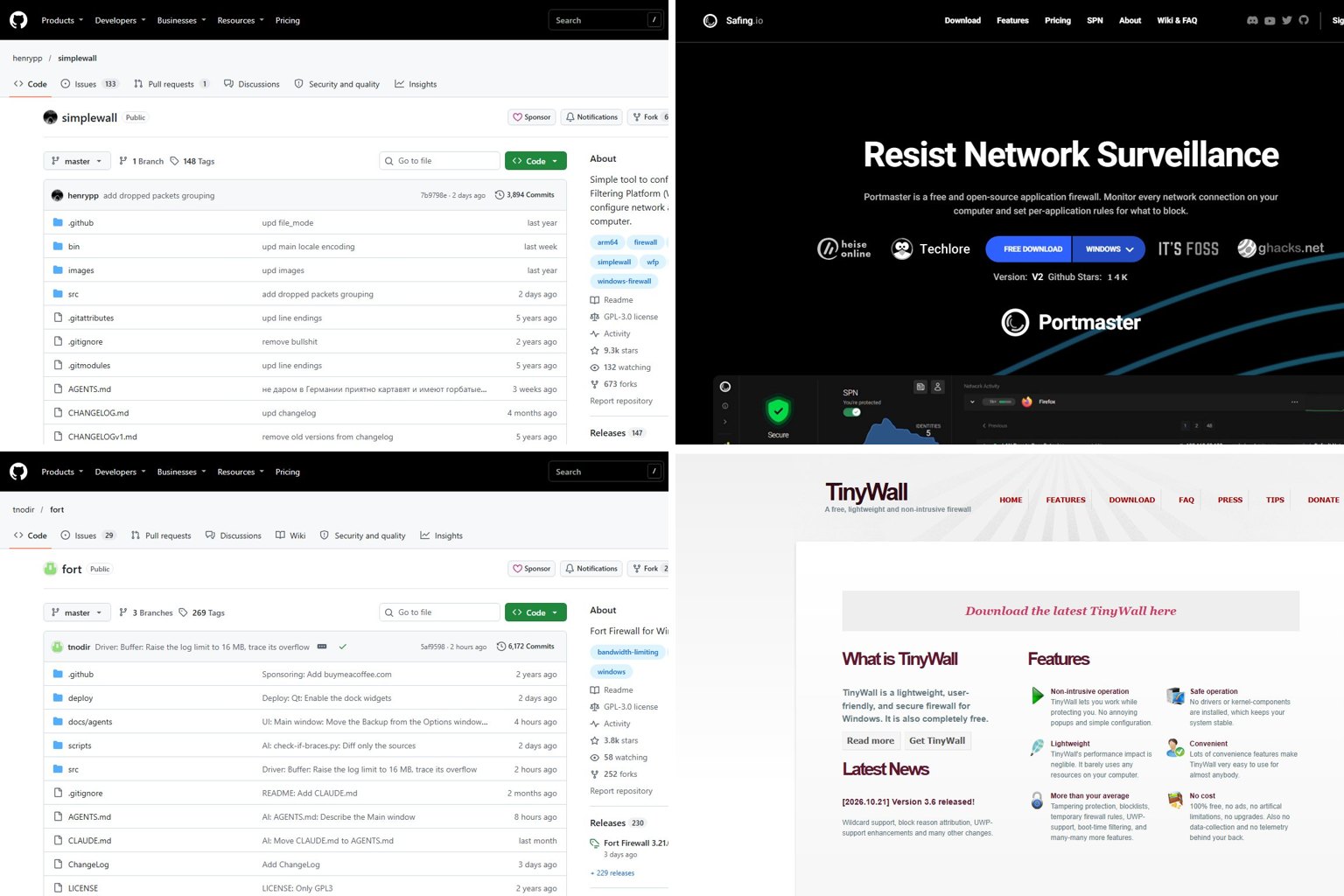
Little Snitch still has no Windows version. Objective Development brought it to Linux for free in April 2026, but Windows users are left out. On Windows, simplewall is the closest free match. Portmaster has the most polished connection monitor, and Malwarebytes Windows Firewall Control is the easiest to live with day to day. Versions, prices and platform support below were checked against each project’s release pages and documentation as of November 19, 2026.
Key takeaways
- Little Snitch runs on macOS and, since April 8, 2026, on Linux for free. There is no Windows version.
- simplewall is the closest free match. It gives per-app allow/deny prompts, it’s GPL-3.0 open source and it runs on ARM64.
- Portmaster’s core is free. Plus costs €40/year and Pro €80/year, and IVPN now owns Safing, the company behind it.
- Fort Firewall’s kernel driver needs Memory Integrity switched off. simplewall and TinyWall don’t.
- Allow Windows Update, Defender and DNS before you switch on filtering, and run only one firewall front-end at a time.
Fact-checked
We checked these key facts against the sources named, on November 19, 2026:
- IVPN’s Standard ($60) and Plus ($80) plans don’t include Portmaster Pro (source: ivpn.net)
- The listed plans are Personal at $35.88/year ($2.99/month billed yearly), Duo at $50.16/year and Family at $89.76/year (source: capterra.com)
- For Mac readers wondering how safe Little Snitch itself is: it comes from an established Vienna developer and has been on sale for more than 20 years (source: obdev.at)
Quick answer: the best Little Snitch alternatives for Windows in 2026
For Mac-style prompts at no cost, install simplewall. For a clear view of every connection plus per-domain rules, install Portmaster. For a PC that belongs to someone who isn’t technical, use Malwarebytes Windows Firewall Control.
The other six each do one job well:
- Fort Firewall: open source, with app groups, per-group speed limits and an ARM64 build.
- TinyWall: a whitelist firewall that never shows a pop-up.
- Minimal Firewall: a newer open source front-end that prompts you and saves your answers as native Windows Firewall rules.
- GlassWire: monitoring first, with traffic graphs that are easy to read. Blocking is a paid feature.
- NetLimiter 5: bandwidth limits plus a connection blocker, sold as a subscription.
- Windows Defender Firewall with Advanced Security: built in and free. You write the rules by hand and it never asks you anything.
The ranking weighs four things, in this order:
- How closely the tool copies what Little Snitch does: outbound prompts plus a live monitor.
- Whether it’s still maintained in 2026.
- Price.
- How safe it is to install and remove, including whether it needs a kernel driver.
Is there a Little Snitch for Windows?
No. Objective Development, the Vienna developer behind Little Snitch, describes it as a firewall for macOS, and no Windows version has been released. Any download calling itself “Little Snitch for Windows” is fake. Don’t install it.
On the Mac, Little Snitch alerts you the first time an app tries to make an outgoing connection. You can allow or deny it once, until the app quits, or forever. Silent Mode turns the alerts off and logs connections so you can decide later. The Network Monitor draws a live map of every server your Mac talks to. On Windows, look for the same three things: per-app outbound prompts, a quiet mode and a live connection list.
| Platform | Available? | Price | Notes |
|---|---|---|---|
| macOS | Yes | €59 (Little Snitch); Little Snitch Mini $1.49/month or $13.49/year | Little Snitch 6 is current. The Mac page says “Little Snitch 7 is coming soon!” and offers a public beta |
| Linux | Yes, since April 8, 2026 | Free | Current release 1.1.1 (October 26, 2026), plus 1.1.2 Prerelease 1. Needs kernel 6.12+ with BTF |
| Windows | No | None | Use simplewall, Portmaster or Windows Firewall Control instead |
Little Snitch for Linux: what it means (and doesn’t) for Windows users
Little Snitch for Linux hooks into the kernel with eBPF and runs its interface in a web browser. Objective Development put the eBPF program and the web UI on GitHub under GPLv2. The background daemon is proprietary but free to use. The developer calls the Linux version “not a security tool” and describes it as a privacy aid, which is a narrower claim than it makes for the Mac version. Help Net Security covered the 1.0 release, which came out on April 8, 2026.
None of this carries over to Windows. eBPF is a Linux kernel feature. Windows has its own filtering layer, the Windows Filtering Platform (WFP), and every serious Windows firewall in this list is built on it. If you use both systems, you can run the real Little Snitch on your Linux machine and keep a WFP tool on your Windows PC. OpenSnitch is still the established open source option on Linux.
Did you know?
According to Objective Development’s Mac product page, the Little Snitch demo runs for three hours at a time and can be restarted as often as you like. Only the Network Monitor stops working, after 30 days.
Why Windows Defender Firewall doesn’t ask you about outgoing connections
Out of the box, Windows Defender Firewall blocks unsolicited incoming connections and allows all outgoing ones. Microsoft set it up that way so apps and updates keep working without fuss. It’s why you see a “Windows Security Alert” when a program wants to listen for incoming traffic, but never when a program connects out.
Every tool below fills that gap in one of two ways. Some add their own WFP filters (simplewall, Fort, TinyWall, Portmaster). Others switch Windows Defender Firewall to block outbound traffic by default and then manage the exceptions for you (Windows Firewall Control, Minimal Firewall).
Comparison table: every Windows option at a glance
The tools fall into three groups. Prompt firewalls ask you about each new app, whitelist firewalls block quietly, and monitors show you traffic first. Pick the group before you pick the app.
| Tool | Price | Open source | Prompts on new connections | Live connection monitor | Per-domain/IP rules | Latest version (date) | Best for |
|---|---|---|---|---|---|---|---|
| simplewall | Free | Yes (GPL-3.0) | Yes | Log and notifications | IP and port | 3.8.7 stable; 3.9.1 pre-release (Jul 22, 2026) | Mac-style prompts for free |
| Safing Portmaster | Free core; Plus €40/yr; Pro €80/yr or €8/mo | Yes | Yes (optional) | Yes, detailed | Domains and IPs | 2.2.9 (Nov 11, 2026) | Seeing everything, per-domain rules |
| Malwarebytes Windows Firewall Control | Free; also built into the free Malwarebytes app | No | Yes | Connections log | IP and port | 6.40.0.0 (Nov 15, 2026) | Beginners and family PCs |
| Fort Firewall | Free | Yes | Yes | Yes, with traffic stats | IP zones and ports | 3.21.0 (Nov 17, 2026) | App groups and speed limits |
| TinyWall | Free | Yes | No, by design | Connections window | Basic | 3.6.1 | Blocking without nagging |
| Minimal Firewall | Free | Yes | Yes | Rule audit | Domains (since 2.8.4), IP via Windows Firewall rules | 2.8.6 (latest on GitHub) | Native rules, no custom driver |
| GlassWire | Free tier; Personal $35.88/yr | No | Paid plans | Yes, graphical | Per app | not published | Watching traffic visually |
| NetLimiter 5 | 1- or 2-year subscription, one device | No | Yes (Pro) | Yes | Per app and connection | 5.3.28.0 | Capping bandwidth |
| Windows Defender Firewall | Built in | No | No (outbound) | No (logging only) | IP, port, program | Ships with Windows 10/11 | Blocking one app, no install |
Compatibility: Windows versions, ARM64 and kernel drivers
simplewall, Fort Firewall and TinyWall all ship ARM64 builds, so they run natively on Snapdragon-based Windows 11 PCs. Malwarebytes’ user guide for Windows Firewall Control lists only x86 and x64 builds. Portmaster and Fort install kernel drivers. The others work through WFP or the built-in firewall.
| Tool | Minimum Windows / requirement | ARM64 (Snapdragon PCs) | Kernel driver |
|---|---|---|---|
| simplewall | Windows 7 to 11 (Windows 7 needs an extra KB update) | Yes | No, WFP filters only |
| Portmaster | Not stated by developer | Not stated by developer; the Windows driver ships as an x64 build | Yes |
| Windows Firewall Control | .NET Framework 4.8 or newer | No ARM64 build listed | No, manages Windows Defender Firewall |
| Fort Firewall | Windows 7 SP1 (x86 installer, needs KB4474419); ARM64 build needs Windows 10 2004+ or Windows 11 | Yes | Yes; Memory Integrity must be off |
| TinyWall | Windows 10 and 11 | Yes, added in 3.6.1 | No |
| Minimal Firewall | .NET 8 | Not stated by developer | No, native Windows Firewall rules |
| GlassWire | Not stated by developer | Not stated by developer | Not stated by developer |
| NetLimiter 5 | Not stated by developer | Not stated by developer | Not stated by developer |
| Windows Defender Firewall | Built into Windows 10 and 11 | Yes | Part of Windows |
Kernel drivers make the biggest practical difference. A tool that only writes WFP filters or Windows Firewall rules is easy to remove and rarely breaks after an update. A driver-based tool reaches deeper, so a bad build or a Windows change hits harder.
Recheck your firewall after every feature update
After a major Windows feature update, such as the move to Windows 11 25H2, open your firewall tool. Confirm that filtering is still on and that your rules survived before you trust it again.
The best free Little Snitch alternatives for Windows
Five free tools cover nearly everything a Little Snitch user wants. simplewall and Portmaster get the most space here. The other three only make sense if you have a specific need.
simplewall: free, open source, closest to Little Snitch prompts
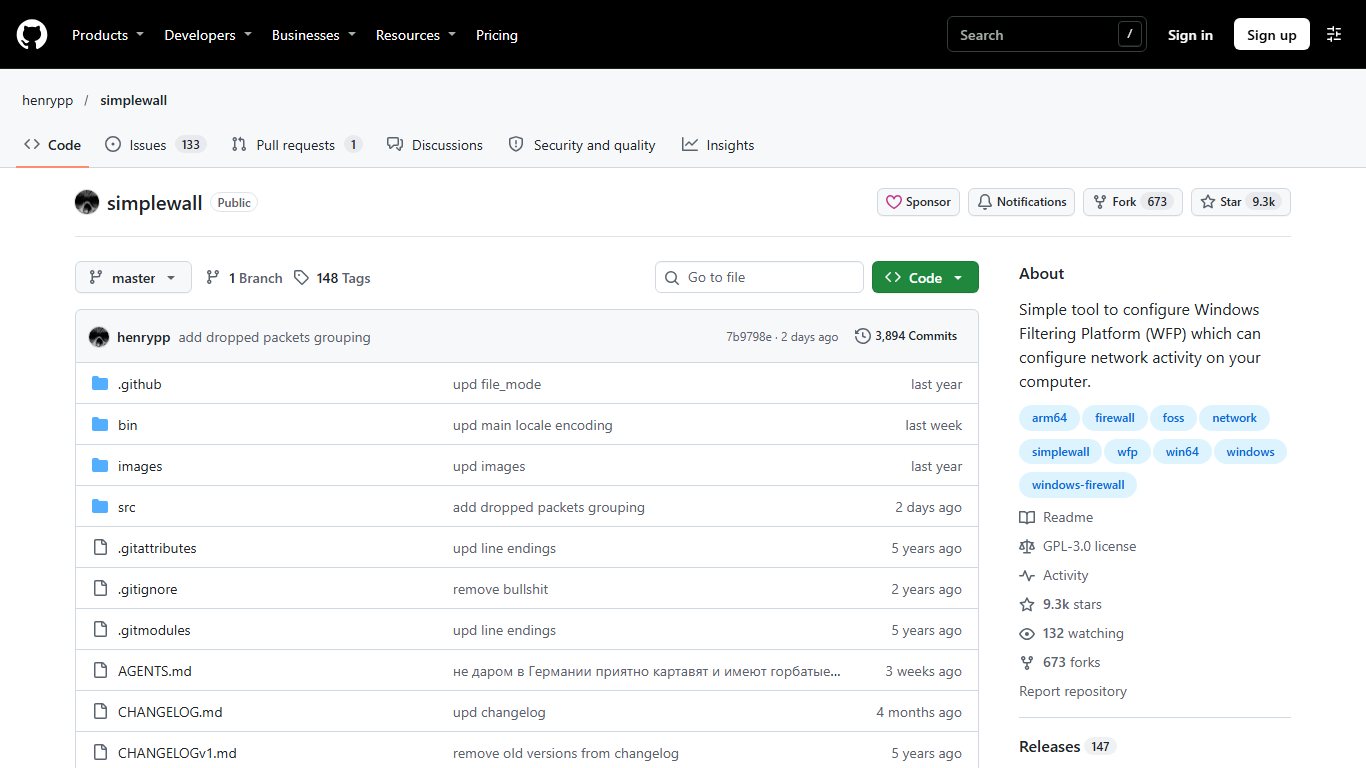
simplewall comes from the developer Henry++ (henrypp on GitHub). It’s a small program that writes filters straight into the Windows Filtering Platform and doesn’t install a driver. Once filtering is on, every app without a rule is blocked. A notification pops up with Allow and Block buttons, which is the Little Snitch workflow on Windows.
What stands out:
- Separate tabs for apps, Windows services and UWP (Store) packages. You can allow the Windows Update service by itself instead of every svchost.exe.
- Timed rules. You can allow an app for a fixed period, after which it’s blocked again.
- Runs on ARM64. The project README lists Windows 7 through 11 on 64-bit and ARM64 systems.
- GPL-3.0 code with about 8,500 GitHub stars, according to PrivacyTools. Anyone can read the source.
Limitations: rules match IP addresses and ports, not domain names. You can’t allow update.example.com while blocking the same vendor’s ad server. The interface also looks like a 2010 utility.
The version you install matters. The latest stable release is 3.8.7, a maintenance update with crash and locale fixes. The 3.9 pre-release on July 21, 2026 raised the rule limit and fixed loopback filtering. It also introduced a bug where svchost.exe raised a notification every ten seconds. The 3.9.1 pre-release on July 22 fixed that and the IGMP alert loops, and it added traffic statistics plus an option to suppress inbound alerts from Windows’ own WFP filters. Both pre-releases are listed on the project’s GitHub releases page.
Who it’s for: anyone who used Little Snitch’s alert mode and wants the same thing for free on Windows 10 or 11, including Snapdragon laptops.
Portmaster: free core with a beautiful connection monitor
Portmaster comes from Safing and looks more like the Mac app than anything else here. Its main window shows every app and every domain it contacts, live. You can block a whole app or a single domain. Prompts are optional, so you can start in monitor mode, watch for a week and only then begin blocking. Plenty of Mac users already work this way.
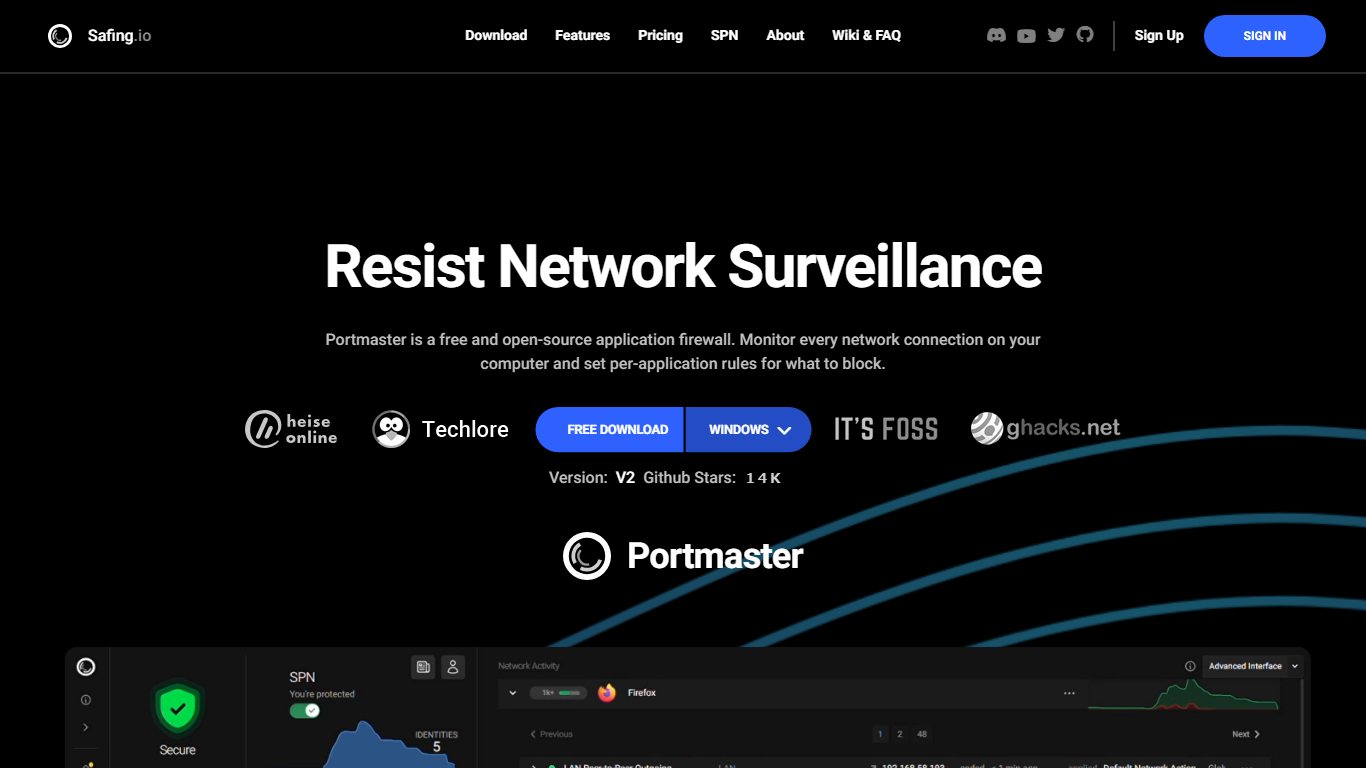
Portmaster v2 became the stable line on July 23, 2025. The 2.1.19 update in May 2026 fixed an unquoted service path weakness (CWE-428) in the PortmasterCore service. The newest release on GitHub is 2.2.9, dated November 11, 2026.
Pricing as of November 2026:
| Tier | Price | What you add |
|---|---|---|
| Free | €0 | Firewall, connection monitor, DNS filtering, per-app and per-domain rules |
| Plus | €40/year (annual only) | Supporter extras such as longer history |
| Pro | €8/month or €80/year | Adds the Safing Privacy Network (SPN), a multi-hop privacy network |
| IVPN Pro Suite | $100/year | Includes Portmaster Pro for Windows and Linux |
Pro used to cost €99/year. Safing’s blog announced the cut to €80 starting February 24, 2026. Ownership has changed too. IVPN announced that it acquired Safing, and Portmaster and the SPN are now developed under IVPN. IVPN’s Standard ($60) and Plus ($80) plans don’t include Portmaster Pro. Only the Pro Suite does.
Limitations:
- DNS takeover. Portmaster handles DNS on your PC, so it can clash with VPN clients and other DNS tools such as NextDNS apps.
- Kernel driver. It installs one, unlike simplewall.
- ARM64 unclear. The developer doesn’t state ARM64 support, and the Windows driver release is built for x64. On a Snapdragon PC, simplewall or Fort is the safer choice.
Malwarebytes Windows Firewall Control: friendly front-end for the built-in firewall
Windows Firewall Control (WFC) began at BiniSoft and now belongs to Malwarebytes. It doesn’t filter anything itself. It switches Windows Defender Firewall to block outgoing traffic and shows a clear prompt when an unknown program tries to connect. It has four filtering profiles: High, Medium, Low and No Filtering. Most people should use Medium.
It’s actively maintained. MajorGeeks lists v6.38.0.0 on October 29, 2026 and v6.40.0.0 on November 15, 2026. WFC’s firewall controls are also built into the Malwarebytes for Windows app, including the free version, since September 4, 2025. Support now runs through the Malwarebytes help site. The Malwarebytes user guide lists x86 and x64 builds and requires .NET Framework 4.8 or newer.
WFC’s rules are native Windows Firewall rules, so uninstalling it leaves Windows in a normal state. That makes it the safest pick for a parent’s laptop. There are two catches:
- If your antivirus suite replaces Windows Defender Firewall with its own firewall, WFC has nothing to manage.
- There’s no ARM64 build listed for Snapdragon PCs.
Fort Firewall: open source with app groups and speed limits
Fort Firewall uses its own WFP kernel driver and sorts apps into groups. Each group can be allowed, blocked or speed-limited, which puts Fort somewhere between simplewall and NetLimiter. It can ask you about new connections, tracks traffic per app, and blocks IP ranges that you load as “zones”.
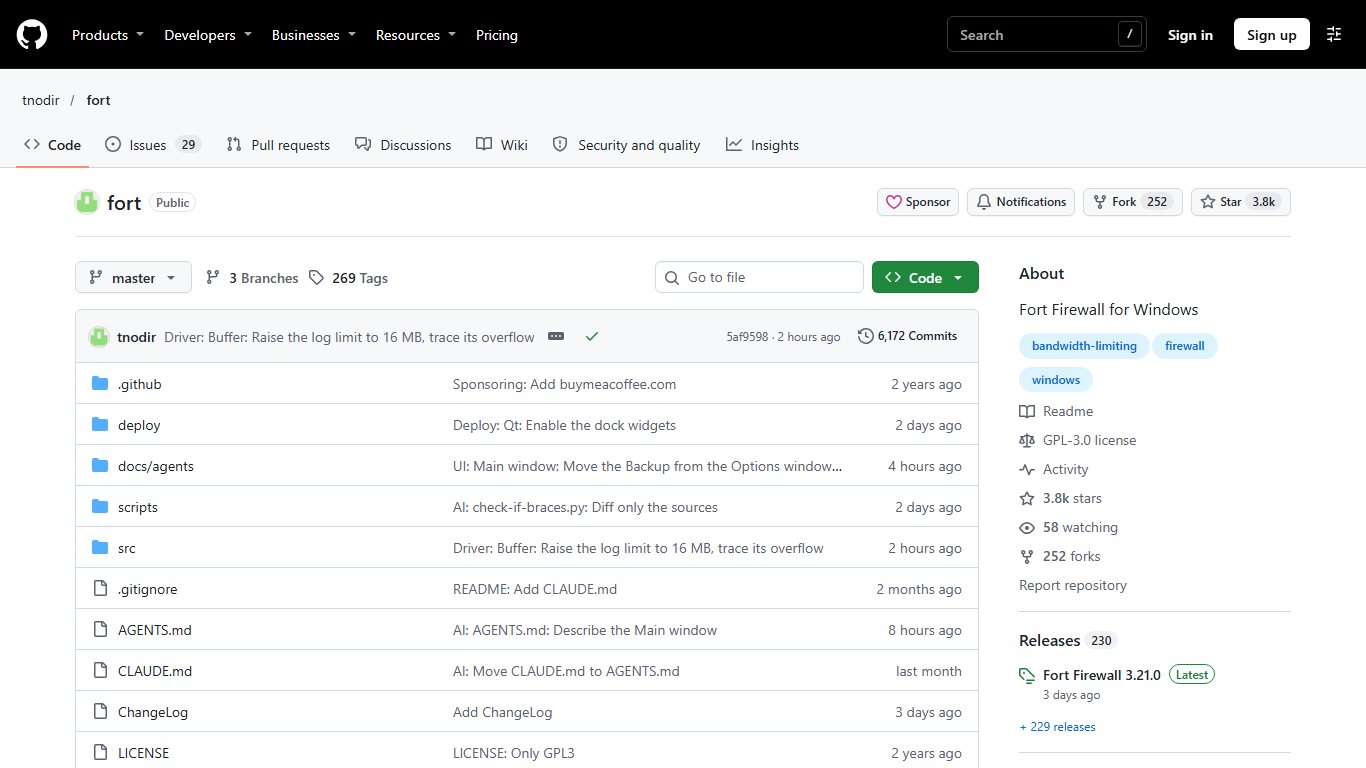
Fort is updated often. Version 3.20.0 added nested groups, per-program speed limits and time schedules. 3.20.3 fixed a 3.20.0 bug that left traffic statistics blank, according to Warp2Search. 3.20.4 added an ARM64 build and a style-sheet option. The newest release on the project’s GitHub page is 3.21.0, dated November 17, 2026, which adds a DNS forwarder and hosts-file block zones. The official user guide lists three installers:
- x86: for Windows 7 SP1 through 11. Windows 7 also needs update KB4474419 for SHA-2 driver signatures.
- x64: for 64-bit Windows.
- ARM64: for Windows 10 version 2004 or later and Windows 11 on ARM.
The x64 and ARM64 installers don’t check for the Visual C++ redistributable, so install the matching one first.
The big trade-off: on Windows 10 and later, Fort’s driver won’t load while Core Isolation’s Memory Integrity (HVCI) is on. Memory Integrity blocks malicious drivers from loading into the kernel, and turning it off weakens a real Windows defence. If Memory Integrity is on and you want to keep it that way, choose simplewall or TinyWall. Because Fort runs a kernel driver, a bad update hurts more than a simplewall glitch, so read the release notes before you update.
TinyWall: whitelist firewall with no pop-ups
TinyWall works the opposite way to Little Snitch: nothing pops up, and unknown apps are blocked silently. You allow a program by picking its window or process, or with a hotkey, and you can allow it for a limited time. It doesn’t install a kernel driver. Neowin lists 3.6.1 as the current version, and the project changelog credits that release with support for Windows on ARM devices.
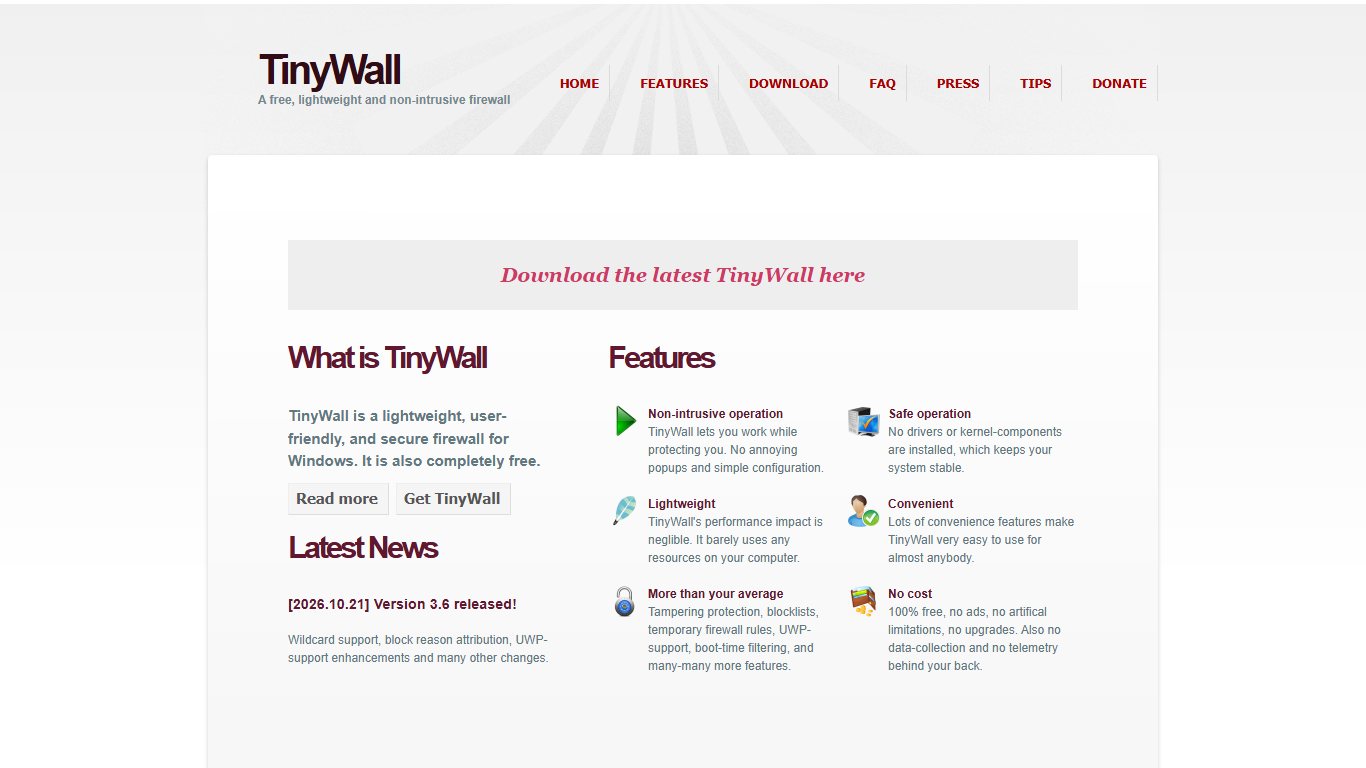
If Little Snitch’s constant interruptions drove you mad, TinyWall is the cure. If you want to learn what’s talking, it shows you very little.
Minimal Firewall: a newer open source option
Minimal Firewall is a C# program built on .NET 8. It prompts when an app tries to connect and saves your answers as normal Windows Firewall rules. Lockdown Mode blocks every outbound connection that doesn’t have an explicit Allow rule. An audit view flags new rules that other programs add behind your back. Version 2.8.4 added domain blocking and fixed temporary rules that didn’t persist. The latest release on GitHub is 2.8.6. You can install it with winget (Deminimis.MinimalFirewall).
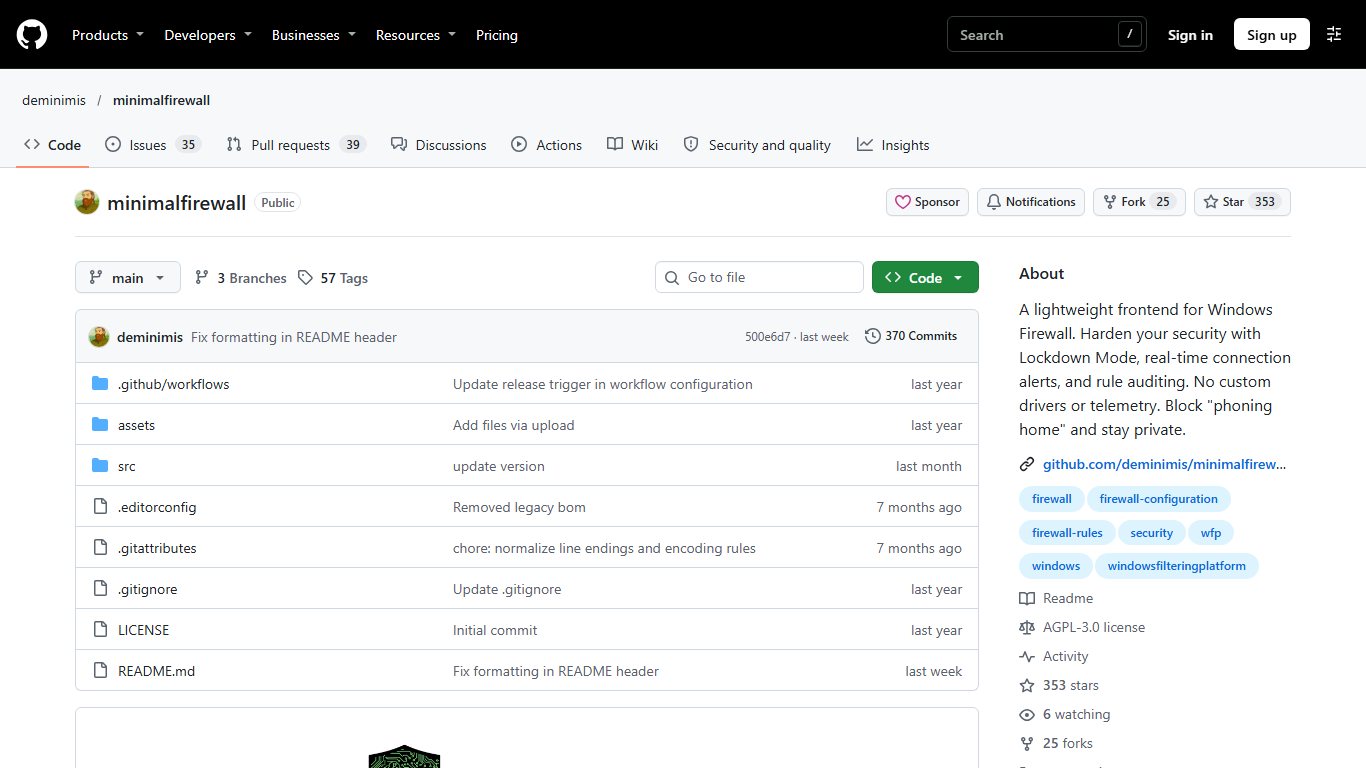
It’s younger and less proven than WFC. It’s still worth a look if you want open source code and no custom driver.
Did you know?
According to Minimal Firewall’s GitHub release notes, version 2.8.0 disabled all of Windows’ built-in firewall rules by default. Version 2.8.1 fixed it, and the notes point affected users to the “Revert Windows Firewall” option in settings.
Download only from the official source
Get simplewall from github.com/henrypp/simplewall, Fort from github.com/tnodir/fort, Minimal Firewall from github.com/deminimis/minimalfirewall and Portmaster from safing.io. Clone download sites often wrap firewall tools in installers stuffed with junkware.
Paid options: GlassWire and NetLimiter
You only need to pay for polished traffic graphs (GlassWire) or per-app bandwidth caps (NetLimiter). For Little Snitch-style allow and deny, the free tools above match or beat both.
GlassWire
GlassWire is a monitor first. It draws a live graph of your traffic, labels spikes by app and alerts you when something new starts using the network. The free tier keeps only a short history, about a day of bandwidth usage and alert logs.

Blocking is where the free tier falls short. “GlassWire is not free for the most important part: blocking,” one Hacker News commenter wrote in a March 2023 discussion. That comment is more than three years old, but 2026 user reviews on Software Advice still say that blocking an app now needs an upgrade. On a free install, check the Firewall tab before you rely on it.
The listed plans are Personal at $35.88/year ($2.99/month billed yearly), Duo at $50.16/year and Family at $89.76/year. GlassWire is worth paying for if graphs make sense to you and you want alerts across several PCs. If blocking is all you want, skip it.
NetLimiter 5 Pro vs. Lite
NetLimiter, from Locktime Software, does one thing better than anything else here: it limits download and upload speed per app. That helps when a game launcher or cloud backup hogs your connection. The current build is 5.3.28.0.
| Edition | What you get |
|---|---|
| Lite | Monitoring and per-app speed limits |
| Pro | Everything in Lite, plus a firewall-style connection blocker, filtering and remote administration |
NetLimiter 5 is sold as a one- or two-year subscription. The standard licence covers one device at a time and can be moved to another device. When the subscription lapses, the app drops into Restricted Mode. Real-time monitoring and your existing rules keep working, but you can’t create new rules and statistics stop. NetLimiter 4 licences ran in version 5 for two years from purchase. If you only need speed limits, try Fort first: its per-group limits are free.
Which one should you pick?
Pick by the job you want done, not by a ranking. This table matches the usual reasons people look for a Little Snitch alternative on Windows with one tool each.
| What you want | Pick | Why |
|---|---|---|
| Pop-ups like on my Mac | simplewall | Per-app allow/block prompts, free, no driver |
| To see what’s talking before blocking anything | Portmaster | Live list of apps and domains; prompts are optional |
| A firewall on a Snapdragon (ARM64) laptop | simplewall | Native ARM64 build, no driver; Fort or TinyWall also work |
| To block one app, nothing more | Windows Defender Firewall | Built in; one outbound rule does it |
| To cap bandwidth per app | NetLimiter 5 | Per-app speed limits; Fort for a free option |
| A firewall for a parent’s PC | Windows Firewall Control | Clear prompts, native rules, clean uninstall |
| No interruptions at all | TinyWall | Silent whitelist, timed allows |
| Pretty graphs and alerts | GlassWire | Best visual monitor; blocking costs money |
simplewall vs Portmaster vs Fort Firewall: which is closest to Little Snitch? simplewall’s prompts feel most like Little Snitch. Portmaster’s connection view and per-domain rules feel more like the Network Monitor. Fort is the power-user choice, with groups and speed limits, but you pay for it by giving up Memory Integrity. If you mostly lived in Little Snitch’s alert window, choose simplewall. If you lived in the map view, choose Portmaster. Portmaster is also the nearest thing to an open source Little Snitch for Windows, the role OpenSnitch fills on Linux and Objective-See’s LuLu fills on the Mac.
The honest counter-argument: many people don’t need a prompt firewall at all. Expect weeks of decisions. Antivirus and Windows’ own protections already stop most malware, and blocking outbound traffic mainly serves privacy. If all you want is to stop one game from updating, one Windows Firewall rule does the job.
Setting up simplewall without breaking your internet (step by step)
The classic simplewall mistake is turning on filtering before you’ve allowed anything. Your browser stops loading pages and Windows Update quietly stops working. Follow the steps in this order.
Before you start
Create a restore point first: Start > type “Create a restore point” > Create. That gives you a way back if a rule locks you out.
Fix it
- Download the latest release from github.com/henrypp/simplewall and install it, or use the portable ZIP.
- Open simplewall. Leave filtering off for now.
- On the Apps tab, add your browser and allow it.
- On the Services tab, allow Windows Update (wuauserv), Background Intelligent Transfer Service (BITS) and DNS Client (Dnscache).
- Allow Microsoft Defender’s engine, MsMpEng.exe, so signature updates keep arriving.
- Click Enable filters and pick the whitelist mode (block everything not allowed).
- Respond to the prompts as they arrive for a few days.
What to allow on day one
Start with what keeps your PC safe and online: your browser, the DNS Client, Windows Update, BITS, Defender and, if you use one, your VPN client. Next, add the apps you use every day, such as email, Microsoft Teams or Zoom, cloud storage and your password manager. Leave everything else blocked and let the prompts show you what’s left.
The first week is busy. Game launchers, printer utilities, Office, OneDrive and Store apps will all ask for access. That’s normal, and the prompts die down once your common apps have rules.
Use timed allows for installers
For installers and game launchers, use a timed allow instead of a permanent rule. Right-click the app in simplewall and pick a period. The app gets through while it installs, then can’t call home later.
Taming svchost.exe and widgets.exe prompts
svchost.exe is the host process for dozens of Windows services. On PCs with more than 3.5 GB of RAM, Windows 10 and 11 run many of those services in separate svchost.exe processes, so one program name covers many jobs. WFP can tell the services apart by their service SID, which is why simplewall has a Services tab. Allow individual services there instead of allowing svchost.exe as a whole.
If you’re on 3.9 and getting svchost notification spam, update to the 3.9.1 pre-release. The ten-second notification loop came from the 3.9 build. If you’re on 3.8.7 and never installed 3.9, you don’t have that bug.
Widgets cause a different kind of repeat prompt. “widgets.exe seems to get a new hash often and I constantly get prompts for it,” a commenter wrote in the same March 2023 Hacker News discussion. The cause hasn’t changed since then. Windows 11 Store-delivered parts such as Widgets live in versioned folders under C:\Program Files\WindowsApps, and every update changes the path. Make the rule on simplewall’s UWP packages tab instead. If you never use Widgets, turn them off at Settings > Personalization > Taskbar > Widgets.
How to undo everything if the internet stops working
simplewall’s filters stay active after you close its window. To get back online:
- Open simplewall and click Disable filters. Its WFP filters are removed and traffic flows again.
- If you already uninstalled it and you’re still offline, reinstall it from GitHub and click Disable filters again.
- If a different tool changed Windows Defender Firewall’s settings, go to Windows Security > Firewall & network protection > Restore firewalls to default. You can also run
netsh advfirewall resetin an elevated Terminal. - If you’re still offline, use the restore point you made before installing.
No-install option: block an app in Windows Defender Firewall
You can block one program’s outgoing traffic without installing anything, using Windows Defender Firewall with Advanced Security. It works well for a single app, but you get no prompts and no live monitor.
Fix it
- Press Win + R, type wf.msc and press Enter.
- Click Outbound Rules in the left pane, then New Rule in the right pane.
- Choose Program, click Next, and browse to the app’s .exe file.
- Choose Block the connection and click Next.
- Leave Domain, Private and Public ticked, then click Next.
- Name the rule (for example “Block GameLauncher”) and click Finish.
The rule takes effect immediately. To undo it, right-click the rule and choose Disable Rule or Delete. You can also turn the whole firewall into an outbound whitelist: open Windows Defender Firewall Properties and set Outbound connections to Block for each profile. After that you’d have to create an allow rule for every app by hand. That manual work is exactly what WFC and Minimal Firewall automate.
What you’ll discover when you start watching
Expect a lot of traffic, most of it from Windows itself. “I’m kind of scared to learn exactly how chatty Windows would be,” one Hacker News commenter wrote in that March 2023 discussion. The worry holds up. A fresh Windows 11 PC contacts Microsoft for updates, Defender signatures, time sync, Store apps, Widgets, Bing results in Start menu search and telemetry, and every app you add brings its own connections.
What you’ll typically see, and what happens if you block it:
| What you’ll see | Why it connects | Safe to block? |
|---|---|---|
| Windows Update, Defender (MsMpEng.exe) | Security patches, signatures | No. Keep these allowed |
| DNS Client, time sync | Name lookups, clock | No. Breaks browsing and sign-ins |
| widgets.exe, Start menu search | News feed, web results | Yes, mostly cosmetic |
| NVIDIA app, AMD Software: Adrenalin Edition | Driver update checks, telemetry | Yes, but you’ll miss driver alerts |
| Logitech G HUB, Logi Options+ | Updates, firmware, cloud profiles | Partly. Profiles and firmware may stop syncing |
| Game launchers | Updates, DRM, friends lists | Some games won’t start offline |
| Installers and free utilities | Downloads, ad offers, analytics | Yes, after installation finishes |
Vendor utilities often surprise people. A common complaint in user discussions is that Logitech’s software keeps four separate processes running in the background, and each one talks to its own set of servers. Vendors split the work into an agent, an updater and a UI, and each shows up in your firewall separately. Block the updater, keep the agent, and test whether your mouse buttons still work. The same approach shows whether a freeware installer keeps phoning home after setup has finished.
Watch first, block later
Spend the first few days in Portmaster’s or GlassWire’s monitor view without blocking anything. Once you know who talks, your rules will be fewer and much better.
Safety and conflicts
Run only one firewall front-end at a time. simplewall, Fort, TinyWall, Portmaster and WFC all add rules or filters to the Windows Filtering Platform. With two installed, a connection can be blocked by the tool you’re not looking at, and that’s very hard to trace. Uninstall one completely before you try the next.
Other software needs care too:
- Malwarebytes for Windows, free or paid: already includes Firewall Control. Don’t add simplewall or Fort on top.
- Antivirus suites with their own firewall (Norton, Bitdefender, ESET, Kaspersky): the suite’s firewall replaces Windows Defender Firewall. WFC and Minimal Firewall then have nothing to manage, and WFP tools may clash with the suite’s own filtering.
- VPN clients: their kill switches also use WFP. Allow the VPN app and its service first. Next to a third-party VPN, Portmaster’s DNS handling and SPN need extra setup.
- Memory Integrity: Fort’s driver won’t load while it’s on. Don’t switch off a Windows security feature just to try a firewall when simplewall and TinyWall work without that compromise.
Are these tools safe? The open source ones (simplewall, Fort, TinyWall, Portmaster, Minimal Firewall) publish their code, and WFC has a large company behind it. The real risks are fake download sites and the deep system access any firewall front-end gets. Treat it like antivirus: one trusted product, from the official site, kept up to date. Never use cracked copies of paid tools. A cracked network filter is an ideal hiding place for malware.
For Mac readers wondering how safe Little Snitch itself is: it comes from an established Vienna developer and has been on sale for more than 20 years. On current macOS it runs as a system network extension approved through Apple’s framework. It’s a trusted product. Download it only from obdev.at or, for Little Snitch Mini, from the Mac App Store.
For packet-level detail beyond what any of these tools show, Wireshark captures raw traffic. It’s a diagnostic tool, not a firewall.
FAQ
Is there a Little Snitch for Windows?
No. Objective Development makes Little Snitch as a network-monitoring application for macOS (€59). There’s no Windows version. simplewall and Portmaster are the closest substitutes.
What is the best free alternative to Little Snitch on Windows?
simplewall, if you want per-app prompts. Portmaster, if you want a live view of connections with per-domain rules. Both are free and open source.
Which Little Snitch alternatives work on Windows 11 on ARM?
simplewall, Fort Firewall and TinyWall all offer ARM64 builds. Fort’s ARM64 installer needs Windows 10 version 2004 or later, or Windows 11. Windows Defender Firewall works on every ARM PC because it’s part of Windows. Malwarebytes’ guide lists only x86 and x64 builds of Windows Firewall Control, and Safing doesn’t state ARM64 support for Portmaster.
Is simplewall safe?
Yes, as long as you download it from github.com/henrypp/simplewall. It’s GPL-3.0 open source, has no kernel driver and uses Windows’ own filtering platform. The main risk is locking yourself out, and the Disable filters button undoes that.
Why does Fort Firewall need Memory Integrity turned off?
Fort runs its own kernel driver. Its documentation says the driver won’t load on Windows 10 and later while Core Isolation’s Memory Integrity (HVCI) is on. Memory Integrity protects against malicious drivers, so if you’d rather keep it on, use simplewall or TinyWall.
Is Portmaster free?
The core firewall and monitor are free. Plus costs €40/year. Pro costs €80/year or €8/month and adds the Safing Privacy Network. IVPN’s $100/year Pro Suite includes Pro.
Is GlassWire free and can it block apps?
There’s a free tier for monitoring with a short history. User reviews in 2026 report that blocking apps needs a paid plan. Personal costs $35.88/year.
Can Windows Defender Firewall block outgoing connections?
Yes. In wf.msc, create an Outbound Rule for the program and choose Block the connection. It never prompts you, so you need to know which app to block.
How do I see which apps are connecting to the internet on Windows 11?
Install Portmaster or GlassWire for a live list. Without installing anything, open Resource Monitor (resmon, then the Network tab) to see active TCP connections per process. In Terminal, running netstat -b from an admin prompt lists connections with program names.
Do I need to redo my firewall rules after a Windows feature update?
Usually not. Still, open the tool after each major feature update and check that filtering is still on and your rules are intact. Tools that write native Windows Firewall rules (WFC, Minimal Firewall) tend to come through cleanly. Driver-based tools such as Fort and Portmaster deserve a closer look, plus a check for an updated release.
Is Little Snitch available for Linux?
Yes. Little Snitch for Linux 1.0 came out free on April 8, 2026 and needs kernel 6.12 or later with BTF. Version 1.0.2 followed on April 15, the current release is 1.1.1 from October 26, 2026, and a 1.1.2 prerelease came out the same day.
How safe is Little Snitch?
On the Mac, it’s a mature, trusted product with more than 20 years of releases. Its own developer describes the Linux version as a privacy aid, not a security tool.
Is there a free equivalent of the Little Snitch app?
On Windows: simplewall, Portmaster’s free tier, Windows Firewall Control, Fort Firewall, TinyWall and Minimal Firewall. On the Mac: LuLu. On Linux: Little Snitch for Linux itself, or OpenSnitch.
Before you install anything
Decide whether you want prompts, a monitor or speed limits, and install just one tool. Check two things on your PC first. Is it an ARM64 Snapdragon machine? Is Memory Integrity on? Those two answers rule out several options straight away. If you still can’t decide, run Portmaster’s free monitor for a week (or simplewall on ARM) to see which apps talk, then keep it and start blocking. Whichever tool you choose, allow Windows Update, Defender and DNS before you enable filtering.