Forms automation software does its work after someone clicks Submit. It sends the email, adds the spreadsheet row, fills the PDF, collects the signature or starts the approval, so nobody has to retype anything. If you already pay for Microsoft 365 or Google Workspace, you probably own a setup that can do most of this already. This guide covers when that’s enough, when a paid tool is worth it, which tool fits each common workflow, and how to build your first automation.
Key takeaways
- Check what you already pay for first. Microsoft Forms with Power Automate, or Google Forms with Sheets, handles most “email me and log it” jobs at no extra cost.
- Tally has the most generous free plan in 2026, with unlimited forms and submissions within fair use. Formstack has no free plan.
- Jotform’s free tier stops at 100 submissions a month. Typeform’s free plan stops at 10 responses.
- AI builders in Copilot, Gemini, Jotform and Formstack can draft your form, but each has real limits. Copilot in Forms needs a paid Microsoft 365 Copilot license.
- Health data needs a HIPAA-eligible plan, such as Jotform Gold or Enterprise. Never put it in a free tool.
Fact-checked
We checked these key facts against the sources named, on November 19, 2026:
- The older Forms Starter tier, around $50, has reportedly been replaced by the single $99 tier (source: activepieces.com)
- Third-party trackers list Suite at $299 a month, or $250 billed annually, with 3 builders and 100 forms (source: activepieces.com)
- Copilot chat in Forms requires a Microsoft 365 Copilot license, which standard Microsoft 365 licenses don’t include (source: m365admin.handsontek.net)
- According to Microsoft 365 message center notice MC1421920, the Surveys agent closed to new users on August 31, 2026 (source: mc.merill.net)
- Trackers from May to October 2026 report that Forms includes 1 builder, 25 forms, 1,000 submissions per form and 2 GB of storage (source: jetadmin.io)
What forms automation software actually does
A form builder collects answers. Forms automation software acts on them. It sends each submission on to emails, databases, documents, signatures and approvals, following rules you set once.
Here is a typical before-and-after from a small office. Before: a client fills in a paper intake sheet. Someone types it into the CRM, scans it, emails the manager for approval and files the PDF. After: the client fills in an online form. Their answers create the CRM record, fill a branded PDF and send it out for e-signature. The manager gets a Teams message with Approve and Reject buttons. Nobody handles the data twice.
Form builder vs forms automation vs workflow platform
These three categories overlap, but they solve different problems. The table shows where each one stops.
| Type | What it does | Examples |
|---|---|---|
| Form builder | Collects responses, sends basic email alerts | Google Forms, Microsoft Forms on their own |
| Forms automation | Acts on each submission: routing, PDFs, signatures, integrations | Jotform, Formstack, Tally with integrations, Forms + Power Automate |
| Workflow / BPM platform | Runs multi-step processes across departments, often with custom code | FlowWright (a .NET workflow platform), Power Automate at enterprise scale |
Most small businesses need the middle row. The bottom row makes sense when the form is one step in a long, audited process, such as a loan approval that passes through five teams.
What “happens after Submit” can look like
These are the most common automated actions, roughly in order of how often small teams need them:
- Notification: an email or chat message to you, the respondent, or both.
- Logging: a new row in Excel, Google Sheets, a SharePoint list or Airtable.
- Routing: different follow-ups depending on the answers. A “Billing” request goes to finance and a “Bug” goes to IT.
- Approval: a manager approves or rejects before anything else happens.
- Document generation: the answers fill a contract, invoice or waiver PDF.
- E-signature: the generated document goes out for signing.
- CRM or database sync: a record is created or updated in Salesforce, HubSpot or a similar system.
- Payment: the respondent pays through Stripe, PayPal or Square inside the form.
Start with what you already pay for
Pick your ecosystem before you compare features. Plenty of teams buy a forms subscription when their Microsoft 365 or Google Workspace plan could already do the job.
Check your plan first
Before you buy anything, open your Microsoft 365 or Google Workspace admin page and check which apps you’re licensed for. Forms + Power Automate and Google Forms + Sheets handle most “email me and log it” jobs at no extra cost.
If you use Microsoft 365
Use Microsoft Forms with Power Automate. Business and enterprise Microsoft 365 plans usually include Power Automate with the standard connectors for Forms, Outlook, Excel, SharePoint, Microsoft Teams and Planner, so the most common flows cost nothing extra. Premium connectors, such as Salesforce or HTTP webhooks, need a paid Power Automate license.
If you use Google Workspace
Use Google Forms with Google Sheets. Responses go into a Sheet automatically, and the built-in email notifications cover alerts. For anything more complex, use Apps Script or a Marketplace add-on. If your Workspace plan includes Gemini, it can build the first draft of a form for you.
If you want free and standalone
Start with Tally if you need volume. Pick Jotform if you want more templates and built-in integrations and can live with 100 submissions a month. Both connect to Zapier when you outgrow their native integrations.
If you need documents, e-signatures and CRM sync
Look at Formstack Suite or Jotform’s higher tiers. Formstack’s homepage describes the full Suite as Forms, Documents, Sign and Workflows. Formstack also sells a dedicated Salesforce offering, priced on request. That combination suits sales and operations teams that run contracts out of Salesforce.
For complex, regulated processes built on .NET, a business process management platform like FlowWright is a different class of product. The enterprise section below explains when it’s worth it. Expect a sales conversation rather than a pricing page.
Best forms automation software in 2026, compared
Jotform has the broadest built-in automation of the standalone tools, and Tally has the most generous free plan. If you already pay for Microsoft 365 or Google Workspace, start with Forms + Power Automate or Google Forms + Sheets, and pay for Formstack only when documents and signatures are central to the workflow.
The picks were weighed on four criteria, in this order of importance:
- How much automation each tool runs on its own, without add-ons
- How generous the free plan is
- The total cost for a small team
- Compliance options
Prices come from official pricing and help pages, plus third-party price trackers checked between September and November 2026. Some trackers disagree, so confirm on each vendor’s official pricing page before you buy.
| Tool | Free plan | Paid from | Built-in automation | Native AI builder | Best for |
|---|---|---|---|---|---|
| Microsoft Forms + Power Automate | Included with Microsoft 365 | Included (premium connectors cost extra) | Deep, via Power Automate flows | Copilot (paid license) | Microsoft 365 teams |
| Google Forms | Yes, with any Google account | Included with Workspace | Light: Sheets, email alerts, Apps Script | Gemini (eligible plans) | Google Workspace teams |
| Jotform | Starter: 5 forms, 100 submissions/month | Bronze about $34/month billed yearly, $39 monthly | Strong: approvals, PDFs, e-sign, payments | AI Form Generator | All-round small business |
| Formstack | No free plan (free trial) | Forms plan (see Formstack’s pricing page) | Strong; Suite adds Documents, Sign and Workflows | AI form and document builders | Document-heavy and Salesforce workflows |
| Tally | Unlimited forms and submissions (fair use) | Pro $29/month | Moderate: native integrations, webhooks | Not covered here | Free, high-volume forms |
| Typeform | 10 responses/month | Basic $28/month billed yearly, $39 monthly | Moderate: logic, integrations | Not covered here | Polished, one-question-at-a-time surveys |
| Zapier (the glue) | 100 tasks/month | Professional from $19.99/month billed yearly | Connects any form to thousands of apps | Not applicable as a form tool | Linking tools that lack native integrations |
Microsoft Forms + Power Automate
This is the best value if you already have Microsoft 365. Microsoft Forms itself is simple. Power Automate does the automation: emails, Excel and SharePoint logging, Teams posts, Planner tasks and multi-stage approvals.
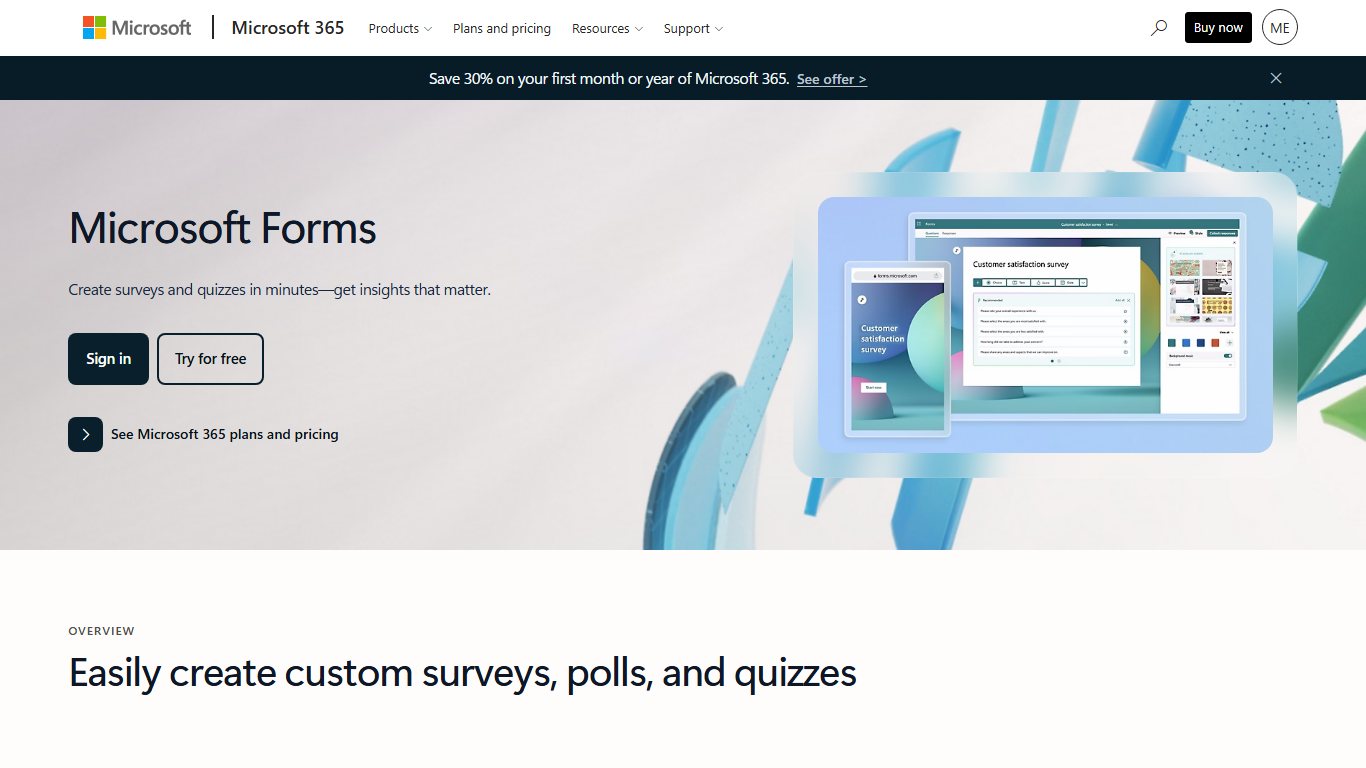
The trade-off is the connector’s narrow design, covered in the limits section below. Payments and conditional PDF generation also take more work here than in Jotform.
Google Forms
Google Forms is free and familiar, and it works best when Google Sheets is your database. Native automation is thin: you get response alerts and a linked Sheet. Real workflows need Apps Script, add-ons or Zapier.
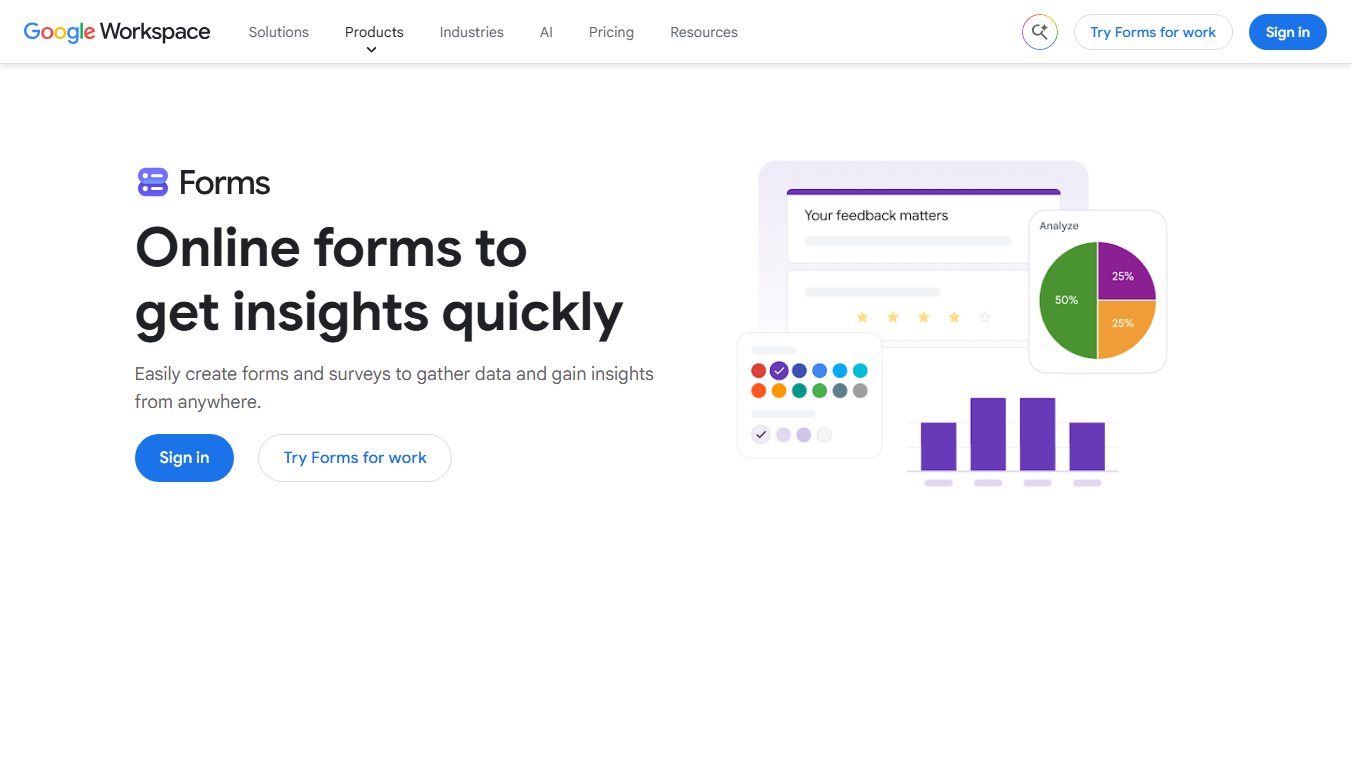
It’s ideal for internal requests, sign-ups and quizzes. It’s weak for client-facing forms that need branding, payments or signatures.
Jotform
Jotform has the broadest built-in toolkit of the standalone tools. You get conditional logic, approval flows, PDF generation, e-signatures, payment integrations and a large template library. Its AI Form Generator builds a form from a text prompt, and you then refine the content and design by chatting with the assistant.
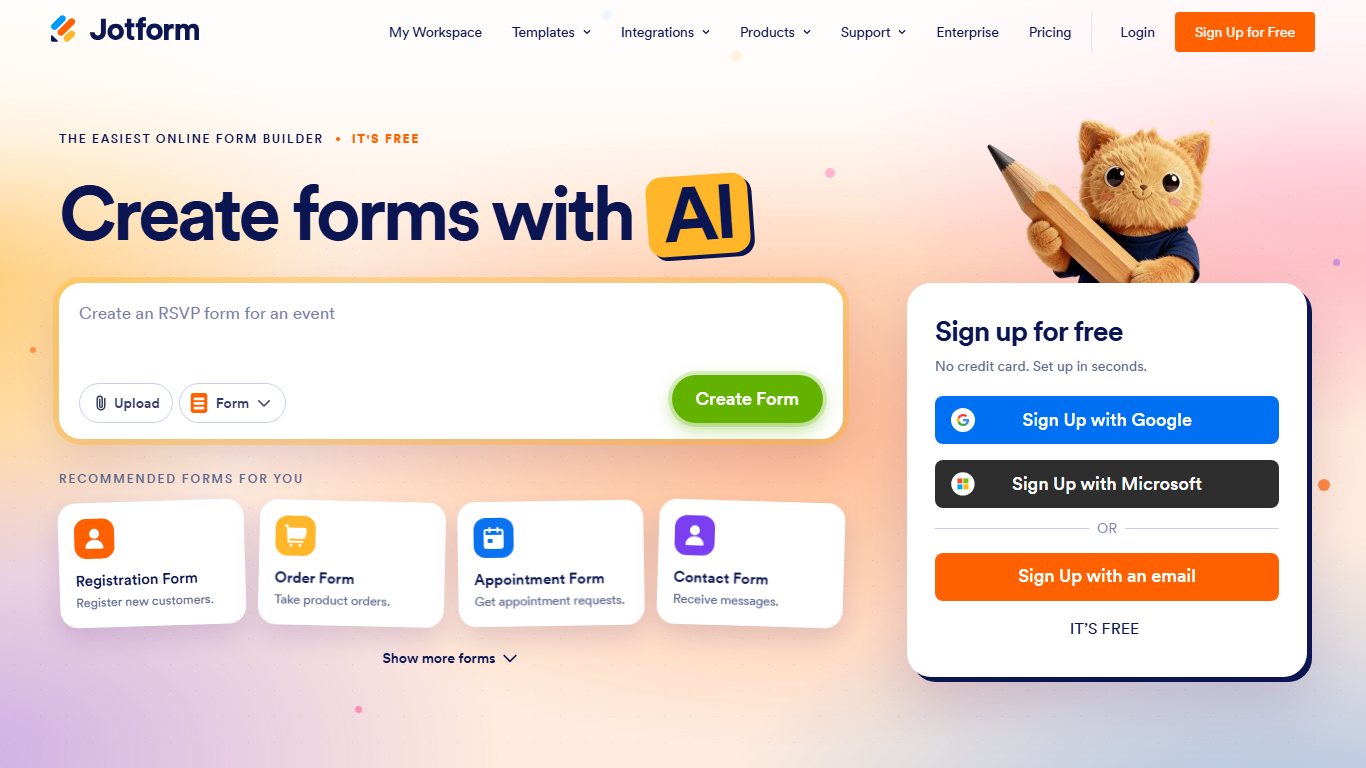
Third-party trackers in 2026 mostly list these tiers:
| Tier | Monthly | Billed yearly | Forms | Submissions/month |
|---|---|---|---|---|
| Bronze | $39 | $34 | 25 | 1,000 |
| Silver | $49 | $39 | 50 | 2,500 |
| Gold | $129 | $99 | 100 | 10,000 |
Some sources show Bronze at a flat $34, and storage figures vary between trackers. HIPAA features come with Gold and Enterprise. One tracker reports a 50% discount for nonprofits and education.
Formstack
Formstack is the strongest choice when a form leads to a document and a signature, especially for Salesforce users. Formstack’s own pricing page lists current rates and trial terms for the Forms plan, so check it before you budget. Trackers from May to October 2026 report that Forms includes 1 builder, 25 forms, 1,000 submissions per form and 2 GB of storage.
Suite is the bundle. Formstack’s homepage describes it as Forms, Documents, Sign and Workflows, and offers a trial of the full Suite. Third-party trackers list Suite at $299 a month, or $250 billed annually, with 3 builders and 100 forms. Formstack Documents on its own is listed from $99 a month. The older Forms Starter tier, around $50, has reportedly been replaced by a single Forms tier.
Formstack now builds AI into two products. The AI Form Builder in Forms drafts a form from a plain-language description. In Documents, you can describe the template you need and the AI assistant drafts it, or you can upload an existing DOCX, PPTX, PDF or CSV file. Formstack’s homepage claims customers save an average of 17 hours a week. That’s a vendor claim with no published method behind it.
Tally
Tally is the answer to “which form builder is actually free with no submission limit?” Tally’s pricing help page says 99% of features are free. The Free plan includes unlimited forms and submissions within fair use, with a 10 MB limit per uploaded file.
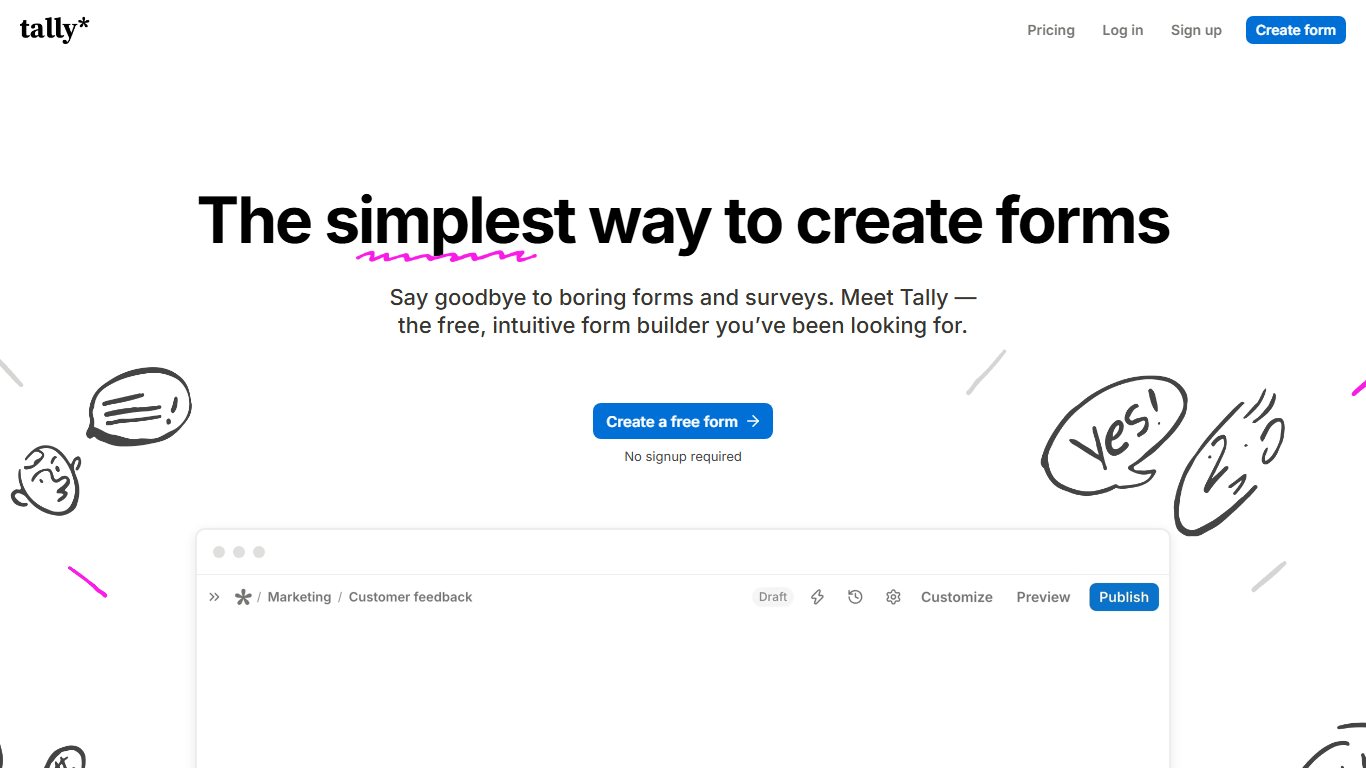
Pro costs $29 a month. It adds branding removal, custom domains, partial submissions and team collaboration. Tally also supports webhooks and native integrations, so it connects to Sheets, Notion, Airtable and Zapier with no code.
Typeform
Typeform is the design pick. Its one-question-at-a-time format feels conversational and suits marketing surveys and lead capture. It’s an expensive way to automate, though.
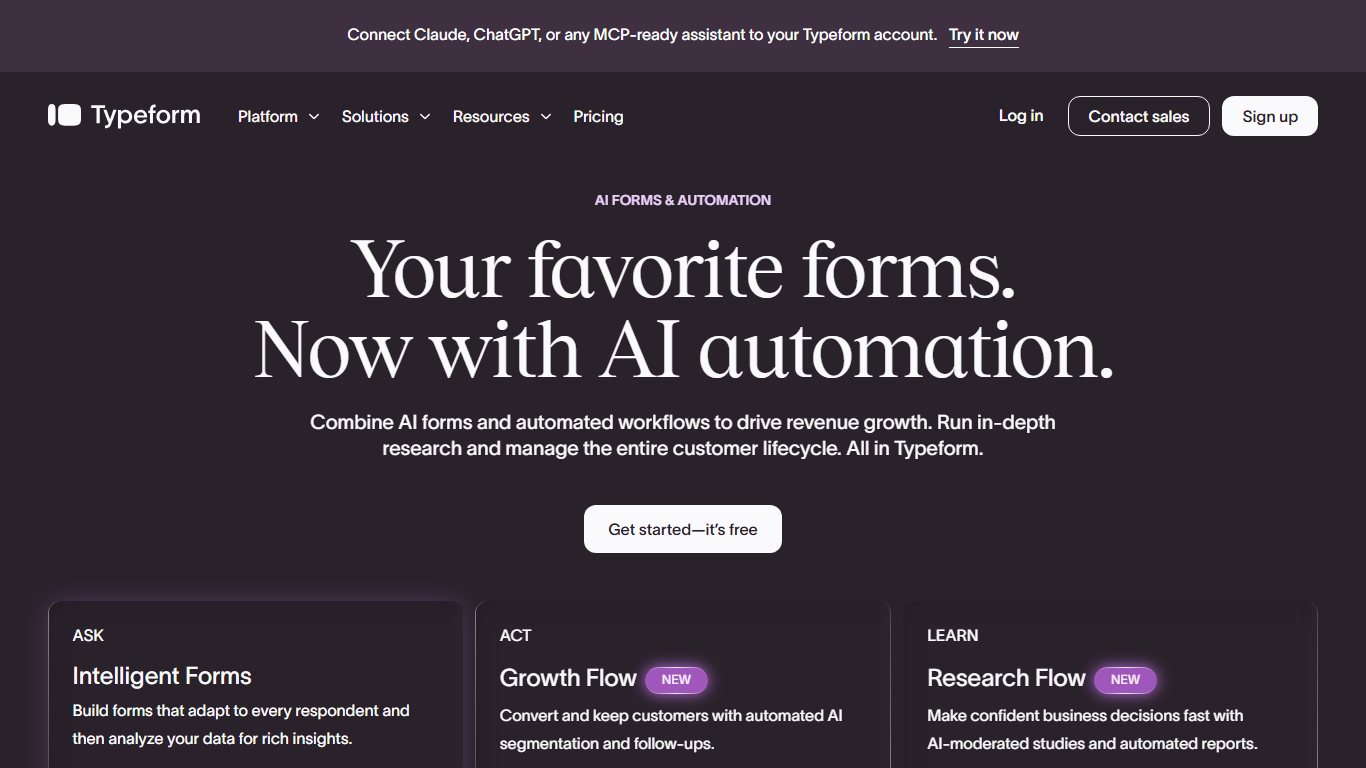
Trackers from October and November 2026 list these plans:
| Plan | Monthly | Billed yearly | Responses/month | Users |
|---|---|---|---|---|
| Free | $0 | $0 | 10 | 1 |
| Basic | $39 | $28 | 100 | 1 |
| Plus | $79 | $56 | 1,000 | 3 |
| Business | $129 | $91 | 10,000 | Not listed |
These prices are higher than the ones many older articles still quote. Plus is the cheapest plan that removes Typeform branding.
Zapier as the glue
Do you need Zapier, or can your form tool run the automation itself? If your form tool has a native integration for the app you need, use that. It costs nothing and gives you one less thing to break.
Add Zapier when you need an app your form tool doesn’t connect to, or a multi-step chain such as Typeform to HubSpot to Slack to Google Calendar. Third-party sources list Zapier’s free plan at 100 tasks a month, mostly limited to two-step Zaps. Professional starts at about $19.99 a month billed annually for 750 tasks. Every action counts as a task, so a busy form can use up a small plan fast.
Best tool by use case
Match the tool to the workflow, not the other way round. Office-wide requests usually belong in the suite you already pay for. Anything that ends in a signed document or a payment points to Jotform or Formstack.
| Use case | Typical workflow | Recommended tool | Why |
|---|---|---|---|
| Time-off requests | Form > manager approval > calendar or HR log | Microsoft Forms + Power Automate | “Start and wait for an approval” is a standard action, so it costs nothing extra on most business plans |
| IT requests | Form > route by category > Planner task or Teams post | Microsoft Forms + Power Automate, or Google Forms + Apps Script | Routing by answer and task creation work without a paid add-on |
| HR onboarding | New-hire form > offer and policy documents > e-signature > equipment request | Formstack Suite | Documents, Sign and Workflows come in one bundle, so you don’t stitch three tools together |
| Client intake with signature | Intake form > filled PDF > e-signature > CRM record | Jotform (Gold or Enterprise for health data) | PDF generation, e-sign and HIPAA tiers are all built in |
| Sales contracts in Salesforce | Form data > contract generated from Salesforce record > signature > record updated | Formstack Salesforce offering | Built specifically for Salesforce-centred document workflows |
| Event registration with payment | Sign-up form > Stripe, PayPal or Square payment > confirmation email | Jotform | Payment integrations come with the form builder |
| Lead capture | Survey-style form > HubSpot > Slack alert | Typeform + Zapier, or Tally + Zapier for a lower cost | Typeform converts well and Zapier fills the integration gaps |
| Regulated multi-department approvals | Permit or compliance request > parallel reviews > audit report | FlowWright or Power Automate at enterprise scale | Rules engines, audit trails and instance history matter more than form design |
When an enterprise BPM platform is worth it
Most teams never need one. A platform like FlowWright earns its cost when an auditor can ask who changed what and when, or when approval logic is too tangled for a simple condition step. FlowWright’s documentation lists sub-forms and grid views, a rules engine that supports graphical rules and decision tables, a full audit report for every workflow instance, and a graphical history of each item. Government permitting, life sciences compliance and multi-team finance approvals are the typical fit. A five-person office routing time-off requests is not, so start with Power Automate and move up only when you can name the audit or rules requirement it can’t meet.
How to automate Microsoft Forms with Power Automate (step by step)
Yes, you can automate Microsoft Forms. Build an automated cloud flow in Power Automate that starts with the trigger “When a new response is submitted”, then fetches the answers with “Get response details”. What happens after that is up to you.
Your first flow: email me every response
Fix it
- Go to make.powerautomate.com and sign in with your work account.
- Select Create, then Automated cloud flow.
- Name the flow, search for “When a new response is submitted” (Microsoft Forms), select it, then select Create.
- In the trigger, choose your form from the Form Id dropdown.
- Select the plus sign (+) to add an action, search for “Get response details” and add it.
- Set its Form Id to the same form, and set Response Id to the dynamic value “Response Id” from the trigger.
- Add the action “Send an email (V2)” from Office 365 Outlook. Put your address in To and insert answers from the dynamic content list.
- Save the flow, open the form and submit a test response.
Pro tip
Always add “Get response details” after the trigger. The trigger only tells the flow that someone submitted a response. It doesn’t carry the answers, so without that action your email has nothing in it.
Save responses to Excel or a SharePoint list
To log responses automatically, add a logging action after “Get response details”.
- Excel: first format your sheet as a table (Insert > Table) in a workbook stored in OneDrive or SharePoint. Then add the Excel Online (Business) action “Add a row into a table” and map each column to an answer.
- SharePoint: create a list with matching columns. Then use “Create item” and map the fields the same way.
SharePoint lists handle permissions and large volumes better than a shared workbook does.
| Goal | Trigger | Actions | Result |
|---|---|---|---|
| Email alert | When a new response is submitted | Get response details > Send an email (V2) | Answers land in your inbox |
| Log to Excel | When a new response is submitted | Get response details > Add a row into a table | One row per response |
| Log to SharePoint | When a new response is submitted | Get response details > Create item | Searchable list with permissions |
| Team alert | When a new response is submitted | Get response details > Post message in a chat or channel | Microsoft Teams post |
| Task from request | When a new response is submitted | Get response details > Create a task (Planner) | A Planner task assigned to someone |
| Manager sign-off | When a new response is submitted | Get response details > Start and wait for an approval > Condition | Approved or rejected path |
Limits: one trigger, one action, no batch
Microsoft Learn documents exactly one trigger and one action for the Microsoft Forms connector. The flow runs once for each response.
That explains a common frustration: why can’t a scheduled flow fetch all of yesterday’s Microsoft Forms responses at once? The connector has no “list responses” action. “Get response details” needs a specific Response Id, and only the trigger supplies one.
The workaround is to log every response to a SharePoint list or Excel table as it arrives. Then build a second, scheduled flow that reads yesterday’s rows from that list and sends one digest.
Did you know?
According to Microsoft Learn’s documentation for the Forms connector, Power Automate offers exactly one Microsoft Forms trigger and one action. You can’t schedule a flow to pull a batch of past responses straight from Forms.
Form not showing in the dropdown? Try this
Forms owned by a Microsoft 365 group or a Teams channel usually don’t appear in the Form Id dropdown, which mostly lists forms you own personally. Try these fixes in order:
- Open the form’s URL in a new browser tab, then refresh Power Automate and check the dropdown again.
- If it still isn’t there, select “Enter custom value” in the Form Id field.
- Open the form in Forms, copy the long ID string from the address bar (after “id=” or “FormId=”) and paste it in. Leave out any trailing “&” characters.
- Paste the same ID into the Form Id of “Get response details”.
- If you get an invalid ID or “forbidden” error, check that the account your Forms connection uses is a member of the group that owns the form.
Test before you share
Submit a real response yourself and check the flow’s run history before you send the form link to anyone. A failed run shows exactly which step broke.
How to automate Google Forms
Google Forms automation starts with linking responses to Google Sheets. Turn on email alerts, then add Apps Script or an add-on when you need logic that runs on each submission.
Send responses to Google Sheets
- Open your form and select the Responses tab.
- Select Link to Sheets.
- Choose Create a new spreadsheet, or select an existing one.
Every new response now appears as a row with a timestamp. From that Sheet you can filter, chart or connect to Zapier.
Get notified on every response
In the Responses tab, select the three-dot menu and choose “Get email notifications for new responses”. These alerts only tell you a response arrived. To get the answers in the email, or to email the respondent, you need more:
- An add-on from Google Workspace Marketplace (in the form editor, open the three-dot menu, then Get add-ons)
- A short Apps Script with an installable “on form submit” trigger (in the linked Sheet, open Extensions > Apps Script)
Apps Script is free and powerful. It can send custom emails, create Google Calendar events or post to a webhook. The trade-off is that someone has to maintain the code.
Build a form with Gemini “Help me create”
Gemini’s “Help me create a form” builds a form or quiz from a text prompt. Google’s help center says it can also use your Google Docs, Sheets, Slides and PDFs as source material. You need an eligible Google Workspace or Google AI plan.
Two limits matter in practice:
- It can’t edit an existing form.
- It doesn’t create multi-section forms, so branching surveys still need manual work.
Google expanded the feature to more languages in April 2026. A separate “Suggest questions” feature, launched in August 2025, proposes 2 to 4 new questions based on what’s already in your form. It was English only at launch.
Can ChatGPT, Copilot or Gemini create forms?
Partly. AI assistants can draft questions. Copilot, Gemini, Jotform and Formstack can build a working form inside their own apps. You still need a form tool to collect the answers, and you still build the automations yourself.
| Assistant | Where | License needed | Can do | Can’t do |
|---|---|---|---|---|
| Copilot in Microsoft Forms | Copilot icon at the lower right of the Forms editor | Microsoft 365 Copilot (not in standard M365 plans) | Create, refine and analyze forms | Work without the paid Copilot license |
| Gemini in Google Forms | “Help me create a form” in Google Forms | Eligible Workspace or Google AI plan | Build forms or quizzes from prompts, Docs, Sheets, Slides, PDFs | Edit an existing form; build multi-section forms |
| Jotform AI Form Generator | Jotform form builder | Jotform account; form limits follow your plan | Build a form from a prompt, then refine it by chat | Lift your plan’s form and submission caps |
| Formstack AI builders | Formstack Forms and Formstack Documents | Paid Formstack plan or trial | Draft forms and document templates from a description | Replace a check of the generated logic and fields |
| ChatGPT | Any chat | Free or paid ChatGPT plan | Draft questions, answer options and logic plans | Host a form or collect responses on its own |
| Surveys agent (Microsoft) | Microsoft 365 Copilot | Microsoft 365 Copilot | Being retired | Accept new users after August 31, 2026 |
Copilot in Microsoft Forms
Microsoft’s Forms blog describes Copilot chat in the Forms editor. It can create a form from a description, refine the wording and analyze responses. It requires a Microsoft 365 Copilot license, which standard Microsoft 365 licenses don’t include.
Did you know?
According to Microsoft 365 message center notice MC1421920, the Surveys agent closed to new users on August 31, 2026. Existing users are expected to lose access by the end of December 2026 as its features move into Copilot in Forms.
Gemini in Google Forms
Gemini works best for turning existing material into a first draft. A training deck becomes a quiz, or a policy document becomes an acknowledgment form. Because it can’t edit an existing form, generate the draft first and then make every edit by hand.
Native AI in Jotform and Formstack
Both standalone tools have AI built in, so you don’t need a separate Copilot or Gemini license. Jotform’s generator turns a prompt into a form and lets you keep adjusting it in a chat panel. Jotform says prompt data isn’t used to train the generator, but form and field data may be used to train AI systems, so check that before you build forms around sensitive data. Formstack’s AI is most useful on the document side: describe the contract or letter you need and it drafts a template your form data can fill. In both tools, check every generated field, required setting and logic rule before you go live.
Using ChatGPT to draft questions
ChatGPT is good for planning a form. Ask it for neutral question wording, answer scales and a branching plan along the lines of “if the answer is X, skip to section 3”. Then paste the result into Tally, Jotform, Microsoft Forms or Google Forms.
Don’t paste real customer responses into a chat tool unless your organization’s data policy allows it.
Features that matter (and ones you can skip)
Most small teams need five features and can skip the rest. Pay for a higher tier only when you can name the workflow that needs it.
Must-haves for small businesses
- Conditional logic: show or skip questions based on earlier answers. Every tool in the comparison table supports it.
- Notifications: alerts to you and confirmations to the respondent.
- Native integrations or webhooks: a direct connection to your spreadsheet, CRM or chat app. A webhook sends each submission to another system the moment it arrives.
- File uploads: check the per-file and total storage limits. Tally’s free plan allows 10 MB per file, and Google Forms uploads count against the owner’s Drive storage.
- Mobile-friendly layout: most people fill in forms on a phone.
Only matters at scale
- Approvals and routing: essential once more than one person signs off.
- PDF generation and e-signatures: contracts, waivers, consent forms.
- Payments: event fees and deposits. If you run courses with waitlists and payments, dedicated class registration software may serve you better than a general form tool.
- Partial submissions and drop-off analytics: useful for long marketing forms. In Tally this is a Pro feature.
- HIPAA compliance, SSO, audit logs: healthcare, finance and larger organizations.
- Sub-forms, data lookups, rules engines and instance history: regulated, multi-department processes, where a BPM platform such as FlowWright fits better than a form builder.
Turning paper and PDF forms into automated forms
If your team keeps retyping paper forms, first work out which direction the data flows. Forms you send out for people to fill in should become online forms. Documents that come in to you, like invoices, IDs and faxes, need data extraction instead.
IDC research, as quoted by the workflow vendor Tallyfy, puts the cost of paper and PDF forms at about $19,732 per worker per year in lost productivity. That’s a vendor’s citation, not a published study you can check yourself. The direction still holds: every retyped field costs time and is a chance to make an error.
Fillable PDF vs online form
Fillable PDF or online form for waivers and intake? The online form wins almost every time.
| Factor | Fillable PDF | Online form |
|---|---|---|
| Works well on phones | Rarely | Yes |
| Data lands in a spreadsheet or CRM | No; someone extracts it | Yes, automatically |
| Required fields and validation | Limited | Full |
| Conditional questions | Rarely | Yes |
| Looks like the official document | Yes | Only with PDF generation |
A fillable PDF is enough when a regulator or partner insists on a specific layout and the volume is low. For anything else, collect the data online and generate the PDF afterward.
For incoming paper, scanning plus OCR software turns documents into text you can import. Accuracy depends heavily on scan quality.
Form-to-PDF and e-signature workflows
Formstack Documents, Formstack Sign and Jotform’s PDF and signing tools all work this way. The respondent fills in a web form, the answers populate a PDF template that matches your official layout, and the document goes out for signature. You get clean data and a document that looks right.
For waivers and client intake, this removes both the retyping and the “please print, sign and scan” step.
Privacy, compliance and free-plan traps
Free plans are fine for low-stakes forms. Before you rely on one, check three things: the submission cap, the compliance tier and where the data is stored.
Submission caps. Work out your monthly volume before you choose. Jotform’s free Starter plan allows 100 submissions a month. One 2026 analysis reports that once a form hits its allowance, new submissions are blocked until the month resets or you upgrade. Jotform’s own site doesn’t spell that out, so test it before an event. Typeform’s free plan stops at 10 responses a month. Zapier counts tasks, not submissions, so a form with three actions uses three tasks per response.
| Tool | Forms | Submissions | File uploads | What happens at the cap |
|---|---|---|---|---|
| Jotform Starter | 5 active | 100/month | 100 MB total | New submissions reportedly blocked until reset or upgrade |
| Tally Free | Unlimited | Unlimited (fair use) | 10 MB per file | No hard cap; fair-use policy applies |
| Typeform Free | Limited | 10/month | Limited | Paid plan needed to collect more |
| Google Forms | No plan cap | No plan cap | Counts against Drive storage | Uploads stop when Drive storage is full |
| Formstack | No free plan | Free trial | Trial only | Paid plan required after trial |
Is Tally really unlimited, or is there a catch with “fair use”? For normal business forms, it’s effectively unlimited. Tally’s help center describes its limits as fair use, which means it can act on abusive or extreme usage, such as spam or very large automated volumes. If your business depends on very high volume, contact Tally before you launch instead of relying on the wording.
HIPAA tiers. Health information needs a plan with HIPAA compliance features. At Jotform, that means Gold or Enterprise. The vendor usually also has to sign a business associate agreement. A free plan, or a consumer Google or Microsoft account, is the wrong place for patient data.
Before you start
Keep health, financial and identity data (medical history, bank details, Social Security numbers) out of free form tools. Use a compliant tier or your organization’s licensed Microsoft 365 or Google Workspace tenant.
FAQ
What is the best software to create forms?
It depends on what you already own. Microsoft 365 users should start with Microsoft Forms and Power Automate. Google Workspace users should start with Google Forms and Sheets. For a standalone tool, Jotform has the broadest built-in automation and Tally has the best free plan.
Jotform vs Typeform vs Tally vs Google Forms: which one should I use?
- Jotform if you need approvals, PDFs, e-signatures or payments in one tool.
- Typeform for polished, conversational surveys where looks matter.
- Tally for free, high-volume forms with webhooks.
- Google Forms for quick internal forms that feed a Sheet.
What does Formstack Suite include?
Formstack’s homepage describes the full Suite as Forms, Documents, Sign and Workflows, and offers a free trial of it. Third-party trackers list Suite at $299 a month, or $250 a month billed annually, with 3 builders and 100 forms.
Does Formstack have AI features?
Yes. The AI Form Builder in Formstack Forms drafts a form from a description. Formstack Documents can draft a document template from a prompt, or you can start from an uploaded DOCX, PPTX, PDF or CSV file.
Which tool is best for HR onboarding?
Formstack Suite, if onboarding means generating offer and policy documents and collecting signatures, because Documents, Sign and Workflows come in one bundle. For a simple new-hire details form with a manager sign-off, Microsoft Forms with a Power Automate approval is enough.
Is there a way to automate Microsoft Forms?
Yes. In Power Automate, create an automated cloud flow with the trigger “When a new response is submitted”. Add “Get response details”, then add actions such as sending an email, adding an Excel row or posting to Teams.
How do I send Microsoft Forms responses to Excel or SharePoint automatically?
After “Get response details”, add the Excel Online (Business) action “Add a row into a table”. The workbook must contain a formatted table. For SharePoint, use “Create item” on a list with matching columns.
What is the most popular automation software?
For connecting apps, Zapier is the best-known general-purpose tool. Microsoft 365 organizations most often use Power Automate. For forms specifically, Google Forms and Microsoft Forms reach the most users because they come bundled with those suites.
Can ChatGPT create forms?
ChatGPT can draft questions, answer options and branching logic. It can’t host a form or collect responses, so you paste its draft into a form tool. Copilot in Microsoft Forms, Gemini in Google Forms and Jotform’s AI Form Generator can build the form directly inside their apps.
Can Gemini create a Google Form from a document?
Yes. With an eligible Workspace or Google AI plan, “Help me create a form” can use Google Docs, Sheets, Slides and PDFs as source material. It can’t edit an existing form or build multi-section forms.
Do I need a Copilot license to use Copilot in Microsoft Forms?
Yes. Copilot chat in Forms requires a Microsoft 365 Copilot license, which standard Microsoft 365 licenses don’t include. The older Surveys agent closed to new users on August 31, 2026.
Is there a free forms automation tool?
Yes. Tally’s free plan includes unlimited forms and submissions within fair use, plus integrations and webhooks. Google Forms with Sheets is free. Microsoft Forms with Power Automate’s standard connectors costs nothing extra if your Microsoft 365 plan includes them.
Does Formstack have a free plan?
No. Formstack offers a free trial. After that, you need a paid plan such as Forms, and Formstack’s pricing page lists the current rates and trial terms.
How do I turn a PDF form into an online form?
Rebuild the questions in a form tool. Gemini or Copilot can draft them from the PDF, or you can start from a template. If you still need the original layout for your records or for a signature, use PDF generation such as Formstack Documents or Jotform’s PDF tools.
Your next step
Pick the one form your team retypes most often, such as a time-off request, a client intake or an event sign-up, and automate only that one this week. Use the tool you already pay for, find the matching row in the use-case table, build the “email me plus log it” flow and submit a test response. Once that first flow is running, paying for Jotform, Formstack or Typeform makes sense only if you hit a real limit, like a submission cap, a missing integration or a signature step.