In December 2025, reporters copied “redacted” lines out of some U.S. Department of Justice Epstein files and pasted them into Microsoft Word, where the hidden text showed up. A black box isn’t a redaction. This page compares seven free ways to really remove text from a PDF and gives you a 60-second check to run before you send the file.
Last checked: November 19, 2026.
Key takeaways
- On a Mac, use Preview’s Tools > Redact. Never use the shape or highlight tools.
- On Windows, PDF24 Creator redacts offline for free. It turns the affected pages into images.
- LibreOffice and Stirling PDF are free on any OS and can redact every match of a name or number at once.
- After you export, search for a redacted word and paste the whole file into Notepad. If the word shows up, the redaction failed.
- Keep an untouched original. Whether a redaction can be undone depends on the tool and workflow, and an earlier copy or backup may still hold the original.
Fact-checked
We checked these key facts against the sources named, on November 19, 2026:
- Download PDF24 Creator from the official PDF24 site and install version 10 or later (source: pdf24.org)
- They find files where the “redaction” was only a cover, and the text layer was still there to copy (source: helpx.adobe.com)
The 30-second answer: the best free redaction software for your device
The best free redaction tool is the one already on your device that removes the text for good. Here is one pick per setup.
| Your setup | Best free pick | Why | Files leave your device? |
|---|---|---|---|
| Mac | macOS Preview (Tools > Redact) | Built in, removes the marked content when you save | No |
| Windows | PDF24 Creator | Free with no limits, works offline, turns redacted pages into images | No |
| Any OS, Word or Writer files | LibreOffice | Free, open source, auto-redacts patterns, exports a flattened PDF | No |
| Office or heavy use | Stirling PDF (desktop or self-hosted) | Regex auto-redaction, open-source core | No, if you run it yourself |
| One-off, nothing sensitive | Smallpdf or Xodo online | No install | Yes |
| Benchmark | Adobe Acrobat Pro (7-day trial) | Deletes text objects, search-and-redact patterns, Sanitize | No |
A bank statement, tax return or medical letter should never go to an upload-based site. Use one of the first four picks for those.
Why a black box isn’t a redaction (and how the Epstein files proved it)
Most PDFs store two things on each page: what you see, and a text layer underneath. Drawing a black shape over a line only adds a new layer on top. The words stay in the file. Anyone can select them, copy them or find them with search.
In the December 2025 Epstein file releases, the Washington Examiner reported that some redactions could be beaten by copying the hidden text and pasting it into Google Docs or Microsoft Word. Mediaite reported the same thing: the DOJ’s redactions on some files were easily revealed with copy and paste.
The PDF Association, the industry body behind PDF standards, gave a more careful view. It analysed DOJ Epstein Datasets 01 to 07 and found no recoverable text of the kind people alleged in those sets. It also said that earlier DOJ PDFs did contain incorrect, ineffective redactions, with black boxes that only covered the text. The takeaway for you is the same either way. The tool and the method decide whether a redaction works, not how the page looks.
Did you know?
According to The Eclectic Light Company, Apple added a Redact tool to Preview in macOS Big Sur (2020), and Preview warns you if you draw a shape over text, because a shape leaves the original text in the PDF.
Annotation vs. redaction: what’s actually in the file
Highlights, rectangles, comments and text boxes are annotations. They sit on top of the page content and can be moved, deleted or ignored by a text extractor. Real redaction changes the page content itself.
| Method | Looks redacted? | Text recoverable? | Example tools or features |
|---|---|---|---|
| Black highlighter | Yes | Yes, copy-paste works | Highlight tool in Preview, Acrobat Reader, Word |
| Black rectangle shape | Yes | Yes | Preview Shapes, Acrobat comment drawing tools |
| Black text box or comment | Yes | Yes | Any PDF annotation tool |
| Black text on black fill in Word, then export | Yes | Yes | Microsoft Word formatting |
| Flattening annotations only | Yes | Often yes, the text under the box is still there | “Flatten” features in many editors |
| Deleting the content objects | Yes | No | Adobe Acrobat Pro Redact, Preview Tools > Redact |
| Turning the page into an image | Yes | No, unless OCR text is added back later | PDF24, LibreOffice Redacted Export, Stirling PDF image option |
That flattening row matters. Flattening merges the box into the page, but the words drawn underneath are often still stored and can still be extracted. Flattening is not the same as turning the page into an image.
Two ways real redaction works: deleting objects vs. flattening to images
Real redaction happens in one of two ways. Some tools delete the exact text and image objects under the box. Others turn the page into a picture, so no text layer is left at all.
Deleting objects (Acrobat Pro, Preview) keeps everything else on the page as real text. The file stays searchable, screen readers can still read it, and the file size barely changes. The risk is a buggy tool that misses an object, so you still run the check.
Flattening to images (PDF24, LibreOffice, Stirling PDF by default) is blunt and very safe. Nothing on an affected page can be copied. The cost:
- You can’t search or select any text on those pages, including the parts you meant to keep.
- Screen readers can’t read the page, which is a problem for accessibility requirements.
- The file usually gets bigger, sometimes a lot bigger for long documents.
- Small print can blur slightly, depending on resolution.
Image output is fine for a one-off you’re emailing to a landlord or a court clerk. Object deletion is better when the recipient needs to search, quote or process the document.
Free redaction tools compared
The table below compares the tools on what matters for privacy: where the file goes, how content is removed and what the free version leaves out.
| Tool | Platforms | Cost / free limits | File leaves your device? | How it removes content | Search / auto redact | Rest of text searchable after? | Best for |
|---|---|---|---|---|---|---|---|
| macOS Preview | Mac (Big Sur and later) | Free, built in | No | Deletes marked content on save | No, manual | Yes, outside the bars; confirm with Cmd+F | Mac users, quick jobs |
| LibreOffice Draw | Windows, Mac, Linux | Free, open source | No | Exports a flattened PDF | Yes, Automatic Redaction (text, regex) | No | Word and Writer files, any OS |
| PDF24 Tools (online) | Any browser | Free, no limits | Yes, uploaded | Affected pages become images | Manual | No, on affected pages | Non-sensitive one-offs |
| PDF24 Creator | Windows | Free, needs version 10.x | No | Affected pages become images | Manual | No, on affected pages | Windows, offline |
| Stirling PDF | Windows, Mac, Linux, Docker | Free MIT core, paid Enterprise | No, if local or self-hosted | Image flattening by default; text deletion when that’s off | Yes, words and regex | No with image option on | Offices, batches, IT teams |
| Smallpdf | Browser | Free with usage limits, Pro unlimited | Yes, uploaded | Permanent on Finish, per Smallpdf | Manual | Check after export | Occasional, non-sensitive |
| Xodo (online) | Browser | 1 free PDF a day | Yes, uploaded | Permanent, per Xodo | Manual | Check after export | One file now and then |
| Adolix PDF Redactor (free) | Windows | Free up to 3 pages | No | Local redaction | Limited in free version | Check after export | Very short documents |
| Adobe Acrobat Pro | Windows, Mac | 7-day trial, then US$23.99/month | No | Deletes objects | Yes, Find Text & Redact with patterns | Yes | Paid benchmark |
How the tools were weighed: whether the method really removes content (heaviest weight), whether the file stays on your device, the free-tier limits, and ease of use. Everything here comes from vendor documentation and published reporting, cross-checked as of November 2026.
Mac Preview (built in)
Preview’s Redact tool is the best free choice on a Mac because it is already installed and it deletes the content when you save. It arrived in macOS Big Sur and is in every version since.
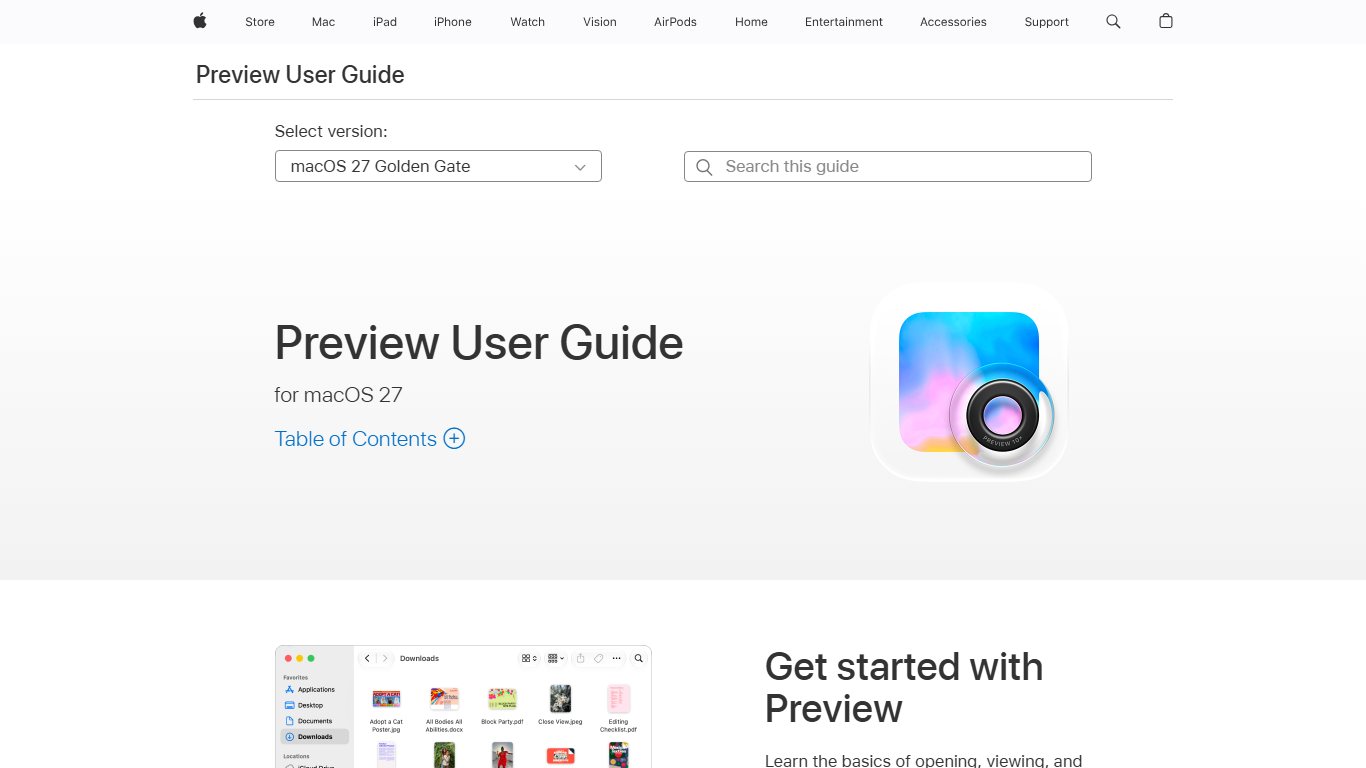
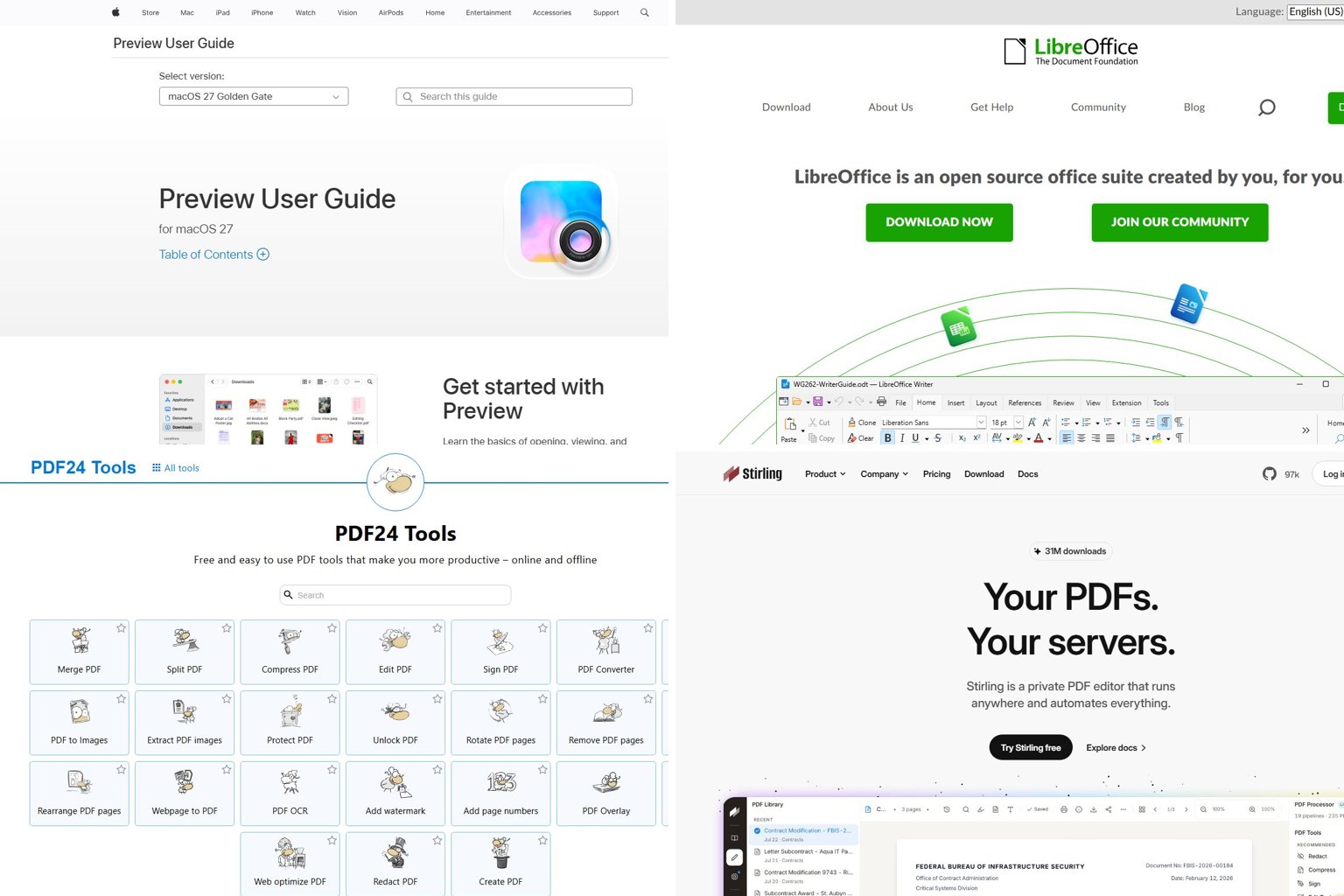
You’ll find it under Tools > Redact in the menu bar, not as a big button on the default toolbar. That is why many Sonoma users can’t find it. Choose it, then drag across text or an area. Black bars appear, and the content is removed for good when you save or close the file. How-To Geek points out the catch: if you need the original, redact a copy.
Preview has no search-and-redact. Ten mentions of a name means ten manual drags.
LibreOffice Draw: Redact and Auto Redact
LibreOffice redaction works, and it is not just a grey box. The grey shapes are a preview. When you choose Redacted Export, they become solid and the output is flattened.
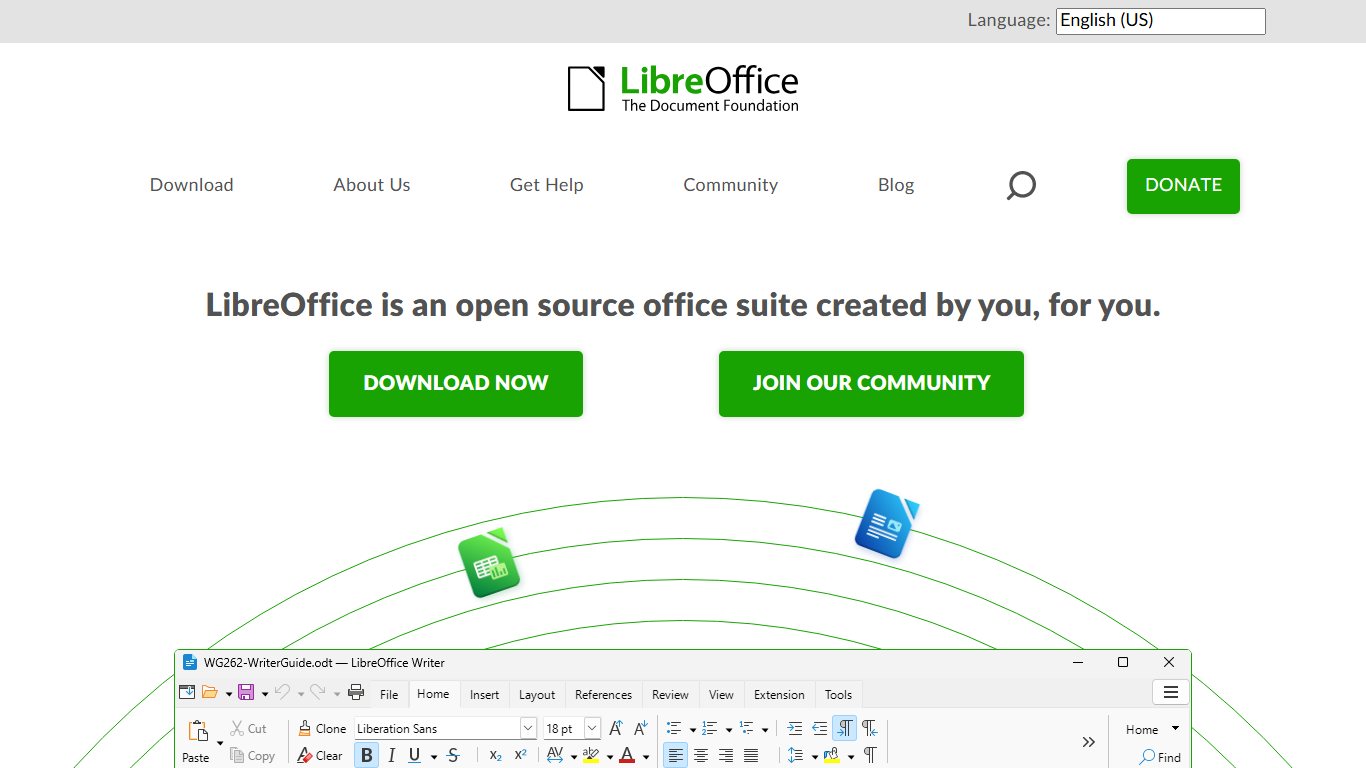
According to LibreOffice’s help pages, Tools > Redact sends the document to LibreOffice Draw. There you mark areas with the Rectangle Redaction or Freeform Redaction tools, then use Redacted Export. Automatic Redaction does the same with every match of your targets already covered.
The output pages are images, so the result isn’t searchable. LibreOffice is the strongest free option when your source is a Writer or Word file, because you can redact before the PDF ever exists.
Did you know?
According to LibreOffice’s official help, its redaction never edits your original document directly. It turns a copy into a LibreOffice Draw drawing first, then exports the redacted PDF from that drawing.
PDF24 Tools and PDF24 Creator
PDF24, made by Geek Software GmbH, is the easiest free redactor on Windows. The Redact PDF tool page says it is free with no limits and makes redactions permanent by turning the affected pages into raster images when you save.
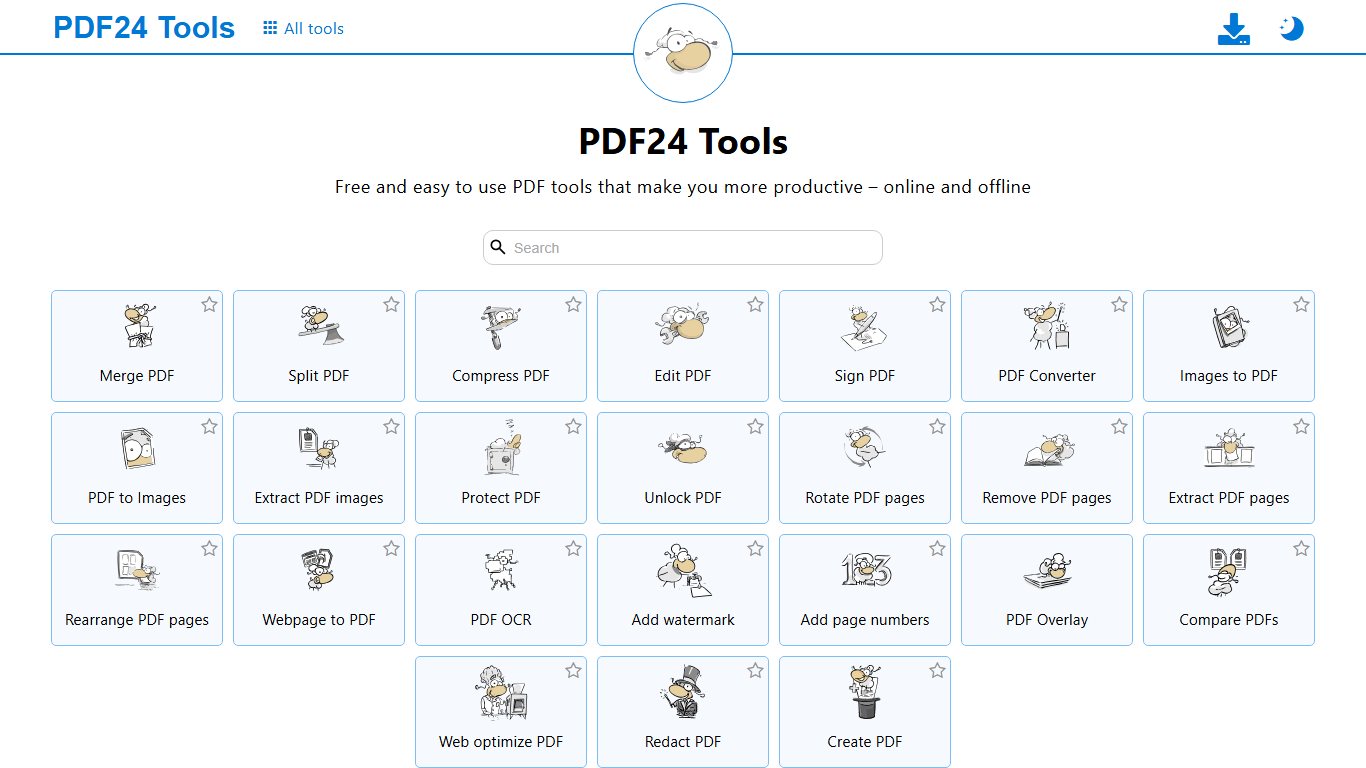
You have two versions:
- PDF24 Tools runs on the website. Your file is uploaded.
- PDF24 Creator is the free desktop app. It works offline, and its blacken/redact tool needs version 10.x.
Use the desktop app for anything personal. Expect the redacted pages to lose searchable text.
Stirling PDF (open source, self-hosted)
Stirling PDF is the pick for an office or anyone redacting the same kinds of data again and again. Its redaction tool went open source in version 0.17.0 (January 2025), including Auto Redaction that matches regex patterns across every instance. The v3.0.0 release notes list major redaction improvements.
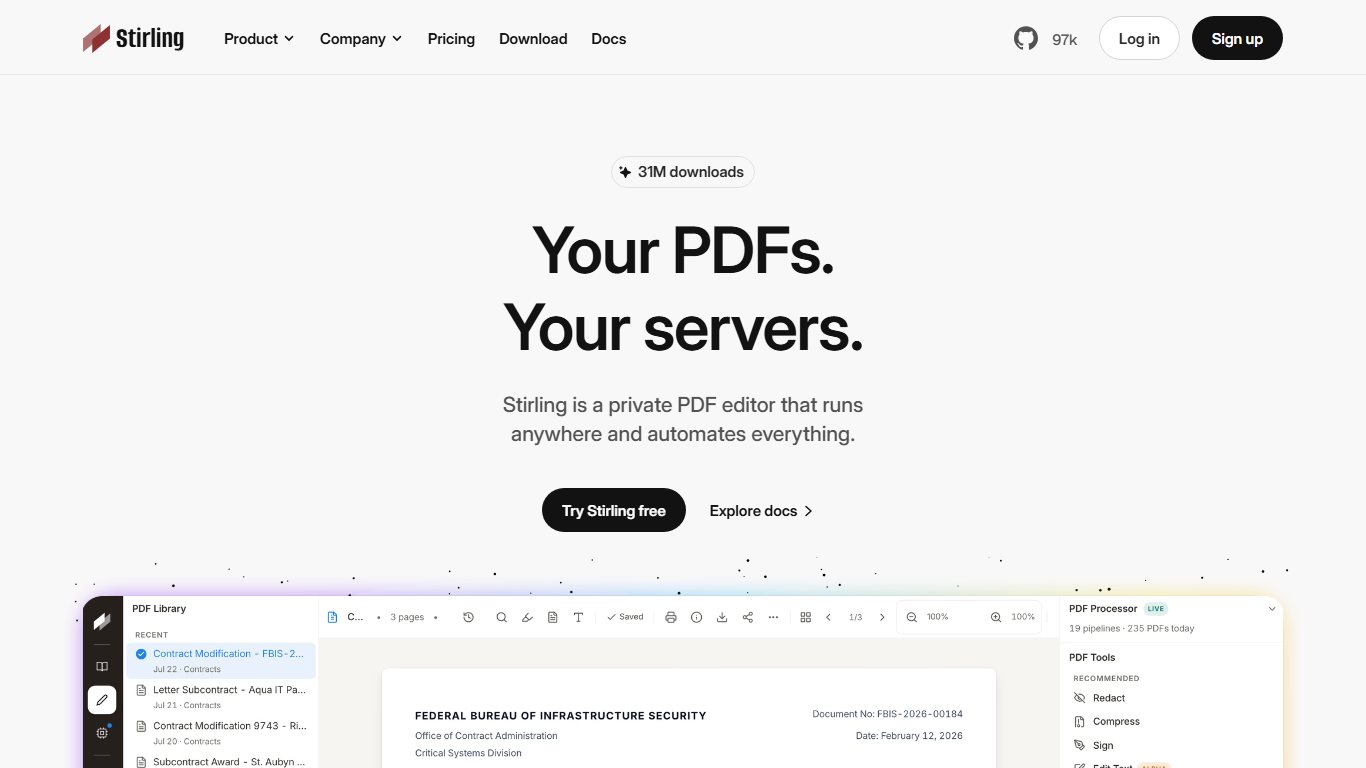
The core is MIT-licensed and free. An Enterprise tier adds features such as single sign-on. You can install the desktop app on Windows, Mac or Linux, or run it as a Docker container on a server you control.
Stirling’s redaction guide says the Convert PDF to PDF-Image option is on by default, so no text remains behind the boxes. Leave it on unless you need searchable output and are ready to run the check.
Browser-only online redactors
Some online tools process the file inside your browser and never send it to a server. That is better than uploading, but you need to check the claim yourself.
The test is simple. Load the page, turn off Wi-Fi, then open and redact a file. If it still works and lets you download the result, the processing happened on your machine. If it stalls or shows an error, it needs a server.
Upload-based online tools (Sejda and similar): when to avoid them
Sejda applies permanent redaction, but the document has to be uploaded to its servers. Smallpdf, Xodo’s online tool and PDF24’s website work the same way.
Their free tiers come with limits:
- Smallpdf says redaction is free with usage limits. Pro removes them and adds OCR for scans.
- Xodo says you can redact one PDF a day for free without signing up.
- Sejda limits free use by pages, file size and tasks per hour.
They’re fine for a flyer with a phone number on it. Avoid them for anything with an SSN, account number, health data or a client’s name.
Freemium desktop apps with caps (Adolix free, PDF-XChange)
Adolix PDF Redactor runs locally on Windows, but the free version stops at 3 pages. That covers a single bank statement page, not a contract.
PDF-XChange Editor has a generous free version for viewing and annotating. Redaction is listed as a paid Editor Plus feature, and the free version stamps a watermark on output when you use a paid feature. Don’t count on it as free redaction software.
Adobe Acrobat Pro trial: the paid benchmark
Acrobat Pro is the standard other tools get compared to. It deletes the underlying objects, keeps the rest of the text searchable, finds patterns such as phone numbers and emails, and offers to remove hidden information.
Adobe lists redaction as a Pro feature and offers a 7-day free trial. After that it costs US$23.99 a month on the monthly plan, or US$359.88 a year on Adobe’s US page. The free Adobe Acrobat Reader can’t redact. A black highlight made in Reader is an annotation. If you have one big job this week, the trial is a reasonable choice. Cancel it before day seven.
How to redact a PDF for free, step by step
Each setup below takes a few minutes. Gather these first.
What you need:
- A copy of the original file, saved under a new name
- A list of what to remove: names, numbers, signatures, photos, addresses
- One of the tools above, installed or open
- Two minutes at the end for the verification test
Before you start
In Preview, applying a redaction permanently removes the content, but earlier copies and backups may still hold it. Duplicate the file first and keep the original somewhere safe and offline.
On a Mac with Preview
Fix it
- In Finder, select the PDF and press Cmd+D to duplicate it. Open the copy in Preview.
- Choose Tools > Redact from the menu bar.
- Drag across each piece of text, or drag a box over a photo or signature.
- Use Edit > Undo for any mistake. This works only before you save.
- Choose File > Save, or close the file. The marked content is now deleted.
- Run the 60-second test below.
Expected result: solid black bars. Searching for a redacted word finds nothing.
Common mistakes: using the Markup toolbar’s Shapes tool, or a black highlight. Preview warns you about shapes over text. Take the warning seriously.
On Windows with PDF24 Creator
Fix it
- Download PDF24 Creator from the official PDF24 site and install version 10 or later.
- Open the PDF24 Toolbox and choose the Redact PDF (blacken) tool.
- Add a copy of your PDF.
- Draw boxes over every area you want removed.
- Save the result as a new file.
- Open the new file and run the 60-second test.
Expected result: redacted pages become images. Text on those pages can’t be selected at all, which is normal.
Common mistakes: using the online version for sensitive files, and missing a second mention on a later page.
On any computer with LibreOffice
Fix it
- Install LibreOffice from libreoffice.org (Windows, Mac or Linux).
- Open your Word, Writer or PDF file in LibreOffice.
- Choose Tools > Redact. The document opens as a LibreOffice Draw drawing.
- Use Rectangle Redaction or Freeform Redaction to cover each item. The shapes look grey and see-through at this stage.
- Click Redacted Export (Black) and save the PDF.
- Open the exported PDF in a different viewer and run the test.
Expected result: solid black areas, and pages that behave like images.
Common mistakes: saving the Draw file as a PDF with a normal export instead of Redacted Export. That keeps the text underneath.
Redacting many items at once: names, SSNs, account numbers
To remove every instance of a name or SSN for free, use LibreOffice Automatic Redaction or Stirling PDF’s Auto Redact. Both accept plain words and regular expressions (regex).
In LibreOffice, choose Tools > Auto-Redact, add each target as text or a regular expression, and click OK. The document opens in Draw with every match already covered. Then use Redacted Export.
In Stirling PDF, open the Redact tool, choose automatic mode, enter your words or patterns and switch on regex. Keep Convert PDF to PDF-Image enabled.
Patterns worth knowing:
| What to find | Example regex | Catches | Misses |
|---|---|---|---|
| U.S. SSN with dashes | \d{3}-\d{2}-\d{4} |
123-45-6789 | 123 45 6789, 123456789 |
| SSN, any separator | \d{3}[- ]?\d{2}[- ]?\d{4} |
All three formats | Numbers split across lines |
| Email address | [\w.+-]+@[\w-]+\.[\w.]+ |
[email protected] | Obfuscated “name at example” |
| Last 4 of a card | \b\d{4}\b |
Every 4-digit number | Too broad: also years, ZIP+4 parts |
| A person’s name | (?i)jane\s+doe |
Jane Doe, JANE DOE | “J. Doe”, “Ms Doe”, initials |
Review every match before you export. Auto-redaction only finds exactly what you ask for. A name with a typo, a hyphenated line break or a nickname will slip through. Scroll page by page afterwards, looking at headers, footers, tables and signature blocks.
Redact the source, not the PDF
If you have the original Word file, delete or replace sensitive text there, then run File > Info > Check for Issues > Inspect Document in Microsoft Word to remove comments, tracked changes and properties before you export. Hidden tracked changes have exposed “deleted” text more than once.
Scanned PDFs and photos of documents
The redaction tool can’t find text in a scanned PDF because a scan is a picture with no text in it. Search returns nothing, so you have to draw boxes over each area by hand.
Scans come in two types:
- Image only. Nothing to copy or search. Area redaction in Preview, PDF24 or LibreOffice works fine.
- Image plus a hidden OCR layer. Many scanners, phone scanner apps and “make searchable” features add invisible text behind the image. You can’t see it, but it can be copied.
To tell them apart, press Ctrl+F or Cmd+F and search for a word you can see on the page. If it’s found, there’s an OCR layer. A flattening tool (PDF24, LibreOffice, Stirling with the image option on) removes that layer from affected pages along with everything else. Smallpdf Pro and Acrobat Pro can run OCR first, so their search-and-redact can work on scans.
The 60-second “did it really redact?” test
A redaction passed only if the exported file gives up nothing you removed. Run this on the file you’re about to send, not the one you edited.
Fix it
- Click and drag across a black bar. If text highlights, it failed.
- Press Ctrl+F (Cmd+F on Mac) and search for a redacted word or number. Any hit means failure.
- Press Ctrl+A, copy, and paste into Notepad, TextEdit, Google Docs or Word. Read what comes out.
- Open the file in a second viewer, such as a web browser, to rule out one app hiding a layer.
- Open document properties (File > Properties, or Tools > Show Inspector in Preview) and check the title, author and subject.
- Look at the bookmarks and comments panels, and any form fields, for leftover names.
What the check should show for each method, based on how each tool removes content:
| Tool | Copy-paste recovers text? | Ctrl+F finds redacted word? | Metadata left behind? | Output file size change |
|---|---|---|---|---|
| Black shape or highlight (fake) | Yes | Yes | Yes | Almost none |
| macOS Preview Redact | No | No | Not cleaned, check properties | Varies |
| LibreOffice Redacted Export | No | No | Check properties | Usually larger |
| PDF24 (online or Creator) | No | No | Check properties | Usually larger |
| Stirling PDF, image option on | No | No | Use its metadata tool | Usually larger |
| Adobe Acrobat Pro | No | No | Removed if you accept “remove hidden information” | Small change |
Pro tip
Search for something you didn’t redact too. If the whole page now returns no hits, you’re looking at an image-based page, which is expected with PDF24, LibreOffice and Stirling’s image option.
Cleaning metadata and hidden data
Redaction deals with what’s on the page. It usually leaves the document’s metadata alone. Author name, company, original file name, comments, bookmarks titled after people, form field values and attached files can all survive.
Fix them like this:
- Word or Writer source: clear File > Properties (LibreOffice) or run Inspect Document (Word) before exporting.
- Stirling PDF: use its Change Metadata tool to delete fields.
- Acrobat Pro: accept the prompt to remove hidden information, or run Sanitize Document.
- Preview: view properties with Tools > Show Inspector. If the title or author gives something away, export from the source again with clean properties.
Can a redaction be removed or undone?
A properly applied redaction removes the content from that file, though whether it can be undone depends on the tool and workflow. Once the text objects are deleted or the page is turned into an image, the information isn’t in the file anymore. A fake redaction (box, highlight, comment) can be lifted in seconds by deleting the annotation or copying the text underneath.
That answers the question about how people unredact files like the Epstein documents. They don’t break real redactions. They find files where the “redaction” was only a cover, and the text layer was still there to copy. That is what the Washington Examiner and Mediaite described.
In Preview, undo works only before you save, and an earlier copy or backup may still hold the original. That’s why the original belongs in a separate, safe place.
Online vs. offline: privacy rules for sensitive documents
Uploading is acceptable only for documents you’d be comfortable emailing to a stranger. A bank statement or tax return belongs in an offline tool, even if the site promises to delete files after an hour.
| Stays on your device | Uploads your file |
|---|---|
| macOS Preview | PDF24 Tools website |
| PDF24 Creator | Smallpdf |
| LibreOffice | Xodo online |
| Stirling PDF desktop or self-hosted | Sejda web |
| Adolix PDF Redactor | Most “free redact online” sites |
| Adobe Acrobat Pro desktop |
Upload sites vary in how long they keep files and where their servers are. You can’t check either from your side. Offline tools take that question off the table, and for most people they’re also faster.
FAQ
What is the best free tool to redact a PDF?
On a Mac, it’s Preview’s Tools > Redact. On Windows, it’s PDF24 Creator. On Linux or for Word files, use LibreOffice. For pattern-based bulk redaction, Stirling PDF is the strongest free option.
Is there a free way to redact a PDF that actually removes the text?
Yes. Preview deletes the marked content on save. PDF24, LibreOffice and Stirling PDF turn affected pages into images. All four are free, and none of them leave text under the box once you export.
I blacked out text in my PDF but I can still copy it. What did I do wrong?
You used an annotation, such as a highlight, shape or comment box, instead of a redaction tool. Start again from the original with a real redaction tool, then run the copy-paste test.
Can I remove a redaction from a PDF?
Not from the redacted file if it was a real redaction, though an earlier copy or backup may still hold the original. If it was a black box or highlight, yes. Anyone can delete it or copy the text from underneath it.
Is there a free version of Adobe Acrobat that can redact?
No. Adobe Acrobat Reader is free but can’t redact. Acrobat Pro can, and the 7-day free trial includes redaction.
Does Adobe Acrobat Reader have a redact tool?
No. Redaction is an Acrobat Pro feature. Drawing a black rectangle in Reader adds a comment, and the text underneath can still be copied.
How do I redact a PDF on a Mac without Acrobat?
Duplicate the file, open it in Preview, choose Tools > Redact, drag over each item, and save. If you’re on Sonoma and can’t see a toolbar button, use the Tools menu.
How do I redact a PDF on Windows for free?
Install PDF24 Creator, open its Redact tool, draw boxes and save a new file. LibreOffice and the Stirling PDF desktop app are free alternatives.
Is it safe to redact PDFs with online tools?
It’s safe enough for non-sensitive files. For a bank statement, tax return or medical record, don’t upload it. Use Preview, PDF24 Creator, LibreOffice or a local copy of Stirling PDF.
How do I know if a PDF redaction is permanent?
Search the exported file for a redacted word, then paste all of its text into Notepad or Google Docs. If neither turns up the word, and the properties and bookmarks are clean, it’s permanent.
Can I redact a scanned PDF?
Yes. Draw boxes over the areas by hand, because text search won’t find anything in a plain scan. If search does find words, the scan has a hidden OCR layer, and a flattening tool will remove it from the redacted pages.
Can I edit a PDF without paying?
Yes. Preview, LibreOffice Draw, PDF24 and Stirling PDF all handle everyday edits for free, such as filling forms, merging, reordering pages, annotating and redacting. Changing body text in place is weaker in free tools than in Acrobat Pro.
Before you send anything sensitive, make redacting a copy and running the 60-second test your habit. Real redaction tools rarely fail. The leaks happen when someone draws a box, the file looks fine, and nobody checks.