
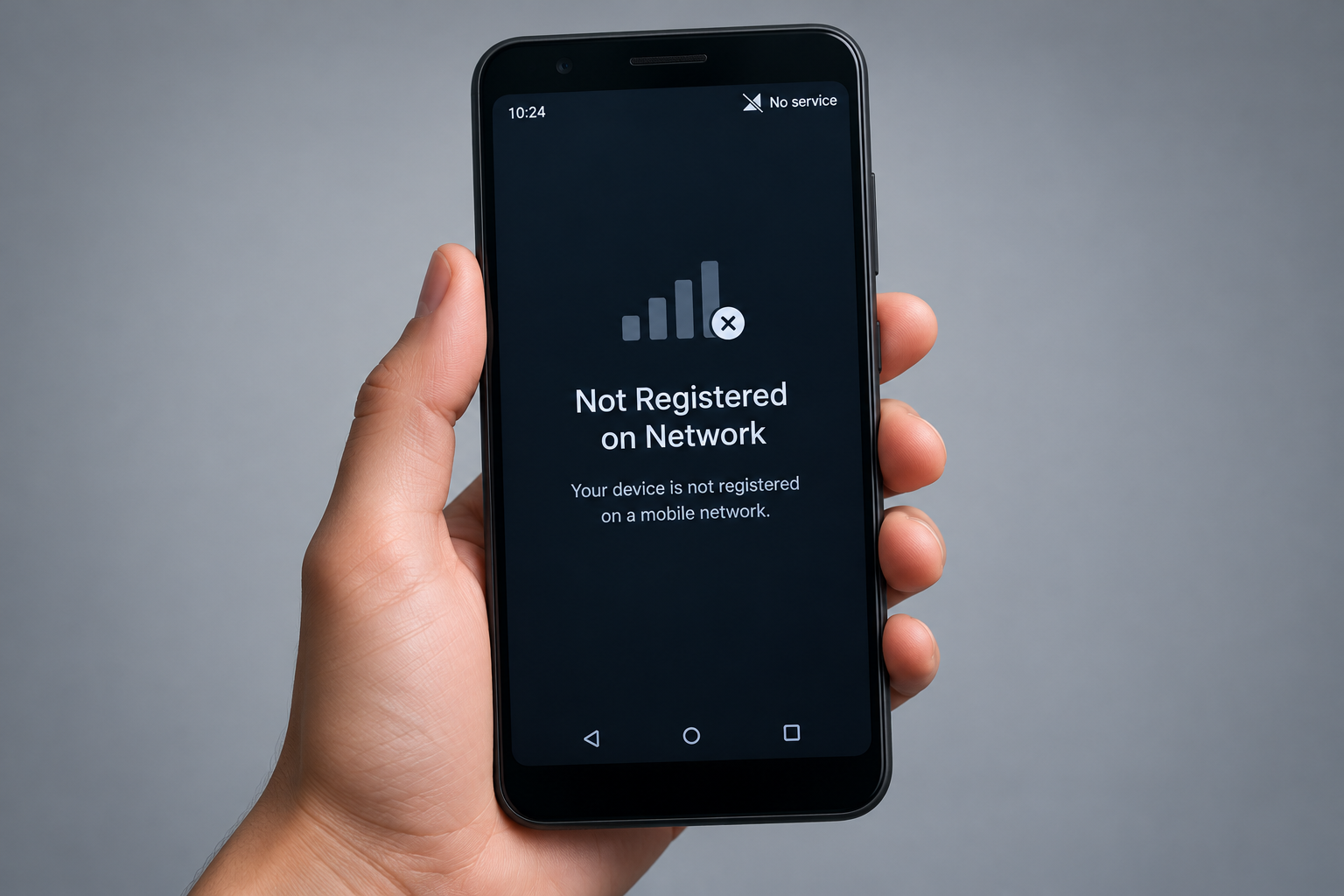
To fix “Not registered on network” on an Android phone, restart it first, then turn Airplane mode on and off and take the SIM card out and put it back in. If the error is still there, install any pending system update, reset the mobile network settings, and set your carrier manually or switch network selection back to automatic. If a known-good SIM also fails, or your account is suspended, your phone is carrier-locked or the SIM slot is damaged, contact your carrier or the phone’s maker.
The “Not registered on network” message is one of the more confusing Android errors. It means your phone can’t register with your carrier’s network, so voice calls, text messages and mobile data all stop working. Most of the time a quick fix sorts it out, such as restarting the phone or reseating the SIM card. Sometimes you need to reset the network settings or pick your carrier by hand. Work through the fixes below in order, starting with the quickest and safest.
Before you start
Menu names and steps change a little depending on your phone’s maker and Android version. The paths below are for Google Pixel phones and Samsung Galaxy phones on current software. Other Android phones use similar menus, so these steps will still get you to the right place.
Restart your phone
A restart clears temporary glitches in the phone’s modem and network software, and it is the first thing to try. How you do it depends on the model:
- Google Pixel and most Android phones: Press and hold the Power button, or the Power and Volume Up buttons on recent Pixels. Then tap Restart.
- Samsung Galaxy: Press and hold the Side key and Volume Down together for a few seconds. When the power menu appears, tap Restart, then tap Restart again to confirm. Holding the Side key on its own opens Bixby by default.
When the phone has restarted, unlock it and wait a minute for it to find the network. Then check whether the error is still there.
Toggle Airplane mode on and off
Airplane mode cuts every radio connection. When you turn it off, the phone has to register with your carrier from scratch. Here is how to toggle it on Android:
- Swipe down from the top of the screen to open the notification shade, then swipe down again to show all the Quick Settings tiles.

- Tap Airplane mode to turn it on.
- Wait about 15 to 30 seconds.
- Tap Airplane mode again to turn it off, then wait for the signal bars to come back.
The same switch is under Settings > Network & internet on a Pixel, and Settings > Connections on a Samsung.
Remove and reseat the SIM card
A loose or badly seated SIM card is a common cause of the Not Registered on Network error. The card can shift with everyday use, or it may not have gone in properly in the first place.
- Power off the phone.
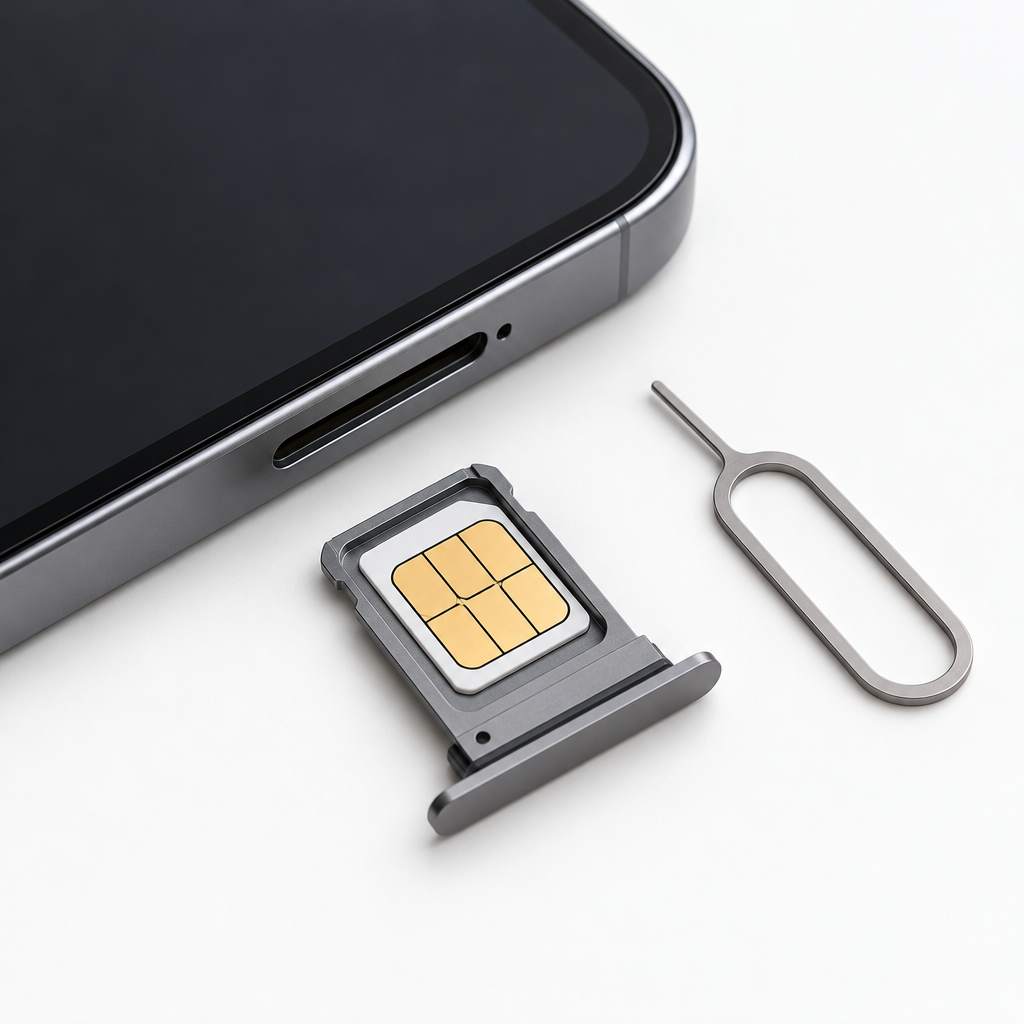
- Find the SIM tray, then push the SIM ejector tool into the small hole next to it. A straightened paperclip works if you don’t have the tool.
- Pull the tray out, check that the SIM is clean and sitting flat in the tray, and wipe the gold contacts gently with a dry, lint-free cloth.
- Slide the tray back in until it sits flush, then turn the phone on.
If your phone uses an eSIM, there is no card to reseat. Go to Settings > Network & internet > SIMs on a Pixel, or Settings > Connections > SIM manager on a Samsung, and make sure the eSIM is turned on.
Update your Android device
Updating your phone matters as much as updating your computer. Updates fix bugs, add security patches and often include modem and carrier fixes. Samsung and the carriers ship patches for exactly this kind of network problem, so check for updates by hand if your phone is behind. If you can’t get online over mobile data, connect to Wi-Fi first.
- Google Pixel: Go to Settings > System > Software updates > System update.
- Samsung Galaxy: Go to Settings > Software update > Download and install.
- Other Android phones: Look under Settings > System, or search Settings for “update”.
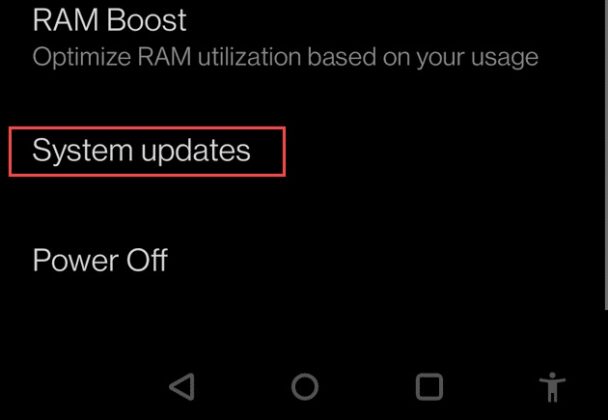
When the update has installed and the phone has restarted, check whether the problem is still there. If it is, and you can’t find a fix in any update, contact the phone’s maker.
Reset network settings on Android
Your phone connects to many networks every day. A corrupted or mismatched network setting can stop it from registering with your carrier. Resetting the network settings is quick and clears that configuration without touching your apps, photos or files. Depending on which reset option your phone shows, it can remove saved Wi-Fi networks and passwords, Bluetooth pairings and any custom APN settings. Write down anything you set up by hand, such as a carrier APN, before you start.
On a Google Pixel or another phone running stock Android:
- Open Settings and tap System.

- Tap Reset options.

- Tap Reset mobile network settings. On older Android versions this option is called Reset Wi-Fi, mobile & Bluetooth.

- If the phone asks, make sure your SIM is selected, then tap Reset settings.

- Enter your device’s PIN when the verification screen appears, then tap Reset settings to confirm.
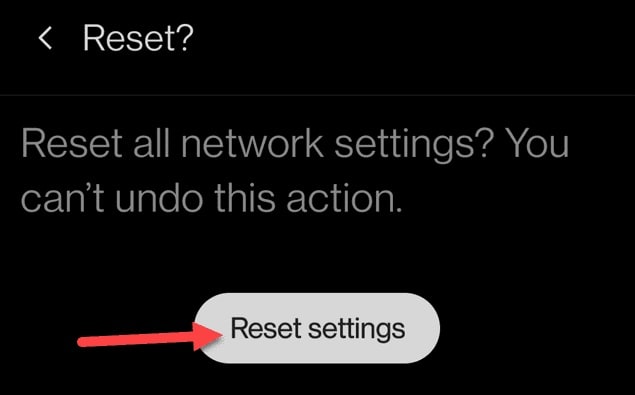
After the reset, restart the phone and check for signal.
Reset network settings on Samsung devices
On Samsung Galaxy phones the reset sits in a different menu. Go to Settings > General management > Reset > Reset network settings, tap Reset settings, enter your PIN, and tap Reset to confirm. Some Galaxy models also show a separate Reset mobile network settings option, which resets the mobile network settings.

Select your carrier and network type manually
If the phone is trying to register on the wrong network, choosing your carrier yourself is worth trying. If you already picked one by hand, switching back to automatic is worth trying too.
- Google Pixel: Go to Settings > Network & internet > SIMs, tap your SIM, and turn off Automatically select network. Wait for the list to load, then tap your carrier. Turn Automatically select network back on later if you travel.
- Samsung Galaxy: Go to Settings > Connections > Mobile networks > Network operators. Turn off Select automatically, then choose your carrier from the list.
While you’re in these menus, check the network type as well. On a Pixel it’s Preferred network type on the same SIM screen. On a Samsung it’s Network mode under Mobile networks. Pick the automatic or highest option, such as 5G/LTE/3G/2G (auto connect). A setting your carrier doesn’t support where you are can stop the phone from registering.
Try a new SIM card
If the Not Registered on Network error is still there, try a different SIM card. Take the old SIM out and put the new one in. If you don’t have a spare, ask your carrier for a replacement, or go to one of its local stores if there’s one near you.
If the new SIM works, the old card was the problem, and you don’t need a SIM that has stopped working anyway. If the new SIM fails as well, the fault is more likely the SIM slot or the phone’s hardware. In that case, take the phone in for repair.
If nothing works
When none of the fixes above help, the cause is usually on the account side or in the hardware, and you can’t fix it from Settings:
- Account or service problems: An unpaid bill, a suspended line or a local carrier outage can all cause this error. Call your carrier or check its outage page.
- Carrier lock: A phone locked to one carrier won’t register with another carrier’s SIM. Ask the original carrier to unlock it.
- Blocked device: If your phone’s IMEI has been reported lost or stolen, or isn’t approved on the carrier’s network, the carrier will refuse it. Contact your carrier to check the status of your device.
- Hardware fault: If several working SIMs fail in the same phone, take it to the maker’s authorized service center, such as Samsung Service or Google’s repair partners.
FAQ
What does “Not registered on network” mean?
It means your phone can’t sign in to your carrier’s mobile network, so calls, texts and mobile data won’t work. Wi-Fi usually still works. The cause can be a SIM problem, a network setting, a software bug or something on the carrier’s side.
Will resetting network settings delete my photos or apps?
No. What a network reset clears varies by phone and software version. On a Pixel, resetting mobile network settings doesn’t reset Wi-Fi or Bluetooth, while a separate reset option covers Wi-Fi, mobile and Bluetooth. Samsung’s network reset covers Wi-Fi, mobile data and Bluetooth settings. Your photos, apps, messages and files stay where they are.
Why does my Samsung phone say not registered on network after an update?
A new firmware version can sometimes leave the modem with settings that don’t match your carrier. Restart the phone, then reset the network settings under Settings > General management > Reset. If the error still comes back, check for a follow-up update or contact Samsung or your carrier.
Can an unpaid bill cause this error?
Yes. If your carrier suspends or deactivates the line, the phone can’t register and may show this exact message. Check your account status in your carrier’s app over Wi-Fi, or call customer service.
Does this error happen with an eSIM?
It can. There’s no card to reseat, but you can turn the eSIM off and on again in the SIM settings, reset the mobile network settings, or ask your carrier to send the eSIM profile again.
When should I take the phone in for repair?
Take it in if a working SIM from your carrier still shows the error after you’ve tried every fix above, including a network reset and a software update. That usually points to a damaged SIM slot or a modem fault.
Sources
- Samsung US Support: Different ways to restart your Galaxy phone or tablet
- Samsung UAE Support: How to properly shut down a Galaxy phone
- Verizon Support: Google Pixel 10 reset network settings guide
- AT&T Device Support: Resetting network settings on Samsung Galaxy S24 and Google Pixel 10 Pro
- Vodafone UK device guides: Google Pixel 10 (Android 16) reset network settings and Pixel 10a select network












