
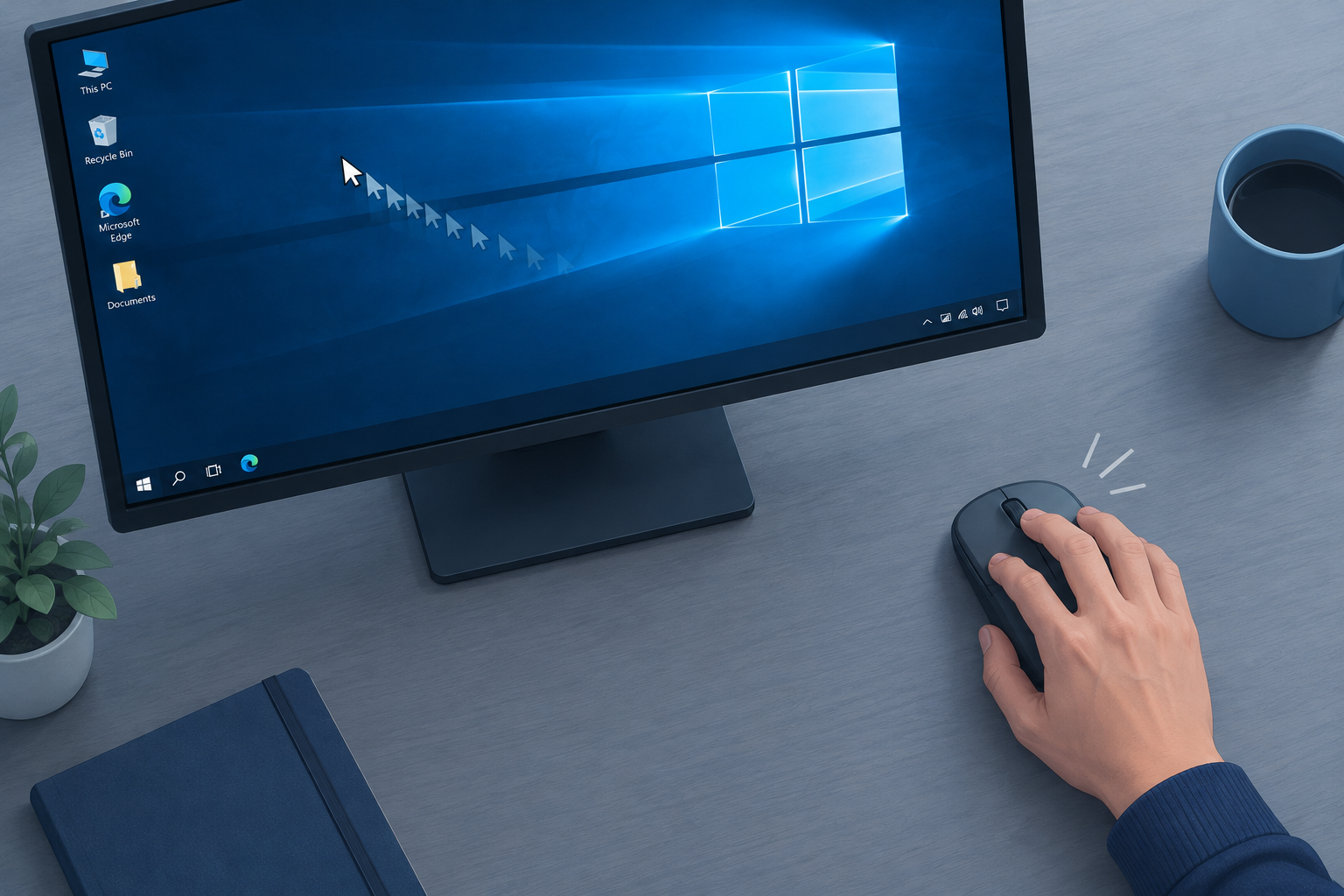
Most mouse lag in Windows 10 comes down to a faulty driver, a weak wireless connection or a power-saving setting that keeps cutting off the USB port. Try these in order: reinstall the mouse driver in Device Manager, update it or roll it back, then move a wireless receiver to a different USB port and switch off USB power saving. Windows 10 22H2 is the last version of Windows 10. Free support ended on October 14, 2025, and Microsoft’s Consumer Extended Security Updates (ESU) program now delivers security patches until October 12, 2027, so install the latest updates before you start.
Windows 10 is a mature, stable system, but mouse lag still turns up on plenty of PCs. Below are the common types of mouse lag, followed by the fixes that work, from quickest to most involved.
Before You Start
Windows Update often delivers the fix by itself, so check it first. Go to Start > Settings > Update & Security > Windows Update and select Check for updates. Your PC needs to be on Windows 10 version 22H2 and enrolled in ESU to keep getting security patches. Without ESU it gets no updates at all.
If your mouse is too laggy to use, plug in a second mouse for now or use the keyboard. In Device Manager, the Tab key, the arrow keys and Enter get you around, and Shift + F10 opens the right-click menu.
Types of Mouse Lag
Mouse lag shows up in a few different ways depending on what you are doing. Working out which one you have helps you choose the right fix.
- Lag during games: The pointer or crosshair falls behind your hand while you play, which is a big problem in competitive games. If the lag only happens in online matches, it may be network lag and not your mouse. A wired mouse feels the same on any connection, so buying the best xfinity internet for gaming will not fix a pointer that also stutters on the desktop.
- Mouse freezing: The pointer stops without warning and the PC becomes almost unusable. This can happen at random or when you open a heavy program, from a game launcher to office tools like simplehr software. In that case, look at CPU and disk use in Task Manager (Ctrl + Shift + Esc) as well as the mouse.
- Wireless mouse lag: This is common with 2.4 GHz wireless and Bluetooth mice. It is usually caused by distance, low batteries or interference, and it is usually easy to fix.
- Mouse stutter: The pointer never freezes completely but jumps or trails behind the real movement of the mouse.
Several fixes are listed below. If the first one does not work, move on to the next. Keep going until the lag is gone.
1. Reinstall the Mouse Driver
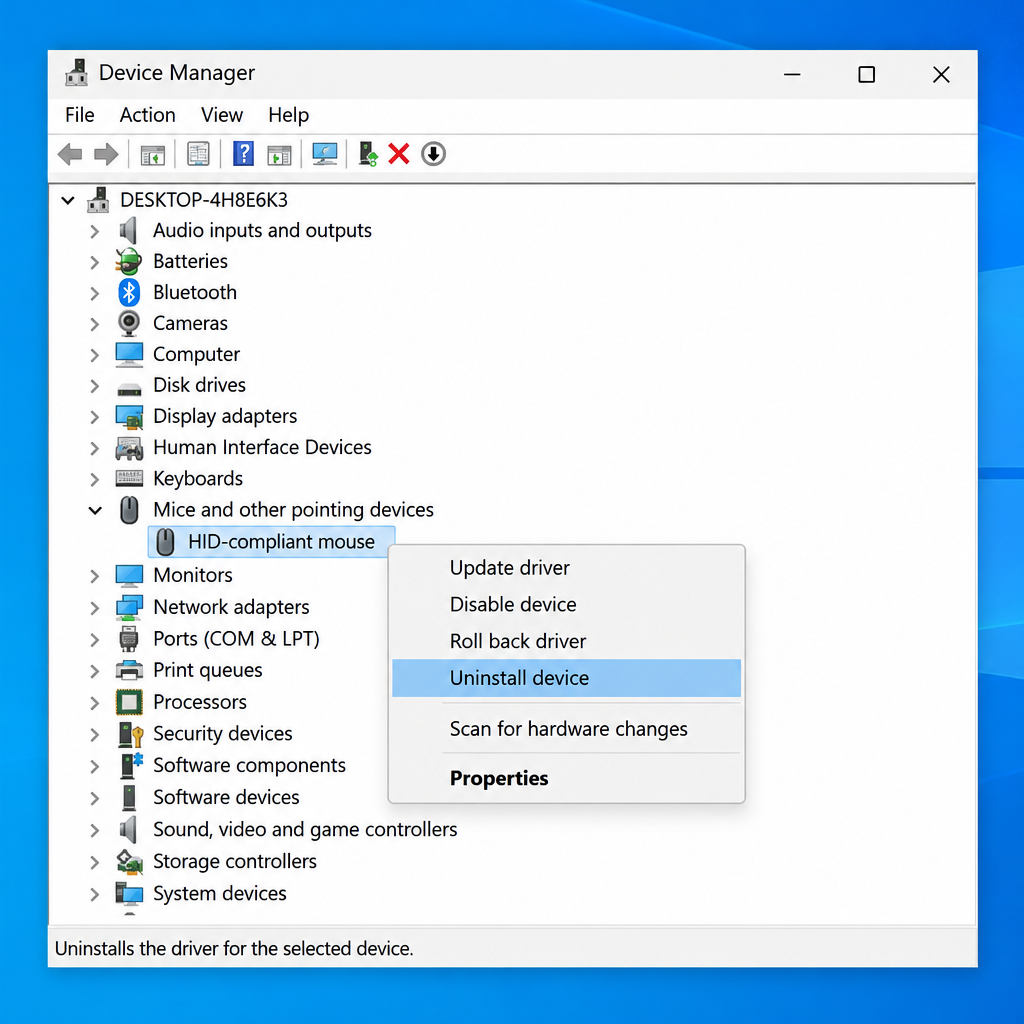
Driver problems cause a lot of mouse lag. A driver is the software that lets Windows talk to your hardware, and when it is damaged or set up wrong, the pointer can stutter or freeze. Reinstalling it gives you a clean copy.
- Press Windows key + X and select Device Manager.
- Expand Mice and other pointing devices and find the mouse that is misbehaving. A wireless mouse may also be listed under Human Interface Devices or Bluetooth.
- Right-click the mouse and select Uninstall device.
- Select Uninstall in the box that appears to confirm.
- Restart your PC. Windows 10 reinstalls the mouse driver automatically when it starts up again.
This step fixes most driver-related lag.
2. Update the Mouse Driver
An old driver can also cause lag, and updating it is easy. Older PCs with older hardware gain the most from this step.
- Open Device Manager as described above and expand Mice and other pointing devices.
- Right-click the mouse and select Update driver.
- Select Search automatically for drivers. If Windows says the best driver is already installed, look in Windows Update as well. Since 2020, Device Manager no longer downloads new drivers from Windows Update itself. Go to Settings > Update & Security > Windows Update, select View optional updates if it appears, open Driver updates, tick the mouse or USB driver you want and select Download and install.
- Gaming mice from Logitech, Razer or Corsair often get better drivers and firmware through the maker’s own app. Download it only from the manufacturer’s official website.
The update can take a few minutes. Restart your PC when it finishes.
3. Roll Back the Driver
Sometimes the newest driver is the problem. If the lag started right after a driver or Windows update, go back to the previous version.
- Open Device Manager, expand Mice and other pointing devices and double-click the mouse.
- Open the Driver tab and select Roll Back Driver.
- Windows asks why you are rolling back. Pick any reason and select Yes.
- Restart your PC.
If Roll Back Driver is greyed out, Windows does not have an older driver saved for that device, so go back to fix 1 or 2.
4. Check Other USB Devices and Wireless Connections
Other USB devices can interfere with a mouse and make it lag. This affects 2.4 GHz wireless receivers the most. Intel has documented that USB 3.0 ports and devices give off radio noise in the same 2.4 to 2.5 GHz band those receivers use, and MSI’s support guidance says the same.
- Unplug the other USB devices, then use the mouse with nothing else connected. If the lag disappears, plug the devices back in one at a time until you find the one causing it.
- Move a wireless receiver to a USB 2.0 port (usually the black ones, while USB 3.0 ports are often blue) or put it on a short USB extension cable so it sits closer to the mouse and further from USB 3.0 drives and hubs.
- Replace or recharge the batteries. Many wireless mice start to lag before the battery warning appears.
- For a Bluetooth mouse, go to Settings > Devices > Bluetooth & other devices, select the mouse and choose Remove device, then select Add Bluetooth or other device to pair it again. This clears up most Bluetooth problems.
- Try a wired mouse, or your mouse on a different PC. If the lag follows the mouse, the mouse itself is faulty.
5. Turn Off USB Power Saving and Check Mouse Settings
Windows can switch off USB ports to save power, which makes a mouse pause or skip, especially on laptops. Switching this off takes about two minutes.
- In Device Manager, expand Universal Serial Bus controllers, double-click each USB Root Hub, open the Power Management tab and clear Allow the computer to turn off this device to save power.
- Open Control Panel > Hardware and Sound > Power Options, select Change plan settings > Change advanced power settings, expand USB settings and set USB selective suspend setting to Disabled.
- Go to Settings > Devices > Mouse and try turning Scroll inactive windows when I hover over them off and back on. Some users have reported it causing stutter.
- On the same page, select Additional mouse options, open Pointer Options and try clearing Enhance pointer precision. Gamers usually turn it off because it makes the pointer speed change with how fast you move the mouse.
If you use the PC for work and it is looked after by an IT company, ask before changing power policies. A clear agreement on who changes what is part of what makes a good business partnership, and those settings might be managed for you.
If Nothing Works
When none of these fixes help, the problem is probably hardware. It could be a worn sensor, a damaged cable or a failing USB port. Try a different mouse. If a new mouse lags too, contact your PC maker or the mouse maker for warranty support, since Microsoft no longer offers technical support for Windows 10 apart from help with ESU. If your PC can run it, upgrading to Windows 11 is free, and it gives you current drivers and long-term support.
FAQ
Why does my mouse lag only in games?
Games push the CPU and GPU hard, so a low frame rate, a background app or a high polling rate on a busy PC can make the pointer feel slow. Online games can also suffer from network lag, which feels like mouse lag but is not. If the pointer is smooth on the desktop, look at the game’s settings and your connection before you change mouse drivers.
Why does my wireless mouse lag when it is close to my laptop?
The likeliest cause is interference from USB 3.0 ports or devices next to the receiver. Move the receiver to a USB 2.0 port or a short extension cable. Low batteries and metal desks can also weaken the signal.
Is it safe to uninstall the mouse driver?
Yes. Windows 10 reinstalls a basic mouse driver automatically after a restart. Keep a keyboard connected so you can still get around if the mouse stops working for a moment.
Does Windows 10 still get updates that could fix mouse problems?
Only if the PC is enrolled in Microsoft’s Consumer ESU program, which provides security updates until October 12, 2027. ESU covers security fixes only and does not add new features. Hardware makers may still publish drivers for Windows 10, so check their support pages.
Should I turn off Enhance pointer precision?
Turn it off for games, because it changes pointer speed based on how fast you move the mouse, which makes your aim hard to repeat. For everyday use, keep whichever setting feels better. It does not fix freezing or real stutter.
When is mouse lag a sign of a hardware problem?
If the lag stays the same with a different USB port, a different driver and on a different PC, the mouse is failing. If a different mouse lags on your PC as well, the problem is your PC’s USB ports or system, and you should contact the PC maker.
Sources
- Microsoft: Windows 10 Consumer Extended Security Updates (ESU)
- Microsoft: End of support for Windows 10, Windows 8.1 and Windows 7
- MSI: USB 3.0 radio frequency interference impact on 2.4 GHz wireless devices












