
The quickest way to remove a program in Windows 10 is Settings > Apps > Apps & features: click the program, choose Uninstall, and confirm. That screen lists both Microsoft Store apps and regular desktop programs. You can also right-click the program in the Start menu, use Programs and Features in Control Panel, run the program’s own uninstaller, or type a winget command. If you want leftover files and Registry entries cleaned up as well, a reputable third-party uninstaller such as Revo Uninstaller can do it.
If your Windows 10 PC has apps you no longer use, you don’t have to keep them. Removing them frees up disk space and tidies your Start menu. These steps apply to Windows 10 version 22H2, the final release. Windows 10 lost mainstream support on October 14, 2025, but PCs enrolled in Microsoft’s consumer Extended Security Updates (ESU) program get security patches until October 12, 2027.
Windows 10 has uninstall options in the Start menu and the Settings app, plus one in Control Panel. The Start menu and Settings can remove both Microsoft Store (Universal) apps and desktop programs. Control Panel’s Programs and Features is meant for desktop programs.
Why built-in uninstallers can leave things behind
When you remove a full desktop program with Windows’ built-in tools, Windows runs that program’s own uninstall routine. That routine often leaves folders, files and Registry entries behind. A third-party uninstaller can find and delete those leftovers. The sections below start with the simplest built-in methods and finish with the more thorough ones.
Uninstall from the Start menu
The Start menu is the fastest route when you already know which program you want gone.
- Click the Start button.
- Find the program in the app list on the left or in the tiles on the right. You can also type its name to search for it.
- Right-click the program and choose Uninstall. If you don’t see that option, the app can’t be removed this way. Some built-in Windows apps can’t be removed at all.
- Confirm.
A Microsoft Store app is removed right away. For some desktop programs, Windows opens Programs and Features in Control Panel, and you finish the job there (see the Control Panel section below).
Uninstall in Settings
The Apps & features page in Settings lists most installed apps in one place and shows the size of many of them, so it’s a good place to see what is installed.
- Open Start > Settings > Apps > Apps & features.
- Scroll down the list, or type in the search box above it to find the program. You can sort the list by size to spot the biggest ones.
- Click the program and choose Uninstall, then click Uninstall again to confirm.
- If a desktop program opens its own uninstall wizard, follow its prompts.
This screen covers Windows Universal apps and regular desktop programs, so every program installed on your PC should appear here. If the Uninstall button is greyed out, that app is part of Windows and can’t be removed this way.
On Windows 11 the path has changed. It’s Settings > Apps > Installed apps, and you click the three-dot menu next to the app to find Uninstall.
Uninstall through Control Panel
Control Panel still works in Windows 10 22H2, but it only lists desktop programs, not Microsoft Store apps.
- Click the Start button, scroll down to the Windows System folder, open it and click Control Panel. You can also type “Control Panel” in the search box on the taskbar.
- Set View by to Large icons or Small icons, then click Programs and Features.
- Select the program you want to remove.
- Right-click it and choose Uninstall (or Uninstall/Change), or click Uninstall in the bar at the top of the list.
- Confirm and follow the program’s own prompts.
Use the program’s own uninstaller
Many desktop programs come with their own uninstaller. This is the same routine Windows calls behind the scenes, and it’s useful when a program won’t show up in Settings or Control Panel.
- Open the Start menu and look for the program’s folder. Many programs put an “Uninstall” shortcut in there.
- If you don’t see one, open File Explorer and go to the program’s folder under C:\Program Files or C:\Program Files (x86).
- Look for a file with a name like uninstall.exe or unins000.exe, double-click it, and follow the prompts.
Only run uninstall files found inside the program’s own installation folder. Never download an “uninstaller” for a specific program from an unofficial site.
Uninstall with a winget command
Windows Package Manager (winget) lets you remove programs by typing a command. It’s handy for removing several apps at once or for programs that are hard to find in the list. On Windows 10 version 1809 and later, winget comes with Microsoft’s App Installer from the Microsoft Store.
- Right-click Start and open Windows PowerShell or Command Prompt.
- Type
winget listand press Enter to see the installed programs and their IDs. This includes programs you didn’t install with winget. - Type
winget uninstall, idfollowed by the ID of the program, then press Enter. - To remove several programs at once, list their IDs one after another after
winget uninstall.
When you remove an app that came from the Microsoft Store, winget may ask you to accept the Store’s terms. Adding , source winget to the command skips that prompt for apps from the winget repository.
Third-party uninstallers
Programs often scatter their data and settings across your system. They can also leave settings in the Registry that are hard to track down. The uninstall tools built into Windows don’t always remove these leftovers, and a good third-party uninstaller does a far better job of removing a program completely.
The hard part of removing a Windows desktop program is getting the balance right. Many Windows files and Registry settings are shared by more than one program. An uninstaller therefore has to remove the leftovers of the program you’re uninstalling without breaking another program that still depends on them.
For this reason, the leading uninstallers create backups and have safety checks. If something goes wrong after an uninstall, you can roll the system back to fix the problem. Revo Uninstaller is one of the best-known tools of this kind. Download it only from the developer’s official site, revouninstaller.com. Bundled “free download” mirrors and cheap reseller keys carry real risks.
Revo Uninstaller
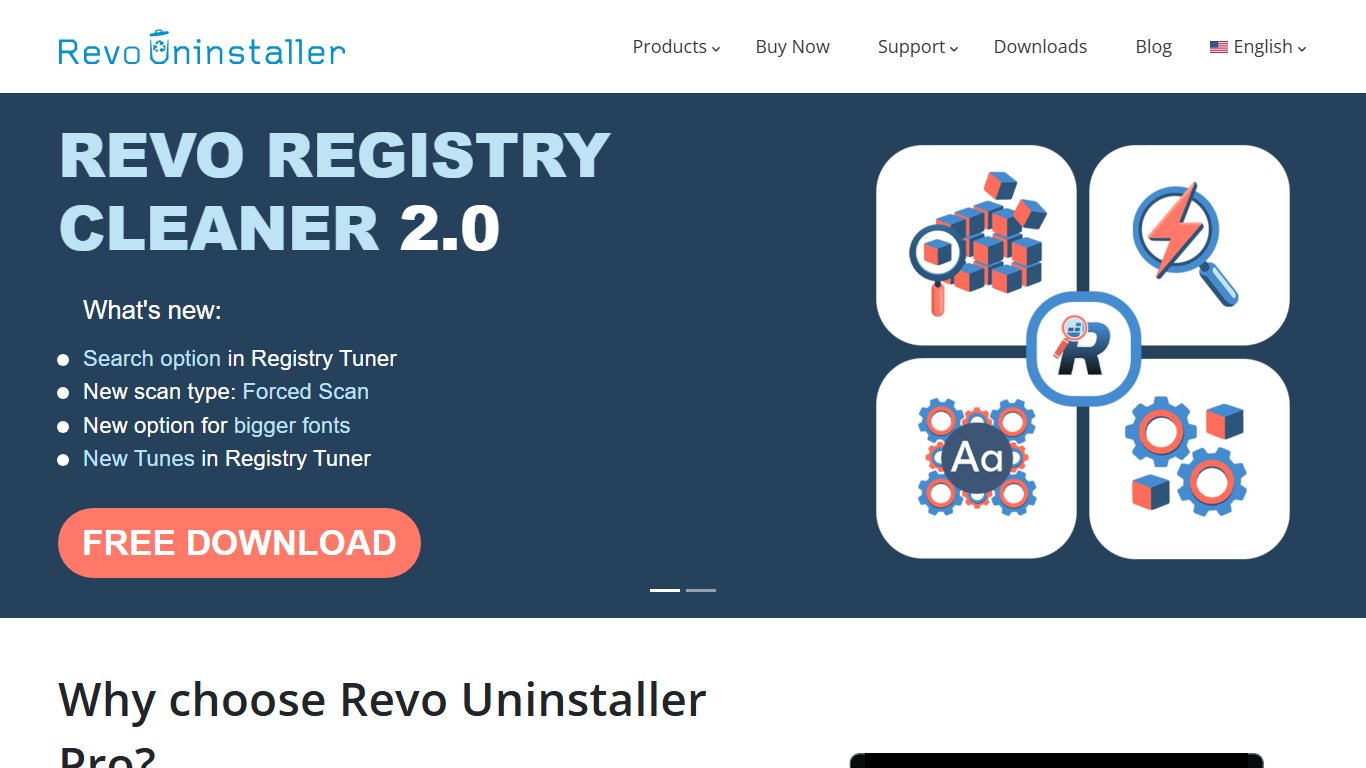
Revo Uninstaller can completely remove desktop programs. The Pro edition can also remove Windows apps and browser extensions. The free version covers the basic features and is a good place to start. On the official store, Revo Uninstaller Pro is listed at $24.95 and Pro Portable at $29.95. Pro Portable is licensed per user rather than per computer, so you can run it on several PCs from a USB drive. The Pro features also include cleaning up leftovers of programs you already uninstalled. Revo often runs discounts and sells time-limited licenses, so check the current price and license length on its site before you buy. The regular Pro edition has a free trial.
Revo’s interface shows all the programs on your system, which makes the ones you want to remove easy to find. Pro can also monitor a program while it installs. Because it tracks the whole installation, it can remove that program more precisely later.
To use Revo:
- Double-click the program you want to remove, or right-click it and choose Uninstall.
- Revo first creates a System Restore point. If it turns out to be too aggressive in removing related files and Registry entries, you can roll back to that point.
- Revo then runs the program’s own uninstall routine.
- Next, it scans the Registry for leftover settings and asks whether you want to remove them. Choose one of three scanning modes, Safe, Moderate or Advanced, depending on how aggressive you want the scan to be. Safe is the best choice if you’re unsure.
- Revo then scans for leftover files and folders and lets you delete them.
Review the list before you delete anything. Only tick items that clearly belong to the program you removed.
FAQ
What is the fastest way to uninstall a program in Windows 10?
Open Settings > Apps > Apps & features, click the program and choose Uninstall. You can also right-click the program in the Start menu and choose Uninstall. Both methods handle Microsoft Store apps and desktop programs.
Why can’t I uninstall some apps in Windows 10?
Some apps are part of Windows itself, so their Uninstall button is greyed out or missing. A program may also refuse to uninstall if it’s still running. Close it, or restart the PC, and try again. If its uninstaller is broken, try running the uninstall file in its installation folder or use winget.
Does uninstalling a program remove all its files?
Not always. The program’s own uninstaller often leaves settings folders in your user profile and entries in the Registry. A third-party tool such as Revo Uninstaller scans for those leftovers after the normal uninstall finishes.
Is it safe to use a third-party uninstaller?
It’s safe if you download it from the developer’s official site and use a cautious setting such as Revo’s Safe mode. Make sure a restore point is created first, and only delete leftovers that clearly belong to the removed program. Avoid aggressive Registry “cleaning” of entries you don’t recognise.
How do I uninstall Microsoft Office from Windows 10?
Try Settings > Apps > Apps & features first. If Office won’t uninstall cleanly, Microsoft offers its own Office uninstall support tool on support.microsoft.com, which removes Office and Microsoft 365 completely.
Can I still use Windows 10 safely in November 2026?
Yes, if your PC is enrolled in Microsoft’s consumer ESU program, which now delivers security updates until October 12, 2027. Without ESU, Windows 10 no longer gets security fixes, and moving to Windows 11 or a newer PC is the safer long-term choice.
Sources
- Microsoft Support: Uninstall or remove apps and programs in Windows
- Microsoft Learn: winget uninstall command
- Microsoft: Windows 10 Consumer Extended Security Updates (ESU)
- Microsoft: End of support for Windows 10
- Revo Uninstaller: Buy Revo Uninstaller Pro












