
Most computers feel fast and smooth when they’re new. Over time they collect startup apps, junk files and preinstalled software, and they slow down. You can fix most of that yourself. The fixes below start with the quickest and safest and end with the most involved.
Disable startup programs
Many programs set themselves to start when Windows boots. Each one loads in turn and keeps running in the background. That makes startup slow and leaves less memory and processor time for the apps you actually use.
To stop apps you don’t need from starting with Windows:
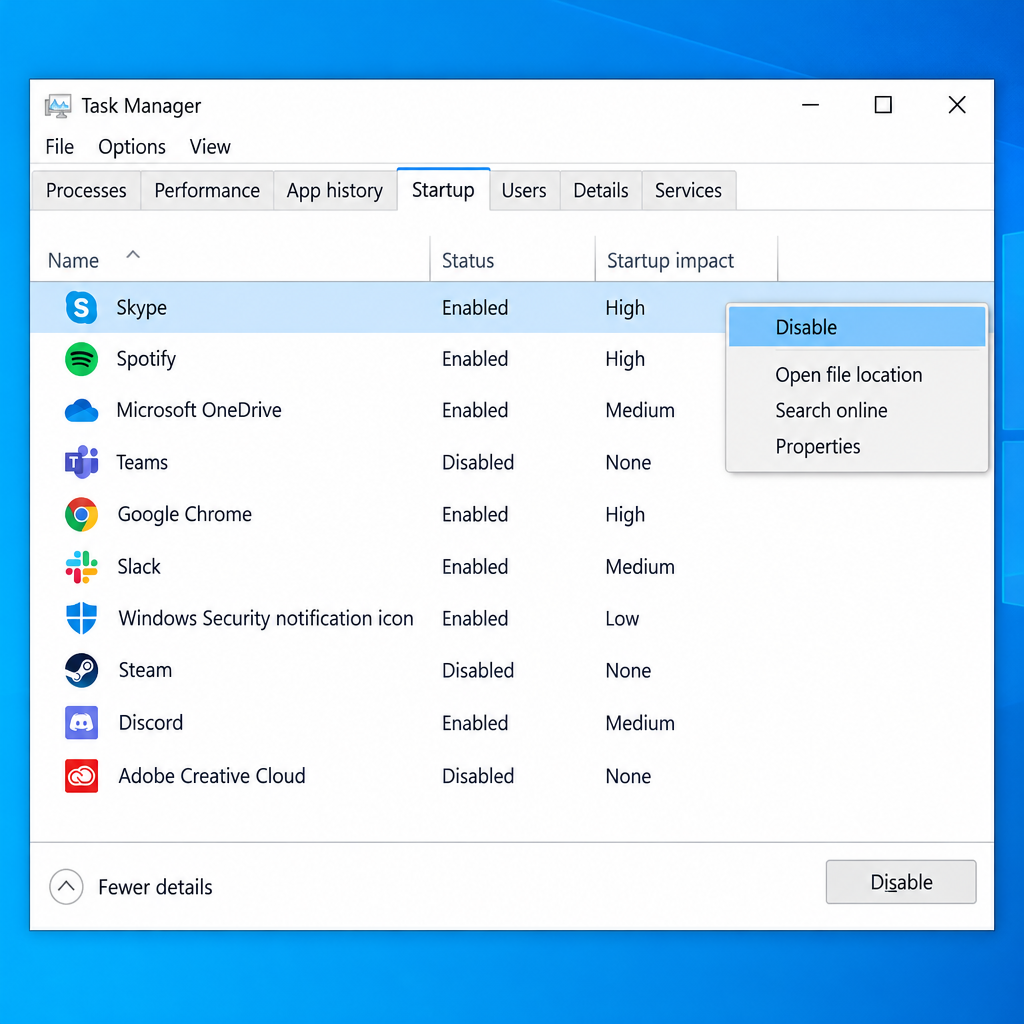
- Press Ctrl + Shift + Esc to open Task Manager. You can also press the Windows key, type Task Manager and open it.
- If Task Manager opens in its small view, click More details.
- Go to the Startup tab. The Startup impact column shows how much each enabled program slows the boot.
- Right-click a program you don’t need at startup and select Disable.
You can also do this in Settings > Apps > Startup, which has a simple on/off switch for each app. Leave security software and anything from your hardware maker that you don’t recognise switched on. Disabling an app at startup doesn’t uninstall it. It just stops it from loading until you open it yourself.
Remove bloatware
Bloatware is a common cause of slow performance. Many PCs ship with trial software, games and maker utilities that you never use. These apps take up storage, and some of them run background tasks.
You don’t need a third-party cleaner to remove them. Windows 10 has its own uninstaller:
- Open Settings > Apps > Apps & features.
- Sort the list by Size or Install date to spot the biggest or unfamiliar apps.
- Click an app you don’t want and select Uninstall.
If you don’t know what an app does, look up its name before you remove it. Some entries are drivers or utilities that touchpads, audio or function keys need to work.
Change power settings
Your laptop might be slow because it’s running in a power-saving mode. In that mode Windows limits processor speed to save battery, so apps can feel sluggish even when the laptop is plugged in.
On a Windows 10 laptop, the quickest fix is the power slider:
- Click the battery icon on the taskbar.
- Drag the slider towards Better performance or Best performance.
You can also use Windows Mobility Center:
- Press Windows key + X and select Mobility Center.
- Under Battery Status, open the drop-down list and choose a higher-performance plan, if your PC offers one.
On a desktop PC, go to Control Panel > Hardware and Sound > Power Options. Click Show additional plans and select High performance.
You should notice the difference straight away. Higher-performance modes drain the battery faster, though, so use them mainly while the laptop is plugged in.
Disk cleanup
Junk files slow a PC down in the same way bloatware does, especially when the system drive is nearly full. Disk Cleanup removes temporary files, thumbnails, Recycle Bin contents and leftover Windows Update files.
To run Disk Cleanup:
- Open File Explorer and select This PC.
- Right-click the drive you want to clean (usually C:) and select Properties.
- Click the Disk Cleanup button.
- Click Clean up system files to include old update files as well.
- Tick the types of files you want to delete.
- Click OK, then Delete Files, and wait for it to finish.
To keep the drive clean automatically, turn on Storage Sense in Settings > System > Storage. Storage Sense clears temporary files and old Recycle Bin items on a schedule, so junk doesn’t pile up again.
System scan for viruses
Viruses, spyware and adware can all slow a PC down. Adware keeps opening browser windows full of ads. Spyware runs quietly in the background and tracks what you do, which is a privacy risk and also eats up resources.
Windows 10 includes Microsoft Defender Antivirus, which is part of the Windows Security app. It’s turned on by default unless you’ve installed another antivirus program. To run a scan:
- Open Settings > Update & Security > Windows Security.
- Select Virus & threat protection.
- Click Quick scan.
If you suspect something stubborn, click Scan options and choose Microsoft Defender Offline scan. This restarts the PC and scans before Windows loads. A reputable third-party antivirus is fine too, but run only one real-time antivirus at a time. Two of them running together is a common cause of slowdowns.
Because Windows 10 is past its end of support date, it only gets security fixes for the operating system if the PC is enrolled in ESU. You can check this in Settings > Update & Security > Windows Update.
Switch off animation and effects
Animations, shadows and other visual effects look nice, but they use processor and graphics time. On older PCs, or PCs with basic built-in graphics, turning them off makes windows and menus feel faster.
Try turning the effects off and see which look you prefer. For the best performance:
- Press the Windows key and type Adjust the appearance and performance of Windows, then open it. You can also go to Control Panel > System > Advanced system settings and click Settings under Performance.
- Select Adjust for best performance.
- Click OK.
If text looks rough afterwards, go back and tick Smooth edges of screen fonts. It costs almost nothing in speed.
Turning off transparency effects also helps a little and gives Windows a flat look. A plain colour background instead of a picture or slideshow is slightly lighter as well. To turn off transparency:
- Open Settings > Personalization.
- Select Colors.
- Turn off Transparency effects.
Bonus tips
If none of the fixes above helps, try these. If the PC is still slow afterwards, its hardware is probably the limit.
Restart your PC
Restarting often fixes a slow computer. Over days of use, apps leak memory and background processes pile up, and a restart clears them. Use Restart rather than Shut down. Windows 10’s Fast Startup feature means a normal shutdown doesn’t fully reset the system. If the PC hangs, lags or something stops working properly, restart it and see if things improve.
Get more RAM
More RAM lets you run more programs at once without Windows slowing down to swap data to the drive. To check how much you have and how much you’re using, open Task Manager > Performance > Memory. That screen also shows how many memory slots are in use.
The table below is a rough guide for everyday Windows 10 use.
| Installed RAM | What to expect on Windows 10 |
|---|---|
| 2 GB | The official minimum for 64-bit Windows 10. Struggles with a modern browser. |
| 4 GB | Usable for one or two light apps. Slows down with many browser tabs. |
| 8 GB | Comfortable for browsing, office work and video calls. |
| 16 GB | Plenty for heavy multitasking, photo editing and most games. |
If your PC can take more memory, upgrading is one of the most noticeable improvements you can make. Check your PC maker’s support page for the exact type your model takes. Many thin laptops have memory soldered to the board, which means it can’t be upgraded. If your PC still boots from a spinning hard drive, replacing it with an SSD usually makes a bigger difference than extra RAM.
Clean Windows 10 installation
If nothing else works and the PC is clogged with programs and junk, reinstall Windows. Windows 10’s built-in Reset this PC is the safest way to do it, and you don’t need a separate installer:
- Back up your files to an external drive or OneDrive first.
- Open Settings > Update & Security > Recovery.
- Under Reset this PC, click Get started.
- Choose Keep my files to keep your personal files, or Remove everything for a completely clean start.
- Choose Cloud download to get a fresh copy of Windows from Microsoft, or Local reinstall to use the copy already on the PC.
- Follow the on-screen instructions.
Either option removes your installed apps and settings, so have your app installers and licence keys ready. Afterwards the PC will feel almost new. Install only the programs you need, and run Disk Cleanup or let Storage Sense handle junk regularly so it doesn’t build up again.
These fixes can make a big difference to Windows 10 performance. If the PC is still slow after all of them, or it’s slow even right after a reset, the problem is probably the hardware. Contact the PC maker or a repair shop, especially if you hear clicking from the drive or the PC overheats and shuts down.
FAQ
Is it still safe to use Windows 10 in November 2026?
Only if the PC is enrolled in Extended Security Updates. Microsoft extended the consumer ESU programme to October 12, 2027, and PCs that were already enrolled moved to the new date automatically. ESU needs Windows 10 version 22H2. It’s free if you sync your settings with Windows Backup or redeem 1,000 Microsoft Rewards points, or you can pay $30. Without ESU, Windows 10 no longer gets security fixes.
Will upgrading to Windows 11 make my PC faster?
Not by itself. Windows 11 needs similar hardware, and on a PC that barely meets the requirements it isn’t faster than Windows 10. The upgrade is still free for eligible PCs with an activated Windows 10 licence, and it puts you back on a fully supported system. Do the clean-up steps above first either way.
Do I need CCleaner or a PC booster app?
No. Windows 10 already includes Disk Cleanup, Storage Sense, the Apps & features uninstaller and startup controls in Task Manager. Booster and “registry cleaner” apps add little speed and can break things. Download software only from the vendor’s official website or the Microsoft Store.
Does Reset this PC delete my files?
Keep my files leaves your personal files in place but removes your apps and settings. Remove everything wipes the drive. Back up first in both cases, because a failed reset or a file saved in an unusual folder can still mean lost data.
How much RAM does Windows 10 need to run well?
Microsoft’s minimum is 1 GB for 32-bit and 2 GB for 64-bit Windows 10. Real-world use with a modern browser needs much more. 8 GB is a comfortable amount for everyday work, and 4 GB will feel slow once you open several tabs.
Why is my PC slow right after a Windows update?
After an update, Windows often finishes installing in the background, rebuilds its search index and runs a Defender scan. This can keep the drive and processor busy for an hour or so. Leave the PC on and plugged in for a while, then restart it. If it’s still slow a day later, work through the fixes above from the top.
Sources
- Tips to improve PC performance in Windows (Microsoft Support)
- Reset your PC (Microsoft Support)
- Windows 10, version 22H2 end of support date updated (Microsoft Learn)












