
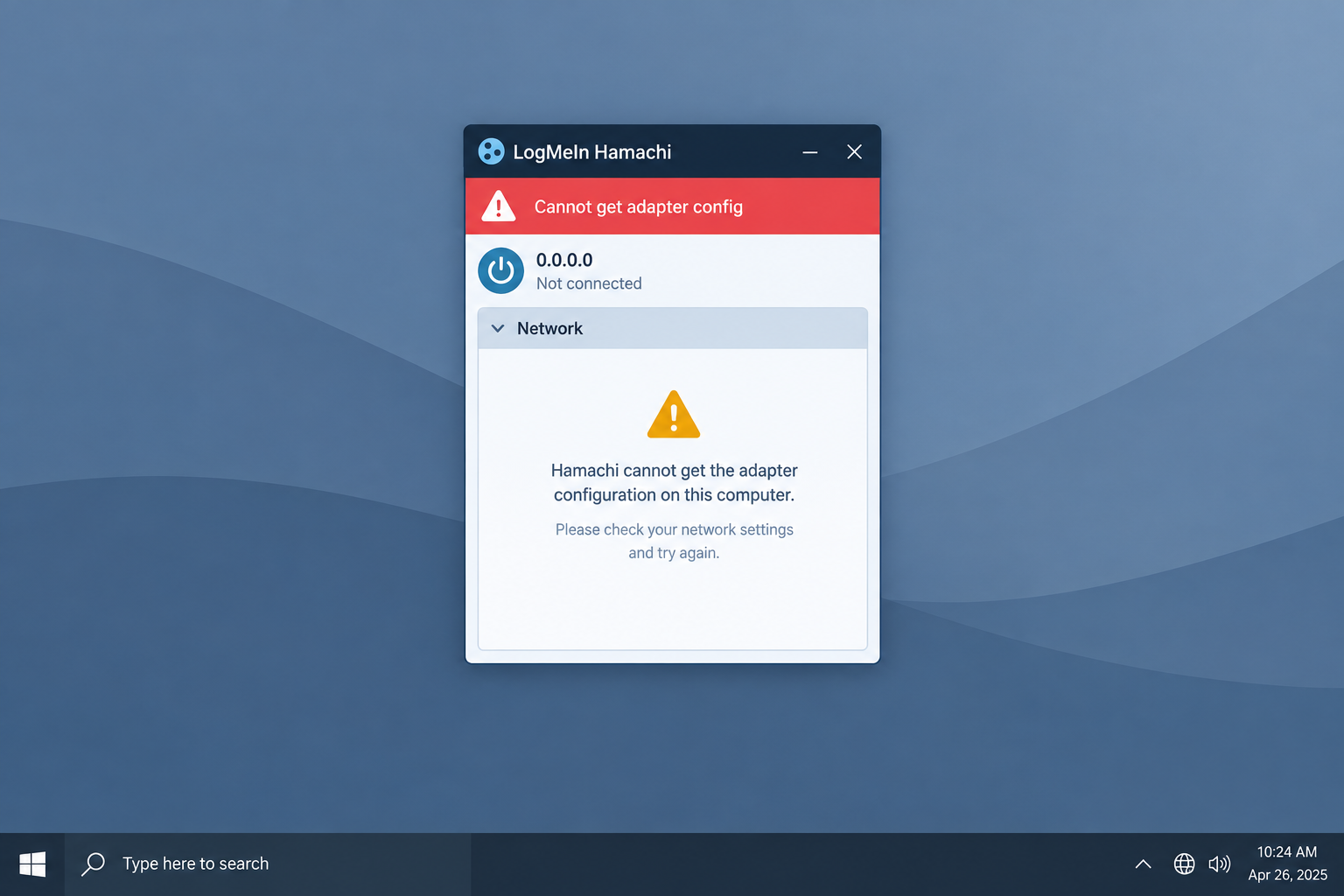
“Cannot get adapter config” means the LogMeIn Hamachi client can’t read or reach its own virtual network adapter. Most of the time the adapter is disabled, its driver is damaged, or a firewall is blocking it. Start by running Hamachi as administrator and turning the Hamachi adapter off and on again in Network Connections (ncpa.cpl). If that doesn’t fix it, reinstall the adapter driver (hamdrv.inf) or do a clean reinstall of Hamachi. These steps work the same on Windows 10 22H2 and Windows 11.
LogMeIn Hamachi is a VPN (Virtual Private Network) app first built by Alex Pankratov. It creates direct links between computers that sit behind NAT (Network Address Translation) routers, and you don’t have to change your router settings.
Hamachi makes an internet connection that behaves as if the computers were on the same local network (LAN), which is why so many people use it for LAN games. LogMeIn acquired Hamachi in August 2006 when it bought Applied Networking Inc., and LogMeIn rebranded as GoTo in February 2022, so official help lives on GoTo’s support site at support.goto.com. GoTo supports Windows 10 and Windows 11, including Windows 11 on ARM64, plus macOS. The Linux client is a command-line tool that hasn’t been updated since 2019. The free plan covers up to 5 computers per network. Paid plans on vpn.net cost $49 a year for Standard (6 to 32 computers), $199 a year for Premium (33 to 256 computers) and $299 a year for Multi-network.
Why the Hamachi “Cannot Get Adapter Config” Error Happens
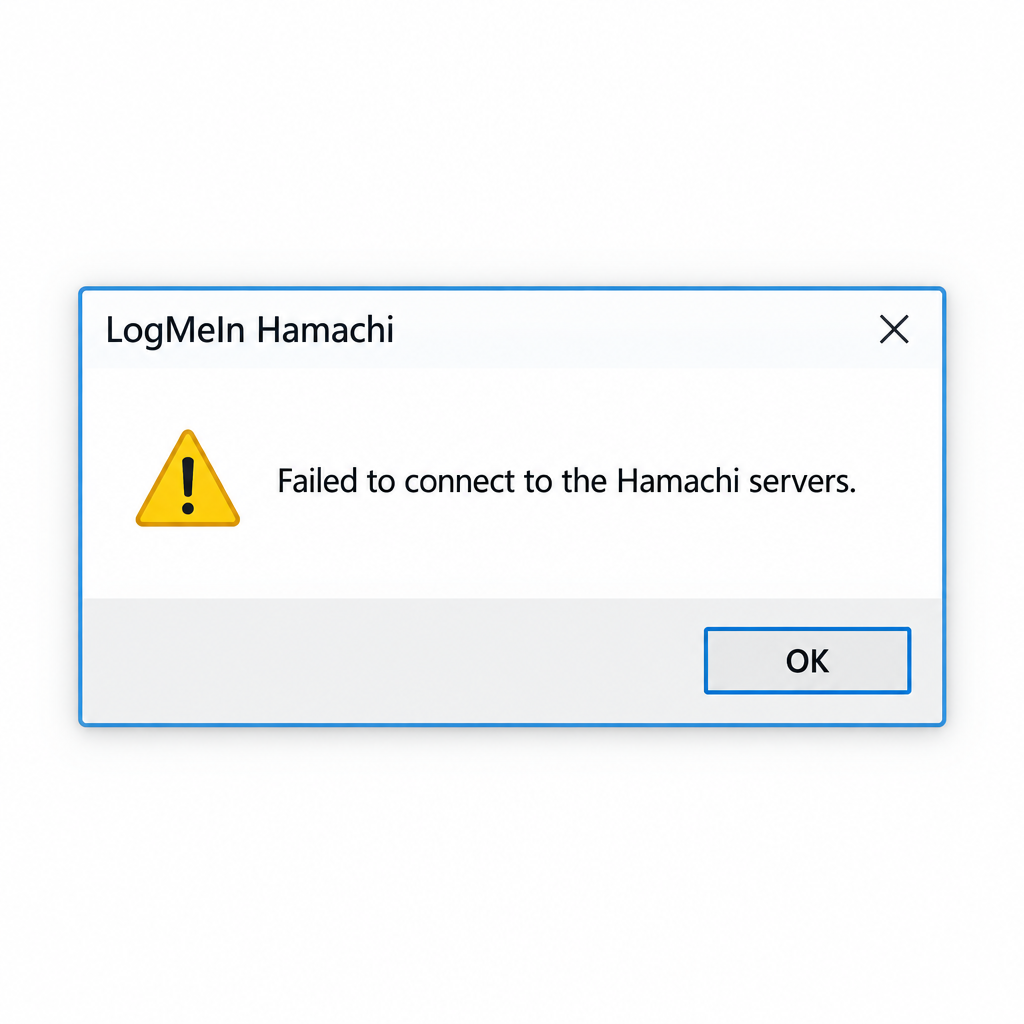
The error usually shows up when you try to connect to the Hamachi service, or in the Hamachi diagnostics window, on a Windows 10 or Windows 11 PC. It often comes with this message: “Failed to connect to the Hamachi servers. Would you like Hamachi to automatically monitor server availability and establish a connection as soon as it becomes possible?”
The usual causes are:
- Missing admin rights. Hamachi needs administrator rights to configure its adapter.
- A firewall or antivirus blocking it. GoTo’s support notes say this error often appears when a personal firewall blocks traffic on the Hamachi network connection.
- A disabled, renamed or damaged adapter. If the LogMeIn Hamachi Virtual Ethernet Adapter is disabled, has a broken driver, or exists twice in Device Manager, Hamachi can’t read its settings.
- A stopped service. If the LogMeIn Hamachi Tunneling Engine service isn’t running, the client has nothing to talk to.
Windows 10 reached end of support on October 14, 2025. Home users signed up for the free consumer Extended Security Updates (ESU) program still get security patches. Microsoft has extended that program to October 12, 2027, and it requires Windows 10 version 22H2. Keep the PC fully updated before you troubleshoot, because an outdated build can cause driver problems of its own.
How to Fix Hamachi Cannot Get Adapter Config in Windows 10 and 11
The methods below go from quickest and safest to most involved. Check Hamachi again after each one before you move on.
Method 1: Repair Windows System Files with SFC and DISM
Windows has its own repair tools for corrupted system files, so you don’t need a third-party “PC repair” program. Many of those programs are adware, and some come from unsafe download sites.
Step 1: Right-click Start and choose Terminal (Admin) on Windows 11, or Windows PowerShell (Admin) on Windows 10.
Step 2: Type DISM /Online /Cleanup-Image /RestoreHealth and press Enter. Wait for it to finish.
Step 3: Type sfc /scannow and press Enter.
Step 4: Restart your computer and open Hamachi again.
Method 2: Run Hamachi as Administrator
Step 1: Find the LogMeIn Hamachi icon, right-click it and choose Run as administrator. To make this permanent, follow the next steps.
Step 2: Right-click the Hamachi shortcut and choose Properties.
Step 3: In the Properties window, open the Compatibility tab and tick Run this program as an administrator.
Step 4: Click Apply, then OK, and restart Hamachi so it runs with admin rights.
Method 3: Allow Hamachi Through Your Antivirus and Firewall
Letting Hamachi through your firewall is safer than switching the firewall off. Only disable a third-party antivirus briefly to test, and turn it back on right away.
To test your antivirus: right-click its icon in the system tray and pick Pause, Disable or a similar option for a few minutes. Then try Hamachi. If the error goes away, add Hamachi as an exception in that antivirus instead of leaving protection off.
To allow Hamachi through Windows Defender Firewall:
Step 1: Type Firewall in the Windows search box and open Windows Defender Firewall. Click Allow an app or feature through Windows Defender Firewall, then Change settings, and make sure LogMeIn Hamachi (hamachi-2.exe) is ticked for Private and Public. Hamachi’s own support notes also suggest setting the Hamachi network to Private when Windows asks.
Step 2: If the error is still there, go back to the Windows Defender Firewall window, click Advanced settings to open Windows Defender Firewall with Advanced Security, and click Windows Defender Firewall Properties.
Step 3: On the Domain Profile tab, click Customize next to Protected network connections.
Step 4: Untick Hamachi, then click OK, Apply and OK to save. This stops the firewall from filtering only the Hamachi adapter. The rest of your network stays protected. Restart your computer and check whether the error is gone.
Method 4: Turn the Hamachi Connection Off and On Again
Step 1: Press Windows + R, type ncpa.cpl in the Run box and click OK to open Network Connections.
Step 2: Right-click Hamachi and choose Disable. Wait a minute, then right-click it again and choose Enable. Check whether the error still appears.
GoTo’s support notes add one more check here: the adapter should be named Hamachi, not something like “Ethernet 3” or “Local Area Connection 4”. If it has a different name, right-click it, choose Rename, type Hamachi, and restart the app.
Method 5: Update the Hamachi Adapter Driver
Step 1: Press Windows + X and choose Device Manager.
Step 2: Expand Network adapters, right-click LogMeIn Hamachi Virtual Ethernet Adapter and choose Update driver.
Step 3: Choose Search automatically for drivers and follow the on-screen steps. When it finishes, restart your computer and check whether the error is fixed.
If you see two LogMeIn Hamachi Virtual Ethernet Adapter entries, a duplicate driver is a common cause of this exact error. Uninstall both and use Method 7 or the clean reinstall below. Only get drivers from Windows Update or the Hamachi installer from vpn.net. Avoid “automatic driver updater” programs.
Method 6: Turn Off the Microsoft Network Adapter Multiplexor Protocol
Step 1: Press Windows + R, type ncpa.cpl and press Enter. This works on both Windows 10 and Windows 11. On newer Windows 11 builds, the old Control Panel link (Network and Sharing Center > Change adapter settings) sends you to Settings.
Step 2: Right-click Hamachi and choose Properties.
Step 3: In the list, find Microsoft Network Adapter Multiplexor Protocol and untick it.
Step 4: Click OK, restart the Hamachi app and check whether the problem is fixed. Some users in the Hamachi community forum also fixed the error by unticking extra items on the Hamachi adapter that they didn’t need. Leave Internet Protocol Version 4 (TCP/IPv4) ticked, because Hamachi needs it.
Method 7: Install the Hamachi Adapter as Legacy Hardware
Step 1: Open Device Manager, expand Network adapters, right-click LogMeIn Hamachi Virtual Ethernet Adapter and choose Uninstall device.
Step 2: After it’s removed, click any item in the list, open the Action menu at the top and choose Add legacy hardware.
Step 3: Click Next, choose Install the hardware that I manually select from a list (Advanced) and click Next.
Step 4: Choose Show All Devices, click Next, then click Have Disk and Browse. Go to the Hamachi install folder, which is usually C:\Program Files (x86)\LogMeIn Hamachi. On Windows 8 and later, including Windows 10 and 11, pick hamdrv.inf. GoTo says the older hamachi.inf file is only for Windows 7 and earlier.
Step 5: Finish the wizard, restart Hamachi and check whether the error is fixed.
Method 8: Restart the LogMeIn Hamachi Tunneling Engine Service
Step 1: Press Windows + R, type services.msc in the Run box and click OK to open Services.
Step 2: Find LogMeIn Hamachi Tunneling Engine, right-click it and choose Restart. If it isn’t running, choose Start.
Step 3: Right-click it again and choose Properties. On the General tab, set Startup type to Automatic, then click Apply and OK.
Step 4: Restart your computer and check whether the problem is fixed.
Method 9: Change the Hamachi Adapter’s Priority
Windows uses a number called the interface metric to choose which network adapter to use first. Giving Hamachi a high number keeps it from competing with your main Wi-Fi or Ethernet connection.
Step 1: Press Windows + R, type ncpa.cpl and press Enter.
Step 2: Right-click Hamachi, choose Properties, and make sure Microsoft Network Adapter Multiplexor Protocol is unticked.
Step 3: Select Internet Protocol Version 4 (TCP/IPv4), click Properties, then click Advanced and stay on the IP Settings tab.
Step 4: Untick Automatic metric, type 9000 in Interface metric and click OK on each window to save. Check whether the error is fixed.
Plenty of people set up Hamachi to play LAN games or stream sessions with friends. If you stream on Twitch, guides on how to send bits on twitch cover the viewer side of that.
If Nothing Works, Do a Clean Reinstall
A clean reinstall is the fix GoTo’s own support pages point to most often, and it’s also what solved the error for several users in the Hamachi community forum.
- Open Settings > Apps > Installed apps (Windows 11) or Settings > Apps > Apps & features (Windows 10), find LogMeIn Hamachi and uninstall it.
- Open Device Manager and remove any LogMeIn Hamachi Virtual Ethernet Adapter entries that are still there.
- Restart the PC. Don’t skip this step.
- Download the current installer only from vpn.net, install it, and accept the driver prompt when Windows asks.
- Sign in and rejoin your networks.
If the error comes back after a clean reinstall, collect the diagnostics from Hamachi’s Help menu and contact GoTo support or post in the Hamachi community forum. Other software on your PC might be clashing with Hamachi, such as another VPN client or a strict corporate security tool, and the vendor can spot that from the logs.
Once Hamachi is working, keep checking Windows’ built-in tools before reaching for extra downloads. For example, guides on how to make background transparent in paint now use Paint’s own background removal tool in Windows 11.
FAQ
What does “cannot get adapter config” mean in Hamachi?
It means the Hamachi client can’t read the settings of its virtual network adapter. The adapter is usually disabled, renamed, blocked by a firewall, or has a damaged or duplicate driver. Fixing the adapter usually clears the error.
Does Hamachi still work on Windows 10 in 2026?
Yes. GoTo still supports Hamachi on Windows 10 and Windows 11. Windows 10 itself reached end of support on October 14, 2025, so you should sign up for Microsoft’s consumer ESU program, which now runs to October 12, 2027, or move to Windows 11.
Which driver file should I use to reinstall the Hamachi adapter?
On Windows 8 and later, including Windows 10 and 11, use hamdrv.inf from the Hamachi install folder. GoTo says the older hamachi.inf file is only for Windows 7 and earlier.
Is it safe to turn off Windows Defender Firewall to fix Hamachi?
Only for a quick test, and turn it back on right after. The safer fix is to allow LogMeIn Hamachi through the firewall, or stop the firewall from filtering only the Hamachi adapter under Protected network connections. Leaving the whole firewall off exposes your PC on every network.
Is Hamachi free?
Yes. The free plan covers up to 5 computers per network. Bigger networks need Standard ($49 a year, up to 32 computers), Premium ($199 a year, up to 256 computers) or Multi-network ($299 a year), according to vpn.net.
Why does Hamachi show two virtual ethernet adapters in Device Manager?
This usually happens after a failed update or reinstall that left an old driver behind. Two adapters can cause the “cannot get adapter config” error. Uninstall both, restart, and reinstall Hamachi so only one clean adapter is left.
Sources
- GoTo Support: Troubleshooting LogMeIn Hamachi network adapter connection and installation issues
- GoTo Support: Windows Hamachi client fails to connect to the Hamachi network adapter
- GoTo Support: Hamachi system requirements
- GoTo Support: How does Hamachi licensing work?
- LogMeIn Hamachi on vpn.net












