
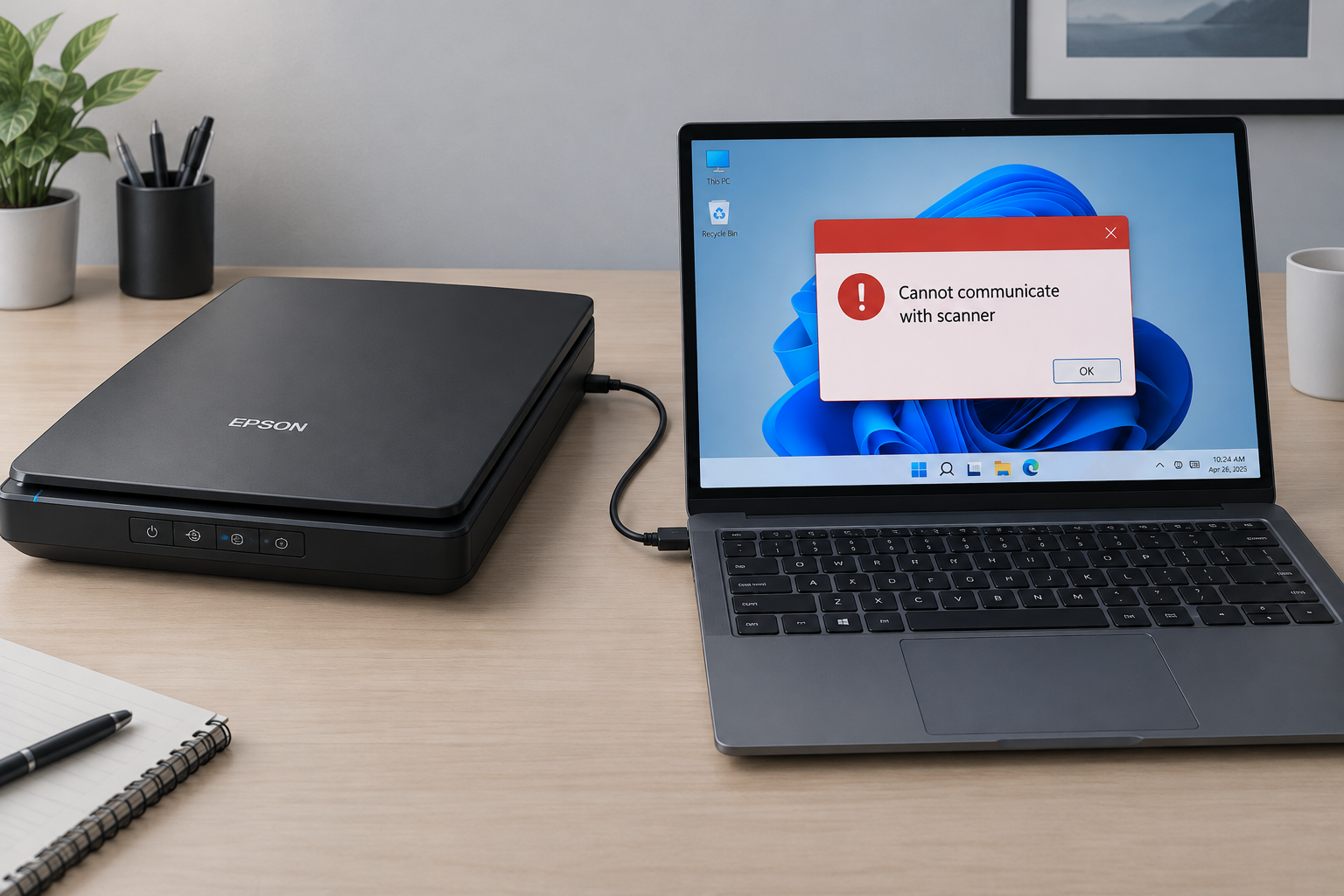
If Epson Scan won’t open or can’t find your scanner in Windows 11, restart the PC and check the cable first. Then check the Windows Image Acquisition (WIA) service and reinstall Epson Scan 2 from your scanner model’s page on Epson’s support site. Some older Epson models never got Epson Scan for Windows 11. For those, Epson’s own advice is to scan with Microsoft’s free Windows Scan app.
Epson Scan, and its newer version Epson Scan 2, is the program that lets your PC control an Epson scanner or all-in-one printer. When it fails, you can’t scan, even though the printer side may still work. This is a common problem on Windows 11. The usual causes are outdated or mismatched drivers, a stopped Windows service, damaged system files, or a Windows feature update that changed how the scanner is detected. The fixes below go from quickest and safest to most involved.
Why Epson Scan stops working in Windows 11
Epson Scan usually fails because the software can’t talk to the scanner. A broken program is a less common cause. The most common reasons are:
- A stopped or stuck WIA service. Epson says communication errors between Epson Scan and the scanner can happen when the Windows Image Acquisition service has stopped or isn’t responding.
- Outdated or wrong drivers. This happens a lot after an upgrade from Windows 10, or after a big Windows 11 feature update such as 25H2 or 26H2.
- Two Epson scan programs installed. Having the old Epson Scan and Epson Scan 2 on the same PC can confuse detection.
- A model without Windows 11 software. Epson doesn’t offer Epson Scan for Windows 11 on some older products.
- Damaged system files or a temporary glitch.
The error you see often hints at the cause. “Can not communicate with scanner” usually points to the service or the connection. If the program won’t launch at all, the installation or the compatibility settings are the more likely problem.
General fixes
Start with the simple checks. They fix more scanner problems than any setting.
- Restart the computer and the scanner. Choose a full Shut down instead of a restart, wait 30 seconds, then power both back on. Windows 11’s fast startup can leave a USB device in a bad state across restarts.
- Check the cable. Use a USB port directly on the PC, not a hub or a front-panel port. Try a different cable if you have one.
- On Wi-Fi models, make sure the scanner and the PC are on the same network and the printer’s IP address hasn’t changed.
- Close other scanning apps that might be holding the scanner, then try Epson Scan again.
If the problem is still there, move on to the fixes below.
Run the program in compatibility mode
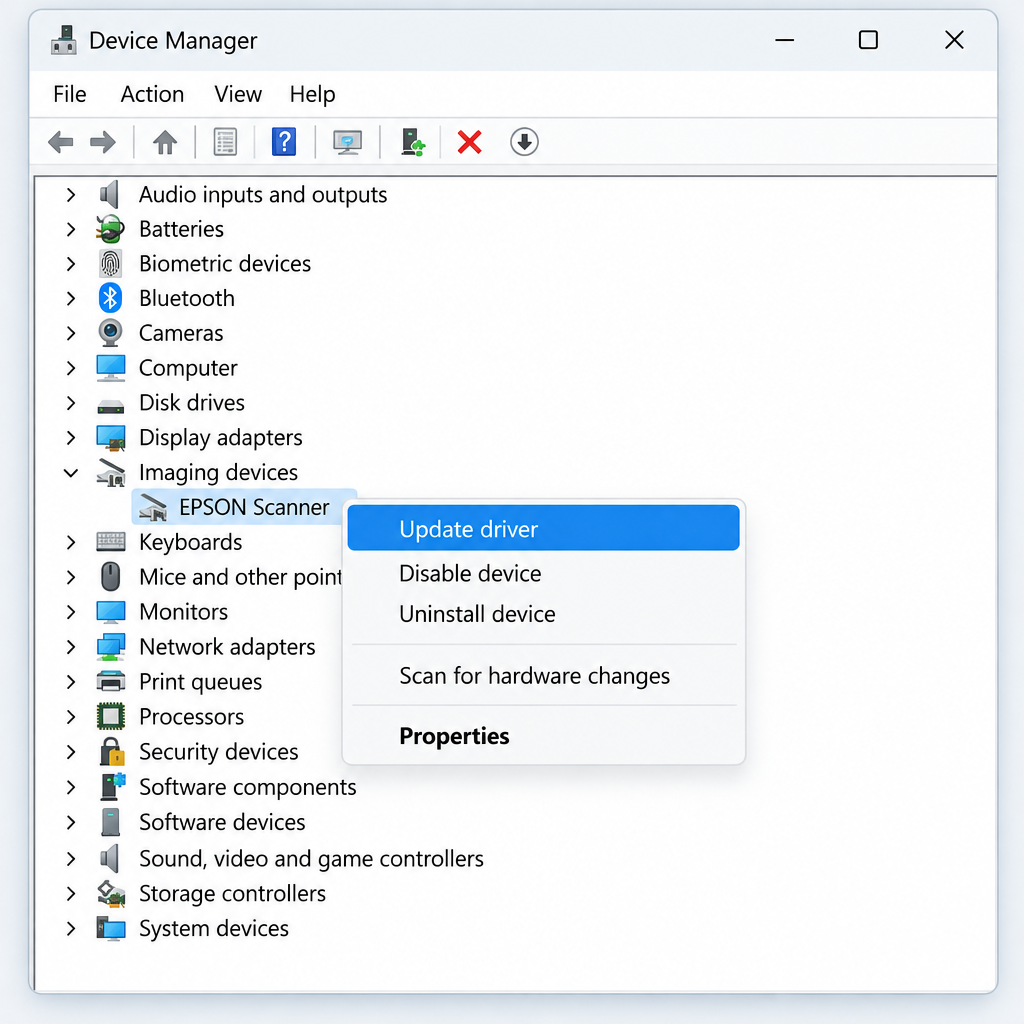
Older versions of Epson Scan were written for Windows 7 or Windows 8. Running them in compatibility mode can get them to launch on Windows 11.
- On your desktop, right-click the Epson Scan icon and select Properties.
- Open the Compatibility tab in the Properties window.
- Tick the box next to Run this program in compatibility mode for.
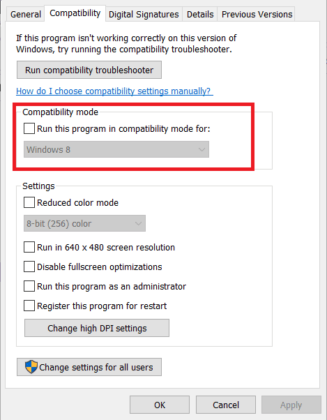
- Choose an earlier version of Windows (Windows 8 or Windows 7) from the list, then click Apply and OK to save the change.
- Open the program again and check whether the problem is gone.
If this is the only way to get an old version of Epson Scan to open, look for a newer Epson Scan 2 release for your model. That is the better long-term fix.
Update the Epson scanner driver
Outdated drivers are one of the most common causes. Updating the driver through Device Manager is the quickest way to check.
- Open Device Manager by searching for it in the Start menu.
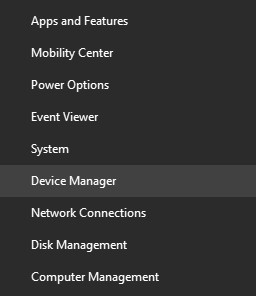
- Double-click Imaging devices to expand it. Depending on the model and connection, some Epson all-in-ones also show up under Printers or Other devices.
- Right-click your Epson scanner and select Update driver.
- Choose Search automatically for drivers.
- After the driver updates, restart your computer.
Windows often reports that the best driver is already installed when it isn’t. Also check Settings > Windows Update > Advanced options > Optional updates > Driver updates for an Epson entry. If neither place has one, download the driver from your scanner model’s page on Epson’s support site. Only use Epson’s official site for drivers, never third-party download sites.
Reinstall Epson Scan 2 from Epson’s support site
A clean reinstall fixes most cases where the program is damaged, half-updated or mixed up with an older version.
- Go to Settings > Apps > Installed apps.
- Uninstall Epson Scan 2. Also uninstall the older Epson Scan if it’s listed, so the two don’t conflict.
- Restart the PC.
- On Epson’s support site, search for your exact scanner or printer model, select Windows 11 as the operating system, and download the scanner driver (Epson Scan 2).
- Install it, restart again, and then open Epson Scan 2 Utility from the Start menu. Make sure your exact model is selected (for network models, add it by IP address here).
If the settings themselves seem corrupted, open Epson Scan 2 Utility, go to the Other tab and click Reset to put Epson Scan 2 back to its defaults.
Run an SFC scan
If Windows system files are damaged, scanning apps can fail in strange ways. The System File Checker (SFC) finds and repairs those files.
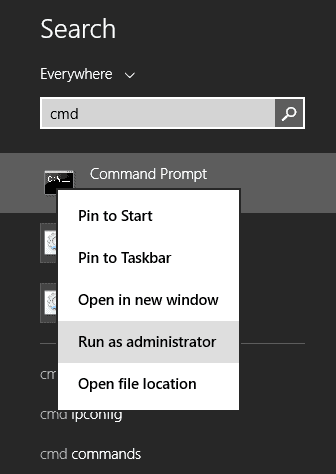
- Search for Command Prompt in the Start menu, right-click it and choose Run as administrator.
- Type
DISM /Online /Cleanup-Image /RestoreHealthand press Enter. This repairs the Windows image that SFC uses as its source. It can take several minutes. - Type
sfc /scannowand press Enter. - Wait for both commands to finish, then restart your computer.
Run the printer troubleshooter
The printer troubleshooter can find and fix some driver and service problems on Epson all-in-ones. In current versions of Windows 11, it runs inside the Get Help app instead of the old pop-up tool.
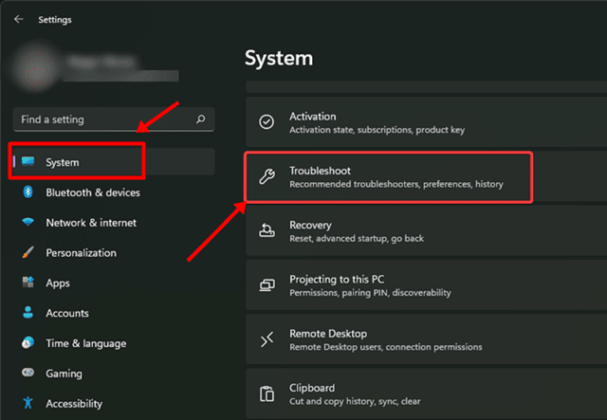
- Press the Windows key and select Settings, or press Windows + I.
- Under System, click Troubleshoot.
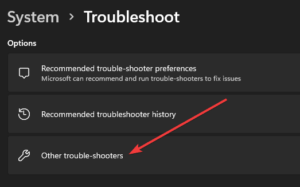
- Click Other troubleshooters.
- Click the Run button next to Printer.
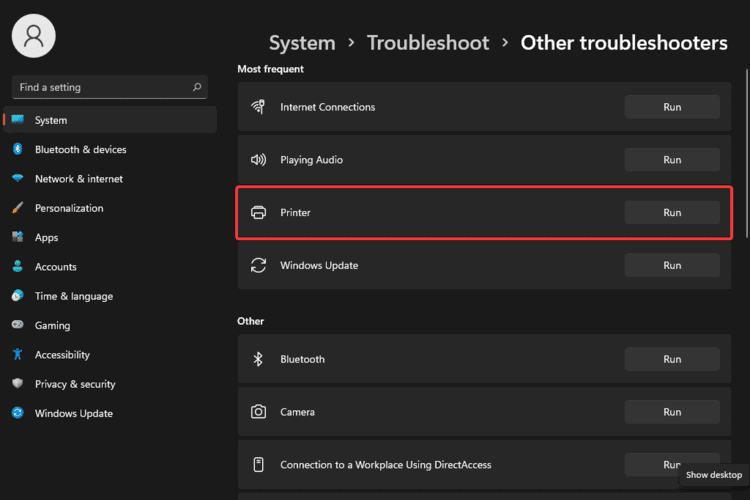
- Follow the on-screen instructions. The Get Help app opens and walks you through the checks.
Microsoft has retired the older troubleshooters that ran through the Microsoft Support Diagnostic Tool (MSDT). Printer is one of the tools that now opens a Get Help version instead. If the troubleshooter finds nothing, go on to the next fix.
Make sure the essential services are running
Epson Scan depends on Windows services to talk to the scanner. If those services are stopped, the scanner won’t respond. Epson lists restarting the WIA service as the first step for its “Cannot communicate with the scanner” error.
- Open the Start menu and search for Services.
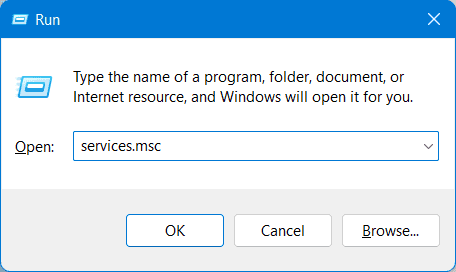
- In the Services app, find Windows Image Acquisition (WIA).
- Right-click it and choose Properties.
- Set Startup type to Automatic.
- If the service status is not Running, click Start. If it’s already running, right-click the service in the list and choose Restart.
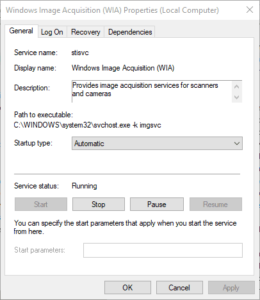
- Click Apply and then OK.
- Repeat the same steps for the Shell Hardware Detection service.
Update Windows
If you still have problems, install the latest Windows updates. Cumulative updates fix bugs in the scanning stack, and optional driver updates sometimes include Epson drivers. As of November 2026, the current releases are Windows 11 version 25H2 and version 26H2. Windows 11 24H2 Home and Pro editions reached the end of servicing on October 13, 2026, so a PC still on 24H2 should move to a newer version.
- Press Windows + I to open Windows 11 Settings.
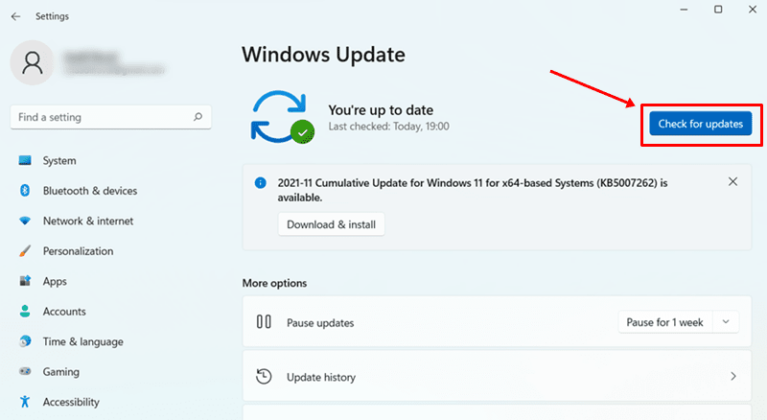
- Click Windows Update in the left sidebar.
- On the right, click Check for updates.
- Download and install any updates Windows finds, then restart your computer.
Use Windows Scan if Epson Scan isn’t available for your model
Epson doesn’t offer Epson Scan for Windows 11 on some products. For those, Epson recommends Microsoft’s free Windows Scan app from the Microsoft Store. It uses the built-in Windows (WIA) driver and handles basic scans to PDF, JPEG or PNG.
- Open the Microsoft Store, search for Windows Scan and install it.
- Check that the scanner is listed under Settings > Bluetooth & devices > Printers & scanners.
- Open Windows Scan, choose your Epson scanner, pick the file type and click Scan.
If your scanner doesn’t appear in Printers & scanners at all, Windows doesn’t recognize its scan function. In that case, the driver from your model’s Epson support page is the next step.
If nothing works
Contact Epson support when every fix above has failed, especially if the scanner isn’t detected by Windows at all. That usually points to a hardware or firmware problem, or a model without a Windows 11 driver. Have your exact model number, your Windows 11 version (find it under Settings > System > About) and the exact error message ready. If the scanner worked before a recent Windows update, mention that too.
FAQ
Why did my Epson scanner stop working after a Windows 11 update?
Feature updates such as 25H2 and 26H2 can replace or reset drivers and services. Old Epson Scan versions written for earlier Windows releases are the most likely to break. Reinstall the latest Epson Scan 2 for your model from Epson’s support site, then check that the Windows Image Acquisition service is running.
What does “Can not communicate with scanner” mean?
It means Epson Scan can start but can’t reach the scanner. Epson’s first suggestion is to restart the Windows Image Acquisition (WIA) service. If that doesn’t help, uninstall and reinstall Epson Scan, then set up the scanner connection again.
What’s the difference between Epson Scan and Epson Scan 2?
Epson Scan is the older program used by many earlier models. Epson Scan 2 is its successor and is the version Epson provides for most current scanners and all-in-ones on Windows 11. Keep only the version your model’s support page lists, because having both installed can stop the scanner from being detected.
Can I scan without Epson Scan on Windows 11?
Yes. The free Windows Scan app from the Microsoft Store works with most Epson scanners that Windows recognizes. It’s the option Epson recommends for models that have no Epson Scan software for Windows 11. You lose some advanced settings, but basic scanning works.
Is it safe to download Epson Scan 2 from other websites?
No. Download Epson Scan 2 only from your model’s page on Epson’s support site, with Windows 11 selected as the operating system. Third-party download sites may host outdated, mismatched or tampered installers.
Where is the printer troubleshooter in Windows 11 now?
It’s still under Settings > System > Troubleshoot > Other troubleshooters > Printer. Clicking Run now opens the troubleshooter in the Get Help app, because Microsoft has retired the older MSDT-based troubleshooters.
Sources
- Epson: Epson Scan is not available for my product for Windows 11. What should I do?
- Epson: Windows 11, Epson Scan “Can not communicate with scanner” error
- Epson: Epson Scan displays the error “Cannot communicate with the scanner”
- Microsoft Support: Deprecation of Microsoft Support Diagnostic Tool (MSDT) and MSDT Troubleshooters
- Microsoft Learn: Windows 11, version 26H2 known issues and notifications












