
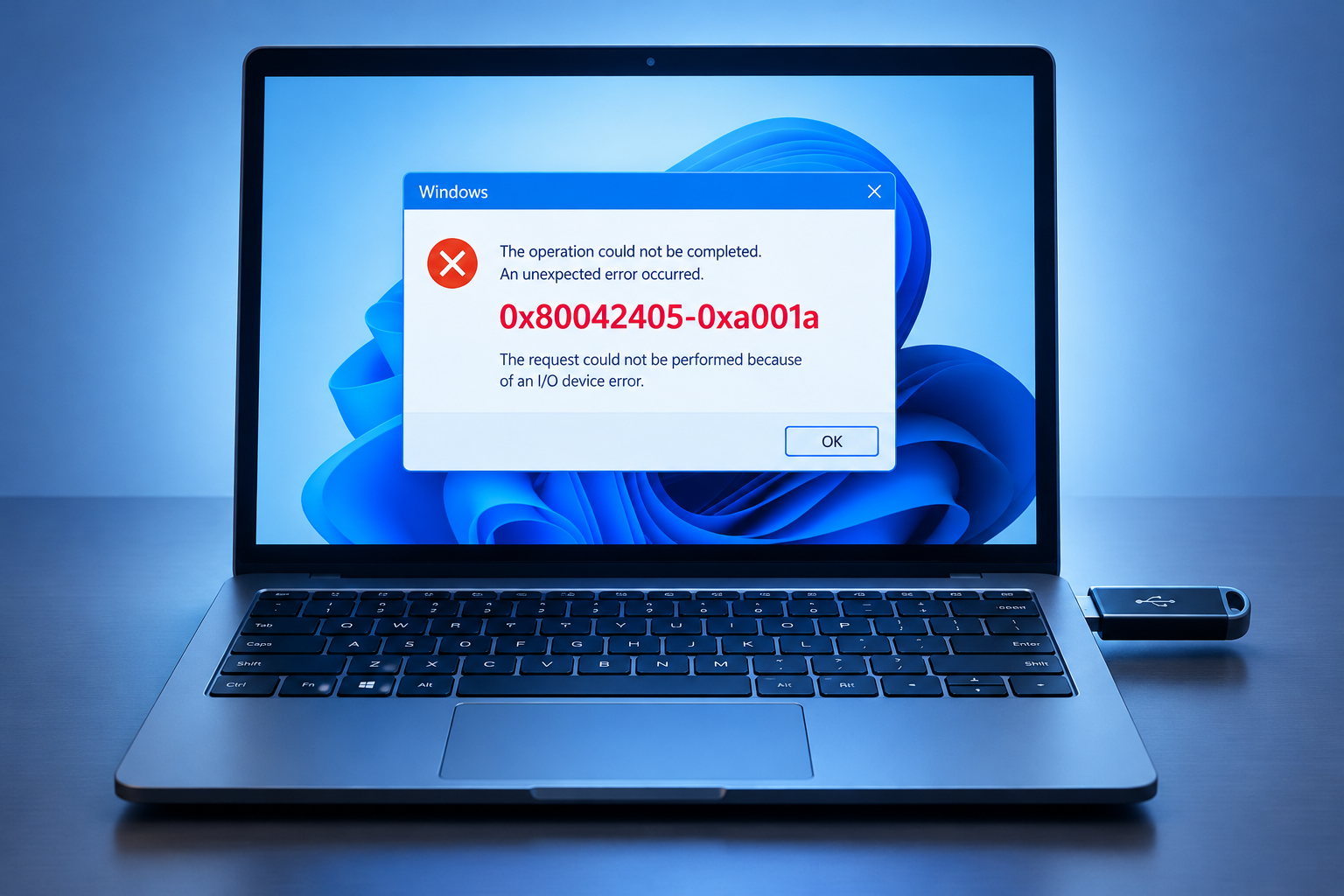
Error 0x80042405-0xa001a means Microsoft’s Media Creation Tool couldn’t finish writing Windows to your USB drive. Start with the quick fixes: run the newest copy of the tool from Microsoft as administrator, use a blank USB drive of at least 8 GB, and plug it straight into the PC. If it still fails, wipe the drive with DiskPart and convert it to MBR, or save an ISO file and write it with Rufus. Most people use the Windows 11 tool now. Windows 10 support ended on October 14, 2025, but Microsoft still offers Windows 10 22H2 media.
You usually see this error when you try to install or upgrade Windows with the Media Creation Tool and choose a USB flash drive as the target. The fixes below start with the quickest and safest and end with the most involved.
What error 0x80042405-0xa001a means
The tool tried to prepare your USB drive as a bootable installer and failed partway through. The download usually finishes. The failure comes when the tool formats the drive or copies files to it, so the problem is almost always the drive, the way it is partitioned, or something blocking the tool from writing to it.
Microsoft’s own instructions for creating installation media need three things:
- A PC with a reliable internet connection.
- A blank USB flash drive with at least 8 GB of space. The tool erases everything on it.
- A 25-character product key, if your PC doesn’t already have a digital license.
Causes of error 0x80042405-0xa001a
It helps to know the likely cause before you start, because it tells you which fix to try first.
- The drive’s file system or partition layout. Some drives arrive with a layout the tool can’t handle, such as a GPT partition table, several partitions, or a RAW (unformatted) partition. Guides disagree on whether NTFS or FAT32 works better before you run the tool. Either one usually works as long as the drive has a single, clean partition.
- Bugs in the Media Creation Tool itself. The tool has had real faults. Around the end of Windows 10 support in October 2025, Windows 11 Media Creation Tool version 26100.6584 could close on Windows 10 PCs without showing any error. Microsoft fixed it in a later version. Some users also see the error only when they run the tool from one drive and point it at another.
- Not enough space on the USB drive. Anything under 8 GB will fail.
- Something blocking writes to the drive. Third-party antivirus software, a missing administrator prompt, or USB power saving can cut off the write partway through.
Quick checks before you try the main fixes
These take a minute each and fix a lot of cases.
- Get a fresh copy of the tool. Download the latest Media Creation Tool from Microsoft’s Windows 11 download page (or the Windows 10 page if you need 22H2). Don’t reuse an old copy, and don’t download it from file-hosting sites.
- Run it as administrator. Right-click MediaCreationTool.exe and choose Run as administrator.
- Plug the drive directly into the PC. Skip USB hubs and front-panel ports. On desktops, use a port on the back of the case.
- Pause third-party antivirus. Turn it off only while the tool runs, then turn it back on. Microsoft Defender doesn’t need to be turned off.
- Turn off USB selective suspend. Some users fixed the error this way. Go to Control Panel > Hardware and Sound > Power Options > Change plan settings > Change advanced power settings > USB settings > USB selective suspend setting and set it to Disabled. You can switch it back afterwards.
Fixes for error 0x80042405-0xa001a
If the quick checks don’t help, work through the solutions below in order. Before you start, copy anything you want to keep off the USB drive. Every fix here erases it.
Solution 1: Run the Media Creation Tool from the USB drive
Normally you download the Media Creation Tool to your C: drive and run it from there. One long-standing workaround is to put the tool on the USB drive you plan to make bootable and run it from that drive.
Method 1: Download the tool to the USB drive
- Download MediaCreationTool.exe from Microsoft and save it directly to the USB drive (or copy it there).
- Open the USB drive in File Explorer, right-click the file and choose Run as administrator.
- Accept the license terms, choose USB flash drive as the media, select the same USB drive and let the tool create the installation media.
Method 2: Save an ISO to your hard drive and copy it over
If the first method fails, a community workaround is to have the tool save an ISO file to your hard drive, then copy the Windows files to the USB drive yourself. This isn’t a Microsoft-recommended fallback. Microsoft’s own instructions are to let the tool create the USB drive, or to burn the ISO to a DVD where that suits your PC.
- Run the Media Creation Tool from your C: drive and choose ISO file instead of USB flash drive. Save the ISO to a folder on C:.
- Double-click the ISO file. Windows mounts it as a virtual DVD drive.
- Copy every file and folder from the virtual DVD to the USB drive except autorun.inf.
- On the virtual DVD, right-click autorun.inf and copy it to a folder on your C: drive. Rename the copy to autorun.txt.
- Copy autorun.txt to the USB drive, then rename it back to autorun.inf.
- Run setup.exe from the USB drive and check whether the error is gone.
This method is the most reliable when you run Setup from inside Windows to upgrade the PC. Booting from the drive is less reliable. A UEFI PC usually needs the drive formatted as FAT32, and FAT32 can’t hold a file larger than 4 GB, which can include the main install file in recent Windows images. If you need a drive you can boot from, use Solution 5 instead.
Solution 2: Format the USB drive as NTFS
If running the tool from the USB drive doesn’t help, reformat the drive so it starts with a single clean partition.
- Press Windows + E to open File Explorer, then click This PC.
- Right-click the USB drive you want to make bootable and choose Format.
- Under File system, choose NTFS. Leave Quick Format ticked.
- Click Start, then OK to confirm that all data will be erased.
- When formatting finishes, run the Media Creation Tool again and see if the error is fixed.
If NTFS doesn’t help, format the drive again as FAT32 and try once more. Guides disagree on which file system avoids this error. The tool reformats the drive anyway, so the format you choose here mostly gives it a clean starting point.
Solution 3: Use DiskPart to convert the drive to MBR
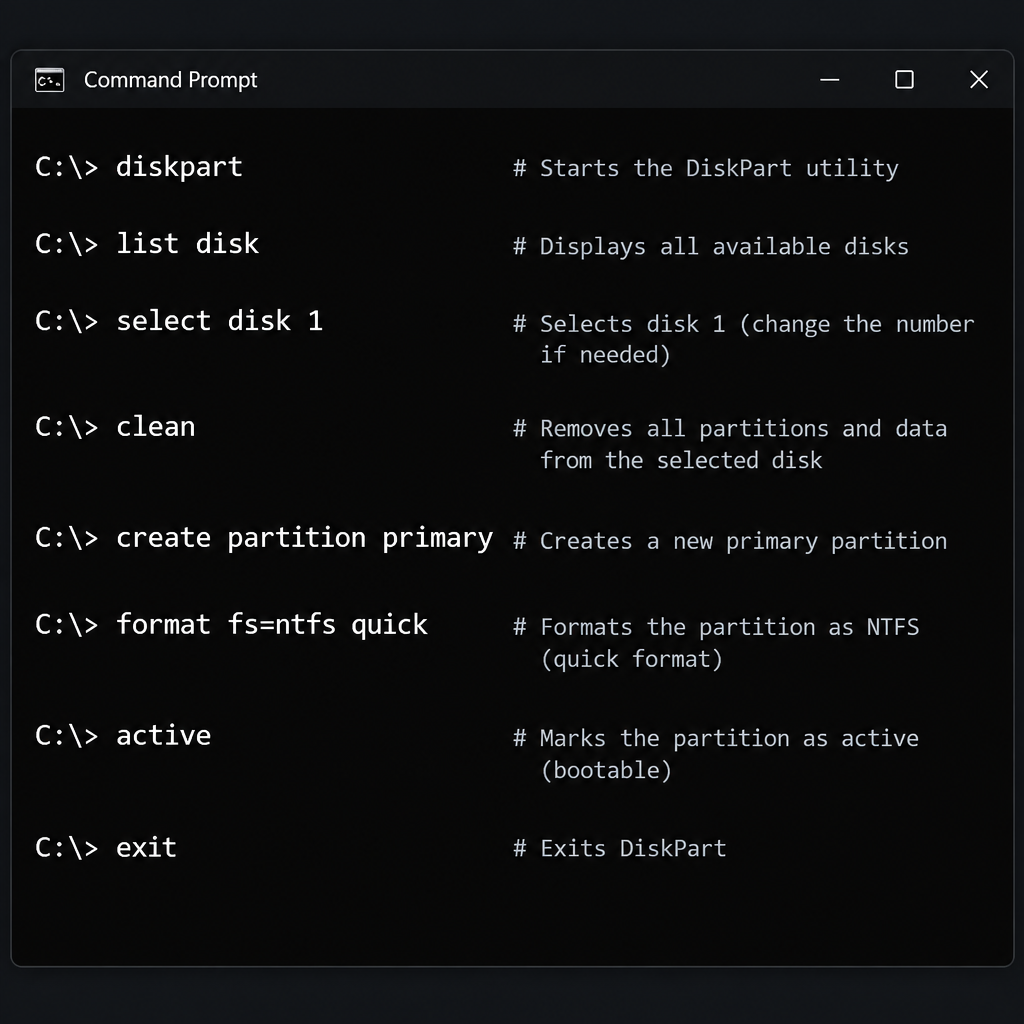
The Master Boot Record (MBR) is the partition style the Media Creation Tool expects on a USB stick. A drive set up as GPT, or with leftover partitions from another tool, can trigger the error. DiskPart, the command-line disk tool built into Windows, can wipe the drive and convert it to MBR.
Be careful here. The clean command erases the whole disk you select. If you select your internal drive by mistake, you will wipe Windows and your files. Check the disk size twice before you type it.
- Press Windows + R, type diskpart and press Enter. Click Yes at the User Account Control prompt.
- Type list disk and press Enter. Find your USB drive by its size.
- Type select disk X, where X is the USB drive’s number, and press Enter.
- Type clean and press Enter to wipe the drive.
- Type convert mbr and press Enter.
- Type create partition primary and press Enter.
- Type format fs=ntfs quick and press Enter. (Use fs=fat32 instead if NTFS failed in Solution 2. Older Windows versions only format drives up to 32 GB as FAT32 with this command, though recent Windows 11 builds have raised that limit.)
- Type assign and press Enter to give the drive a letter, then type exit.
- Run the Media Creation Tool again and check whether the problem is resolved.
Solution 4: Use the Windows 7 USB/DVD Download Tool
Years ago, Microsoft released the Windows 7 USB/DVD Download Tool, a small program that copies a Windows ISO file to a USB drive or DVD. It did a similar job to the Media Creation Tool, and an older version of this fix suggested it as a backup.
It’s no longer a good option. The tool hasn’t been developed for years, Microsoft has pulled it from its download page in the past, and Microsoft no longer offers Windows 7 ISOs to consumers. Copies on third-party download sites come with a malware risk, so don’t use them. If you have a Windows 11 or Windows 10 ISO from Microsoft and the Media Creation Tool keeps failing, use Rufus in Solution 5 instead.
Solution 5: Use Rufus to create the installation media
If nothing above works, use Rufus. It’s a free, open-source Windows program, written by Pete Batard, that formats USB drives and makes them bootable. It’s fast, it handles the FAT32 and NTFS issues for you, and it can make drives for PCs with no operating system installed. Only download it from its official site, rufus.ie, or the official GitHub page.
- Run the Media Creation Tool, choose ISO file, and save the Windows ISO to your hard drive. (Or download the ISO directly from Microsoft’s Windows 11 download page.)
- Download Rufus from rufus.ie. Microsoft’s SmartScreen or User Account Control will ask for permission, so allow it.
- Plug in the USB drive and select it under Device.
- Click SELECT and choose the ISO file you saved.
- Leave Partition scheme on GPT for most PCs made in the last several years, or choose MBR for older BIOS-based PCs.
- Click START. Rufus may offer options for the Windows install, such as skipping the online account requirement. Choose what you need and click OK.
- Confirm that the drive will be erased, then wait for the status bar to show READY.
Recent 4.x releases of Rufus, published through 2026, added options for silent, unattended Windows 11 installs and for removing some preinstalled Microsoft apps. You don’t need any of them to fix this error.
Wrapping up
Those are the fixes for Media Creation Tool error 0x80042405-0xa001a, in order. Most drives are fixed by a fresh copy of the tool run as administrator or a DiskPart clean. If you still get the error on two different USB drives and two different ports, the tool is probably fine and the PC itself is the problem. A failing USB controller, an outdated chipset driver or disk errors can all cause it. At that point, make the drive on another computer, or have a repair shop or the PC maker’s support team look at the hardware.
If you’re making Windows 10 media, keep the dates in mind. Microsoft stopped standard Windows 10 support on October 14, 2025. Home users can keep getting security fixes through Microsoft’s consumer Extended Security Updates (ESU) program, which now runs until October 12, 2027.
FAQ
Does the Media Creation Tool still work for Windows 10?
Yes. Microsoft’s Windows 10 download page still offers the tool for Windows 10 version 22H2. Windows 10 itself left standard support on October 14, 2025. To keep getting security updates, enroll the PC in consumer ESU, which runs until October 12, 2027.
What size USB drive do I need?
Microsoft asks for a blank USB flash drive with at least 8 GB of space, for both Windows 10 and Windows 11. A 16 GB or 32 GB drive gives you room to spare and is cheap. Everything on the drive is erased, so copy off anything you want to keep.
Should the USB drive be NTFS or FAT32?
Either can work, because the Media Creation Tool reformats the drive while it runs. A drive with one clean partition matters more than which file system it uses. If one format fails with 0x80042405-0xa001a, try the other, or clean the drive with DiskPart first.
Is Rufus safe to use?
Yes, if you download it from rufus.ie or its official GitHub page. Rufus is open source and widely used by IT staff. Copies bundled on unofficial download sites can carry adware or malware, so skip those.
Will fixing this error delete files on my computer?
The fixes erase the USB drive, not your PC. The one real risk is the DiskPart clean command. If you select the wrong disk number, it will wipe that disk, so match the disk size to your USB drive before you press Enter.
What if the error appears on every USB drive I try?
Then the problem is the computer, not the drives. Make the installation media on another PC, update your chipset and USB drivers from your PC maker’s support site, and check the internal drive for errors. If it still fails, contact the PC maker or a repair shop.
Sources
- Microsoft Support: Create installation media for Windows
- Microsoft: Windows 10 Consumer Extended Security Updates (ESU)
- Rufus official site
- Winhelponline: Media Creation Tool Error 0x80042405-0xA001A












