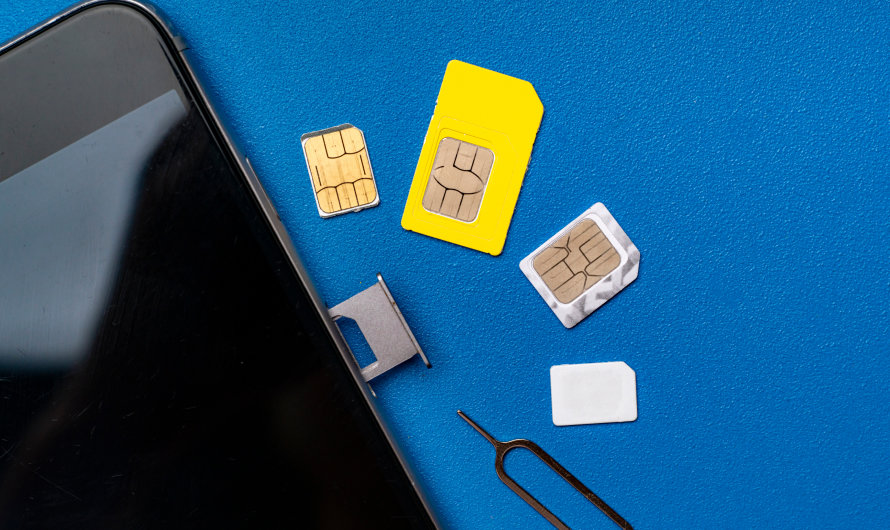
The quickest way to read your SIM card is in your phone’s own settings. On an iPhone, go to Settings > General > About to find the ICCID, EID and IMEI. On a Google Pixel, go to Settings > About phone > SIM status. To pull old contacts or text messages off a physical card, you can try a separate USB SIM card reader and a computer, but it only reads data stored on the SIM itself, and success depends on the SIM, the reader and the software. The secret authentication key (Ki) can’t be read by any consumer tool, and that protection is deliberate.
What is a SIM card
A SIM (Subscriber Identity Module) card is a small chip that proves to a mobile network that you’re a paying subscriber. Your phone needs it to connect to a cellular network and make calls, send texts and use mobile data.
Physical SIM cards come in several sizes (mini, micro and nano) to fit different devices. Your carrier provides the card, and you can move it from one compatible phone to another while keeping the same number and network access. More and more phones now use an eSIM instead, which is a chip built into the phone that your carrier programs over the air.
Every SIM holds two key identifiers:
- IMSI (International Mobile Subscriber Identity): identifies you as a subscriber on the network.
- ICCID (Integrated Circuit Card Identifier): the serial number of the SIM itself, typically 19 or 20 digits long and printed on physical cards.
Older SIM cards could also store a small number of contacts and text messages. Modern smartphones save these to the phone or to a cloud account instead.
Types of SIM cards
Phones sold today use either a nano-SIM or an eSIM, and many new phones support only eSIM. All SIM types do the same job of authenticating you on the network. They differ in size and in whether you can physically remove them.
| Type | Also called | Size | Where you find it today |
|---|---|---|---|
| Mini-SIM | Standard SIM, 2FF | 25 x 15 mm | Old phones, some IoT and alarm devices |
| Micro-SIM | 3FF | 15 x 12 mm | Older smartphones and tablets |
| Nano-SIM | 4FF | 12.3 x 8.8 mm | Most phones that still have a SIM tray |
| eSIM | Embedded SIM | Built into the phone | iPhone 14 and later in the US, iPhone Air worldwide, Pixel, Galaxy, smartwatches |
- Standard SIM: also called the mini-SIM, this was the first widely used phone size and is the largest. Modern phones rarely use it, but some older phones and IoT devices still do.
- Micro-SIM: smaller than the standard SIM. It became popular with early smartphones and tablets and works the same way in a smaller package.
- Nano-SIM: the smallest physical SIM, adopted by ETSI in June 2012. It is about 40% smaller than the micro-SIM and is still the most common physical size.
- eSIM: a non-removable chip inside the device. Your carrier loads a profile onto it remotely, so there’s no card to swap. This saves space, which is why smartwatches use it.
eSIM has gone from an option to the default. Apple dropped the physical SIM tray from US iPhones starting with the iPhone 14 in 2022. In September 2025, the iPhone 17, 17 Pro and 17 Pro Max launched as eSIM-only in the US, Canada, Mexico, Japan and several Gulf countries. The iPhone Air is eSIM-only in every country.
How to read a SIM card
For most people, reading a SIM card means finding its numbers (ICCID, EID, IMSI or phone number), and your phone already shows those. The exact menu depends on your phone and software version, but the methods below cover nearly every device.
Read SIM details in your phone’s settings
This method works for both physical SIMs and eSIMs and needs no tools.
- iPhone: open Settings > General > About, then scroll down. You’ll see your carrier, IMEI, ICCID and, on phones with eSIM, the EID. Touch and hold a number to copy it.
- Google Pixel: open Settings > About phone > SIM status. The ICCID appears near the bottom, sometimes labeled “SIM card ID”.
- Samsung Galaxy: open Settings > About phone > Status information > SIM card status. On some models and software versions the ICCID isn’t shown there. If so, check Settings > Connections > SIM manager or search Settings for “SIM”.
- Phone number: iPhone shows it under Settings > Phone > My Number. On Android, look under About phone.
On a dual-SIM phone, each line has its own ICCID. Check that you’re copying the number for the right line.
Read a physical SIM card with a card reader
A hardware reader may recover old contacts or SMS messages stored on a SIM that came out of an older phone, but it can’t read anything saved on the phone or in a cloud account.
- Locate the SIM card slot. Depending on the device, it’s on the side, the back, or under the battery cover. Phones with non-removable batteries usually have the slot on the side.
- Power off the device. Turning the phone off before you remove or insert a SIM protects both the card and the phone.
- Remove the SIM card. Push a SIM ejector tool or a straightened paperclip into the small hole next to the tray until the tray pops out. Then lift the card out carefully.
- Insert the SIM card into a reader. Use a USB SIM card reader connected to a computer, with an adapter if the card is a nano-SIM. Buy the reader from an established retailer, and only use software from the reader’s manufacturer or a well-known vendor.
- View the data. The software should show the ICCID, IMSI and any contacts or text messages stored on the card.
The printed ICCID is also visible on the card itself, so you don’t need a reader just to find that number.
Read an eSIM
An eSIM can’t be removed or put in a card reader. You read it through the phone’s settings, using the same About screens listed above. Profile management (adding, labeling, deleting or transferring a plan) is under Settings > Cellular (or Mobile Service in some regions) on iPhone, and under Settings > Network & internet > SIMs on a Pixel. Your contacts and messages on an eSIM phone are stored on the phone or in your iCloud or Google account, not on the eSIM.
Why reading a SIM card is useful
Reading your SIM is mostly a practical step for activation, troubleshooting and moving to a new phone. It doesn’t give you control over your plan or billing. Those live in your carrier’s app or account, not on the card.
- Activation and support: carriers often ask for your ICCID or EID to activate a new SIM, switch a line or transfer an eSIM. Copying it from Settings avoids typos.
- Checking the right SIM is active: if you have more than one card, or a dual-SIM phone, the ICCID shows which card is actually in use.
- Retrieving contacts: an old SIM can hold contacts saved on a previous phone. On an iPhone, insert the SIM and go to Settings > Apps > Contacts > Import SIM Contacts. The copy only works one way: you can’t export contacts from an iPhone back to a SIM. Android phones usually offer import in the Contacts app’s settings.
- Protecting your data: checking an old SIM before you sell, give away or throw out a phone tells you whether any personal contacts or messages are still on it. Cutting up an unused physical SIM is a simple way to retire it.
- Moving to a new device: your number, carrier and service move with the SIM or eSIM profile. Contacts and messages are better moved through iCloud, Google backup or the phone maker’s transfer tool, because SIM storage is small and limited.
- Fixing network problems: “No SIM” or “Invalid SIM” errors, or a missing carrier name, often show up as a blank or wrong ICCID in Settings. Restarting the phone and reseating a physical SIM are the first fixes to try. If the card still isn’t recognized, contact your carrier for a replacement SIM or a new eSIM profile.
A SIM PIN adds real security. It stops someone who takes your physical SIM from using your number in another phone. On an iPhone, turn it on in Settings > Cellular > SIM PIN (on a dual-SIM iPhone, pick the line first). If you don’t know the PIN, Apple advises against guessing, because too many wrong tries can permanently lock the SIM. Ask your carrier for the default PIN or the PUK code instead.
Information stored on a SIM card
A SIM stores the identifiers and security keys that let the network recognize you. It may also hold a small amount of personal data. Some of these items are easy to read, and others are designed so that they can never be read.
| Data | What it is | Can you read it? |
|---|---|---|
| IMSI | Your subscriber identity on the network | Yes, with a card reader or diagnostic apps |
| ICCID | Serial number of the SIM | Yes, in phone settings or printed on the card |
| Ki (authentication key) | Secret key for network login | No, it never leaves the chip |
| Network settings | Carrier name, home network, preferred networks | Partly, through phone settings |
| Contacts | Names and numbers saved to SIM | Yes, by importing or with a reader |
| SMS | Messages saved to SIM, mainly on older phones | Yes, with a reader or some Android phones |
- IMSI: a unique identifier the network uses to authenticate you and grant access to its services. It’s made of a Mobile Country Code (MCC), a Mobile Network Code (MNC) and a Mobile Subscription Identification Number (MSIN), which together let the network tell subscribers apart.
- ICCID: the SIM card’s own serial number. Carriers use it to provision and activate the card, which is why support agents ask for it.
- Authentication key (Ki): a secret key stored on the SIM and used to authenticate you to the network. The chip uses Ki internally to answer the network’s challenges and never reveals it. That design stops the SIM from being copied, and no legitimate reader or app can extract it.
- Network services information: carrier details and network-specific settings. Many SIMs also store the phone number, but some don’t, so a blank number field on the card is normal. Your carrier’s records are the authoritative source for your number.
- Contacts: SIM cards can store a limited number of names and phone numbers. This was useful as a backup on older phones, but cloud contacts have largely replaced it.
- Text messages (SMS): some SIM cards can store text messages. Modern phones save messages to the phone’s own storage by default.
- Security and encryption keys: keys derived during network login encrypt your voice calls, texts and mobile data between the phone and the network. Like Ki, they aren’t something you can view.
These protections matter because criminals target the phone number rather than the card itself. In a “SIM swap” scam, a fraudster convinces a carrier to move your number to a SIM they control. The US Federal Communications Commission (FCC) adopted rules in November 2023 that require carriers to verify customers more strongly before a SIM change or number transfer. A SIM PIN, plus a port-out PIN or number lock from your carrier, is still the best protection you can set up yourself.
FAQ
How do I find my SIM card number without removing it?
Look in your phone’s settings. On an iPhone it’s under Settings > General > About as the ICCID. On a Pixel, open Settings > About phone > SIM status, and on most Samsung Galaxy phones open Settings > About phone > Status information > SIM card status.
Can someone copy my SIM card by reading it?
Not with a normal card reader. The authentication key (Ki) never leaves the chip, so reading the ICCID, IMSI or contacts isn’t enough to clone a modern SIM. The bigger real-world risk is SIM swap fraud through your carrier, which a SIM PIN and a carrier port-out PIN help prevent.
Can I read an eSIM with a SIM card reader?
No. An eSIM is soldered inside the phone and has no removable card. You view its details (EID, ICCID, carrier) in the phone’s settings and manage it through your carrier or the phone’s cellular menu.
Are my contacts and texts saved on my SIM card?
On modern iPhones and Android phones they almost never are. They’re saved to the phone and usually backed up to iCloud or your Google account. Older phones often saved contacts to the SIM, and you can import those to an iPhone from Settings > Apps > Contacts > Import SIM Contacts.
What happens if I enter the wrong SIM PIN too many times?
The SIM locks and asks for a PUK code, which your carrier can give you. If you enter the PUK wrong too many times, the SIM becomes permanently unusable and you’ll need a replacement SIM or a new eSIM from your carrier.
Do new iPhones still have a SIM card slot?
US models don’t. Every iPhone since the iPhone 14 sold in the US is eSIM-only, and the iPhone Air is eSIM-only worldwide. The iPhone 17 and 17 Pro still have a nano-SIM tray in some regions, including Europe, the UK, India and Australia.
Sources
- Apple Support: Find the serial number, EID, or IMEI on your iPhone, iPad, or iPod touch
- Apple Support: Import contacts from your SIM card to your iPhone
- Apple Support: Use a SIM PIN for your iPhone or iPad
- AT&T Device Support: Google Pixel 8 Pro SIM and device information
- Federal Register: Protecting Consumers from SIM-Swap and Port-Out Fraud
- MacRumors: iPhone 17 and iPhone 17 Pro models are eSIM-only in these countries