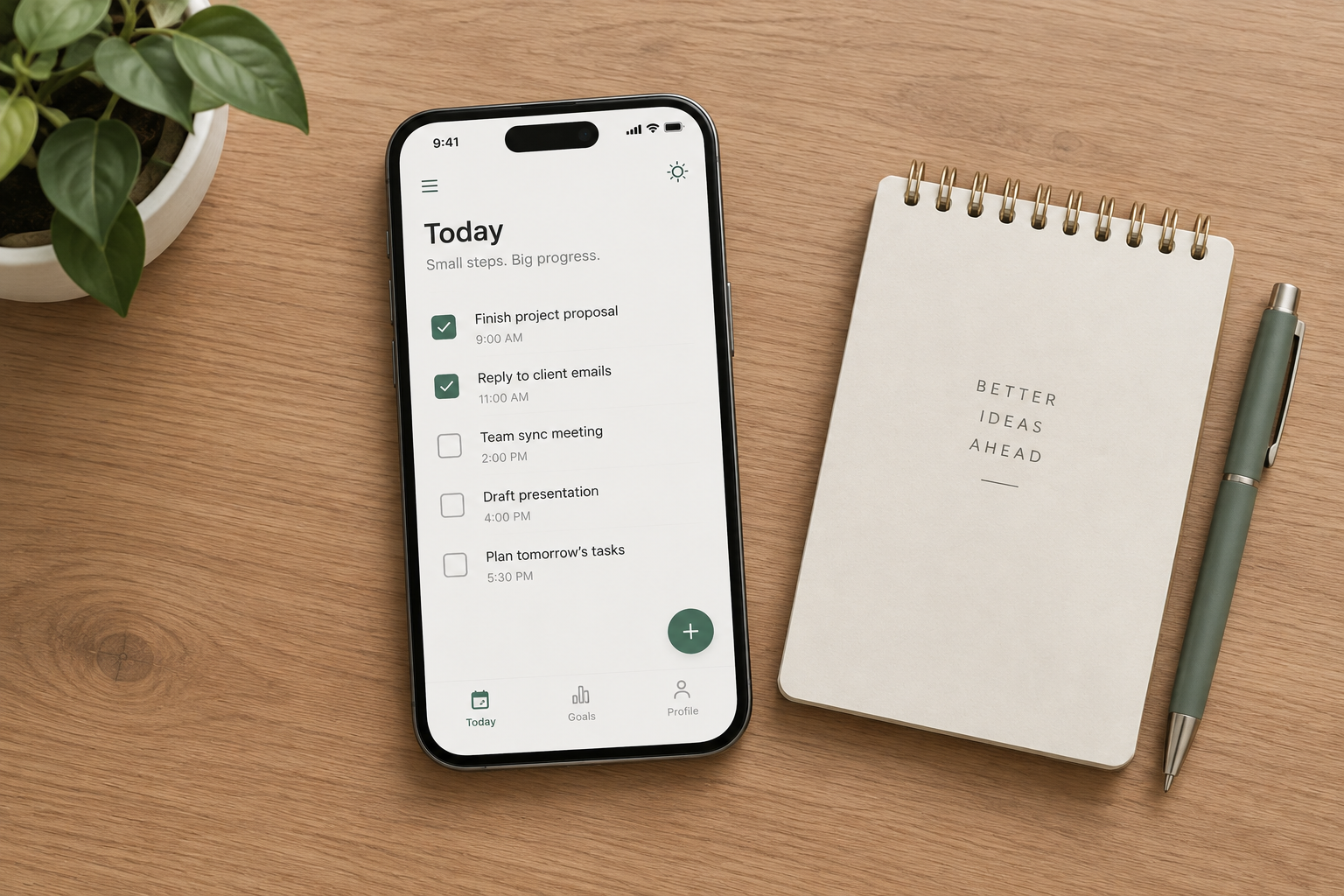
To get more done with your smartphone, first check how you actually use it. Open Screen Time on an iPhone or Digital Wellbeing on Android and look at the numbers. Then silence notifications while you work with a Focus or Focus mode, and set daily limits on the apps that pull you in most. Treat the phone as a tool you pick up for a reason, and rest away from the screen instead of scrolling.
Smartphones have only been part of daily life for about twenty years. In that time, the phone has taken over both free time and working hours. Most people tell themselves that all this screen time is about getting things done and staying in touch. Is that really true? Does your phone help you work, or does it mostly distract you? Here is what the research shows.
Why smartphones hurt productivity
Smartphones hurt productivity in three ways. You use the phone more than you think, it breaks your concentration, and scrolling feels like rest but isn’t.
You spend more time on your phone than you think
Phone use adds up faster than it feels. Sensor Tower’s State of Mobile 2026 report puts the global average at about 3.6 hours a day in mobile apps in 2025. In the heaviest-use countries the figure is higher. Earlier data.ai research found that users in Brazil, Indonesia and South Korea passed 5 hours a day in apps back in 2021.
The tapping adds up too. A 2016 dscout study tracked 94 Android users around the clock for five days. The average participant touched their phone 2,617 times a day, and the heaviest 10% averaged 5,427 touches. dscout called these low estimates, because touches on a locked screen, such as checking the time or a notification, weren’t counted. The average user also had 76 separate phone sessions a day.
Your own sense of time doesn’t help here. One quick check rarely feels like much, which is why the daily total usually comes as a surprise.
Your phone breaks your concentration
Every interruption costs more than the few seconds it takes. Gloria Mark, a researcher at the University of California, Irvine, found that people took an average of 23 minutes and 15 seconds to return to an interrupted task. In her book Attention Span (2023), she reports that people now spend only about 47 seconds on one screen before switching. In 2004 that figure was about 2.5 minutes.
If something pulls you away every few minutes and each recovery takes far longer than that, there is little room left for focused work. Mark’s research also links frequent interruptions to more stress, a stronger sense of time pressure and mental overload.
Your scrolling isn’t a favor to anyone else, either. Instagram’s Community Guidelines tell users not to artificially collect likes, followers or shares. Accounts that buy Instagram followers risk having those followers removed, and services that offer to buy real Instagram followers fall under the same rule. Creators build real audiences with their content, not with your spare hours. The only thing you need to manage is your own time.
Scrolling is not rest
Scrolling a feed or watching video after work feels like a break, but your brain is still taking in and sorting information. That is a different state from real rest. So when you switch to social media or YouTube after a long day, you keep working a brain that is already tired, just with different material.
What you can do to reduce your smartphone’s negative impact
The fixes below start with the quickest and easiest and build from there. None of them need extra apps, because iPhone and Android already have the tools built in.
Track your phone use for two days
Keeping a simple record of your phone use is the best way to avoid surprises. You don’t have to write down every unlock by hand anymore. The phone already does it.
- iPhone: Go to Settings > Screen Time > See All App & Website Activity. You can see daily totals, the apps you use most, how many times you picked up the phone and which apps sent the most notifications.
- Android: Go to Settings > Digital Wellbeing & parental controls. The dashboard shows screen time, unlocks and notifications for each app. Menu names can differ slightly on Samsung and other brands.
Check these numbers for two ordinary days. You will see how often you picked up the phone, why, and how long each visit lasted. Then you can set aside specific times for looking things up, messaging, reading the news and everything else.
Ask yourself “why?” before you unlock
Before you pick up the phone, ask yourself one question: “Why do I want to unlock it right now?” If you don’t have a specific reason, leave it where it is. Practice pausing between the urge to grab the phone and actually picking it up. That habit stops most mindless checks and frees up a lot of time.
Built-in limits make the pause easier:
- On iPhone, go to Settings > Screen Time > App Limits and set a daily limit for a category such as Social or for a single app. When you hit the limit, a screen appears that you have to deliberately get past.
- Use Settings > Screen Time > Downtime to schedule hours when only the apps you allow are available. Calls stay available, and you can always reach emergency numbers.
- On Android, open Settings > Digital Wellbeing & parental controls, tap an app in the dashboard and set an app timer. When the timer runs out, the app pauses for the rest of the day.
Remove distractions while you work
To protect your concentration, cut down on outside distractions. Your brain spends attention two ways: focusing on what matters and ignoring what doesn’t. The fewer distractions around you, the longer you can stay on the task in front of you.
Start by turning off notifications while you work. Going offline for a couple of hours won’t break anything, and the work will get done faster.
- iPhone: Go to Settings > Focus, tap Work (or create a new Focus) and choose which people and apps can still reach you. Tap Add Schedule to turn it on automatically during working hours.
- Android: Go to Settings > Digital Wellbeing & parental controls > Focus mode, pick the apps to pause and set a schedule. Paused apps turn gray and won’t open until you end Focus mode.
You can also switch the screen to black and white so bright colors pull at you less:
- iPhone: Settings > Accessibility > Display & Text Size > Color Filters, then turn on Color Filters and choose Grayscale.
- Android: Bedtime mode in Digital Wellbeing can turn the screen grayscale on a schedule. Pixel phones also have a grayscale option under Settings > Accessibility > Color and motion > Color correction.
- Windows 11: Settings > Accessibility > Color filters, then choose Grayscale.
- Mac: System Settings > Accessibility > Display, then turn on Color filters and choose Grayscale.
For reading, use your browser’s reader view, such as Reader in Safari or Reading mode in Chrome. It removes ads and clutter, so only the text is left.
Rest without a screen
Once you’ve cut the distractions and finished the focused work, it’s time to recover properly. Your brain rests best when you switch to a completely different kind of activity, so your phone is a poor choice.
- Take a walk, ideally outdoors. After a busy day, a walk with no screen involved helps you recover your energy and calm down.
- Spend time with people in person. A conversation with family or friends uses different skills than a feed does and helps you switch off from work.
- Try meditation or simple breathing exercises. A few minutes of quiet attention helps ease mental tension at the end of the day.
To keep the evening phone-free, set up Bedtime mode on Android or the Sleep Focus on iPhone so notifications go quiet automatically.
What a light digital detox gives you
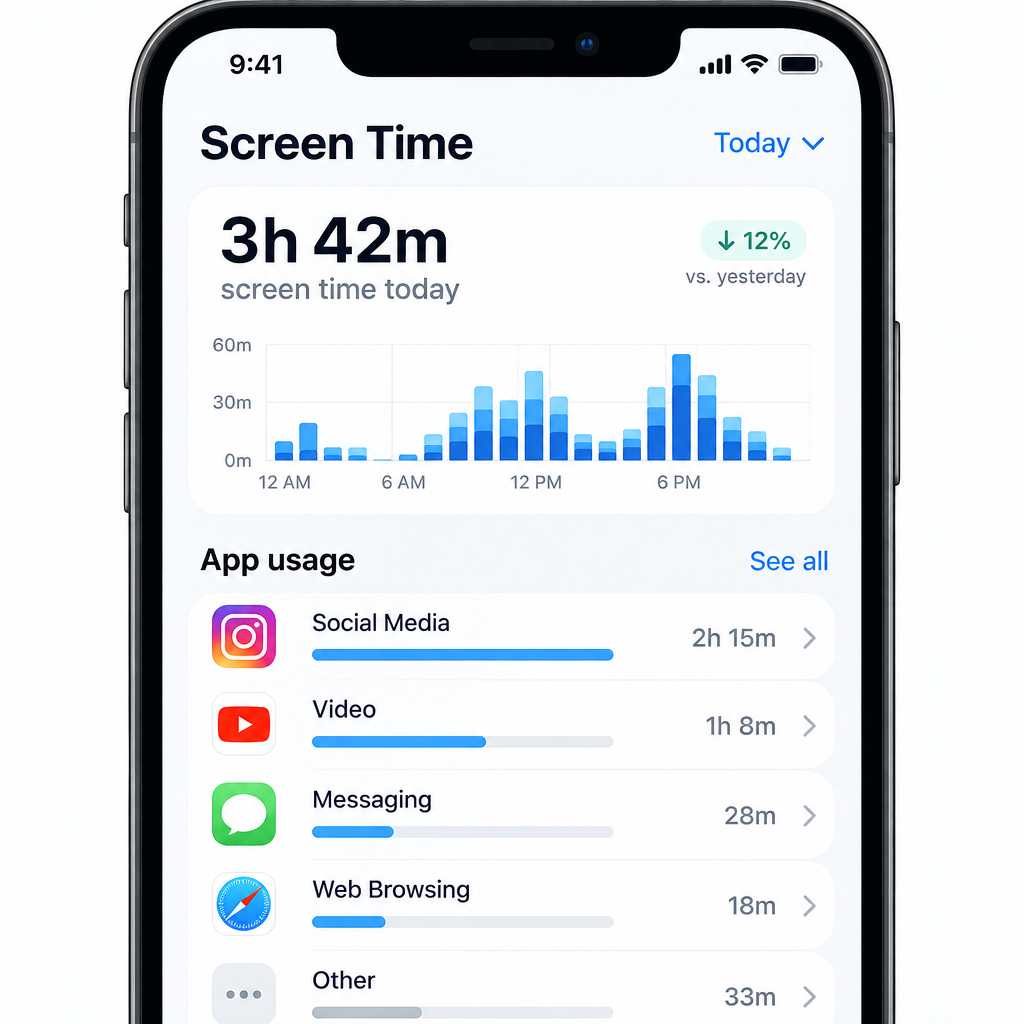
A light digital detox gives you:
- More free time.
- Less stress, because you’ve cut phone distractions and other interruptions.
- Better focus, so you finish tasks in less time.
- Faster recovery after a hard day, thanks to real rest.
FAQ
How much screen time is normal?
Sensor Tower’s State of Mobile 2026 report puts the global average at about 3.6 hours a day in apps in 2025, and heavy users in some countries spend well over that. A healthy amount depends more on what you use the phone for than on the total. Compare your Screen Time or Digital Wellbeing numbers with the goals you’ve set for yourself, not with the average.
What is the difference between Focus and Screen Time on iPhone?
Focus, under Settings > Focus, controls which notifications and calls reach you during set periods, such as work or sleep. Screen Time, under Settings > Screen Time, tracks your use and sets limits with App Limits and Downtime. Most people get the best results by using both: Focus to stop interruptions and Screen Time to cap time in distracting apps.
Does grayscale mode really help?
For many people, yes. A black and white screen makes colorful feeds and notification badges less eye-catching, so checking the phone becomes less automatic. It works best together with silenced notifications, since grayscale alone won’t stop alerts from interrupting you.
Can you override App Limits or Focus mode?
Yes. On your own device, both are reminders you can get past, not locks. On iPhone you can ignore the limit for the day, and on Android you can end Focus mode early. That extra step is the point, because it gives you a moment to ask whether you really need the app right now.
Do you need a third-party app to cut down phone use?
No. iPhone and Android both include tracking, app limits, scheduled Focus modes and grayscale at no cost. If you want something extra, download it only from the App Store or Google Play and check what permissions it asks for.
Sources
- Apple Support: Use Screen Time on your iPhone and iPad
- Apple Support: Set schedules and limits in Screen Time on iPhone
- Apple Support: Use Focus on Apple Watch (Focus schedules set on iPhone)
- Android: Digital Wellbeing
- Google Digital Wellbeing: Tools
- dscout: Putting a Finger on Our Phone Obsession