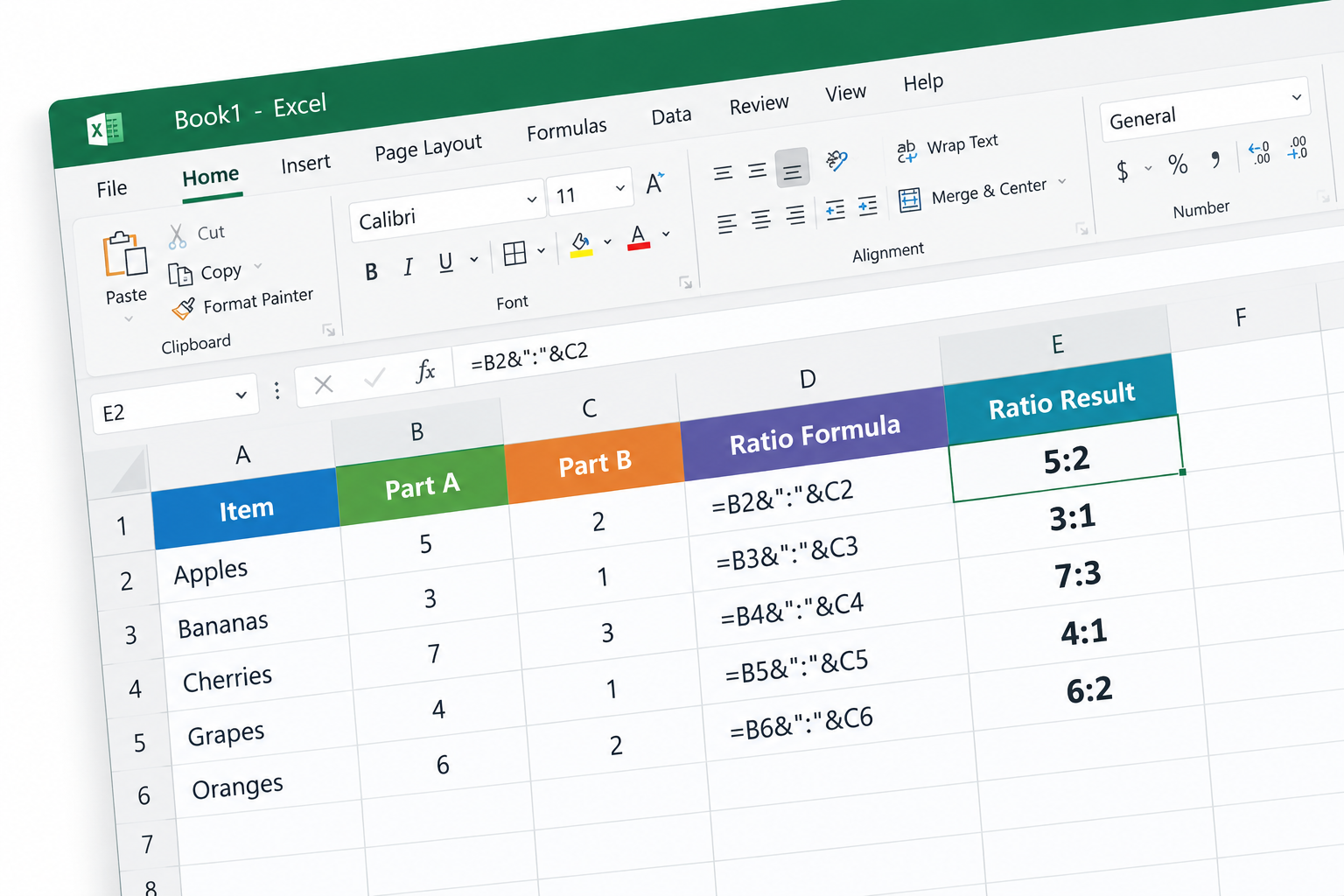
The most reliable way to show a ratio such as 5:2 in Excel is to divide both numbers by their greatest common divisor, using =A1/GCD(A1,B1)&":"&B1/GCD(A1,B1). In Excel for Microsoft 365, Excel 2021 or Excel 2024, you can wrap this in LET so the GCD is only worked out once. A shorter option, =SUBSTITUTE(TEXT(A1/B1,"#/#"),"/",":"), also works, but it rounds to a single-digit denominator unless you add more # signs. Both methods work only on whole, non-negative numbers, and the result is text, not a number you can calculate with.
Ratios are a big part of data analysis. Turning raw numbers into a ratio makes it much easier to see how two values relate. Excel has no dedicated ratio function, but its built-in functions make the job simple. This guide covers two methods, explains when each one goes wrong, and shows how to fix that.
Using the GCD formula
The GCD function finds the greatest common divisor of two or more numbers, which is the largest whole number that divides all of them with no remainder. Divide both values by it and you get the ratio in its simplest form, written as two whole numbers with no decimals. This formula calculates the GCD of the numbers in A1 and B1:
=GCD(A1, B1)
Next, divide each original value by the GCD and put a colon (:) between the two results. If the GCD is in D1, the ratio formula is:
=A1/D1&":"&B1/D1
Worked example: passed vs failed students
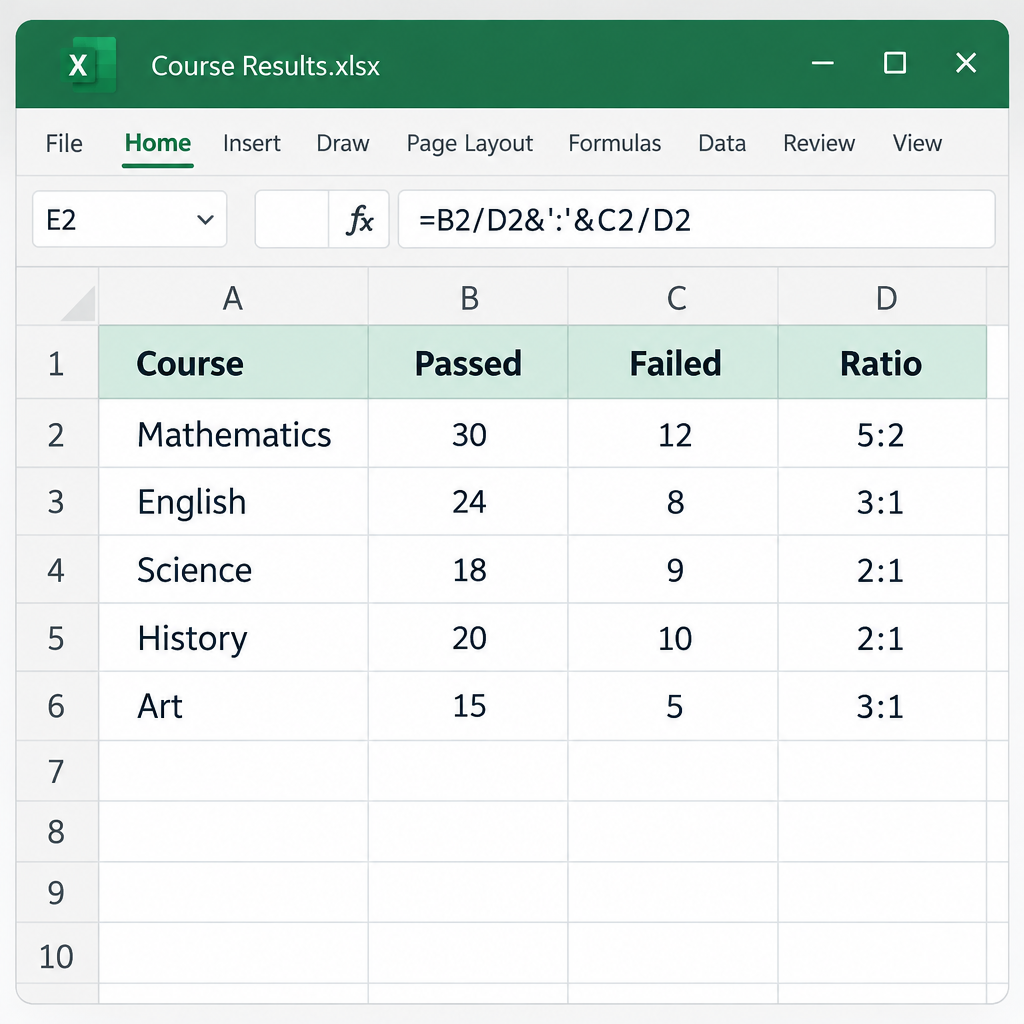
Take a table that lists how many students passed and failed each course, with Passed in column B and Failed in column C. The goal is to show the passed-to-failed ratio for every course.
- Type the GCD formula in cell D2:
=GCD(B2, C2)
- Drag the fill handle from D2 down to copy the formula to the other courses.

- Type the ratio formula in cell E2:
=B2/D2 & ":" & C2/D2
- Drag the fill handle down to fill the cells below.

Excel divides the Passed and Failed values for each course by their GCD and shows the result in Passed:Failed format. If 30 students passed and 12 failed, the GCD is 6, so the ratio shows as 5:2.
One-cell version with LET
If you don’t want a helper column, LET can store the GCD inside the formula itself. Microsoft lists LET as available in Excel for Microsoft 365, Excel 2021 and Excel 2024:
=LET(g, GCD(B2, C2), B2/g & ":" & C2/g)
For older versions such as Excel 2016 or 2019, repeat the GCD inside the formula instead:
=B2/GCD(B2,C2) & ":" & C2/GCD(B2,C2)
When the GCD method gives odd results
Microsoft’s documentation for GCD explains most of the surprises:
| Situation | What Excel does | Fix |
|---|---|---|
| Decimal values, e.g. 2.5 and 1.5 | GCD cuts off the decimals (5.9 becomes 5), so the ratio doesn’t simplify properly | Multiply both values by 10 or 100 first so they are whole numbers |
| A negative value | GCD returns #NUM! | Use ABS(B2) and ABS(C2) if the sign doesn’t matter |
| One value is 0, e.g. 5 and 0 | GCD(5, 0) is 5, so the ratio becomes 1:0 | Expected behavior; decide how you want to show it |
| Both values are 0 | GCD is 0, so the division returns #DIV/0! | Wrap the formula in IFERROR, e.g. IFERROR(formula,”n/a”) |
| Text in a cell | GCD returns #VALUE! | Clean the data so the cells contain real numbers |
Using the TEXT function with SUBSTITUTE
The TEXT function turns a number into text using a format code you choose, much like custom number formatting. Because TEXT is a function, though, you can combine it with other functions. Here it shows the result of a division as a fraction. SUBSTITUTE then swaps one piece of text for another, so it can replace the fraction’s slash with a colon. Here is the formula:
=SUBSTITUTE(TEXT(A2/B2,"#/#"),"/",":")
The formula divides A2 by B2, and TEXT formats the result as a fraction using the #/# code. SUBSTITUTE then replaces the forward slash (/) with a colon (:). With 30 and 12, the division gives 2.5, TEXT shows it as 5/2, and the final result is 5:2. That matches the GCD method.
Watch the denominator length
The #/# code allows only one digit in the denominator, so Excel rounds to the nearest fraction that fits. With 47 and 13, the code shows 29/8 (3.625) and not 47/13 (about 3.615), which gives a ratio of 29:8 that isn’t exact. Add more # signs to allow longer denominators:
=SUBSTITUTE(TEXT(A2/B2,"#/###"),"/",":")
This handles denominators up to three digits. For exact ratios on large or uneven numbers, the GCD method is still the safer choice, because it never rounds.
Which method to use
| GCD method | TEXT + SUBSTITUTE | |
|---|---|---|
| Accuracy | Always exact for whole numbers | Can round, depending on the format code |
| Formula length | Longer, or needs a helper column | One short formula |
| Decimals in the data | Needs scaling to whole numbers first | Handles them, with rounding |
| Best for | Reports where the ratio must be exact | Quick, approximate comparisons |
Final tips
Both methods return text. You can’t sort or sum the result as a number, and Microsoft’s TEXT documentation advises keeping the original values in their own cells for any later calculations. If you need a ratio you can calculate with, also keep a plain division such as =B2/C2 in a separate column, formatted as a number or a percentage, and use the colon version only for display.
FAQ
Is there a RATIO function in Excel?
No. Excel has no built-in RATIO function. You build ratios from GCD, TEXT, SUBSTITUTE and the & operator, as shown above.
How do I show a ratio as “X to 1”?
Divide the first value by the second and join the result to “:1”. For example, =ROUND(B2/C2,2)&":1" turns 30 and 12 into 2.5:1. This format is common in finance, such as the current ratio or debt-to-equity.
Why does my ratio formula return #DIV/0!?
In the GCD method, this happens when both values are zero, because GCD(0, 0) is 0. In the TEXT method, it happens whenever the second value is zero. Wrap the formula in IFERROR to show a label in place of the error.
Can I calculate a ratio of three numbers, like 2:3:5?
Yes. GCD takes up to 255 numbers, so =LET(g,GCD(A2,B2,C2),A2/g&":"&B2/g&":"&C2/g) simplifies all three values at once. Use this in Microsoft 365, Excel 2021 or Excel 2024.
Do these formulas work in Excel for Mac and Excel for the web?
Yes. GCD, TEXT and SUBSTITUTE work in every current version of Excel, including Excel for Mac and Excel for the web. LET needs Excel for Microsoft 365, Excel 2021 or later.
Sources
- GCD function, Microsoft Support
- TEXT function, Microsoft Support
- LET function, Microsoft Support