To install an APK on a current Android phone, download it from a source you trust (such as the developer’s own website or APKMirror), open it from your browser or file manager, and allow that app to install unknown apps when Android asks. On Android 8.0 and later, that permission is set per app under Settings > Apps > Special app access > Install unknown apps. Samsung Galaxy owners may also need to switch off Auto Blocker for a moment. Since 30 September 2026, phones in Brazil, Indonesia, Singapore and Thailand also block apps from developers who have not registered with Google, unless you turn on Google’s “advanced flow” first. Google plans to extend that rule worldwide in 2027.
The Google Play Store does not carry every app. Some developers publish outside it: the Epic Games Store, F-Droid’s open-source apps, beta builds, and older versions of an app you want to roll back to. An APK file lets you install these apps yourself.
Android makes this harder on purpose. Before a browser, file manager or other app can install apps for you, Android needs your permission for that app. Google says its own analysis found over 50 times more malware from apps sideloaded from the internet than from apps on Google Play. This guide shows you how to give that permission on your version of Android, and how to stay safe while you do it.
Note: Only install APKs from sources you trust. The developer’s official website is the safest choice. APKMirror is a long-running download site that checks that each upload is signed by the same developer as the original app. An APK from an unknown source can put your phone, your accounts and your data at risk.
What is an APK file?
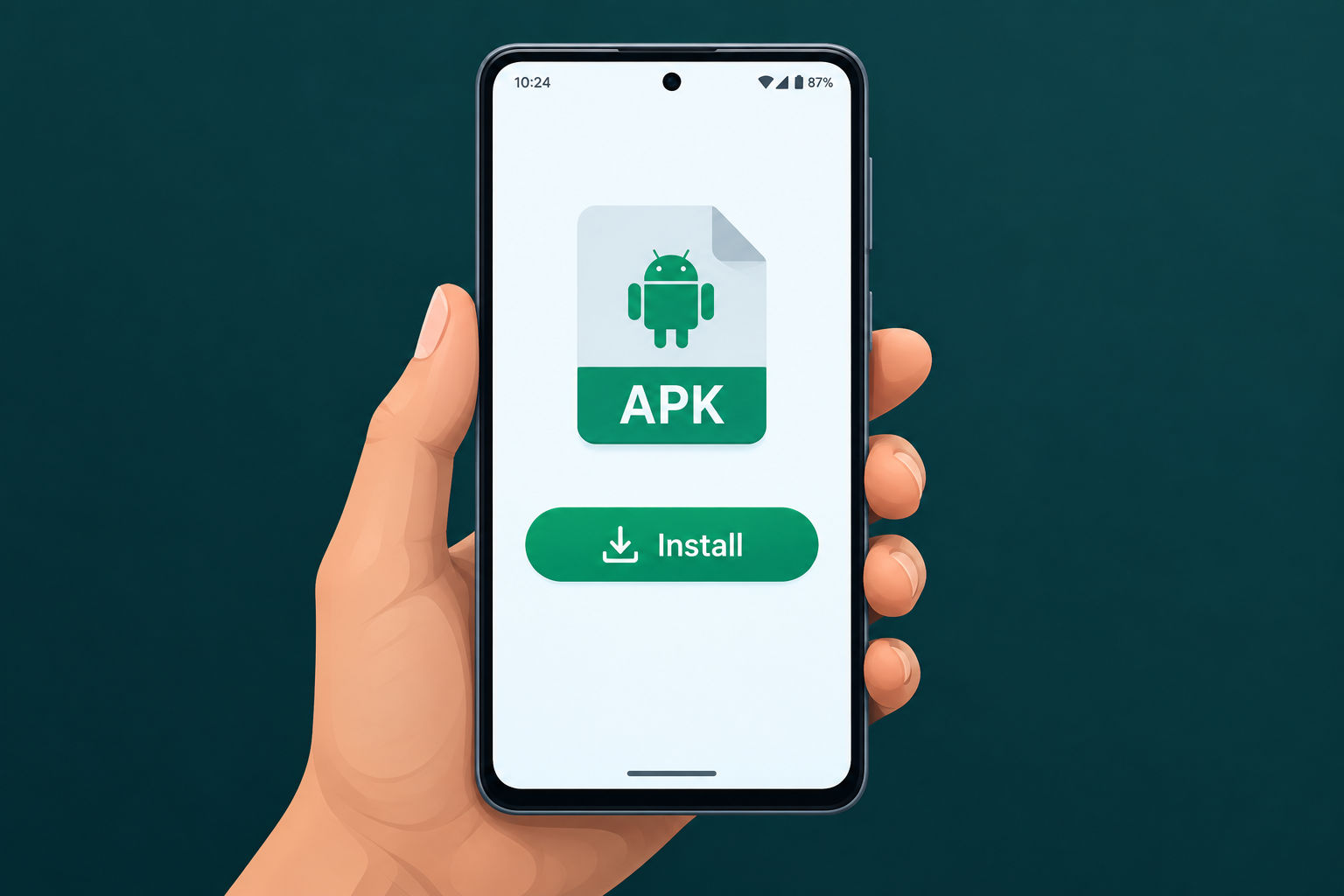
An APK (Android Package) file is the installer for an Android app, much like an.exe file on Windows. Google Play downloads and installs these packages for you in the background. When you install an app outside Google Play, you handle the APK file yourself. People call this “sideloading.”
Many modern apps no longer ship as one APK. Developers often publish them as “split APKs,” which is a base package plus extra pieces for your screen size, language and processor. Download sites package these as bundles with the extensions .apkm, .xapk or .apks. Android cannot open these bundles directly. The free APKMirror Installer app, available on Google Play, can install them. Apps that need split APKs must be installed with the complete set. If you install only the base APK from a bundle, Android may reject it or the app may be left incomplete.
Check your phone’s Android version first
The steps depend on your Android version. Android 4.0 to 7.0 used one simple switch for the whole phone. Android 8.0 Oreo replaced it with a permission you grant to each app separately, and that is still how it works today.
To check your version, open Settings > About phone and look for Android version. On Samsung phones, go to Settings > About phone > Software information. Older phones may show a dessert name, such as Ice Cream Sandwich (4.0), Nougat (7.0), Oreo (8.0) or Pie (9). Since Android 10, versions only have numbers. Android 17 is the current version and reached Pixel phones in June 2026.
The first set of steps below is for Android 4.0 Ice Cream Sandwich to Android 7.0 Nougat.
Why and when you need an APK file
You need an APK when an app you trust is not on Google Play, or not on Google Play for your device. Common examples:
- Apps that developers distribute themselves, such as the Epic Games Store or the F-Droid catalogue of open-source apps.
- Beta or test builds that a developer shares directly.
- An older version of an app, after an update broke something you rely on.
- Phones or tablets without Google Play, such as Amazon Fire tablets, or devices sold in markets where Google services are not available.
Region-locked apps are a different matter. An APK does not change where a service is licensed. Streaming services such as Spotify and Hulu check your location or account country, so the app may install but refuse to work, and getting around a regional launch can break the service’s terms. The official route is to wait for the service to launch in your country.
How to download and install an APK file manually
Download the APK file you want first. The easiest way is to use your phone’s browser, so the file goes straight to your phone. APKMirror and the developer’s own site both work this way.
Find the downloaded file in your phone’s Downloads folder. You can reach it through your browser’s downloads list, or through your phone’s file manager app (often called Files, or My Files on Samsung phones). This is the same place where you can browse your photos and other files by hand. Remember where the APK is saved.
Next, you need to change a setting. Where it lives depends on your phone’s maker and Android version.
Android 4.0 to 7.0: turn on Unknown sources
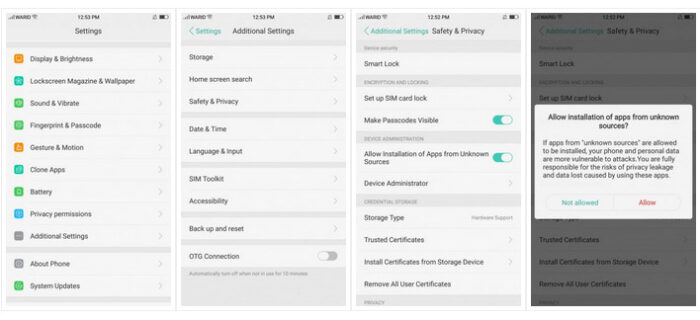
Menus differ from one phone maker to another, which makes this the tricky part. On these older versions, the setting is usually under Settings > Security, though some phones put it under Apps. Look for Unknown sources, described as “Allow installation of apps from unknown sources.”
It appears as a switch or a checkbox, and you will see a confirmation box when you turn it on. If your Settings app has a search box, type “Unknown sources” to find it faster.
Once the setting is on, go back to the APK file and tap it. Then tap Install. The app may not appear on your home screen straight away. If it does not, open your app drawer, find the app and add a shortcut to your home screen yourself.
Turn Unknown sources off again when you are done. On these versions, the switch opens the door for every app on the phone.
Android 8.0 and later: allow Install unknown apps
The next set of steps covers Android 8.0 Oreo, Android 9 Pie and every version since, up to Android 17.
Google changed the method in Android 8.0. Instead of one switch for the whole phone, you now allow a specific app, such as Chrome or your file manager, to install other apps. It takes a few more taps, but it is safer.
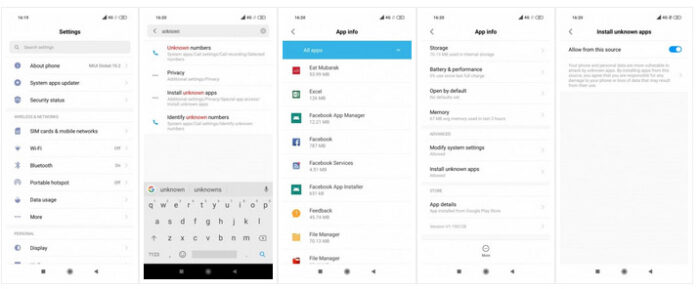
The quickest way is to open the APK and let Android guide you:
- Tap the downloaded APK in your browser or file manager.
- If Android says the app is not allowed to install unknown apps, tap Settings in the pop-up.
- Turn on Allow from this source.
- Go back and tap Install.
You can also set it up ahead of time:
- Open Settings. If there is a search bar, search for “Unknown” and tap Install unknown apps.
- Or go there yourself. On Google Pixel and most phones, the path is Settings > Apps > Special app access > Install unknown apps. On some versions, Special app access is under Advanced. On Samsung Galaxy phones, go to Settings > Apps, tap the three-dot menu, then Special access > Install unknown apps.
- You will see a list of the apps on your phone. Choose the app that will open the APK, usually your browser or file manager.
- Turn on Allow from this source.
That’s it. For safety, come back to this list after the install and turn the permission off again for that app.
Samsung Galaxy phones: check Auto Blocker
Galaxy phones running One UI 6.0 and later have Samsung’s Auto Blocker, which you can turn on or off. Many phones have it switched on by default. When it is on, it blocks apps from unauthorized sources, meaning anywhere other than Galaxy Store and Google Play. You will get a pop-up and the install will stop, even after you allow unknown apps.
Samsung’s own advice is to turn the feature off for a moment, and only if you are sure the app is safe. Go to Settings > Security and privacy > Auto Blocker and switch it off. Install the app, then switch Auto Blocker back on. While Auto Blocker is on, apps from outside approved stores cannot be updated, so you will need to repeat this each time you update.
Developer verification and the advanced flow
Google now requires app developers to register their identity, and Android blocks apps from developers who have not registered. Enforcement started on 30 September 2026 on certified Android phones in Brazil, Indonesia, Singapore and Thailand. Google plans to extend it worldwide in 2027. Most well-known apps come from registered developers and install as normal.
To install an app from a developer who has not registered, Google offers a one-time “advanced flow.” It began rolling out in August 2026. You turn on Developer options, open Apps from unverified developers, confirm with your screen lock, restart the phone and wait 24 hours. After that, you can allow unverified apps for seven days or indefinitely, and Android still shows a warning before each install. The wait is there because scammers often pressure victims into installing an app on the spot. If anyone on a call tells you to do this, hang up.
After the install: Play Protect and restricted settings
Google Play Protect still scans sideloaded apps when you install them, and it may warn you or offer to scan an unfamiliar app first. If it flags an app as harmful, cancel the install.
Since Android 13, sideloaded apps that ask for sensitive access, such as Accessibility or notification access, show a Restricted setting message. This is a common sign of malware. A normal game or music app never needs Accessibility access, so think carefully before you allow it.
Keeping sideloaded apps updated
Google Play usually will not update apps you installed from an APK, so updating is up to you. To get new features and security fixes, check for new versions regularly and install the latest APK over the old one. As long as the new file comes from the same developer, your data stays in place.
A weekly check is a good habit. You can also follow your favourite apps’ official social media accounts or websites to hear about big releases. Some sources do the work for you: F-Droid updates its own apps, and the APKMirror Installer can tell you when newer versions are available.
FAQ
Is it safe to install APK files?
It is safe when the file comes from a trusted source and you check what the app asks for. Stick to the developer’s official site or a well-known site like APKMirror, keep Play Protect on, and avoid “free premium” or “modded” versions of paid apps, which often carry malware. Turn the install permission off again afterwards.
Why does my phone say “App not installed”?
The most common causes are:
- an APK built for a newer Android version
- a version older than the one already installed
- a file signed by a different developer than the installed copy
- a split-APK bundle installed as a single file
If the signatures don’t match, uninstall the old copy. For.apkm,.xapk and.apks bundles, use the APKMirror Installer. On Samsung phones, also check Auto Blocker.
Will an APK let me use an app that isn’t available in my country?
Usually not. Services like Spotify and Hulu check your location or account, so the app may install but fail to sign in or play anything, and using it this way can break the service’s terms. Wait for the official launch in your country.
Is Google banning sideloading?
No. Sideloading still works. Google now requires developers to register, and since 30 September 2026, phones in Brazil, Indonesia, Singapore and Thailand block apps from unregistered developers unless you turn on the advanced flow. Google plans to apply the same rule worldwide in 2027.
How do I turn off unknown app installs again?
On Android 8.0 and later, go to Settings > Apps > Special app access > Install unknown apps, tap the browser or file manager you used, and turn off Allow from this source. On Android 7.0 and earlier, turn off Unknown sources in Settings > Security. Samsung owners should also switch Auto Blocker back on.
Sources
- Android developer verification guides (Android Developers)
- Android developer verification FAQ (Android Developers)
- Android developer verification: Building a safer ecosystem together (Android Developers Blog)
- Protect your Galaxy device with the Auto Blocker feature (Samsung Support)
- APKMirror Installer (APKMirror)