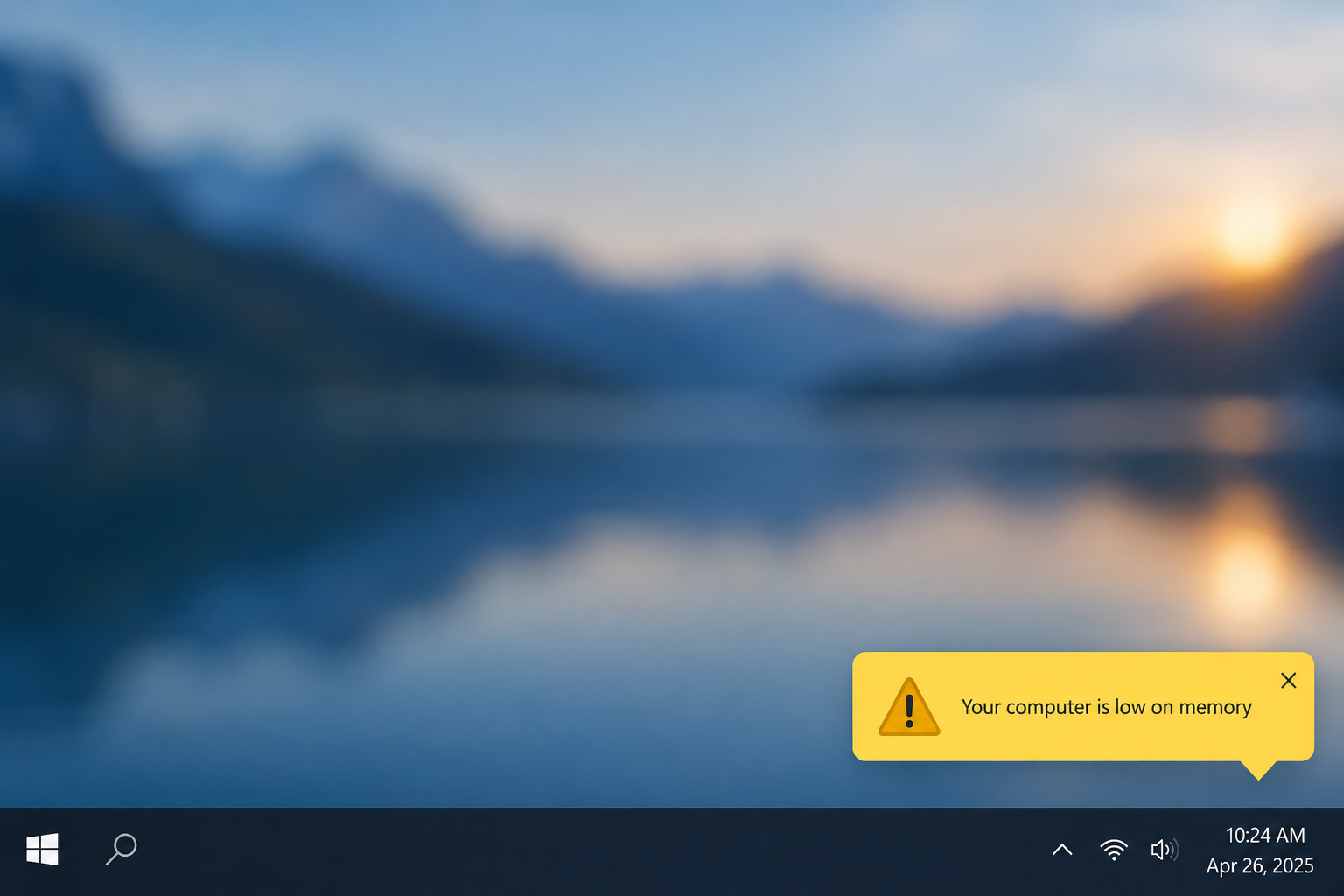
“Your computer is low on memory” means Windows has run short of RAM and paging file space at the same moment, so it wants you to close something before an app loses your work. To fix it now, save your work, open Task Manager with Ctrl + Shift + Esc, sort the Processes tab by Memory and end the app using the most. If the warning keeps returning, set the paging file back to “System managed size” (or make it bigger), turn off startup apps you don’t need, and think about adding RAM. Windows 10 reached end of support on October 14, 2025. Free consumer Extended Security Updates now run until October 12, 2027, so a PC that keeps running low on memory is also a good reason to plan your move to Windows 11.
The warning means something is using up your PC’s memory. When that happens, open programs can start to misbehave or freeze, and you may not be able to save what you have open. Several things can cause it, and the fixes below are listed from quickest and safest to most involved.
Why Windows 10 says it is low on memory
Windows uses two kinds of memory. The first is physical RAM. The second is the paging file (pagefile.sys), which is space on your drive that Windows uses as overflow. The total of the two is called the commit limit. The warning appears when programs ask for more than that limit allows.
There are three common causes:
- One program is leaking or hogging memory. A browser with dozens of tabs, a game, or a buggy app can keep taking memory without giving it back.
- The paging file is too small or turned off. Microsoft’s own documentation explains that while Windows is growing the paging file, some programs’ memory requests can be denied. That is enough to trigger the warning even if your RAM use looked normal a moment earlier.
- The PC simply has too little RAM for how it is used today. A 4 GB machine running a modern browser, Teams and Office will hit the limit often.
Low memory can look like other problems. Apps crash with “has stopped working” messages, and errors such as “uncsetting. has stopped working” can show up while memory is short. Pages can also load slowly enough that you blame your internet connection. Check memory first, before you run a website speed test or reinstall anything.
Close memory-hungry programs in Task Manager
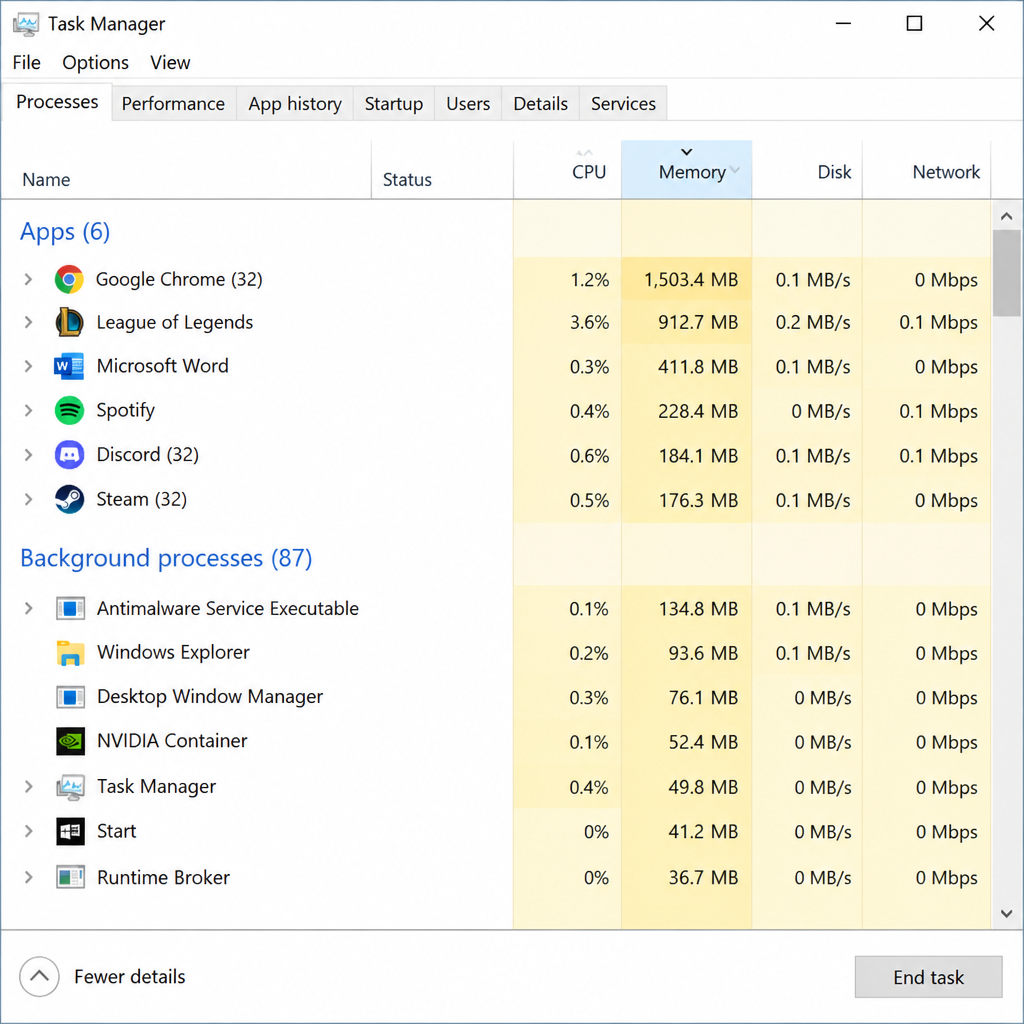
The quickest fix is to close whatever is using the most memory. Do it in Task Manager.
- Save any open work you can.
- Press Ctrl + Shift + Esc to open Task Manager directly. (Pressing Ctrl + Alt + Del and choosing Task Manager also works.)
- If you only see a short list of apps, click More details at the bottom.
- On the Processes tab, click the Memory column heading to sort by memory use, highest first.
- Click the program using the most memory (and CPU, if it is also high), then click End task.
- Repeat for other large programs you don’t need right now.
Each program you close gives its memory back to Windows, and the PC should respond better within a few seconds.
To stop the problem coming back after every restart, open the Startup tab in Task Manager. Right-click any app you don’t need at sign-in and choose Disable. That way fewer programs take memory the moment Windows starts.
How to increase virtual memory in Windows 10
If the low memory warning shows up often, check the paging file. Microsoft recommends letting Windows manage it, so try that first. Set a custom size only if the automatic setting still leads to warnings.
- Press the Windows logo key + X at the same time and click System.
- Under Related settings, click Advanced system settings. The System Properties window opens on the Advanced tab.
- Under Performance, click Settings.
- In Performance Options, open the Advanced tab and click Change under Virtual memory.
- Make sure Automatically manage paging file size for all drives is ticked. Click OK, restart, and see if the warning comes back.
- If it does, return to this window, untick Automatically manage paging file size for all drives, select your system drive (usually C:), and choose Custom size.
- Enter an Initial size (MB) and a Maximum size (MB). A common starting point is an initial size about the same as your RAM (for example 8192 MB on an 8 GB PC) and a maximum of up to three times your RAM. Make sure the drive has that much free space.
- Click Set, then OK, and restart the PC when Windows asks.
A bigger paging file gives Windows more room for overflow, so programs are less likely to be refused memory. It is still much slower than real RAM, though. It prevents crashes and warnings, but it won’t make a PC that is short on RAM feel fast.
Check free disk space too. When the system drive is nearly full, Windows can’t grow the paging file. Free up space in Settings > System > Storage if C: has only a few gigabytes left.
Do you need a third-party memory manager
No. Some people use third-party “RAM cleaner” or “memory optimizer” tools to manage Windows memory, but Windows already manages memory itself. Task Manager and the paging file settings above cover what most people need. Many of these tools just force programs to give up memory, and the programs then take it back a moment later. If you want more detail than Task Manager offers, Microsoft’s free Resource Monitor (type resmon in the Start menu) shows memory use by process. Avoid memory tools from download sites you don’t know, because they are a common way for adware to get onto a PC.
When to add RAM or replace the computer
If the warning keeps coming back after the steps above, the PC probably needs more RAM. Programs and websites have become more demanding, and older computers struggle to keep up.
Replacing the whole computer should be your last option. Adding RAM is usually much cheaper. Check how much you have and how many slots are free in Task Manager under Performance > Memory, which shows “Slots used”. In compact desktops, tall RAM heat spreaders can hit the CPU cooler. That is one reason small-case builders look for the best low profile cpu cooler, so check clearance before you buy tall memory sticks. Many thin laptops have RAM soldered to the board and can’t be upgraded at all.
There is a second thing to weigh. Windows 10 no longer gets regular support, and its free consumer Extended Security Updates end on October 12, 2027. If your PC meets Windows 11’s requirements (including 4 GB of RAM, TPM 2.0 and a supported processor), adding RAM and upgrading for free is a sensible path. If it doesn’t, put the money for a RAM upgrade towards a newer PC that will be supported for years.
Use Task Manager to find the real cause
Task Manager also helps you find which programs are always running when the memory runs out. Keep the Processes tab sorted by Memory for a day or two. If the same app climbs every time, you have found the culprit. Update it, reinstall it, or switch to an alternative and see if the problem goes away.
Be careful about what you close
Be careful when you end processes. Many of them, especially those listed under Windows processes, have to keep running. If you end something important, such as Desktop Window Manager or Windows Explorer, the screen may go black or the taskbar may disappear. This is usually not serious, and restarting the computer will normally fix it. Still, stick to programs you recognise. If you are unsure, right-click the process and choose Search online before ending it.
FAQ
Is it safe to make the paging file bigger?
Yes. A bigger paging file only uses more disk space, and you can change it back at any time in the same Virtual memory window. Don’t turn the paging file off completely, because that makes the low memory warning more likely and can stop Windows saving crash information.
How much RAM does a Windows 10 PC need today?
Windows 10 itself runs on 4 GB of 64-bit RAM, but with a modern browser and Office that is tight. For everyday use, 8 GB is a sensible minimum and 16 GB leaves room for heavy browsing, video calls and photo editing.
Why does the warning appear when Task Manager shows memory isn’t full?
The warning depends on the commit limit (RAM plus paging file), not just the RAM figure. If the paging file is small or the drive is nearly full, Windows can run out of commit space while RAM still looks partly free. Letting Windows manage the paging file and freeing disk space usually fixes this.
Can a virus cause low memory errors?
It can. Malware such as hidden cryptocurrency miners uses a lot of memory and CPU. If you see an unknown process using a lot of memory, run a full scan in Windows Security > Virus & threat protection > Scan options > Full scan.
Will upgrading to Windows 11 fix low memory?
No. Windows 11 needs at least as much memory as Windows 10, so the upgrade won’t fix a RAM shortage on its own. It does keep you on a supported system, and with free Windows 10 security updates ending on October 12, 2027, that matters more than it did.
When should I get professional help?
If the warning appears with almost nothing open, memory use climbs even in Safe Mode, or the PC also shows blue screens, the RAM itself may be faulty. Run Windows Memory Diagnostic from the Start menu. If it reports errors, contact the PC maker or a repair shop.
Sources
- Microsoft Support: “Your system is low on virtual memory” error message (KB 826513)
- Microsoft documentation: How to determine the appropriate page file size
- Microsoft Tech Community: What is the page file for anyway?
- Microsoft Learn: Visual Studio unresponsive or consuming memory
- BleepingComputer: Microsoft extends free Windows 10 ESU support to October 2027