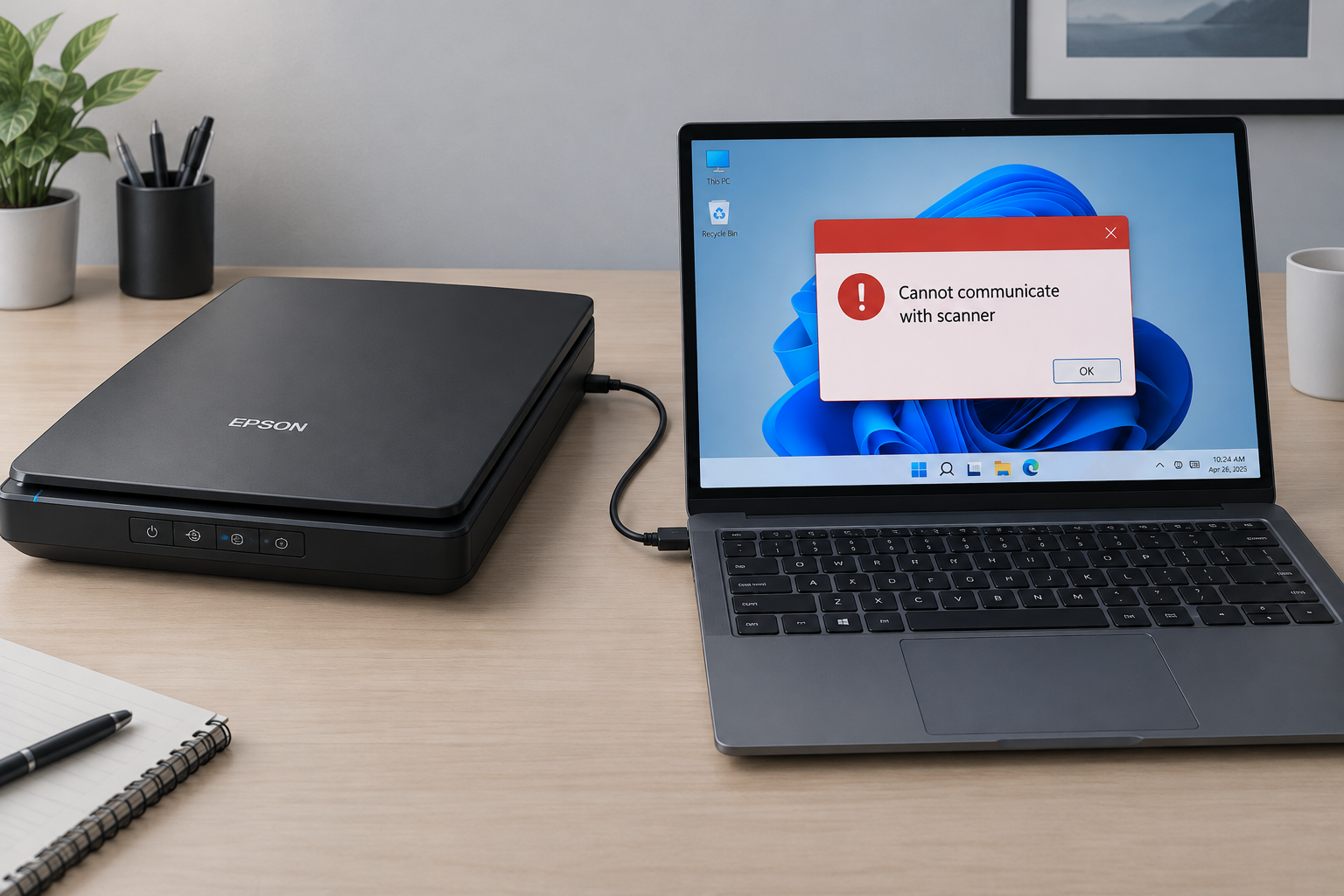
How to fix Netflix error code M7701-1003 on Microsoft Edge
You see this error when you try to play Netflix in a browser. The message apologizes for the interruption and asks you to make sure “sites can play protected content” is selected. Netflix shows it when the browser won’t load the copy protection that Netflix videos need.
Netflix steers many viewers toward its TV, mobile and Windows apps. Plenty of people still prefer to watch in a browser, though, and that’s where this error turns up. Netflix’s own help article treats it as a browser problem. The usual cause is that protected content is blocked in the browser’s settings, or the Widevine component needs an update. Both take a minute or two to fix.
Before you change anything, check your versions. Netflix’s list of supported browsers asks for Microsoft Edge 118 or later on Windows 10 or Windows 11. Windows 8 and 8.1 computers may still play Netflix, but only in standard definition.
What Widevine, DRM protection and secure playback are
Widevine is Google’s digital rights management (DRM) system. It decrypts protected video so only an approved browser or app can play it. Edge, Chrome and other Chromium-based browsers use it to stream Netflix and other paid services. Netflix says M7701-1003 indicates a problem with the browser’s Widevine Content Decryption Module.
Widevine is Google’s DRM technology, and many streaming services use it. It works across Google Play, YouTube, Netflix, Disney+, Amazon Prime Video, HBO Max, Hulu, Peacock, Discovery+, Paramount+ and many other platforms. It lets you stream premium content while keeping it protected all the way from the original source.
On Windows, Edge also supports Microsoft’s own DRM system, PlayReady. That’s one reason Edge has long been a strong choice for high-quality Netflix playback on Windows PCs. Edge still relies on Widevine for many sites, though, so a broken Widevine module can cause errors even when PlayReady works fine.
If Netflix plays but keeps pausing to load, that’s a different problem with different fixes. See How To Fix Netflix Keeps Buffering Issue In 2024 for those.
How to turn on secure playback in Microsoft Edge
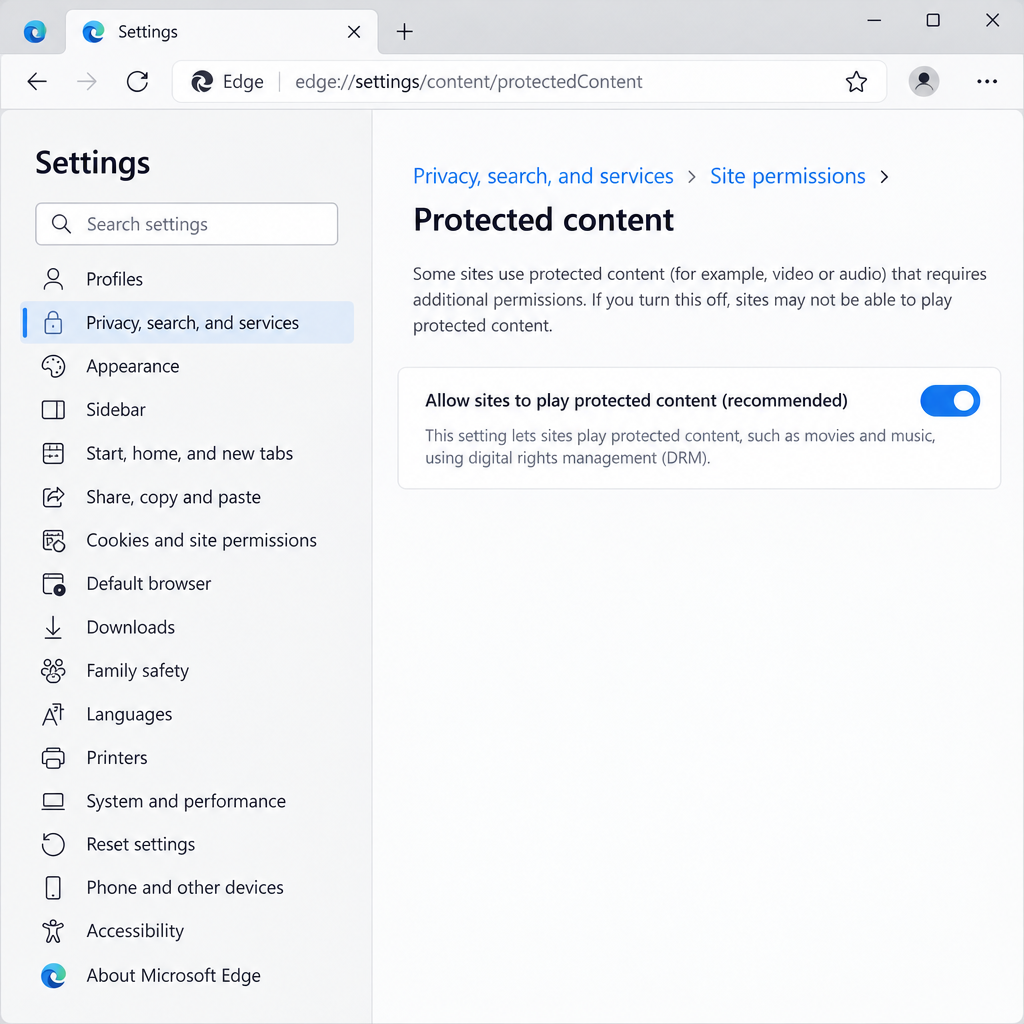
To turn on secure playback in Edge, allow protected content in Settings, make sure the Widevine module is up to date, and restart the browser. The fixes below run from quickest and safest to most involved. Try the video again after each one.
Step 1: Allow sites to play protected content
- Open Microsoft Edge and select the three-dot menu (…) in the top right, then Settings.
- Go to Privacy, search, and services > Site permissions > All permissions > Protected content. On older Edge builds, this is under Cookies and site permissions > Protected content IDs.
- Turn on Allow sites to play protected content (recommended).
- If Netflix still fails, also turn on Allow identifiers for protected content on the same page.
- Under the same permissions, make sure netflix.com isn’t on a Block list.
For a shortcut, type the address below into the address bar and press Enter. In current builds it takes you to the protected content page:
edge://settings/content/protectedContent
Step 2: Update the Widevine Content Decryption Module
For M7701-1003, Netflix’s help center advises updating the Widevine Content Decryption Module and checking that protected content is enabled. In Edge, it works through Edge’s own components page.
- Type the address below into the address bar and press Enter:
edge://components
- Find Widevine Content Decryption Module in the list.
- Select Check for update and wait until the status says the component is up to date or updated.
- Close every Edge window, open Edge again, and reload Netflix.
While you’re there, update Edge itself. Go to Settings > About Microsoft Edge. Edge checks for updates automatically and installs them after a restart.
Step 3: Check the Widevine flag on the advanced settings page
Older Edge builds had a Widevine switch on the experimental flags page. On current Windows builds this switch usually isn’t there, or it says “Not available on your platform”. Only use this step if Steps 1 and 2 didn’t help.
- Open Microsoft Edge, type the address below into the address bar and press Enter:
edge://flags
- This opens Edge’s advanced (experimental) settings page. Type Widevine in the search box at the top.
- If an entry shows up highlighted in yellow and is set to Disabled, use the drop-down box to change it to Default or Enabled. If nothing shows up, or the entry says “Not available on your platform”, skip this step.
Edge won’t apply the change until you restart it. Use the Restart button that appears at the bottom of the flags page. After the restart, Edge supports Netflix and other Widevine services again.
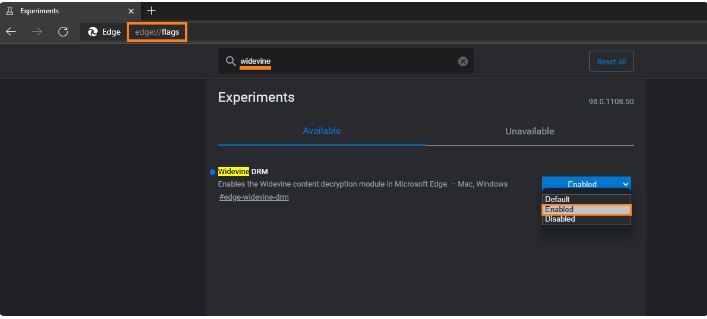
Don’t change other flags while you’re on this page. They’re experimental and can cause new problems. If you’ve already changed some, the Reset all button at the top puts them back to their defaults.
Step 4: Rule out extensions and the cached site data
- Open an InPrivate window with Ctrl + Shift + N and sign in to Netflix there. Most extensions don’t run in InPrivate unless you’ve allowed them.
- If Netflix plays in InPrivate, open edge://extensions and turn your extensions off one at a time until you find the one that breaks playback. Ad blockers and VPN or privacy add-ons are the usual causes.
- If Netflix still fails in InPrivate, clear netflix.com’s site data. Go to Settings > Privacy, search, and services > Delete browsing data, or remove just Netflix’s stored data from the site permissions page.
A separate Windows error can also stop browsers and apps from working properly. The guide How To Fix 0x0 0x0 Error Permanently In 2023 covers that one.
How to use Widevine (secure playback) in Brave
Brave turns Widevine off by default for privacy reasons, so you have to turn it on yourself before Netflix will play.
- Type the address below into Brave’s address bar and press Enter:
brave://settings/extensions
- Turn on the Widevine option (labeled along the lines of Use Google Widevine or Ask when a site wants to install Widevine on your computer).
- Restart Brave completely and open Netflix again. If Brave asks to install Widevine, allow it.
Brave’s support pages for Android say Widevine is off after installation there too. On Android, you turn it on in Brave’s settings and restart the app.
Brave users on Linux have reported M7701-1003 even with Widevine on and up to date. Netflix doesn’t guarantee Linux support, and its customer service won’t troubleshoot Linux computers. If you’re on Linux and none of these steps work, the Netflix app on another device is the more reliable choice. Chrome, Edge, Firefox, Opera and Safari on a Mac are all on Netflix’s supported list, so you can switch browsers if Brave won’t cooperate.
If the error still appears
If M7701-1003 is still there after all the steps above, test another supported browser or the Netflix app from the Microsoft Store.
- Netflix works in another browser: The problem is Edge’s profile. Create a new profile under Settings > Profiles > Add profile and test Netflix there. If that doesn’t help, reset Edge under Settings > Reset settings > Restore settings to their default values. A reset turns off extensions and clears temporary data, but it keeps your favorites, history and saved passwords.
- Edge says some settings are “managed by your organization”: On a work or school PC, the IT department may have blocked protected content with a policy. Ask them. Don’t try to get around it.
- Netflix fails everywhere on that PC: Contact Netflix support through its help center. They can check your account and device from their side.
FAQ
What does Netflix error M7701-1003 mean?
Your browser couldn’t load the DRM component Netflix uses to protect its videos. Usually protected content is blocked in the browser’s settings, or the Widevine Content Decryption Module is missing or out of date. Allowing protected content and updating Widevine fixes most cases.
Is it safe to allow sites to play protected content in Edge?
Yes. Edge turns this setting on by default and labels it as recommended. It lets licensed streaming services decrypt their videos. The extra Allow identifiers for protected content option lets sites use a device identifier for licensing, so turn it on only if Netflix still won’t play without it.
Why does Netflix work in the app but not in Edge?
The Netflix app and Edge use separate DRM setups. A blocked browser setting or an outdated Widevine module in Edge doesn’t affect the app. Fixing Edge’s protected content setting and Widevine module usually gets the browser working again.
Do I need to download Widevine from a website?
No. Widevine comes built into Edge and Chrome, and Edge updates it through edge://components. Brave downloads it itself once you turn the option on. Never install a “Widevine” file from a third-party download site, because these can carry malware.
Is M7701-1003 the same as F7701-1003?
They point to the same kind of problem. Netflix uses the M prefix in Chromium-based browsers such as Edge, Chrome and Brave. Error guides usually link F7701-1003 to Firefox, where you fix it by making sure Firefox is allowed to play DRM-controlled content.
Which Edge version do I need for Netflix?
Netflix’s supported browser list asks for Microsoft Edge 118 or later on Windows 10 or Windows 11. Edge updates itself, but you can check under Settings > About Microsoft Edge to confirm you’re on the latest version.
Sources
- Netflix Help Center: Netflix Error M7701-1003
- Netflix Help Center: Supported browsers and system requirements
- Netflix Help Center: Browser isn’t supported
- Microsoft Learn: Microsoft Edge policy ProtectedContentIdentifiersAllowed
- Brave Help Center: How do I enable Widevine DRM on Android