
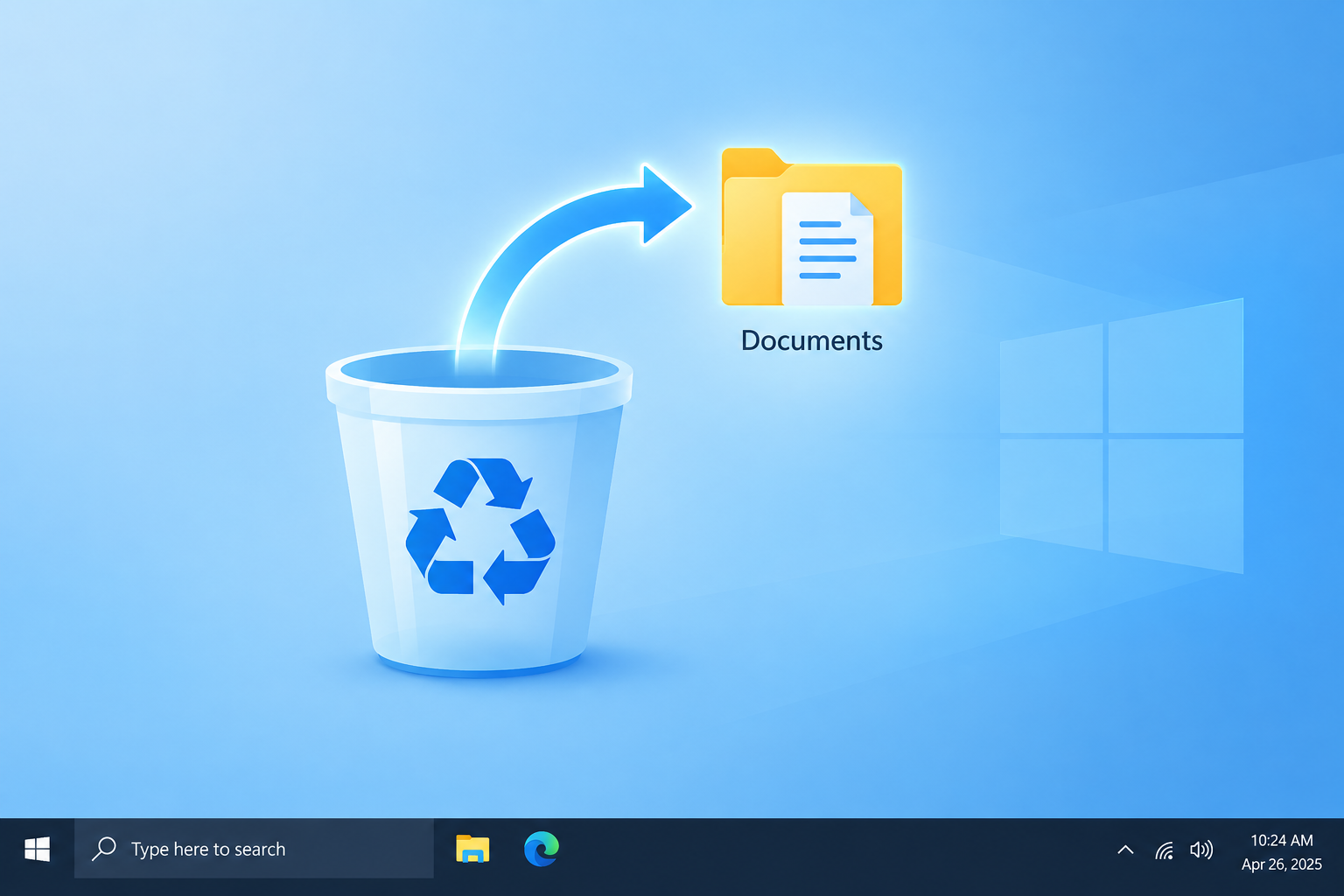
Start with the Recycle Bin. Most deleted files sit there until you empty it, and you can put them back with a right-click and Restore. If the file isn’t there, check OneDrive’s recycle bin (it keeps deleted files for 30 days on personal accounts), then try File History or Previous Versions. Microsoft’s free Windows File Recovery app is the last free option. Whatever you try, stop saving new files to that drive until you get your data back.
Deleting the wrong file happens to everyone. Sometimes it’s a quick cleanup to free up space. Sometimes a whole photo album disappears by accident. In many cases the file can still be recovered, especially if you act quickly.
Can you get deleted files back in Windows?
Usually, yes. Windows doesn’t wipe a deleted file straight away. It moves the file to the Recycle Bin, or marks its space as free so new data can use it later. Your chances are best right after the deletion and drop as you keep using the drive.
Windows 7 lost support on January 14, 2020, and Windows 8.1 on January 10, 2023. Windows 10 support ended on October 14, 2025, although PCs enrolled in Microsoft’s consumer Extended Security Updates program keep getting security patches until October 12, 2027. The recovery methods below still work on all of these versions, and on Windows 11.
How to recover deleted files in Windows
You have four main options, listed from quickest to most involved:
- The Recycle Bin, if you haven’t emptied it.
- OneDrive’s recycle bin, if the file was in a synced folder.
- File History or Previous Versions, if a backup or restore point was running before the file was deleted.
- Recovery software, starting with Microsoft’s free Windows File Recovery.
Duplicate photo finders are a common reason pictures go missing. VisiPics and the tools listed among the best visipics alternatives for windows can delete hundreds of files in one click, so check whether yours moved them to the Recycle Bin or erased them outright.
Method 1: Recover deleted files using the Recycle Bin
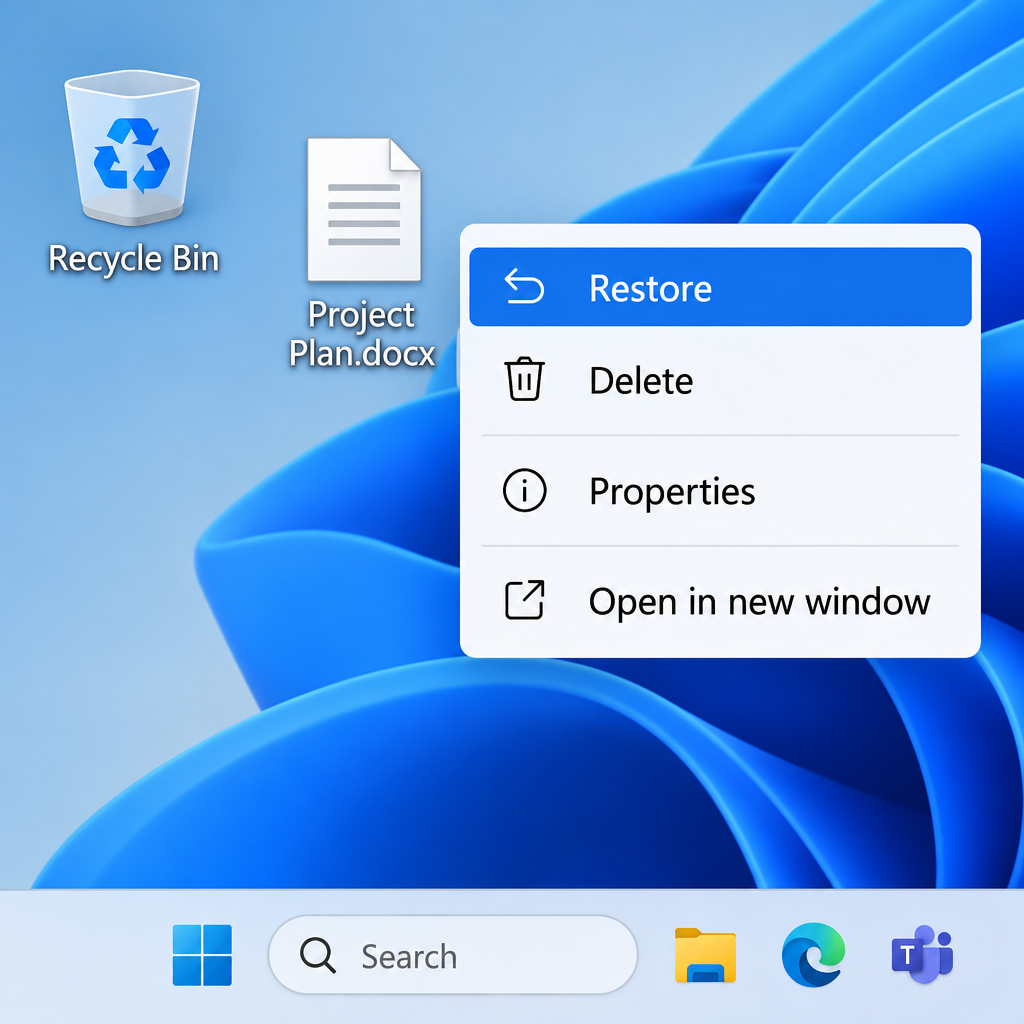
If you deleted files and haven’t emptied the Recycle Bin yet, you can get them back in seconds.
- Open the Recycle Bin and find the files you want back.
- Right-click the files and select Restore.
Some files skip the Recycle Bin completely. That includes anything deleted with Shift + Delete, files deleted from most USB sticks and memory cards, and files on network drives. For those, go straight to Method 2 or 3.
Recover files from the Recycle Bin in Windows 10 and 11
These steps work the same way in Windows 10 and Windows 11.
- Right-click the Recycle Bin icon on your desktop.
- Select Open, then look for the files you want to recover. Sort by Date Deleted to find recent ones faster.
- Select the files you want to recover and right-click them.
- Select Restore. You can also drag the files out of the Recycle Bin into any folder.
Restored files go back to the folder they were deleted from. App files work the same way. A local Zoom meeting recording, for example, is an ordinary file in your Documents\Zoom folder, so it goes to the Recycle Bin like any other file. Cloud recordings, one of the zoom new features for host accounts, are stored on Zoom’s servers and have their own trash in the Zoom web portal.
If the files aren’t in the Recycle Bin, try the methods below. To avoid losing them again, keep a copy on another drive or in the cloud.
Check OneDrive’s recycle bin
If the file was in a folder that syncs with OneDrive (Windows 10 and 11 often sync Desktop, Documents and Pictures by default), it may still be in OneDrive even after you empty the Windows Recycle Bin.
- Go to onedrive.com and sign in with your Microsoft account.
- Select Recycle bin in the left pane.
- Select the files and choose Restore.
On personal accounts, items are deleted automatically 30 days after they land in the OneDrive recycle bin. After that, or once you delete them from that recycle bin yourself, Microsoft can’t restore them. Microsoft 365 subscribers can also roll their whole OneDrive back to any point in the last 30 days.
Method 2: Restore previous versions with File History or Backup and Restore
If the Recycle Bin is empty, a backup may still have your files. This isn’t System Restore, which only rolls back system files and settings, not your documents. You need Previous Versions in Windows 7, or File History in Windows 8, 10 and 11. Both only work if they were turned on before the file was deleted.
Windows 7
- Click Start, then Computer.
- Go to the folder that held the deleted file or folder.
- Right-click that folder and select Restore previous versions.
- You’ll see a list of earlier versions with dates and times. Pick one from before the file was deleted and click Restore. To be safe, open the version first and copy only the files you need.
Windows 7 builds this list from restore points and Windows Backup. If neither was running, the list will be empty.
Windows 8 and Windows 10
- Open the folder in File Explorer where the deleted file or folder was saved.
- On the Home tab, click History.
- File History shows the most recent backup. Use the Previous arrow at the bottom to go back to older backups until you find the files.
- Select the files and click the green Restore button.
Windows 11
The History button isn’t in Windows 11’s File Explorer. File History is still there, but it now lives in Control Panel.
- Open Control Panel > System and Security > File History.
- Click Restore personal files in the left pane.
- Use the arrows to find a backup from before the deletion, select your files and click Restore.
You can also right-click the folder, select Properties and open the Previous Versions tab. To keep the current files untouched, use Restore to and pick a different location.
File History backs up to an external drive or network location that has to stay connected. If you never set it up, this method won’t find anything, so move on to Method 3.
Method 3: Use data recovery software to restore your deleted files
If nothing else works, recovery software can scan the drive for files that Windows has marked as deleted but hasn’t overwritten yet. Start with Microsoft’s free option before paying for anything.
Windows File Recovery (free, from Microsoft)
Windows File Recovery is a command-line app from the Microsoft Store. It works on Windows 10 version 2004 (build 19041) or later and on Windows 11. It recovers files from internal drives, external drives and USB devices. It can’t recover from cloud storage or network shares.
- Install Windows File Recovery from the Microsoft Store.
- Press the Windows key, type Windows File Recovery and open it. Click Yes to give it permission.
- Type a command that names the source drive, a different destination drive, a mode and what to look for. For example,
winfr C: E: /regular /n \Users\YourName\Documents\searches your Documents folder on C: and saves anything it finds to E:. - Open the Recovery_ folder the app creates on the destination drive to see your files.
Which mode to use:
| Situation | Mode |
|---|---|
| NTFS drive, file deleted recently | Regular |
| NTFS drive, file deleted a while ago | Extensive |
| Formatted or damaged drive | Extensive |
| FAT or exFAT drive (USB sticks, SD cards) | Extensive |
If you’re not sure, try Regular first. Extensive is slower but searches more thoroughly.
Paid recovery tools
Paid tools from well-known vendors add a visual interface and a file preview, which Windows File Recovery doesn’t have. Download them only from the vendor’s own website. Never install anything on the drive you’re trying to recover from. That goes for every program, from a recovery tool to the best free offline dictionary software, because each new install can overwrite the deleted data.
Keep your expectations realistic on SSDs. Most solid-state drives use TRIM, which clears deleted blocks soon after you delete a file, so recovery from an SSD often fails where the same attempt on a hard drive would work.
If nothing works
If the drive clicks, isn’t detected or keeps freezing, stop using it and turn the PC off. More scans can damage a failing drive further. For files you can’t replace, a professional data recovery service is the safer choice. Expect a quote based on the drive’s condition, and prices can be high.
Once your files are back, set up a backup so this doesn’t happen again. Turn on File History with an external drive, or use the Windows Backup app in Windows 10 and 11 to sync your folders to OneDrive. A backup you set up today will save you far more trouble than any recovery tool.
FAQ
Can you recover files after emptying the Recycle Bin?
Often, yes. Check OneDrive’s recycle bin first, then File History or Previous Versions. If neither has the file, Windows File Recovery can scan for it, as long as the space hasn’t been overwritten.
Where do permanently deleted files go in Windows?
Nowhere you can see. Windows marks the space the file used as free, but the data stays there until new files overwrite it. That’s why you should stop using the drive right away.
Is Windows File Recovery really free?
Yes. Microsoft offers it free in the Microsoft Store for Windows 10 version 2004 and later and for Windows 11. It’s a command-line tool with no file preview, which is the main reason people pay for other tools.
Does System Restore bring back deleted files?
No. System Restore rolls back system files, drivers and settings. It doesn’t touch your documents, photos or other personal files. Use File History or Previous Versions for those.
Can you recover deleted files from an SSD?
Sometimes, but the odds are lower than on a hard drive. TRIM tells the SSD to clear deleted blocks quickly, often within minutes. Act fast and start with the Recycle Bin, OneDrive and backups.
How long do deleted files stay in the Recycle Bin?
By default, until you empty it or it runs out of space, at which point Windows removes the oldest items first. Storage Sense in Windows 10 and 11 can also empty it on a schedule if you’ve turned that on.
Sources
- Windows File Recovery (Microsoft Support)
- Recover lost files on Windows 10 (Microsoft Support)
- Backup and restore with File History (Microsoft Support)
- Restore deleted files or folders in OneDrive (Microsoft Support)
- Restore files deleted from your OneDrive (Microsoft Support)












