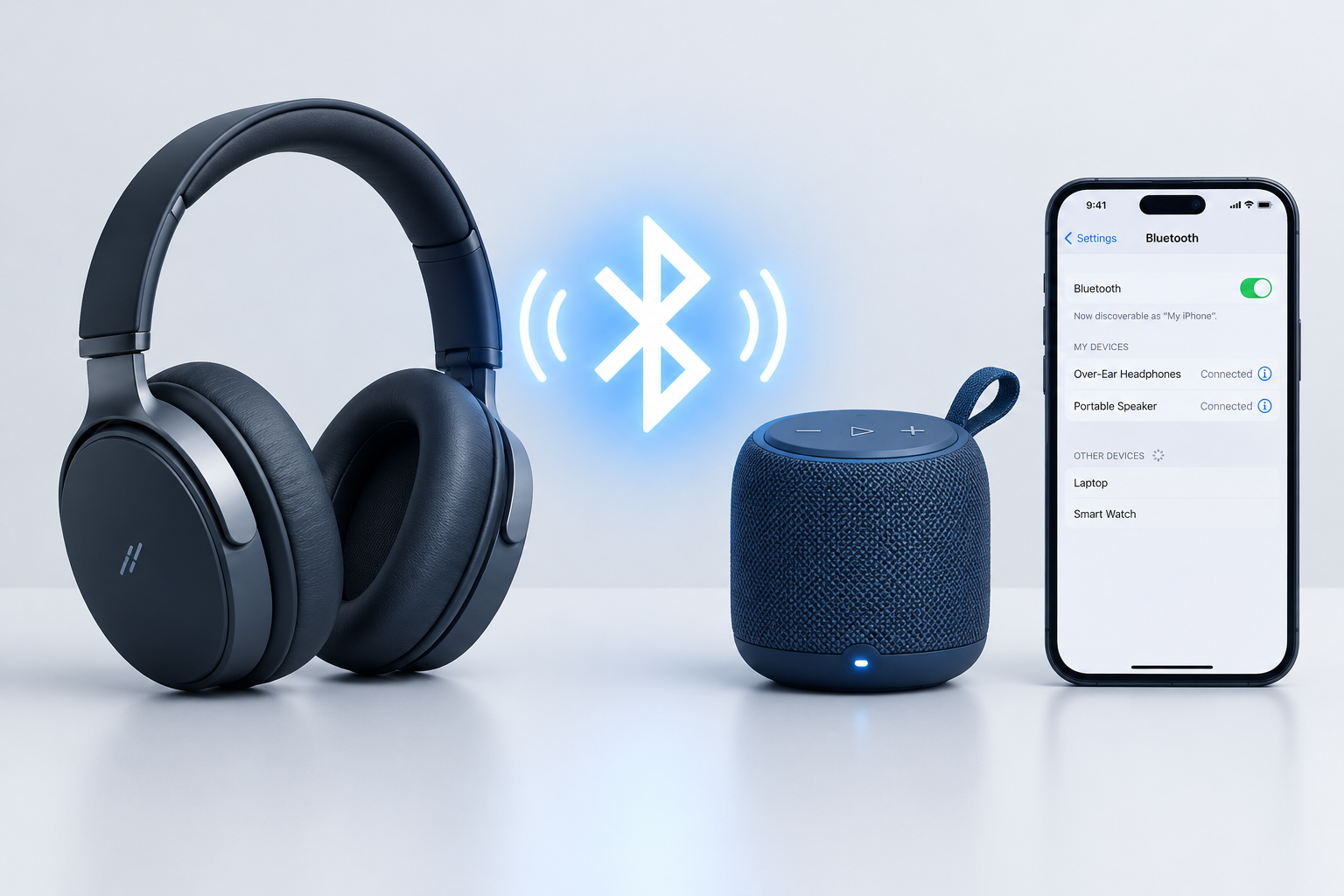
Most headphones, earbuds and portable speakers now connect over Bluetooth instead of a cable. Skullcandy is one of the best-known brands that makes them, with models such as the Crusher ANC 2, Method 360 ANC, Dime, Indy Evo and Jib True.
Pairing usually takes less than a minute. Problems tend to come from the same few causes: the product isn’t in pairing mode, your phone still holds an old connection, or the battery is too low.
How pairing works on Skullcandy products
You do two things to connect a Skullcandy product. First you put it in pairing mode. Then you select it in the Bluetooth settings of your phone, tablet or computer. Once paired, it should reconnect on its own the next time you turn it on near that device.
Methods that work on most Skullcandy wireless headphones
These steps work for most Skullcandy wireless earbuds, headphones and speakers. Button layouts and hold times differ slightly from model to model, so check the page for your exact product on Skullcandy’s support site if a step doesn’t match what you see.
1. Turn on pairing mode on your Skullcandy headphones or speaker
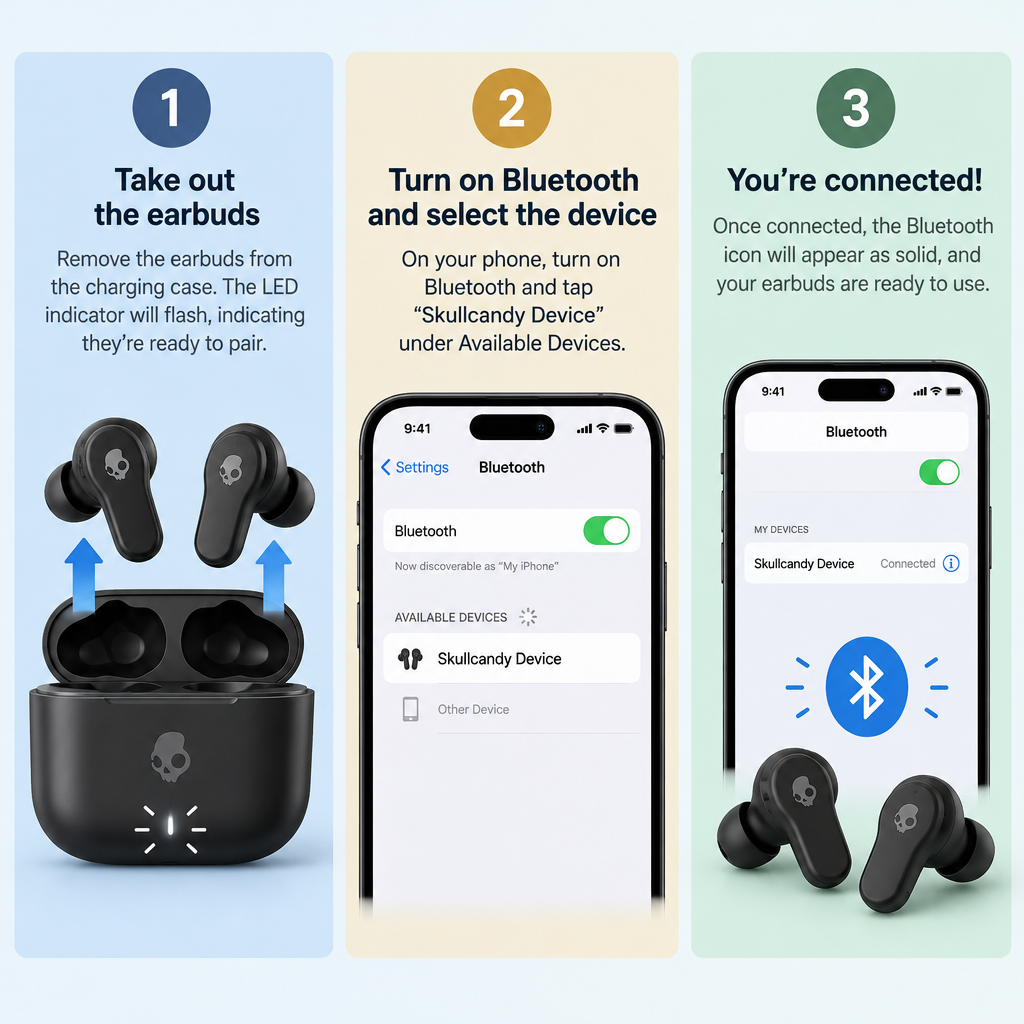
On most Skullcandy earbuds and headphones, one button handles both power and Bluetooth pairing. Some speakers have a separate Bluetooth button. It depends on the model.
- True wireless earbuds (Dime, Indy Evo, Jib True, Sesh and similar): take both earbuds out of the charging case. Most models turn on and enter pairing mode automatically the first time. If they don’t, Skullcandy suggests putting them back in the case, closing the lid for a few seconds, and taking them out again.
- Over-ear and on-ear headphones: press and hold the power or multifunction button. Keep holding after the headphones turn on, until the LED starts flashing.
- Speakers: turn the speaker on, then press and hold the Bluetooth or pairing button until the light flashes.
When the LED is flashing, the product is ready to pair. Charge it first if the light doesn’t come on at all.
2. Find and pair the Skullcandy headphones with your phone or laptop
Android
Open the Settings app, then tap Connected devices, then Pair new device. Look under “Available devices” and tap your Skullcandy product. On some Pixel phones and newer Android versions the path is Connected devices > Connection preferences > Bluetooth > Pair new device. Samsung phones use different menu names, but you’ll find it under Connections > Bluetooth.
iPhone
Go to Settings > Bluetooth and make sure Bluetooth is on. Your iPhone searches for nearby devices automatically. Find the Skullcandy product under Other Devices and tap it to connect.
Mac
On macOS Ventura (13) and later, click the Apple menu > System Settings > Bluetooth. Hold the pointer over the Skullcandy device in the list and click Connect. Older versions of macOS use System Preferences > Bluetooth instead. If sound still comes from the Mac’s speakers, open System Settings > Sound > Output and choose the Skullcandy device.
Windows 11 and Windows 10
On Windows 11, open Start > Settings > Bluetooth & devices, turn Bluetooth on, then select Add device > Bluetooth. Click the Skullcandy product when it appears and wait for the confirmation.
If your product supports Microsoft’s Swift Pair, Windows 11 can also show a notification when the device is nearby and in pairing mode. Select Connect in that notification.
On Windows 10, the path is Start > Settings > Devices > Bluetooth & other devices > Add Bluetooth or other device > Bluetooth. Microsoft stopped supporting Windows 10 on October 14, 2025, so moving to Windows 11 is worth planning if your PC can run it.
Another option on Windows 11 is the quick settings panel: click the network, sound or battery icon near the clock, then the arrow next to the Bluetooth tile, and pick the Skullcandy product under New devices. If it isn’t listed, Microsoft suggests setting Bluetooth devices discovery to Advanced in the Bluetooth & devices settings.
A Bluetooth problem almost never calls for reinstalling Windows. If you do end up running Microsoft’s Media Creation Tool and it stops with error 0x80042405-0xa001a, the cause is the USB drive, not your headphones.
3. Confirm the pairing
Once the Skullcandy device is connected, the LED stops flashing. Many models also play a tone or a “connected” voice prompt. Play some audio to check it, and make sure your phone or computer has the Skullcandy device selected as its audio output.
How to fix Bluetooth connection problems
If the steps above didn’t work, try these fixes in order, starting with the quickest:
- Charge it. Some Skullcandy earbuds won’t power on while they’re charging, and low batteries cause dropouts and failed pairing. If a headset switches itself off partway through pairing, the battery or the auto-off timer is usually to blame. That’s also behind many reports where a Logitech g930 keeps turning off.
- Forget the old connection. In your phone or computer’s Bluetooth settings, remove or “Forget” the Skullcandy device. Do the same on any other phone, tablet or laptop it was paired with before, because it may be connecting to one of those instead.
- Turn Bluetooth off and on on your phone or computer, then pair again.
- Reset the Skullcandy product. A factory reset clears every saved pairing. The button sequence depends on the model:
– Headphones: Skullcandy’s general headphone reset guide says to hold the multifunction button (MFB) for 6 seconds while the headphones are on but not connected to anything.
– True wireless earbuds: first forget the earbuds on your device and turn off its Bluetooth, then take both earbuds out of the case. On the Jib True XT 2, for example, Skullcandy’s support page says to double-press each earbud, then press and hold for 2 seconds. The lights flash red and then blue, a tone confirms the reset, and the earbuds go back into pairing mode.
– Speakers: the reset usually involves holding the power or Bluetooth button together with another button, but the combination differs between models. Look up your speaker’s support page on Skullcandy’s site. - Update the firmware. Newer Skullcandy models with Smart Feature Technology, such as the Crusher ANC 2 and Rail ANC, use the Skull-iQ app. Other models, such as the Method 360 ANC and the older Indy ANC and Sesh ANC, use the separate Skullcandy app. Either app walks you through any firmware update, and Skullcandy says an update shouldn’t take more than about five minutes.
Compatibility is rarely the problem. Bluetooth works across versions, so a phone or laptop made in the last several years will pair with any current Skullcandy product.
If nothing works
If your product still won’t pair after a reset and a firmware update, or only one earbud works, contact Skullcandy support through the support page on Skullcandy’s own website. If there is a hardware fault and the product is still under warranty, they can arrange a replacement. Keep your proof of purchase handy.
Avoid “headphone support” phone numbers from search ads and pop-ups. Like an essay scam, they’re built to look official, and they ask for payment or remote access to your device. Skullcandy won’t charge you to help pair your headphones.
FAQ
Why won’t my Skullcandy earbuds show up in my Bluetooth list?
They’re probably not in pairing mode, or they’re already connected to another phone or laptop. Turn off Bluetooth on other nearby devices you’ve used them with, put the earbuds back in the case for a few seconds, then take them out again. If they still don’t show up, forget them on every device and reset them.
How do I know my Skullcandy headphones are in pairing mode?
The LED flashes, usually alternating red and blue or flashing blue, depending on the model. A steady light or no light usually means the headphones are already connected or switched off. Many models also play a voice prompt when they enter pairing mode.
Can Skullcandy earbuds connect to two devices at once?
Some newer models support multipoint, which keeps them connected to two devices at the same time, while many older and cheaper models connect to only one. Check the specs on your model’s product page or in the Skull-iQ or Skullcandy app. If your model doesn’t support multipoint, disconnect from the first device before pairing with the second.
Why does only one Skullcandy earbud work?
Usually the two earbuds have lost their link to each other. Forget the earbuds on your device, put both earbuds in the case to charge, then reset them so they pair with each other again before you reconnect. If one earbud still doesn’t work, contact Skullcandy support about a warranty replacement.
Do I need the Skull-iQ app to use Skullcandy headphones?
No. Every Skullcandy Bluetooth product pairs through your phone or computer’s normal Bluetooth settings. The Skull-iQ app, or the Skullcandy app on models such as the Method 360 ANC, adds features like EQ settings, button customization and firmware updates.
How do I connect Skullcandy headphones to a Windows 11 PC?
Put the headphones in pairing mode, then go to Start > Settings > Bluetooth & devices > Add device > Bluetooth and select them from the list. If they don’t appear, set Bluetooth devices discovery to Advanced and try again.
Sources
- Skullcandy: Why Won’t My Skullcandy Earbuds Pair? Step-by-Step Fix
- Skullcandy: How to Reset Skullcandy Wireless Headphones
- Skullcandy Support: Jib True XT 2
- Skullcandy Support: Method 360 ANC
- Skullcandy: Skull-iQ Apps FAQs
- Microsoft Support: Pair a Bluetooth device in Windows
- Apple Support: Connect a Bluetooth device with your Mac
- Google Android Help: Find and set up Bluetooth devices near your Android device