Refresh the Page First
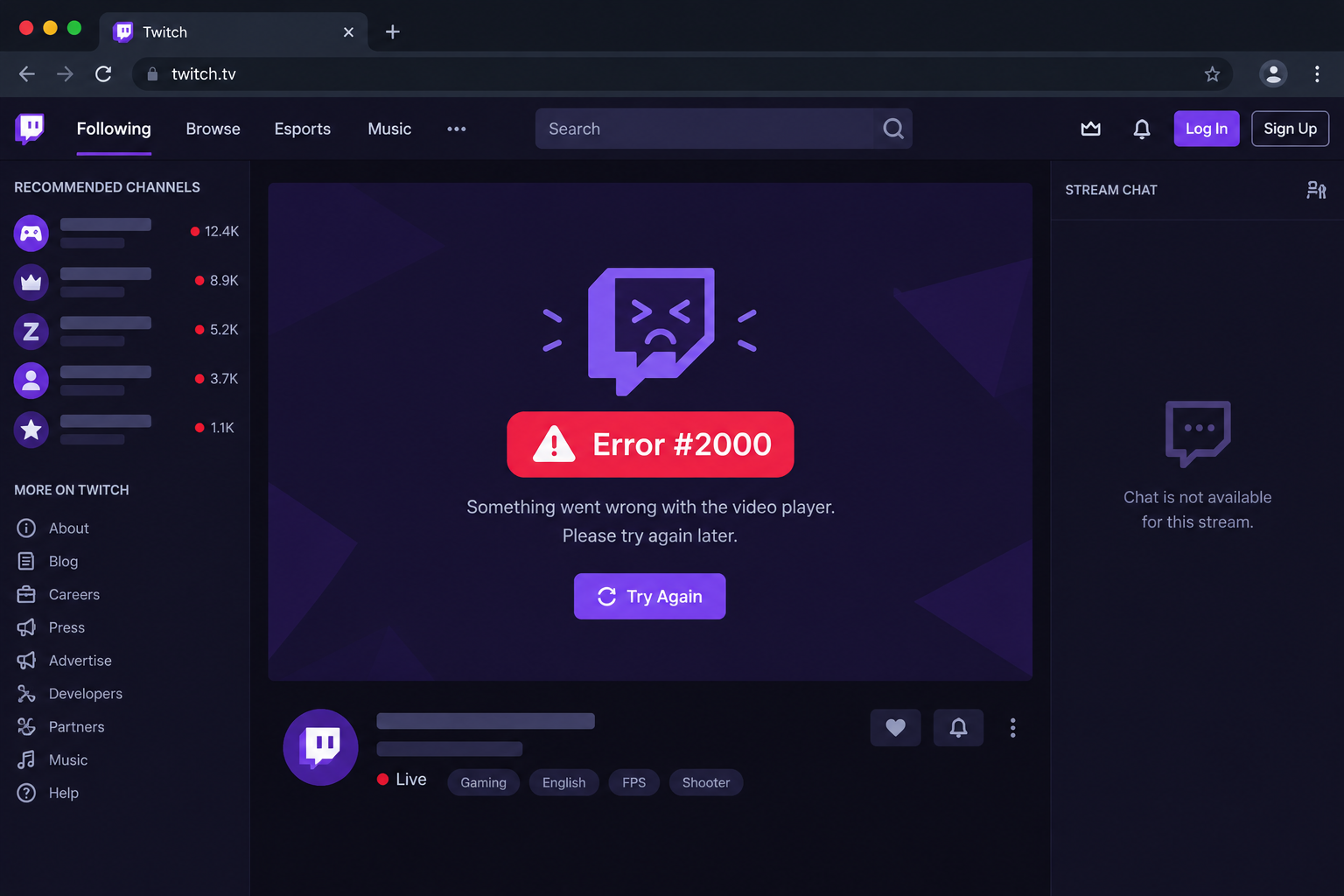
The simplest fix often works best. When you see Twitch error 2000 in Google Chrome, refresh the page. For many people this clears the error, because Chrome opens a new connection to Twitch’s servers and reloads the stream.
A refresh helps when a Twitch page didn’t load properly. For example, if something interrupted Chrome while the page was loading, the connection to Twitch’s servers may not have been verified. A quick refresh fixes that.
To refresh a page in Chrome, click the reload button next to the address bar, or press F5 on Windows (Command + R on a Mac). If a normal refresh doesn’t help, try a hard refresh with Ctrl + Shift + R (Command + Shift + R on a Mac). This makes Chrome download the page again instead of using its saved copy.
If the error goes away for a moment and then returns, restart your computer and your router before you move on. Several of the most common fixes for error 2000 begin with this step.
Disable Ad-Blocking Extensions
Twitch is free to use, like many streaming services, and it’s paid for by ads and subscriptions. If you don’t subscribe to a channel, you’ll usually see an ad before the stream starts.
Many Chrome users run ad-blocking extensions to avoid ads. Twitch tends to stay one step ahead of them by delivering video ads in a way that is hard to block. When an ad blocker does manage to stop an ad, it can stop the stream from loading too. This is one of the most common causes of error 2000.
If you think your ad blocker is causing the error, add twitch.tv to the extension’s allow list or turn the extension off. To check quickly, open Twitch in an Incognito window (Ctrl + Shift + N on Windows, Command + Shift + N on Mac). Extensions don’t run there unless you’ve allowed them to. If the stream plays in Incognito, an extension is the problem.
To turn off an extension:
- Click the three-dot menu in the top-right corner of Chrome.
- Select Extensions, then Manage Extensions. You can also type chrome://extensions in the address bar.
- Click the toggle next to your ad-blocking extension to turn it off.
- Go back to the Twitch tab, refresh it and let the ads play.
If ad blocking was the cause, the stream should now load. Turning an extension off keeps it installed with its settings intact, so you can turn it back on later with the same toggle.
Clear Your Browser Data
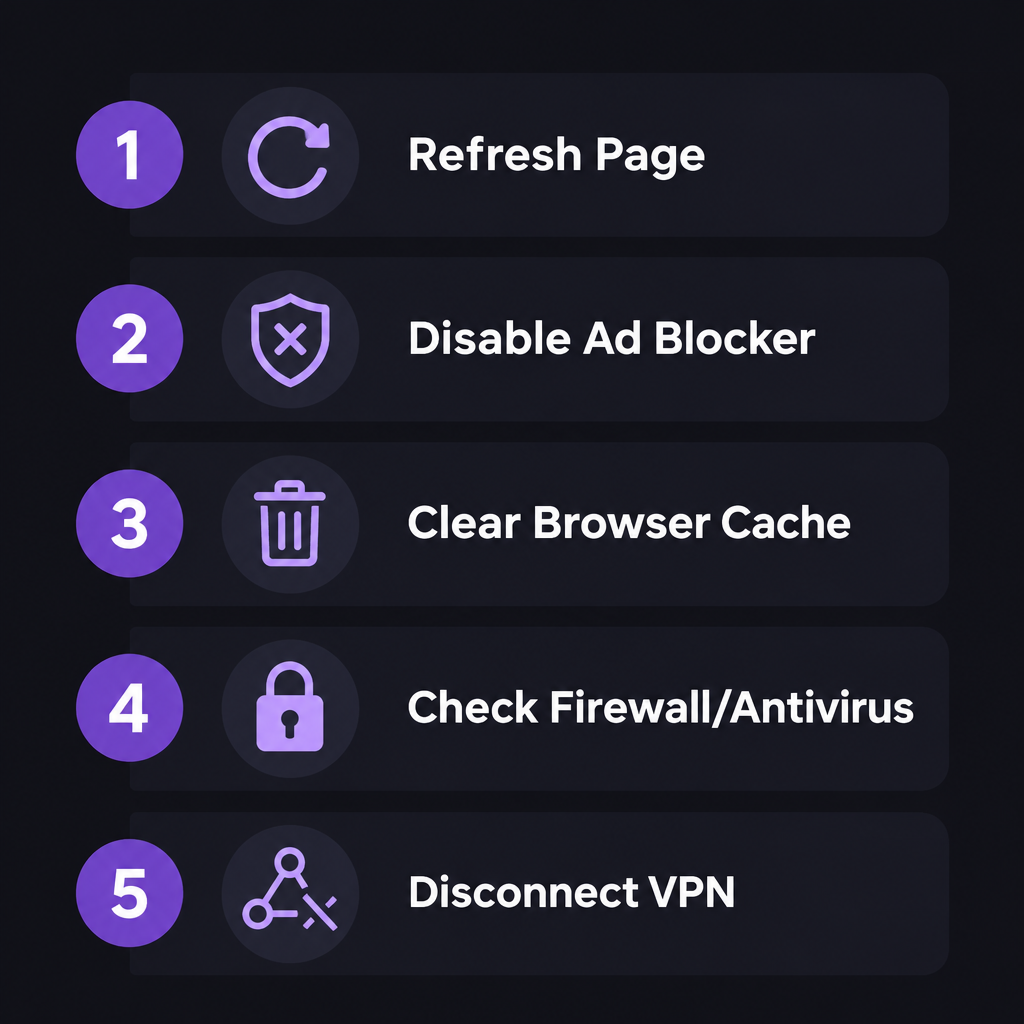
Google Chrome, like most modern browsers, keeps a cache so the pages you visit often load faster. It stores files such as images and CSS stylesheets, which rarely change. The cache can cause trouble on some sites, though, especially when the site has changed since your last visit. Damaged cookies can also break the connection Twitch needs to play video.
If a few refreshes didn’t fix the problem, clear your browser data so Chrome loads a completely fresh copy of Twitch.
- Click the three-dot menu in the top-right corner and choose Settings.
- Select Privacy and security.
- Click Delete browsing data. Chrome now uses this name for the option that used to be called “Clear browsing data”. As a shortcut, you can type “Delete browsing data” in the address bar and choose the suggested action.
- Under Time range, choose All time.
- Tick Cookies and other site data and Cached images and files.
- Click Delete data.
Clearing cookies signs you out of most websites, so have your Twitch password ready. After a minute or two the cache will be empty. Go back to Twitch, sign in again and try a stream to see if the problem is fixed.
To avoid signing out everywhere, you can clear the data for Twitch alone. Click the icon to the left of twitch.tv in the address bar, choose Site settings, then Delete data.
Check Your Antivirus and Firewall Settings
Twitch runs in a web page, so your firewall or antivirus is unlikely to be blocking it. Twitch streams travel over standard encrypted web traffic on port 443, which most firewalls and antivirus programs leave open.
There are exceptions. Your antivirus or firewall may be set to block some outgoing web traffic by hand, or you may be on a business network where content filtering blocks certain sites. Some third-party antivirus suites also have “web shield” or HTTPS scanning features that inspect secure traffic. These features can interrupt video streams and trigger error 2000. Overprotective security software causes other app problems too, such as a Discord javascript error at startup.
If you use third-party antivirus or firewall software, check the vendor’s help pages for how to add twitch.tv (or Google Chrome) as an exception. You can also pause web scanning for a minute to test it. Turn protection back on right after the test, and don’t leave it off permanently.
On a work or school network, ask your network administrator whether Twitch is blocked. Microsoft Defender Firewall in Windows 11 allows normal web browsing by default. If you think it’s blocking Chrome, go to Settings > Privacy & security > Windows Security > Firewall & network protection > Allow an app through firewall and make sure Google Chrome is ticked.
Check Your Connection and Turn Off VPNs
Twitch is a web-based service. If you’re seeing odd network problems on Twitch, check that your internet connection is working properly. Try a few other sites, or run a speed test.
Some internet providers, mobile carriers in particular, use traffic shaping to spot and slow down heavy traffic like video streaming. If you watch Twitch on a metered or mobile connection, check your provider’s terms to make sure your data isn’t capped or throttled.
If it is, lower Twitch’s stream quality to use less data and keep the stream playing without connection drops. Click the settings cog on a live stream, open Quality, and pick a lower option such as 480p or 360p.
A virtual private network (VPN) can also cause problems with online services. Twitch streams aren’t region-locked, so you don’t need a VPN to watch. If you see error 2000 in Google Chrome, disconnect your VPN and refresh the page so it loads over your normal connection. Proxy settings and some “secure DNS” or privacy tools can have the same effect, so turn those off briefly to test too.
If nothing on your side seems wrong, Twitch may be having an outage. Check the official @TwitchSupport account on X or an outage tracker such as Downdetector. If Twitch is down, the only fix is to wait.
Try Another Browser or the Twitch App
Chrome isn’t the only way to watch Twitch. If error 2000 keeps appearing in Chrome, try another major browser such as Microsoft Edge or Mozilla Firefox. You can also use the Twitch mobile app for iPhone, iPad or Android. Twitch shut down its Windows and Mac desktop app on April 30, 2022, so on a computer the browser is now the main way to watch.
Switching browsers or devices also tells you where the problem is. If a network problem is blocking Twitch, another browser or the app won’t help, because they all share the same connection. If Chrome is the problem, another browser or the app should get your favorite streams playing again. On a TV, you can also install and watch twitch on roku and skip the browser entirely.
If Twitch works everywhere except Chrome, and none of the steps above fix it, reset Chrome. Go to Settings > Reset settings > Restore settings to their original defaults. This turns off all extensions and clears temporary data, but keeps your bookmarks and saved passwords. Once streams play again, you can also check how to send bits on twitch and use other channel features that rely on the same connection.
FAQ
What does Twitch error 2000 mean?
Error 2000 is Twitch’s “network error” message. It means your browser couldn’t keep a secure connection to Twitch’s video servers. The usual causes are ad blockers, damaged cookies or cache, VPNs, overprotective antivirus or an unstable connection. Less often, Twitch itself is having server problems.
Why does error 2000 only happen in Chrome?
Your Chrome profile has its own extensions, cookies and cache, and other browsers don’t share them. That’s why the error can appear in Chrome and not in Edge or Firefox. If Twitch works in another browser, focus on Chrome’s extensions and browsing data.
Will clearing my browser data delete my bookmarks or passwords?
No. Clearing only cookies and cached images and files keeps your bookmarks and saved passwords. It does sign you out of most websites, so you’ll need to sign in to Twitch again afterwards.
Does Twitch error 2000 mean I’m banned?
No. Error 2000 is a connection error, not an account penalty. A suspended account sees a separate suspension message, not a network error code.
Can a VPN cause Twitch error 2000?
Yes. A VPN adds an extra hop between you and Twitch, and some VPN servers block or slow down video traffic. Twitch doesn’t block regions, so turn off the VPN, refresh the page and see if the stream loads.
Is there still a Twitch desktop app for Windows or Mac?
No. Twitch closed its desktop viewing app on April 30, 2022 and told users to watch at twitch.tv in a browser. The mobile apps for iPhone, iPad and Android are still available, along with apps for TVs and streaming devices.
Sources
- Google Chrome Help: Delete browsing data in Chrome (support.google.com/chrome/answer/2392709)
- Google Chrome Help: Manage extensions disabled by Chrome (support.google.com/chrome/answer/2811969)
- Twitch Help Center (help.twitch.tv)