
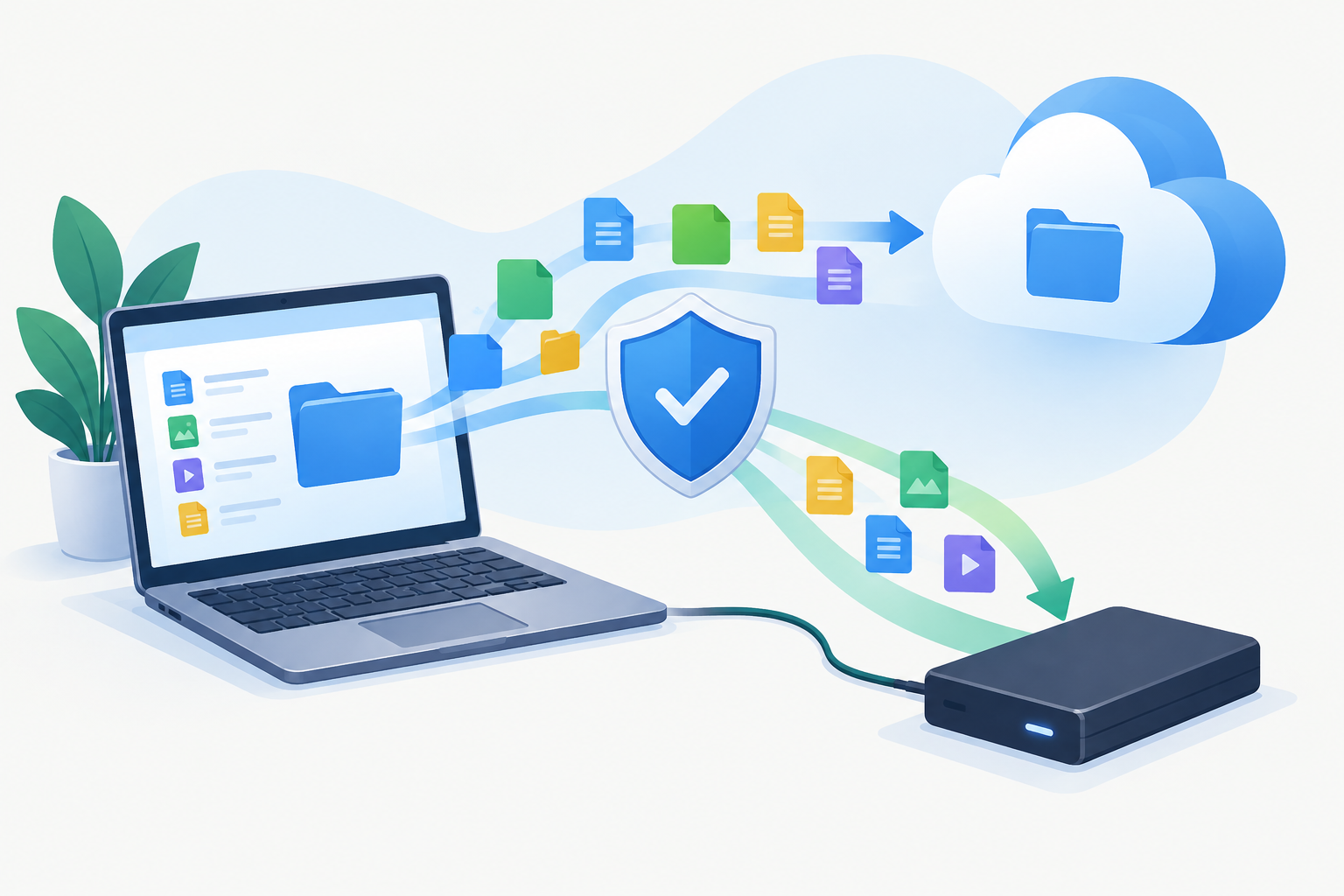
As of November 2026, AOMEI Backupper Standard is the best free backup tool for most Windows 11 users. It handles file, disk, partition and system backups on a schedule. FBackup is a good simpler choice for files only, and Cobian Reflector suits users who want detailed control. Before you install anything, set up the backup tools already built into Windows: the Windows Backup app (Settings > Accounts > Windows backup) and File History (Control Panel > System and Security > File History).
Your PC probably holds work documents, tax records and years of photos and videos. You can lose all of it to a failed drive, a blue screen that won’t go away, a stolen laptop or a ransomware attack that encrypts your files. A backup copy on another drive or in the cloud is the only reliable way to get those files back. The tools below are free and cover most home needs.
How the Tools Compare
The list below keeps its original order. Before you choose, check two things for each tool: whether it is still maintained, and whether its free licence covers how you plan to use it. Several of these programs have changed a lot since they were first popular.
| Tool | Free licence | What it backs up | Status in 2026 |
|---|---|---|---|
| Right Backup (Systweak) | Free tier with paid storage upgrades | Files to the cloud | Still listed by Systweak |
| EaseUS Todo Backup Free | Home use | Files, disks, partitions, system | Actively updated |
| AOMEI Backupper (Standard) | Free edition | Files, disks, partitions, system, cloning | Actively updated (8.x) |
| Paragon Backup & Recovery CE | Personal, non-commercial use | Files, disks, partitions, system | Version 17 line |
| Cobian Reflector (successor to Cobian Backup) | Personal and commercial use | Files and folders, local, network, FTP/SFTP | Final release 2.7.20 (July 2024) |
| COMODO Backup | Free | Files, registry, email, drives | Not actively developed |
| Everyday Auto Backup | Free | Files and folders | Old freeware |
| Genie Timeline Free | Free | Files and folders | Little or no development in years |
| Easis Drive Cloning | Free and paid versions | Drive clones and images | Old freeware |
| FBackup (Softland) | Personal and commercial use | Files and folders | 9.9 series, updated in 2026 |
1. Right BackUp
Right Backup is a cloud backup service from Systweak Software with a Windows app. Your files are stored online, so they stay safe even if your PC is lost or destroyed.
It has two backup modes. Smart Backup picks up the folders that matter most, such as Music, Pictures and Documents. Custom Backup lets you choose exactly which files to include. To get files back, you can use Smart Restore or pick individual items to restore. Backups are incremental, so after the first run, only changed files are uploaded.
The free storage allowance is small. Paid plans add more space, and Systweak changes them from time to time, so check the current plans on Systweak’s own site before you rely on the free tier for a large photo library.
2. EaseUS Todo Backup Free
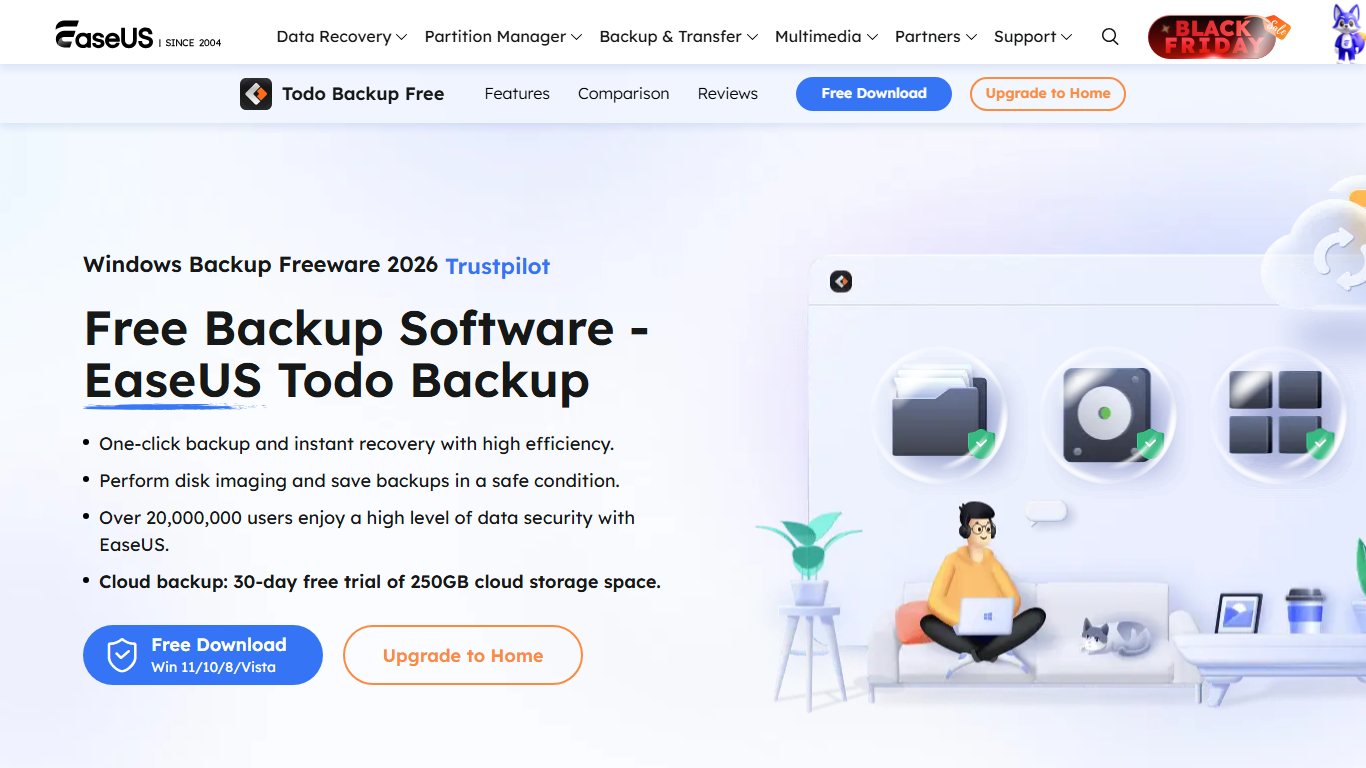
EaseUS Todo Backup Free is a full-featured backup tool for home users. It covers file and folder backup, disk and partition backup, and full system backup in one program. It can back up common locations automatically and save backups to local drives, network locations or cloud storage.
In the past, the free and paid versions were very similar. That is no longer the case. The free edition is licensed for home use only. It leaves out disk cloning and some advanced options, and reviewers note slower backup speeds and upgrade prompts. If you need cloning or plan to use it for a business, look at the paid editions or one of the other tools here.
3. AOMEI Backupper Standard
AOMEI Backupper’s free edition offers the most complete feature set on this list. It runs on everything from Windows 11 back to Windows XP, and the current release belongs to the 8.x series.
It has four main backup types:
- Disk Backup
- Partition Backup
- File/Folder Backup
- System Backup
You can schedule backups to run once, daily, weekly or monthly, which means you don’t have to remember to run them. It can do full and incremental backups, and you can also restore backups and clone disks. AOMEI’s edition comparison lists some extras as paid only: event-triggered backups, real-time sync, merging backups and the portable version.
4. Paragon Backup & Recovery
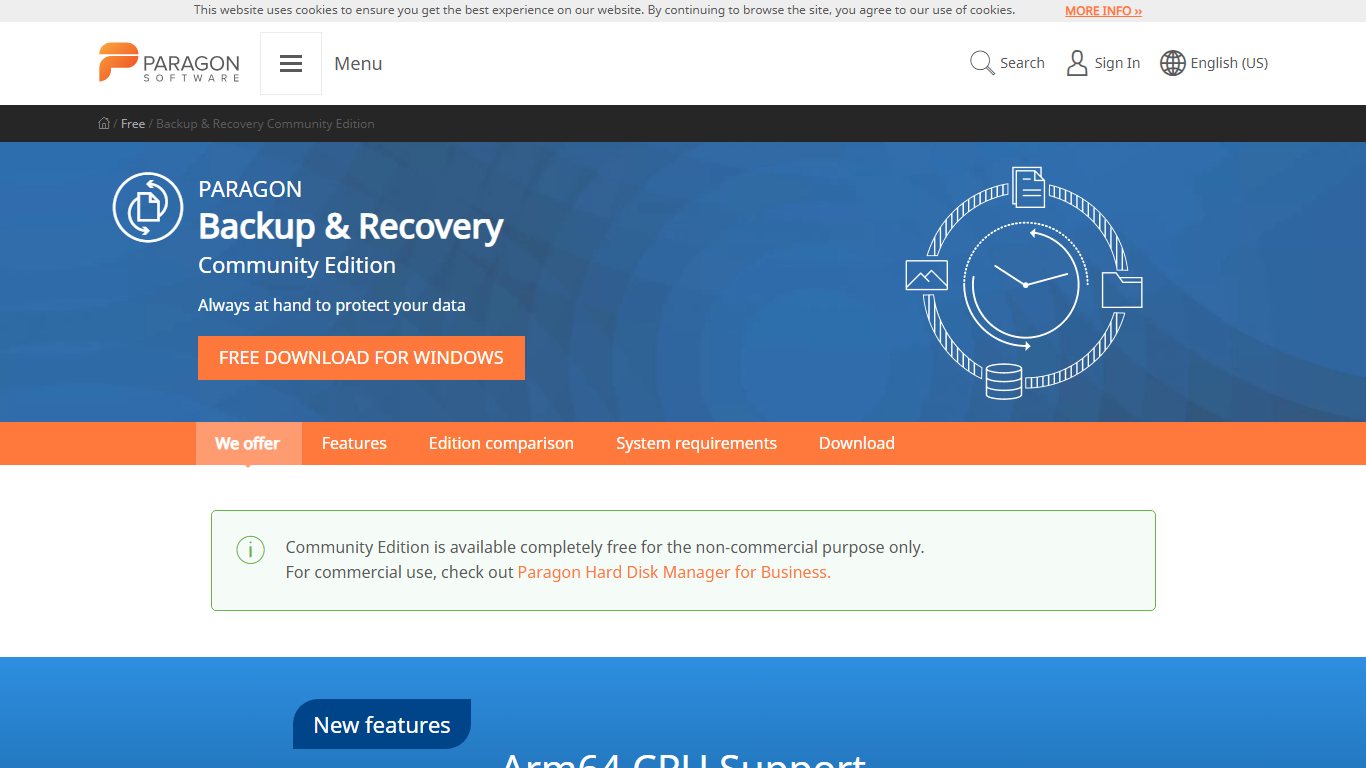
Paragon Backup & Recovery Community Edition is a free imaging and backup tool for personal, non-commercial use. It backs up the whole system, single disks or partitions, or selected files and folders, and it can run those jobs on a schedule.
This kind of tool helps most when something goes badly wrong, such as a failing hard drive or a system that won’t boot after malware or a power cut. You can create WinPE recovery media to boot the PC and restore a backup image. Backups don’t stop ransomware, but a recent backup kept on a drive the PC can’t reach lets you recover without paying.
The Community Edition runs on 64-bit Windows 10 (version 1809 and later) and Windows 11, including ARM64. It can’t create partitions or copy disks. For commercial use, Paragon points businesses to Hard Disk Manager.
5. Cobian Backup
Cobian Backup has been replaced by Cobian Reflector, a free tool from the same developer, Luis Cobian. The last version of the old program was Cobian Backup 11 (Gravity), build 11.2.0.582. Use Reflector for new setups.
Cobian Reflector 2.7.20 came out on 3 July 2024, and the developer has said it is the last update. It is freeware for both personal and commercial use. It needs the.NET runtime 4.6 or newer (not 5.x). You can create several backup tasks, schedule each one, compress backups to save space and encrypt them. Destinations include local drives, external drives, network shares and FTP or SFTP servers.
The trade-off is that the developer is no longer working on it directly. Future versions may come out under the Mozilla Public License 2.0, but it is no longer actively developed. It still works well for file backups, but expect no new features.
6. COMODO Backup
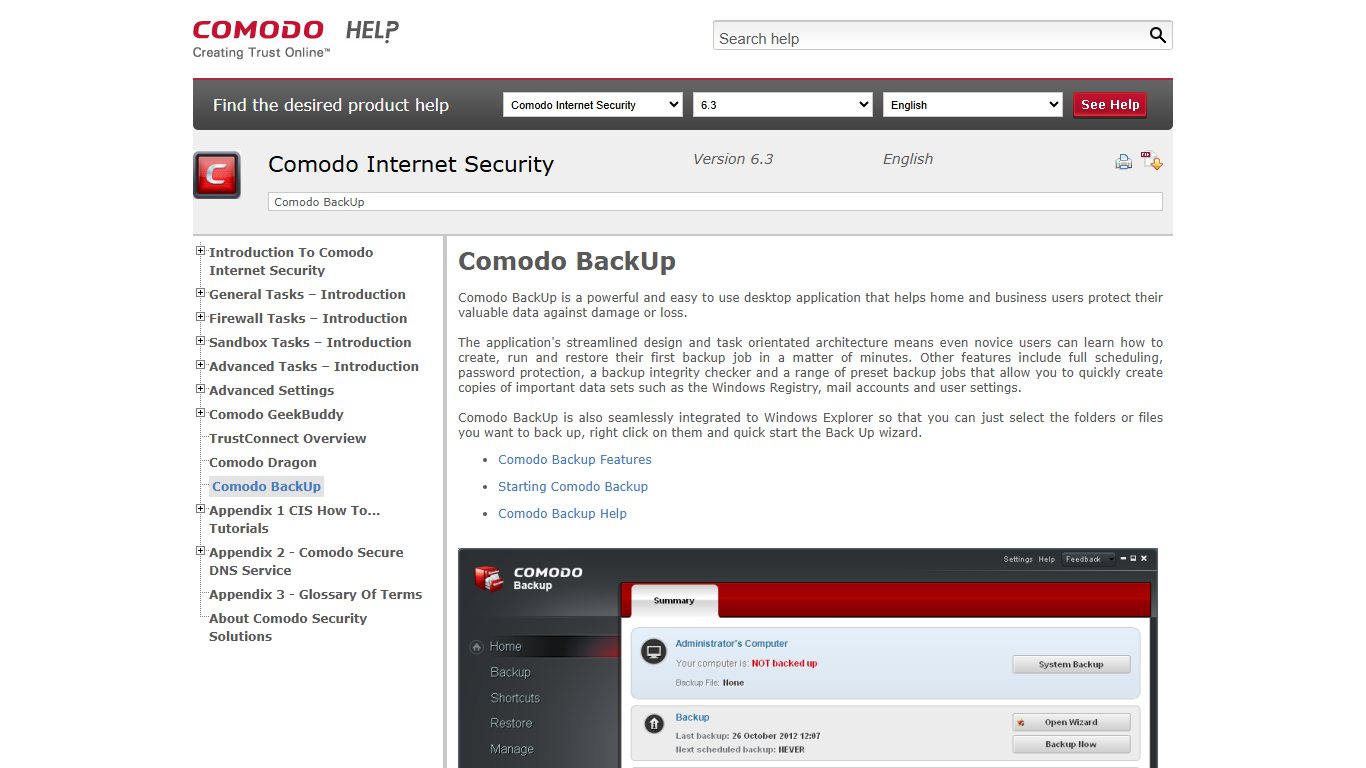
COMODO Backup has a broad feature set for a free tool. It can back up individual files and folders, registry entries, email accounts, instant messenger chats, browser data, partitions and whole drives, including the system drive. Restoring is simple, and files can go back to their original location.
The drawback is age. Comodo has not actively developed this tool for years, and its sibling product, Comodo Time Machine, is listed as discontinued. If you use it, download it only from Comodo’s own website. For a system drive backup on Windows 11, a maintained tool such as AOMEI or Paragon is the safer choice.
7. Everyday Auto Backup
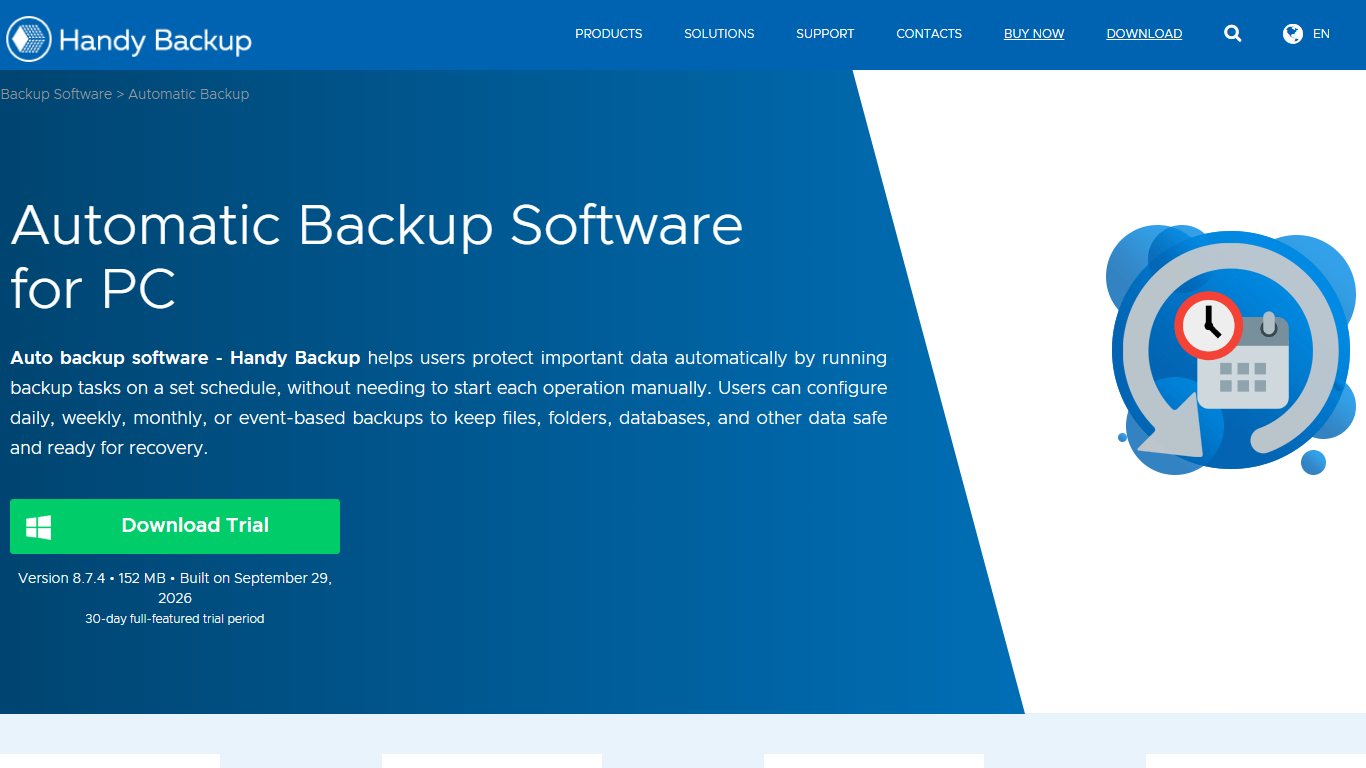
Everyday Auto Backup is a small, easy-to-use tool for copying files and folders to another location. You can exclude subfolders, so the backup stays tidy and only holds what you want. It comes as an installer and as a portable version that runs without installing.
It is old freeware, so it fits simple jobs, such as copying a Documents folder to a USB drive. It is not designed for system backups.
8. Genie Timeline Free
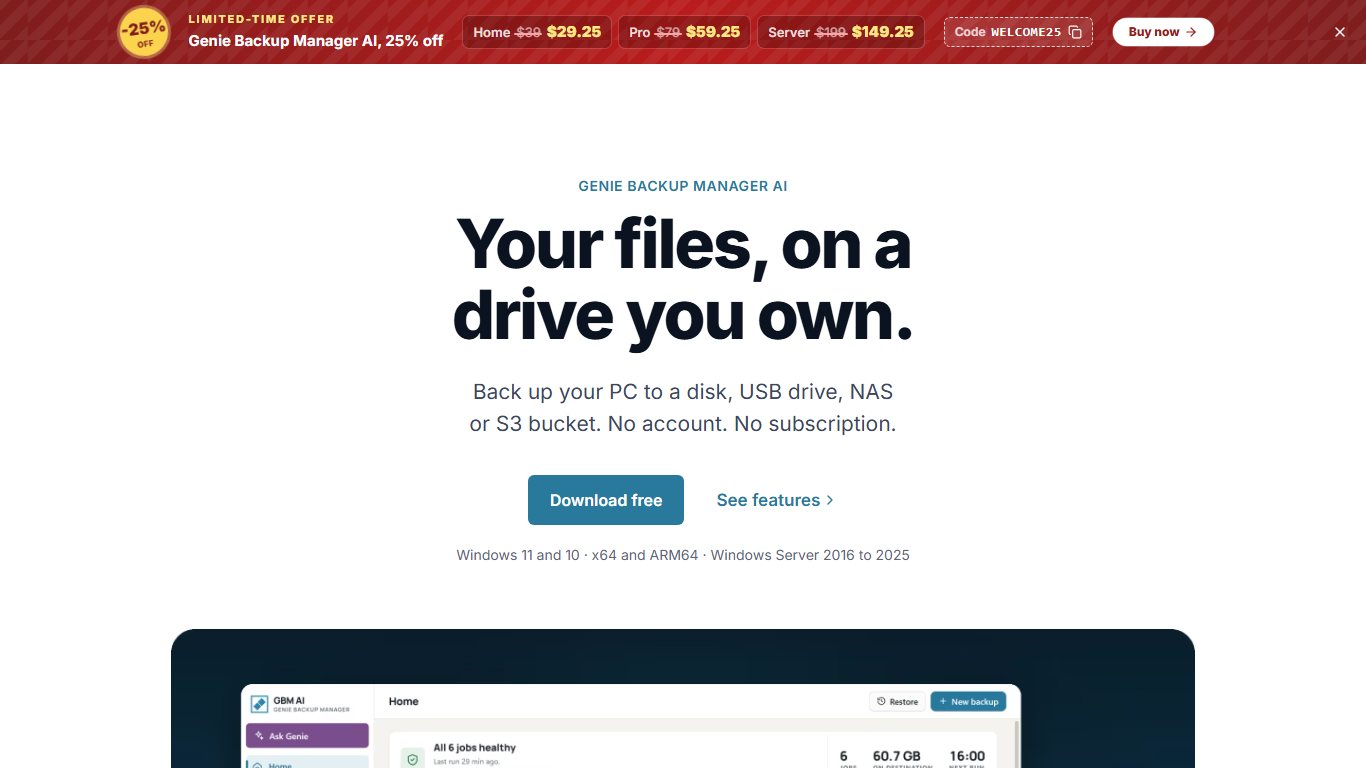
Genie Timeline Free, from Genie9, became popular because beginners find it easy to use. You pick the files or folders to protect, and it saves them to a local drive, an external drive or a network drive. You can switch between Turbo Mode for faster backups and Smart Mode, which uses fewer system resources while you work.
According to AlternativeTo, the free edition has seen little or no development since around 2016, and Genie9 has moved on to other products. It may still run, but newer tools on this list get more updates.
9. Free Easis Drive Cloning
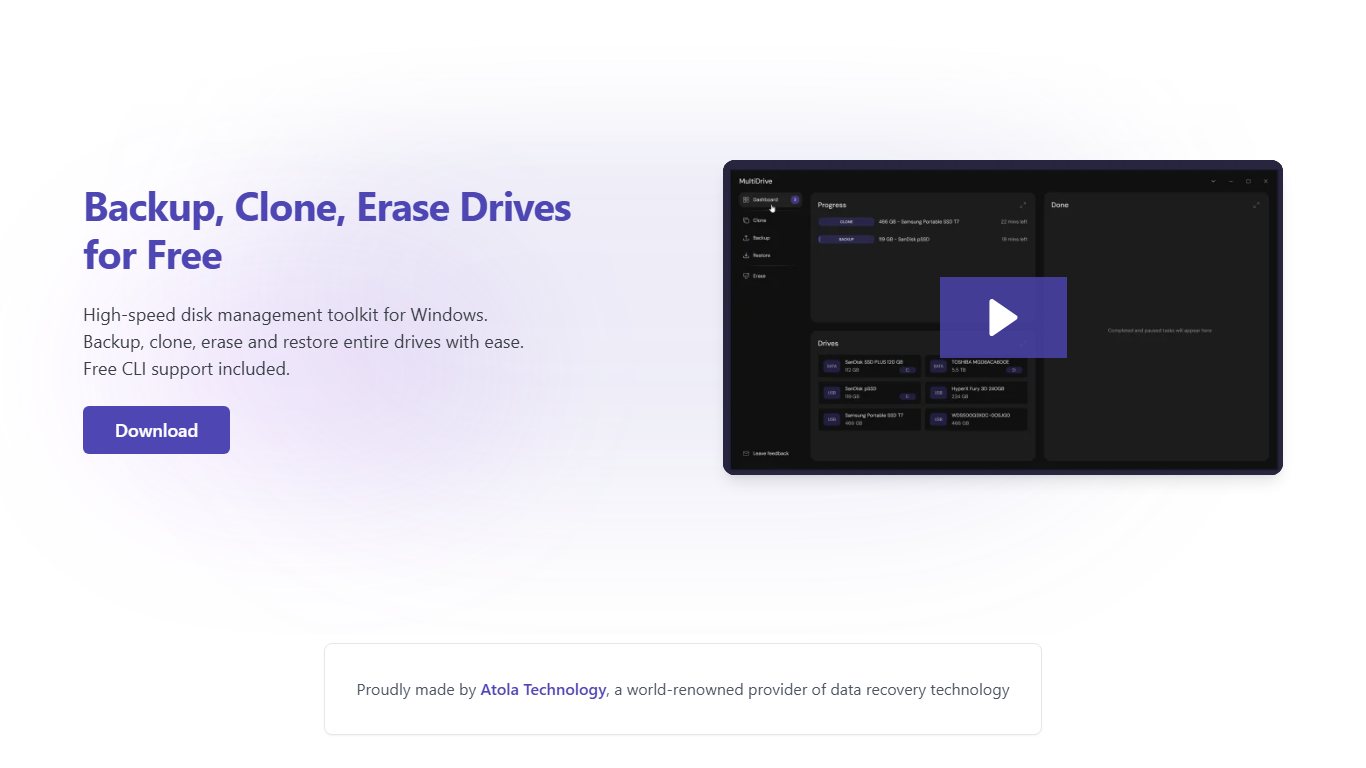
Easis Drive Cloning is a disk cloning and imaging tool with free and paid versions. The free version can clone a drive, create an image file of a hard drive and write that image back to a drive. The paid version adds two features: re-reading damaged sectors and converting images into real partitions.
It is an old utility. For cloning a drive on a modern Windows 11 PC, especially to an NVMe SSD, the free edition of AOMEI Backupper is the better-maintained option.
10. FBackup
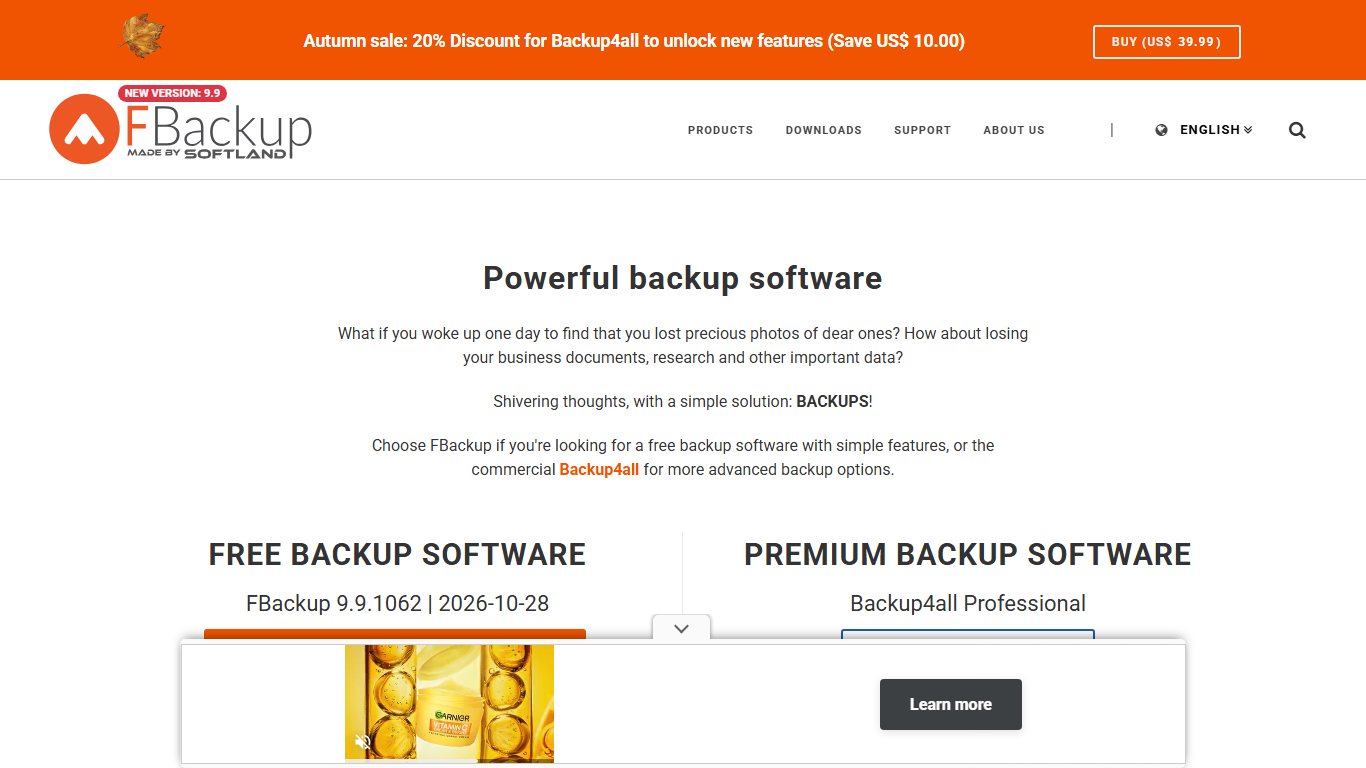
FBackup from Softland is free for both personal and commercial use, which is rare among backup tools. You set the rules once, and it runs backups automatically on your schedule. The interface is simple enough that most tasks take just a few clicks.
A full backup stores your files in standard ZIP archives using ZIP64. That means archives can be bigger than 2 GB and can be password-protected. You can open them with any ZIP tool, even if FBackup is gone. The 9.9 series still gets updates, with a build released in March 2026, and it runs on Windows 11, 10, 8.1 and 7. Incremental and differential backups are only in Softland’s paid product, Backup4all.
Which One to Pick
For most people, the best setup is AOMEI Backupper (Standard) or Paragon for a full system image, plus a file backup tool or File History to save your documents more often. If you only care about documents and photos, FBackup is the easiest choice. However you set it up, keep at least one copy away from the PC. A backup drive that stays plugged in can be encrypted by ransomware along with everything else.
FAQ
Which free backup software is best for Windows 11?
AOMEI Backupper (Standard) is the most complete free option in 2026. It covers system, disk, partition and file backups, plus scheduling and cloning. Paragon Backup & Recovery Community Edition is a strong alternative for home users. For file backups only, FBackup is the simplest choice and also allows commercial use.
Does Windows 11 have built-in backup?
Yes, in two forms. The Windows Backup app (Settings > Accounts > Windows backup) saves selected folders, settings, credentials and apps to OneDrive using a personal Microsoft account. File History (Control Panel > System and Security > File History) keeps versioned copies of your files on an external drive or network folder. You can use both together.
Is Windows 10’s backup feature still safe to rely on?
On Windows 10, File History was under Settings > Update & Security > Backup, and it still works. However, Windows 10 reached end of support on 14 October 2025. The consumer Extended Security Updates program was first set to end on 13 October 2026. Microsoft has since extended it to 12 October 2027 for eligible PCs running Windows 10 version 22H2. Back up your files now and move to Windows 11 or a supported device.
What is the 3-2-1 backup rule?
Keep three copies of your data on two different types of storage, with one copy kept offsite. For example, keep the originals on your PC, a copy on an external drive and another copy in the cloud. A tool like Recuva is not part of this plan, because it tries to recover deleted files and does not make backups.
What is the difference between a file backup and a system image?
A file backup copies chosen files and folders, so it is small and quick to restore one document from. A system image copies the whole drive, including Windows, apps and settings, so you can restore the entire PC after a drive failure. Ideally, keep a system image and regular file backups.
Are free backup tools safe to download?
They are safe when you download them from the developer’s own website, such as AOMEI’s, Softland’s or CobianSoft’s. Avoid third-party download sites that wrap installers in extra offers, and never use cracked “Pro” versions. Those are a common source of malware.
Sources
- AOMEI Backupper free backup software
- CobianSoft: Cobian Reflector and Cobian Backup
- Cobian Reflector version history
- FBackup by Softland
- Microsoft Support: Backup and restore with File History












