

If you deleted files from a USB flash drive, stop using the drive now and recover onto a different disk. As of November 2026, the best free starting points are Recuva for simple undeletes, PhotoRec and TestDisk for formatted or corrupted drives, and Microsoft’s own Windows File Recovery if you’re comfortable with the command line. If you’d rather have a paid tool with a polished interface, the free editions of Disk Drill (500 MB), Stellar Data Recovery (1 GB), MiniTool Power Data Recovery (1 GB) and EaseUS Data Recovery Wizard (up to 2 GB) let you scan and preview first. That way you know whether your files are recoverable before you pay.
Quick picks
- Best free overall: Recuva, because it has a simple graphical interface and no recovery size limit.
- Best for formatted or RAW drives: PhotoRec, because it skips the damaged file system and searches the raw data for known file types.
- Best paid tool with a graphical interface: Disk Drill, because it sorts results by type and lets you preview files before you buy.
- Best built-in option: Windows File Recovery, because it’s free from Microsoft and has no size cap.
What causes USB data loss, and which tool fits?
The cause decides your first move. Windows deletes files on USB drives for good instead of sending them to the Recycle Bin, but in most cases the data stays on the drive until something new overwrites it. Find your situation below and start with the tool listed.
| Cause | What happens to the data | First tool to try |
|---|---|---|
| Deleted files | The file entry is marked as free space. The contents stay until they’re overwritten | Recuva or Windows File Recovery (/regular) |
| Quick format | A new, empty file system is written. Old file contents usually stay on the drive | PhotoRec, or a deep scan in MiniTool Power Data Recovery |
| Full format | Since Windows Vista, a full format writes zeros over the whole volume | PhotoRec, but expect little or nothing back |
| RAW drive or “You need to format the disk” | The file system is damaged, so Windows can’t read it. The files are usually still there | TestDisk to repair, or PhotoRec to copy files off |
| Unsafe removal or power loss | Writes stop partway, which can corrupt the file system or files that were open | Disk Drill or EaseUS Data Recovery Wizard deep scan |
| Lost partition | The partition table entry is gone, so the drive looks empty or unallocated | TestDisk or DMDE |
| Drive not detected or physically damaged | A hardware fault. Software can’t reach the data | A professional recovery lab |
What should you do first after losing USB files?
Stop using the drive and don’t install anything on it. What you get back depends on the first few minutes. After a deletion or a quick format, the data usually stays on the drive until something new overwrites it.
- Stop writing to the USB drive. Don’t copy anything new onto it, and don’t let Windows “scan and fix” it yet.
- Install the recovery tool on your PC’s internal drive, never on the USB stick you’re recovering from.
- Save recovered files to a different drive. Microsoft’s Windows File Recovery won’t let you recover to the same drive you’re scanning, and every other tool here works best that way too.
- Stop if the drive isn’t detected at all, makes noises, or shows the wrong capacity in Disk Management. Software can’t fix physical damage, and repeated attempts can make it worse. Take it to a professional data recovery service instead.
What is the best free USB data recovery software?
Recuva is the best free choice for simple undeletes. PhotoRec and TestDisk are best for formatted, RAW or partition-damaged drives. All three are free with no size limit. The tools below were chosen for their reputation, how well they handle USB flash drives and memory cards, how much they recover for free, and whether they’re still maintained. Free recovery limits weighed the most, then how easy each tool is to use. The free limits come from each vendor’s own pages and support documents.
| Tool | Free recovery limit | Interface | Best for |
|---|---|---|---|
| Recuva | No size limit | Graphical | Quick undeletes |
| TestDisk | Free, open source | Text-based | Lost partitions, damaged partition tables |
| PhotoRec | Free, open source | Text-based (QPhotoRec GUI on Windows) | Formatted or corrupted drives |
| Disk Drill | 500 MB | Graphical | Beginners who want previews |
| Stellar Data Recovery | 1 GB | Graphical | Filtering by file type |
| MiniTool Power Data Recovery | 1 GB | Graphical | Mixed file types, RAW drives |
| EaseUS Data Recovery Wizard | 500 MB, up to 2 GB after sharing | Graphical | Explorer-style browsing |
| R-Studio | Demo saves files under 256 KB only | Graphical, technical | Advanced and partition recovery |
| DMDE | 4,000 files per operation, one folder at a time | Graphical, technical | Lost partitions, RAW drives |
| DiskDigger | Free scan and preview, delay before each save | Graphical, portable | Lightweight undeletes |
| DiskGenius | Reviewers report a 64 KB file cap | Graphical | Partition recovery plus disk tools |
| Wise Data Recovery | Free edition | Graphical | Fast, simple scans |
| SoftPerfect File Recovery | Freeware | Graphical, portable | Small undelete jobs |
| iBoysoft Data Recovery | Limited free amount | Graphical | Beginners, deep scans |
| Windows File Recovery (Microsoft) | No size limit | Command line | People comfortable with the command line |
1. Recuva
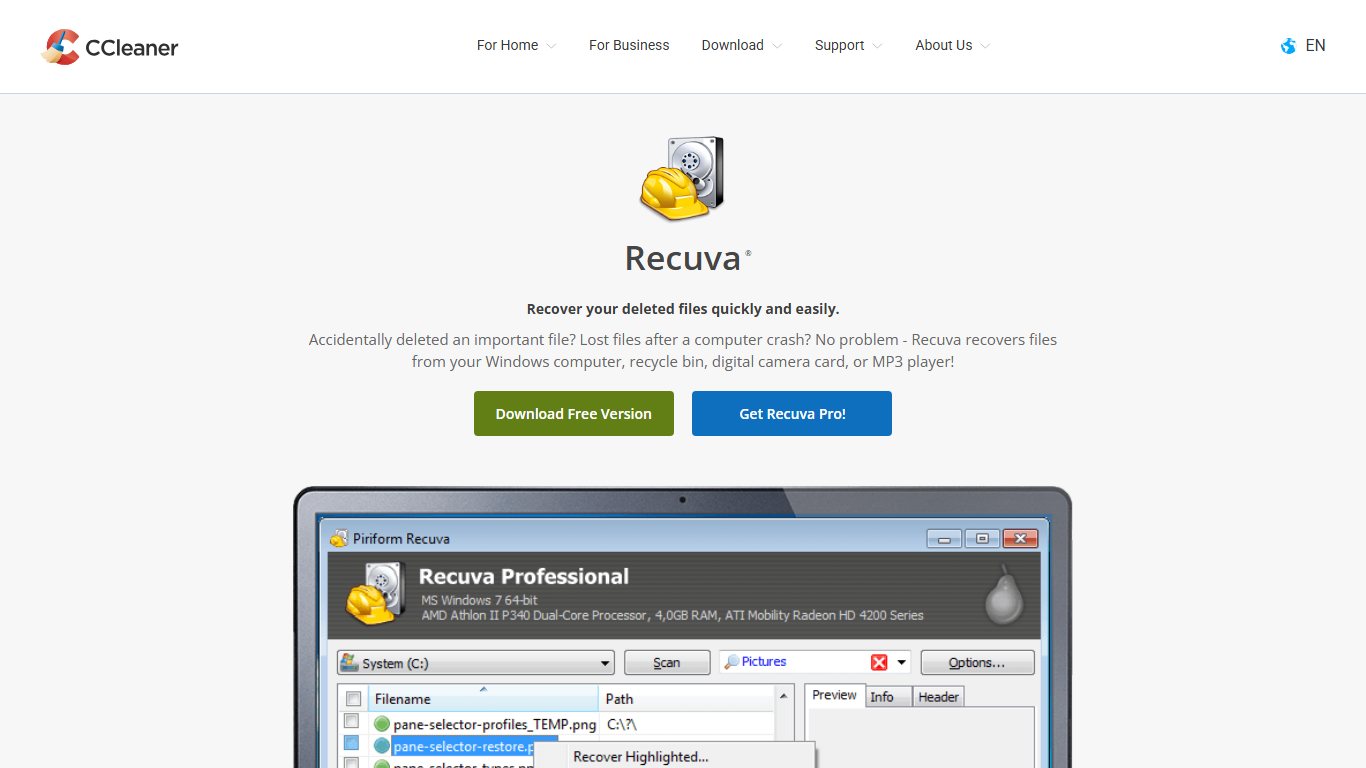
Recuva is one of the best-known free undelete tools for Windows. It comes from Piriform, the developer of CCleaner. It can rebuild the folder structure you lost, and you can scan a whole drive or just one location on your USB stick or hard drive. The free version has no recovery size limit. Recuva Professional costs about $24.95 and adds virtual hard drive support, automatic updates and premium support.
There’s a catch. Recuva went years without updates. Version 1.54 arrived in 2024, and version 1.55 followed in June 2026. It’s good with recently deleted files and weaker after a format.
2. TestDisk
TestDisk is a free, open-source, text-based tool from CGSecurity. It looks old-fashioned, but it can save you when a drive’s partition is gone. It finds lost partitions, repairs damaged partition tables and can make a drive readable again. It works on hard drives, USB flash drives and memory cards. The latest stable release is still version 7.2, from 22 February 2024. CGSecurity also offers work-in-progress beta builds.
TestDisk writes changes to the drive when you tell it to. Read each screen carefully before you confirm anything. If you aren’t sure, use it to copy files off rather than to rewrite the partition table.
3. PhotoRec
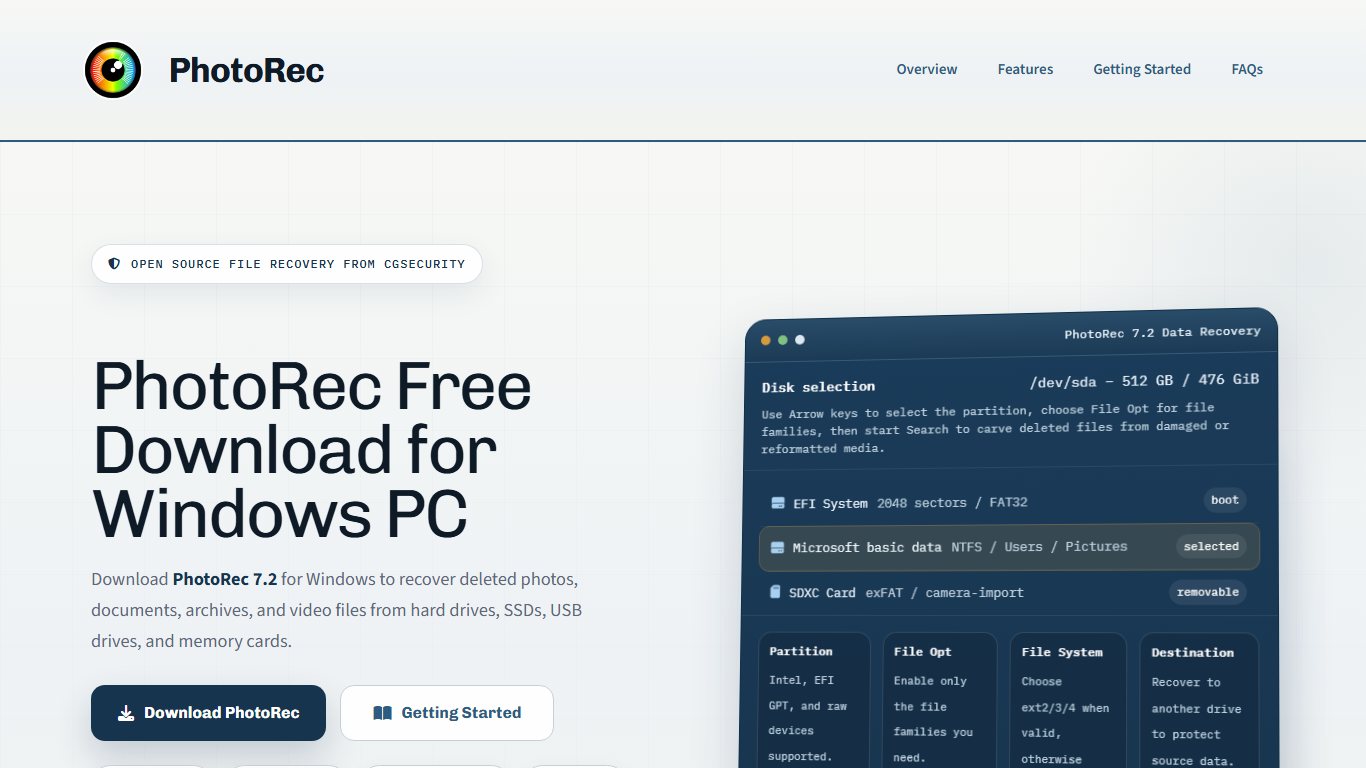
PhotoRec ships in the same download as TestDisk. It was built to recover lost photos from camera memory cards, and it now recognises hundreds of file formats, including documents, archives and videos. It ignores the file system and searches the raw data for known file signatures, so it often works on drives that have been formatted or show up as RAW.
The trade-off is that recovered files usually lose their original names and folder structure. Expect to sort through folders of renamed files. On Windows, the bundled QPhotoRec gives you a simple graphical interface instead of the text screens.
4. Disk Drill
Disk Drill, from CleverFiles, finds lost files on almost any storage device. Its clean interface groups results by type, such as pictures, video and documents. You pick the drive, click to search and preview what it finds. The free Windows version supports Windows 7, 8, 10 and 11 and recovers up to 500 MB. That covers a few documents but not a photo library. Disk Drill PRO removes the limit and costs about $89.
5. Stellar Data Recovery
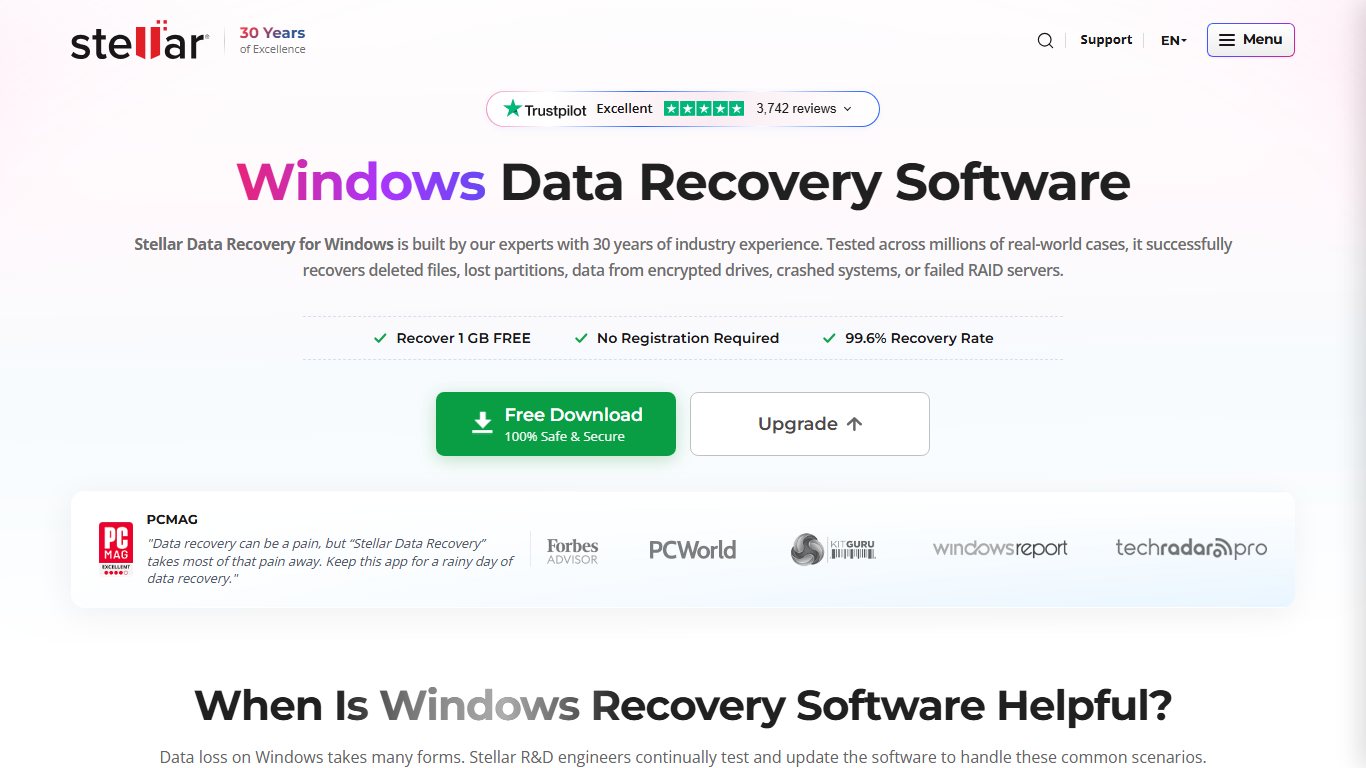
Stellar Data Recovery asks what kind of files you want back, such as photos, documents or email, and then focuses the scan on those types. That makes scans faster and the results easier to sort. The free edition scans, previews and recovers up to 1 GB, and a per-file size cap also applies to free recoveries. Paid Standard, Professional and Premium editions remove the limit and are reported to cost from about $59.99 a year.
The product was formerly Stellar Phoenix. Stellar rebranded the line, and its own free edition page says it was “previously known as Stellar Phoenix.” If an old guide mentions the old name, download the current Stellar Data Recovery from Stellar’s official site. The higher paid editions add recovery from lost or deleted partitions and from crashed PCs, which helps if a pen drive crashed and the free scan can’t see your files. Avoid sites offering “Stellar Phoenix full version” downloads. Those are cracked copies and a common source of malware.
6. MiniTool Power Data Recovery
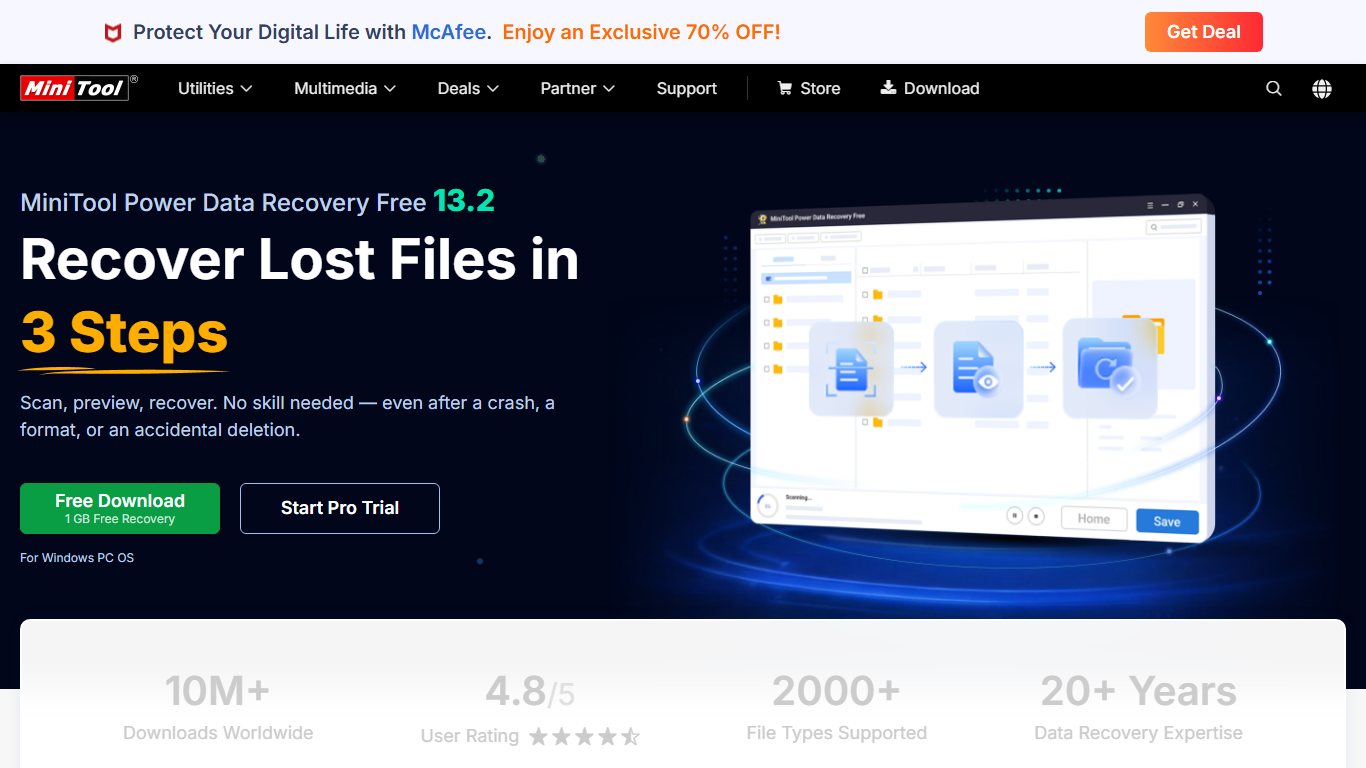
MiniTool Power Data Recovery recovers photos, documents, text files, PDFs, videos and more from USB drives, SD cards and hard disks. It also handles drives that were formatted or turned RAW. The free edition recovers up to 1 GB. Paid licences start at about $69 and remove the cap. The free edition doesn’t include bootable media or the option to load previous scan results.
7. EaseUS Data Recovery Wizard
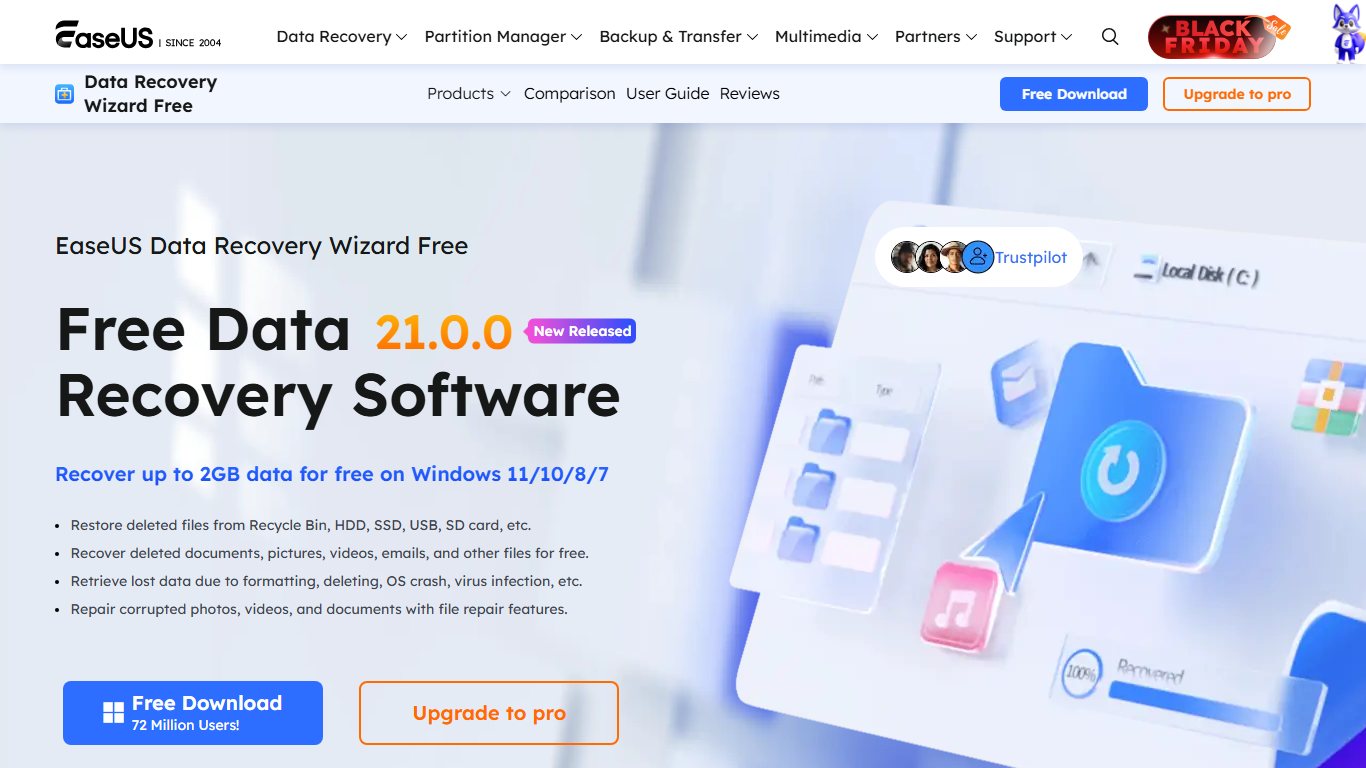
EaseUS Data Recovery Wizard recovers files in a few clicks. Its results window works like File Explorer, so it’s easy to browse, and you can filter by file type before you recover. It works with hard drives, USB flash drives, SD cards and cameras, and it can recover from deleted partitions.
The free version recovers 500 MB to start. EaseUS raises that to 2 GB if you share the program on social media. Paid licences remove the limit.
8. R-Studio
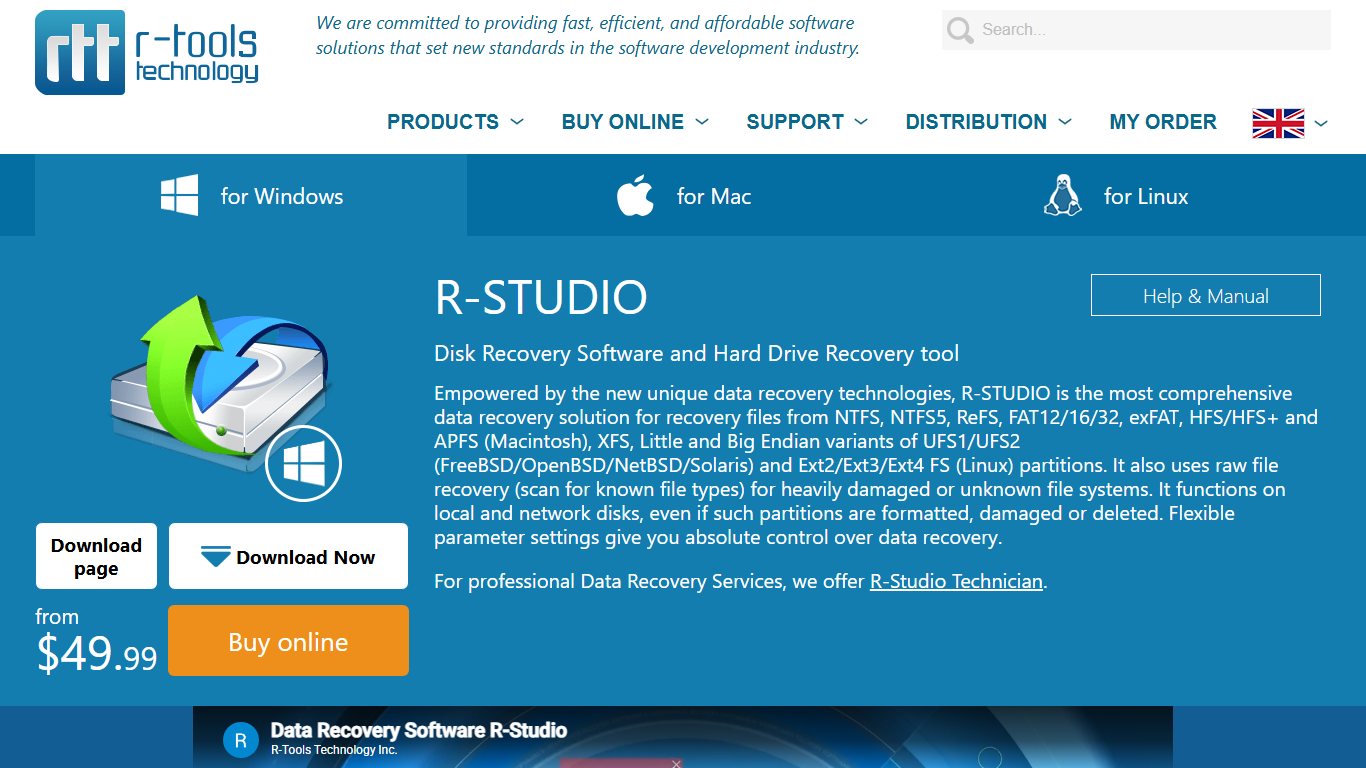
R-Studio, from R-Tools Technology, is a professional-grade tool for hard cases: lost or damaged partitions, reformatted drives and disks with several partitions. It can also image a failing drive so you recover from the copy instead of the original. That makes it more than most people need for a simple undelete.
The demo is useful as a test. It scans and previews everything it finds, but it only saves files smaller than 256 KB, so you need a licence for photos and videos. If the preview shows your files intact, you know a paid licence will get them back.
9. DMDE
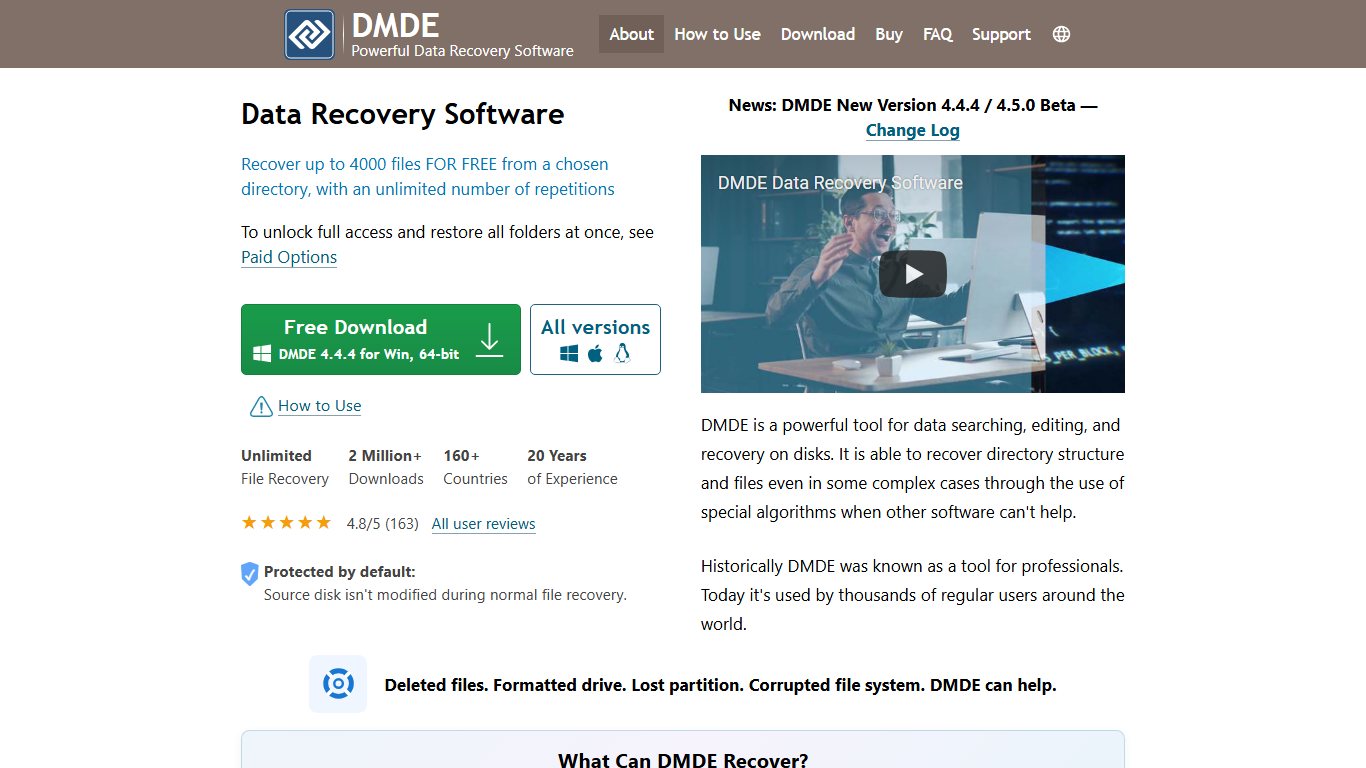
DMDE (DM Disk Editor and Data Recovery Software) is a compact, powerful tool for lost partitions and RAW drives. It rebuilds the folder tree from damaged file systems better than most free tools, and it includes a disk editor for experienced users.
The free edition has every basic feature, with one limit. Each recovery operation saves up to 4,000 files from the folder open in the current panel, without its subfolders. You can repeat the operation as often as you like, so a patient user can recover a whole drive for free folder by folder. Paid Express, Standard and Professional editions remove the limit and recover nested folders in one go.
10. DiskDigger
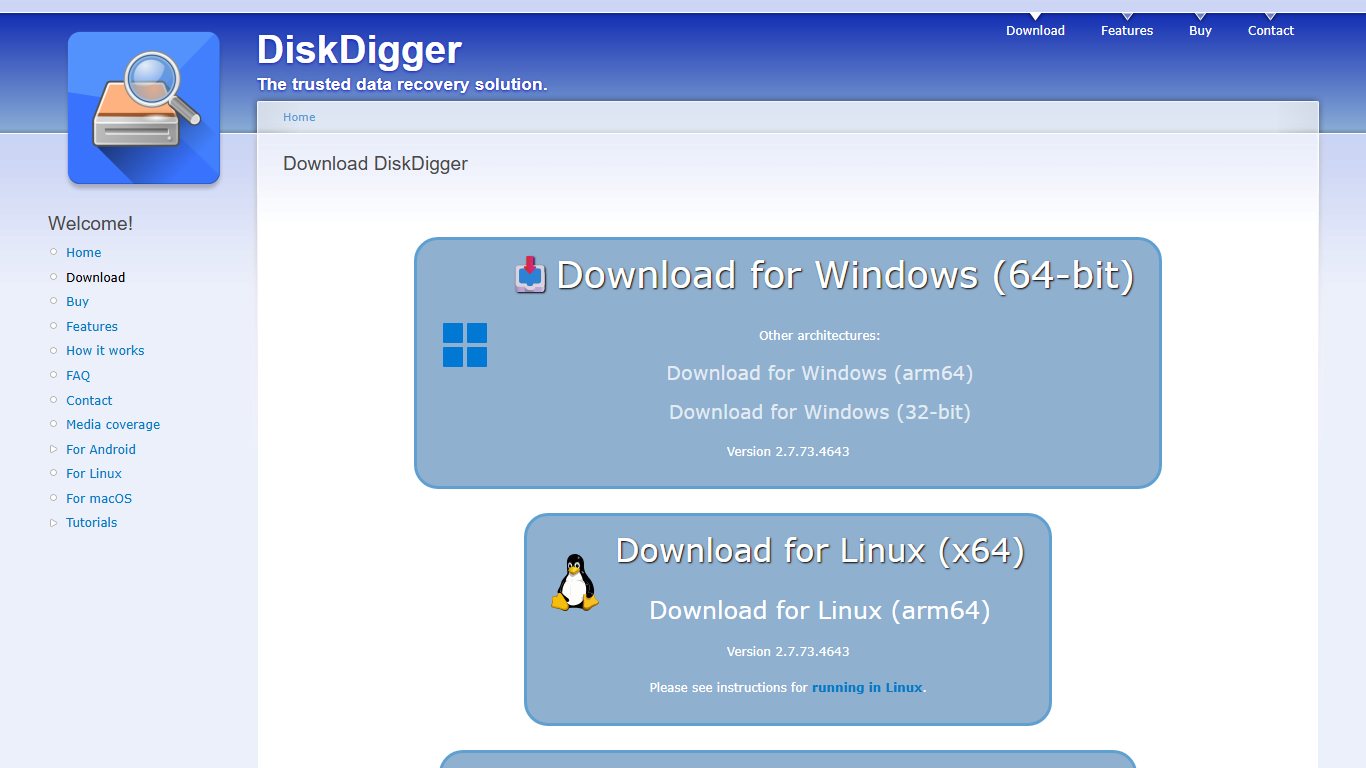
DiskDigger, by developer Dmitry Brant, is a lightweight, portable tool. You run it without installing anything, which keeps your PC’s drives clean. It has two scan levels: “Dig Deep” for recently deleted files and “Dig Deeper” for a signature search of formatted cards and sticks.
On Windows, scanning and previewing are free. When you save files without a licence, DiskDigger shows a message asking you to buy one and makes you wait a short time for each file. A personal licence removes the prompt, and commercial use needs a commercial licence.
11. DiskGenius
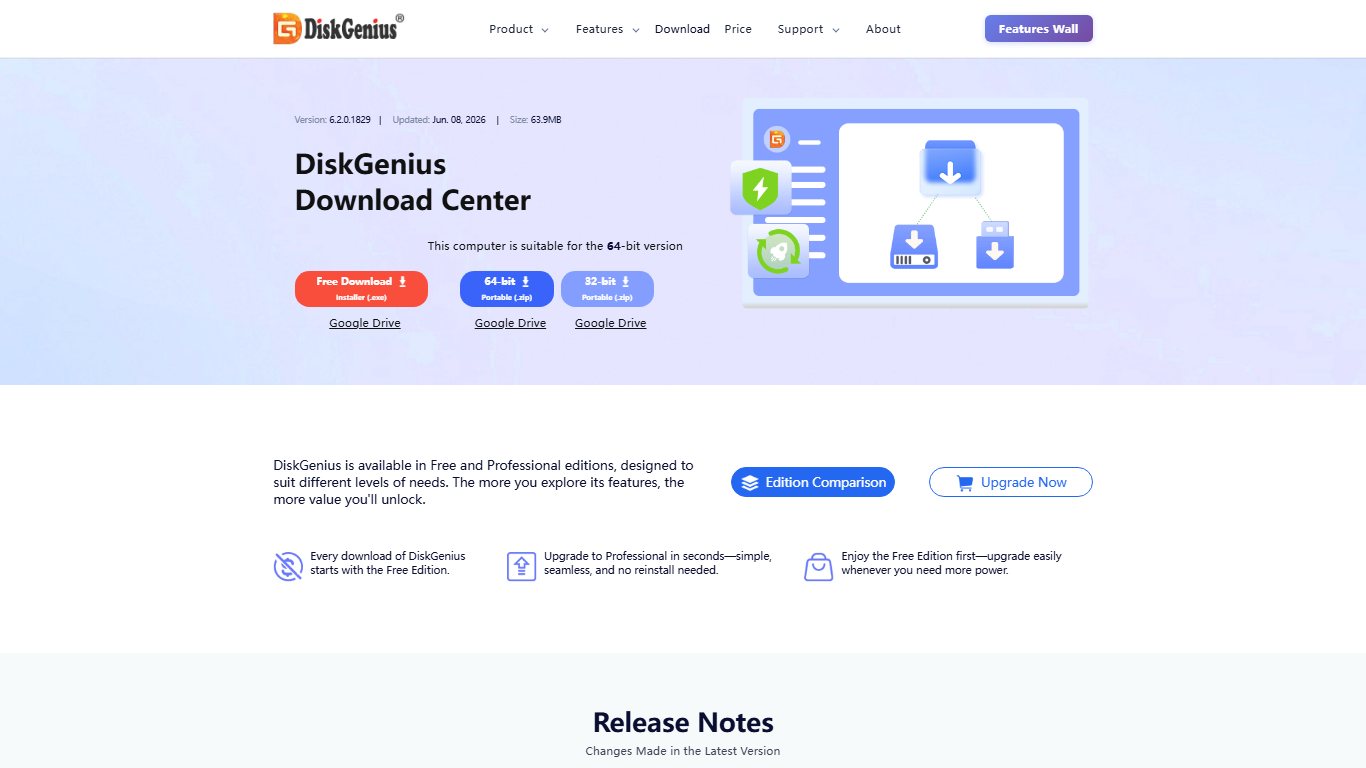
DiskGenius, from Eassos, combines partition management, disk backup and data recovery in one program. It’s a good fit if a USB stick lost its partition and you also want tools to check or rebuild the drive afterwards.
The free edition scans and previews, but independent reviews report it only saves very small files, around 64 KB or less. Plan to buy a licence if the preview shows what you need.
12. Wise Data Recovery
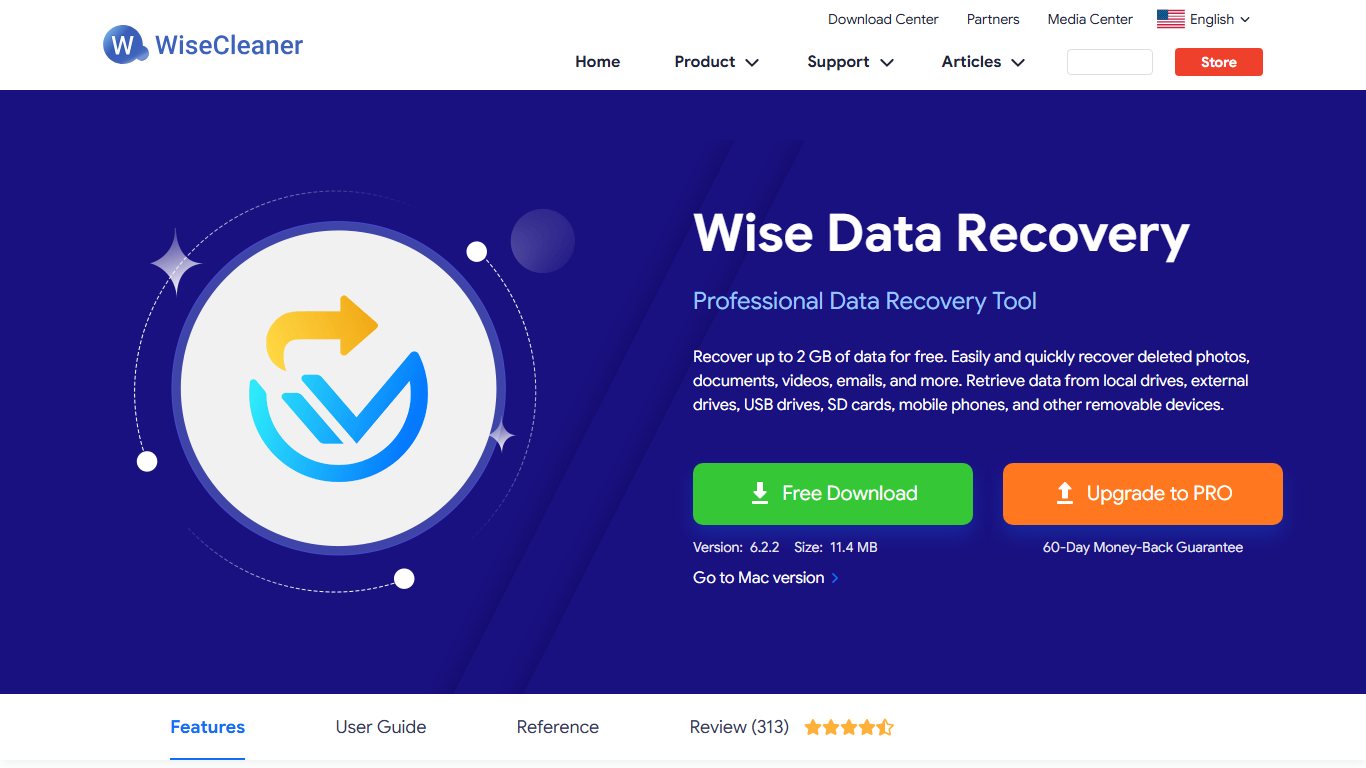
Wise Data Recovery, from WiseCleaner, is a simple undelete tool. Some older roundups call it Wise Data Healing. It scans USB drives, memory cards and hard disks quickly, with a fast scan plus a deeper scan for more thorough searches. It runs on current Windows versions, including Windows 11. It doesn’t always keep the original folder structure when it restores files, and there’s no Mac or Linux version.
13. SoftPerfect File Recovery
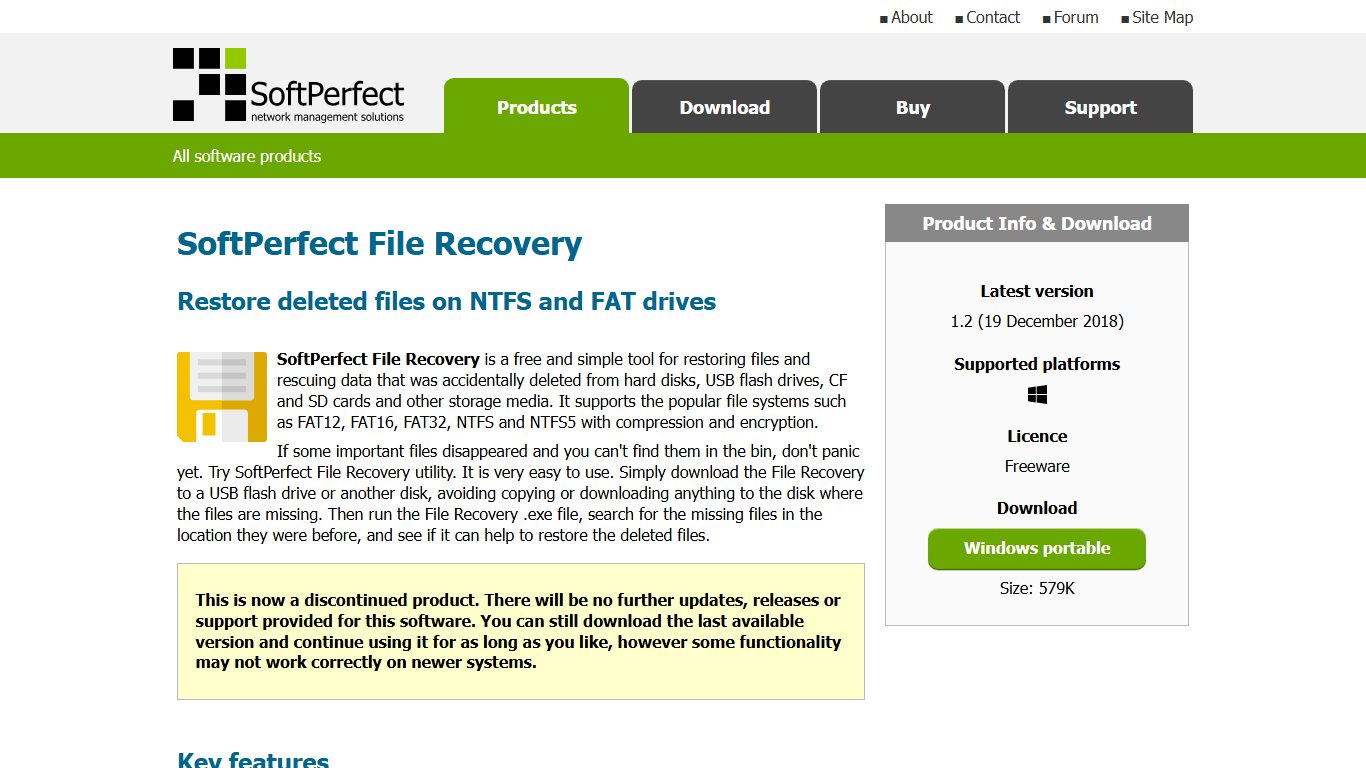
SoftPerfect File Recovery is a tiny freeware undelete tool that runs as a portable program, without installation. That makes it handy to run from a different drive than the one you’re recovering. You can search deleted files by name or extension and restore them from hard disks, USB flash drives and SD cards. It doesn’t support CDs or DVDs.
14. iBoysoft Data Recovery
iBoysoft Data Recovery is a strong all-round tool. It recovers data from hard drives, USB flash drives and SD cards, and its interface is easy enough for beginners.
It has two scan modes. A quick scan finds recently deleted files fast. A deep scan searches further for files lost to formatting, corruption or malware. You can preview files before you recover them and search the results by file name or extension. A free edition lets you scan, preview and recover a limited amount of data. Check iBoysoft’s system requirements page for the Windows versions it supports today.
15. Windows File Recovery
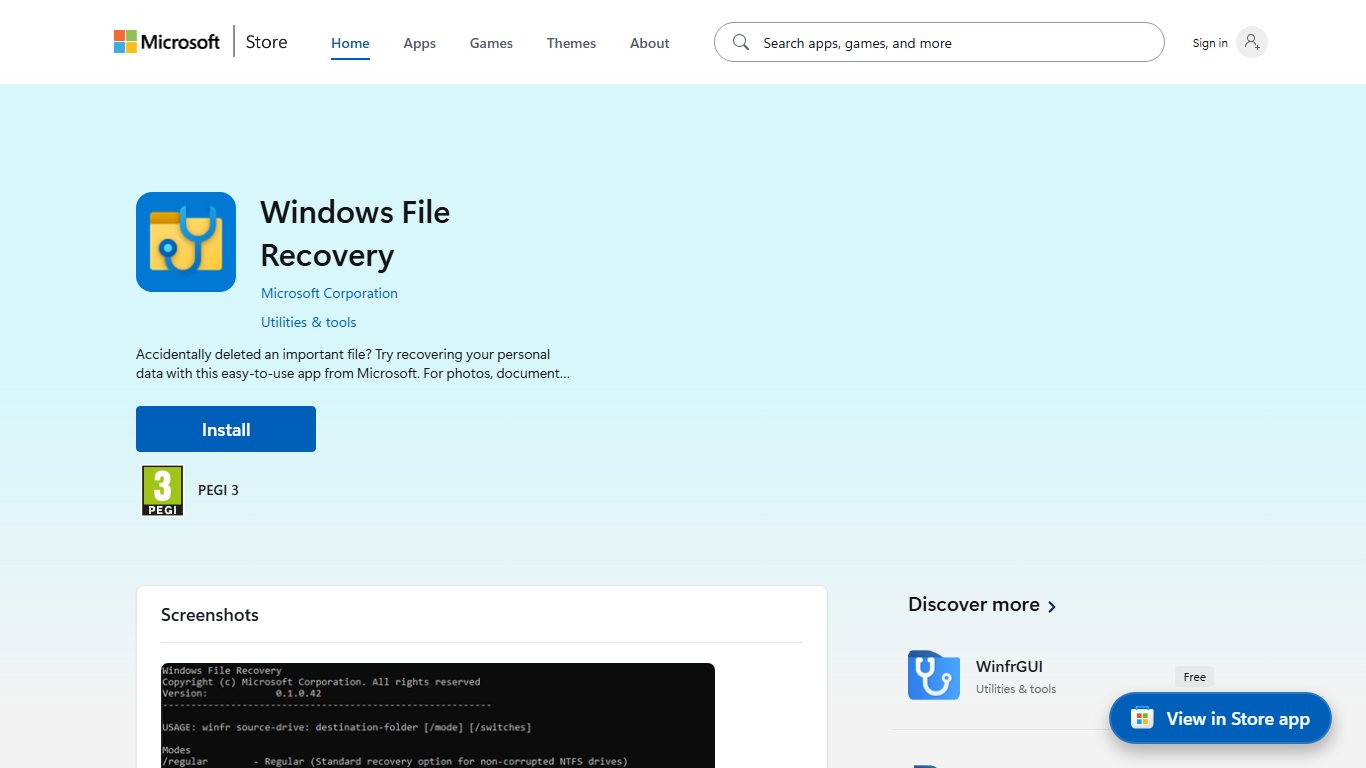
Windows File Recovery is Microsoft’s free command-line tool, available from the Microsoft Store. It has no recovery size limit and works on USB flash drives, memory cards and hard drives. The next section shows how to use it.
Can Windows recover deleted USB files on its own?
Not with built-in Windows features. Deleted USB files skip the Recycle Bin, and File History only helps if it was already backing the drive up. Microsoft’s free Windows File Recovery app is the official option, and you install it from the Microsoft Store.
Windows File Recovery runs on Windows 11 and Windows 10 version 2004 and later. It recovers files from hard drives, USB flash drives and memory cards formatted as NTFS, FAT, exFAT or ReFS. It doesn’t work with cloud storage or network drives.
It runs only from the command line. Open Windows Terminal as administrator and type a command in this form:
winfr E: C: /regularto look for recently deleted files on drive E: and save them to drive C:.winfr E: C: /extensivefor formatted drives, older deletions or FAT and exFAT USB sticks.- Add
/nwith a file name or type to narrow the search, for example/n *.docx.
Type winfr /? to see every option for your installed version.
Other options worth a look
The 15 tools above cover nearly every USB recovery job. You’ll still see a few other names in older guides, so here’s where they stand.
Older tools you’ll see in old guides
- Pandora Recovery (sometimes listed as Pandora Healing): no longer developed, and its old website now publishes reviews instead of the program.
- Undelete 360: a basic search-and-restore tool. It’s old, so check that the developer lists your Windows version first.
- UnDeleteMyFiles Pro: a free SeriousBit tool with a Mail Recovery wizard, made for earlier versions of Windows.
- Puran File Recovery (sometimes listed as Puran File Healing): free for home use only, with no updates in years and no confirmed Windows 11 support.
Download any of these only from the developer’s own site, if it’s still offered there. “Full version” or “cracked” copies on download sites are a common way to get malware, and they’re the last thing you want on a PC holding your recovered files.
Which USB recovery tool should you use?
For most deleted files on a USB stick, try Recuva or Windows File Recovery first, since both are free with no size cap. If the drive was formatted, shows as RAW or asks to be formatted, use PhotoRec to copy your files off before you let Windows touch it. If a partition is missing, TestDisk or DMDE is the next step.
If you’d rather click than type, scan with the free edition of Disk Drill, Stellar, MiniTool or EaseUS and pay only if the preview shows your files intact.
There’s a fair argument against starting with the free tools. If the files matter for work and you’re short on time, a paid tool’s previews and guided scan can save you an evening of sorting renamed PhotoRec output. The free scan still tells you, at no cost, whether paying is worth it.
How much does USB data recovery cost?
Free tools such as Recuva, PhotoRec and Windows File Recovery cost $0, and paid licences run roughly $25 to $150. Professional lab recovery for a physically damaged drive is quoted per case, depending on the fault.
| Option | Typical cost | What you get |
|---|---|---|
| Free tool | $0 | Recuva, PhotoRec, TestDisk or Windows File Recovery with no size cap, but more manual work |
| Paid licence | About $25 to $150 | From Recuva Professional at about $24.95 to Disk Drill PRO at about $89, with previews and guided scans |
| Professional lab | Quoted per case | Hardware repair or reading the memory chip directly when software can’t see the drive |
If you need a lab, check three things before you send the drive:
- Free evaluation. The lab should diagnose the drive and tell you what’s recoverable before you commit.
- No data, no fee. You shouldn’t pay for the recovery itself if your files can’t be retrieved.
- A fixed quote before work starts. Get the price in writing so the bill can’t grow after the drive is opened.
FAQ
Can you recover files from a USB drive for free?
Yes. Recuva, PhotoRec, TestDisk and Microsoft’s Windows File Recovery are all free with no recovery size limit. DMDE’s free edition also works if you recover one folder at a time. Paid tools like Disk Drill, Stellar and EaseUS have free editions too, but they cap how much you can recover, from 500 MB to 2 GB depending on the tool.
Why aren’t deleted USB files in the Recycle Bin?
Windows deletes files on removable drives permanently instead of moving them to the Recycle Bin. The data usually stays on the drive until it’s overwritten. That’s why you should stop using the drive and run a recovery tool as soon as possible.
Can you recover files after formatting a USB drive?
Often, yes, if it was a quick format and nothing new has been saved to the drive since. PhotoRec and the deep or extensive scan modes in the other tools search the raw data for file signatures. A full format writes zeros over the drive on Windows Vista and later, so very little survives it, and new files written over the old ones also reduce what you can get back.
What should you do if Windows asks you to format the USB drive?
Click Cancel. Formatting first makes recovery harder. Run TestDisk, PhotoRec or a deep scan in a graphical tool, copy your files to another drive, and format the USB stick only after that.
Can you recover USB data online?
No, not really. Recovery software has to read the drive directly on the computer it’s plugged into, so no website can scan your USB stick. Be careful with sites that promise “online recovery”. They usually push a download or ask you to upload files, and neither helps with deleted data.
Can you recover a USB drive on Android?
It isn’t a good option. Many Android phones can open a USB stick through a USB OTG adapter, but phone recovery apps are built mainly to scan the phone’s own storage, not an attached flash drive. Plug the stick into a Windows PC and use a tool from this list, such as Recuva or PhotoRec.
When does a USB drive need professional recovery?
Get professional help if the drive isn’t detected in Disk Management, shows the wrong capacity, gets hot, or has a broken connector. Those are hardware faults that software can’t fix. Recovery labs can read the memory chips directly, but it costs far more than software.
Is Stellar Phoenix the same as Stellar Data Recovery?
Yes. Stellar Phoenix was the earlier name of Stellar Data Recovery. Download the current version only from Stellar’s official website.
Which free tool is best for a lost partition on a USB drive?
Start with TestDisk, which can find and restore lost partitions for free. If you’d rather use a graphical tool, DMDE’s free edition can find the partition and recover files folder by folder.
Sources
- TestDisk and PhotoRec download, CGSecurity
- PhotoRec documentation, CGSecurity
- Windows File Recovery, Microsoft Support
- Disk Drill free data recovery for Windows, CleverFiles
- Disk Drill for Windows license comparison, CleverFiles
- Stellar Data Recovery Free, Stellar
- MiniTool Power Data Recovery Free Edition, MiniTool
- Recover 2 GB of data for free, EaseUS
- Difference between demo version and complete version, R-Studio forum, R-Tools Technology
- DMDE editions and manual, DMDE
- DiskDigger FAQ, DiskDigger
- DiskGenius review, Pandora Recovery
- rcvPortable 1.55.133 release, PortableApps.com












