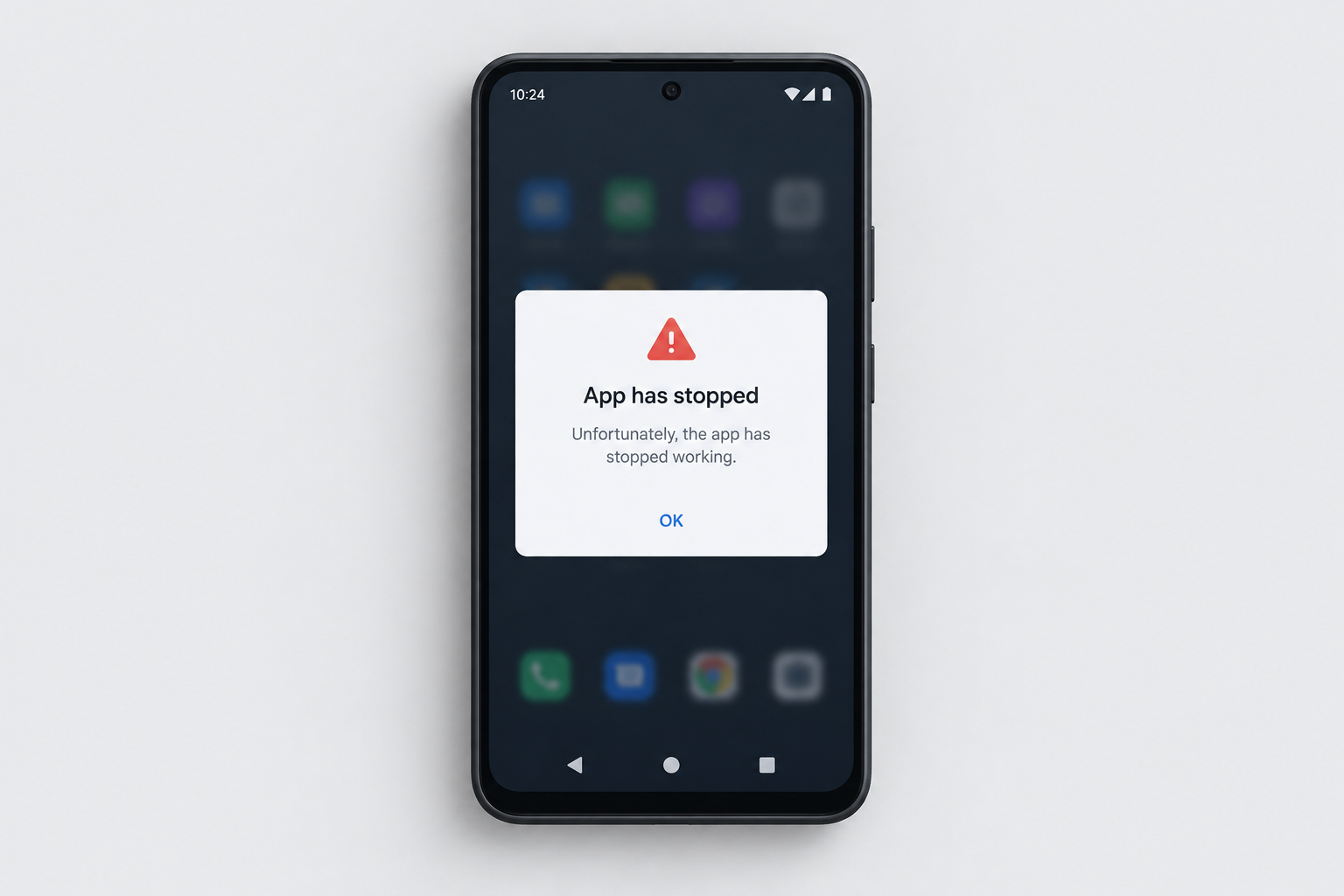
If an Android app crashes, won’t open or stops responding, start with the quickest fixes. Restart the phone, update the app in Google Play and install any pending system update. If that doesn’t work, go to Settings > Apps > See all apps, choose the app and use Force stop, then Clear cache, and only after that Clear storage. Reinstalling the app is the last step, and it should only be needed for stubborn problems.
The steps below cover apps that keep crashing, won’t open, freeze or behave strangely. They are ordered from the quickest and safest to the ones that delete data.
How to use these fixes
Check after each step whether the problem is gone, and stop once it is. Google’s own help page notes that some of these steps only work on Android 8.1 and higher.
Menu names in this guide follow Google Pixel phones running current Android. On Samsung Galaxy phones and other brands the labels are sometimes slightly different. Where a common alternative exists, it is listed next to the main path.
Restart and update
A restart clears temporary glitches. It does not delete your apps, photos or settings.
- Press and hold the power button for a few seconds.
- Tap Restart on the screen.
- If holding the button opens the assistant instead of the power menu, swipe down from the top of the screen to open Quick Settings, then tap the power icon and choose Restart.
- If you don’t see Restart, or the screen is frozen, hold the power button for about 30 seconds to force a restart. On some models this can take up to a minute.
Check for Android updates
System updates often include fixes for problems with apps. They also update the parts of Android that many apps depend on.
To check for and install system updates on a Google Pixel:
- Open the Settings app.
- Tap System, then Software updates (on some versions this is called System update).
- If you can’t find it, tap About phone or About tablet first.
- Your update status appears on the screen.
- Follow the steps on the screen to download and install any update.
On a Samsung Galaxy, go to Settings > Software update > Download and install. Samsung suggests charging the battery to at least 20 percent and using Wi-Fi first, because updates can be large.
As of November 2026, the current major version is Android 17. Google started rolling it out to the Pixel 6 and newer in June 2026, and phone makers release it to their own models on their own schedules. If your phone no longer gets updates, it may be too old to run newer Android versions. This matters because new versions of apps eventually stop supporting old Android releases.
Update the app
App updates often fix the bug you are running into, especially if it started after a recent change to the app or to Android.
To see and install app updates:
- Open the Google Play Store app.
- Tap your profile icon at the top right.
- Tap Manage apps & device.
- Under Updates available, tap See details.
- Find the app and tap Update, or tap Update all to update everything at once.
Check for a larger app issue
If several apps break at once, or an app fails right after an outage, the problem is probably not your phone. Check these things before you start deleting data.
- Your connection. Apps that rely on the web, such as Google Maps, banking apps and streaming services, need a stable internet connection. Switch between Wi-Fi and mobile data to see whether the problem follows the network. If a video app opens but keeps stalling, the problem is usually the connection rather than the app, and the usual Ways to Fix Video Buffering work on a phone too.
- Error messages from the server. If an app shows a “Bad Request” or HTTP 400 message, the server is rejecting what the app sent. Clearing the app’s cache (below) usually fixes this, and the same reasoning used to fix Status Code 400 Errors in a browser applies.
- A shared system component. When many unrelated apps crash together, look for a shared cause, much as a Blue Screen Error on Windows usually points to a driver or system file rather than one program. A real example happened on March 22 and 23, 2021. A faulty Android System WebView update made Gmail, Amazon and many other apps crash. Google’s fix was to update Android System WebView and Google Chrome through the Play Store to version 89.0.4389.105.
- A service outage. If the app depends on an online service, check the company’s status page or official social media accounts before you change anything on your phone.
Force stop the app
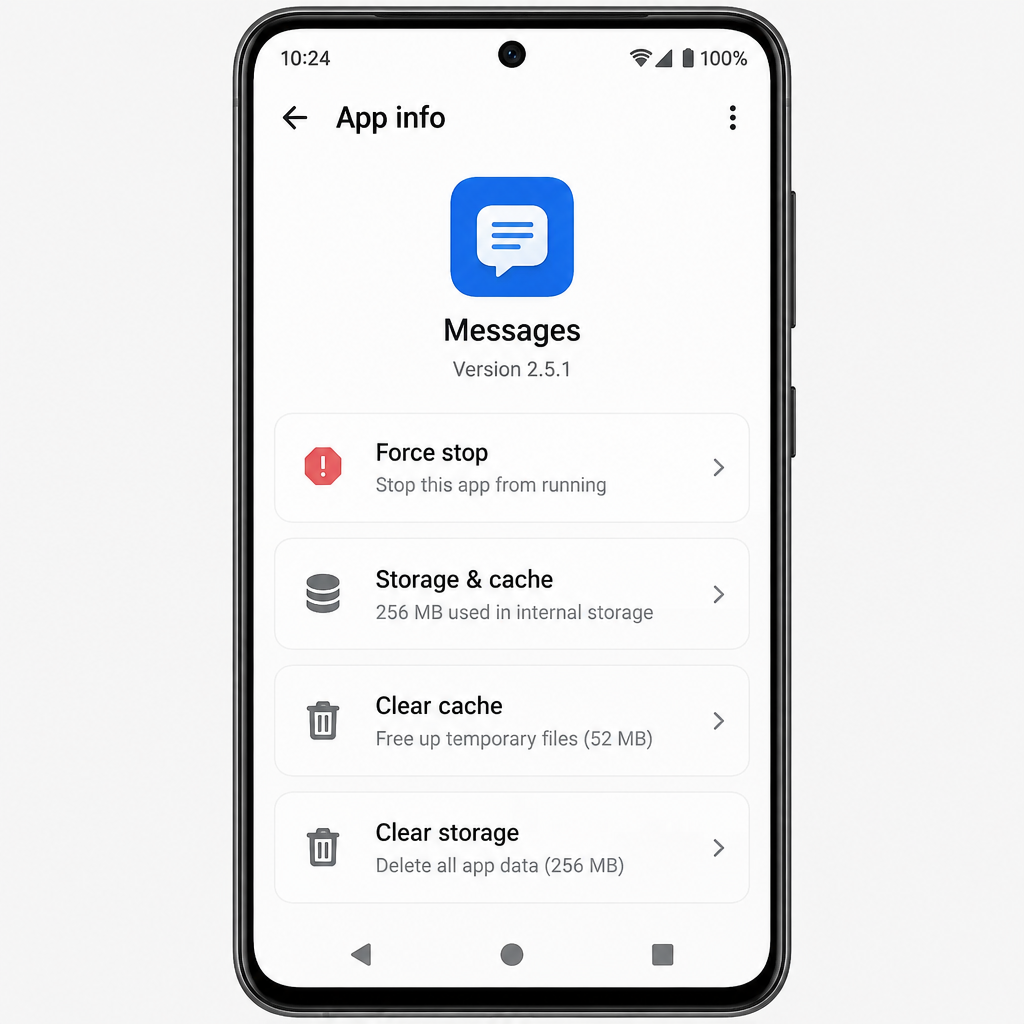
You usually don’t need to close apps, because Android manages how much memory each app uses. A force stop is useful when an app is stuck, because it closes the app completely, including any background services.
- Open the Settings app.
- Tap Apps (on older versions, Apps & notifications).
- Tap the app. If you can’t find it, tap See all apps or App info first.
- Tap Force stop, then OK.
- Open the app again.
Clear the app’s cache
Clearing the cache removes temporary files that can become corrupted, and it frees up some space. Your logins, settings and saved files stay. This is a short-term fix, because the cache fills up again with normal use.
To clear an app’s cache:
- Open the Settings app.
- Tap Apps.
- Tap the app. If you can’t find it, tap See all apps or App info first.
- Tap Storage & cache (on Samsung, Storage).
- Tap Clear cache.
Clear the app’s data
Clearing all of an app’s data resets it to the state it was in when first installed. This fixes problems that clearing the cache does not.
Warning: this deletes everything the app has stored on your phone, including logins, settings, downloads and game progress that is not backed up. Make sure anything important is synced to an account or backed up first.
To clear an app’s data:
- Open the Settings app.
- Tap Apps.
- Tap the app. If you can’t find it, tap See all apps or App info first.
- Tap Storage & cache, then Clear storage (on Samsung, Storage > Clear data), then OK.
- Open the app and sign in again.
Uninstall and reinstall the app
Reinstalling gives you a clean copy of the app. Like clearing data, it removes everything the app has stored on the phone.
Warning: this deletes all the data the app has saved on your device.
- Touch and hold the app’s icon.
- Tap Uninstall. On some phones you drag the icon to Uninstall at the top of the screen instead.
- If you don’t see Uninstall, the app is probably a system app that came with the phone. In that case, open it in Settings > Apps and look for Uninstall updates or Disable.
- To use the app again, search for it in the Google Play Store and tap Install.
If the app still fails after a fresh install on an up-to-date phone, the bug is most likely in the app itself. Open the app’s page in the Play Store, expand App support and email the developer. Include your phone model, your Android version and what happens when the app fails.
FAQ
Why do my Android apps keep crashing all of a sudden?
Apps often start crashing after an update to the app, to Android or to a shared component such as Android System WebView. Corrupted cache files and low storage space are other common causes. If many apps crash at the same time, update Android System WebView and Google Chrome in the Play Store before anything else.
Does clearing the cache delete my data?
No. Clearing the cache only removes temporary files, so your logins, settings and saved files stay. Clear storage (called Clear data on some phones) is the option that wipes everything the app has saved.
Is it bad to force stop an app?
No. Force stop just closes the app and its background services, and the app starts again normally the next time you open it. You may miss notifications from that app until you reopen it.
What should I do if an app won’t uninstall?
The app is probably a system app that came with your phone. Go to Settings > Apps, choose the app and tap Uninstall updates to return it to its factory version, or tap Disable to hide it. If neither option appears, the app is a core part of Android and can’t be removed.
Will a factory reset fix a crashing app?
Sometimes, but it is rarely needed for a problem with one app, and it erases everything on the phone. Work through clearing the app’s data and reinstalling it first. If the whole phone keeps freezing, back it up before you consider a reset, or contact the phone maker or your carrier.
Sources
- Fix an installed Android app that isn’t working (Android Help)
- Fix an Android device that freezes or won’t respond (Android Help)
- Check & update your Android version (Android Help)
- Update Android apps (Google Play Help)
- How to update latest software for your Galaxy mobile device (Samsung)