If Chrome starts showing pop-ups, changing your search engine or adding extensions you never installed, start with Chrome’s own fixes. Remove any extensions you don’t recognise, then go to Settings > Reset settings > Restore settings to their original defaults. After that, run a full scan with a trusted antivirus or malware scanner such as Microsoft Defender, Malwarebytes or Bitdefender. Chrome’s old built-in Cleanup Tool was removed in 2023 and Norton Power Eraser was discontinued on April 30, 2026, so neither one is an option any more.
This guide covers the signs of an infection, the tools that still help, how to set them up, and the habits that stop malware from coming back.
What malware is
Malware is short for “malicious software.” It means any program built to damage a device or network, or to take advantage of it. Common types are viruses, worms, ransomware, spyware and adware. In Chrome, the usual offenders are adware and browser hijackers. These often arrive as bundled programs or harmful extensions that inject ads, redirect your searches or change your settings.
Malware keeps getting harder to spot, so it pays to know the warning signs and to have a proper removal tool ready. That matters even more in a browser as widely used as Chrome.
Signs of malware in Chrome
You spot a malware invasion in Chrome by looking for a pattern of symptoms. No single symptom proves much on its own. Watch for these:
- Pop-up ads that appear out of nowhere, or new tabs that won’t close.
- Your homepage or search engine changes without your permission.
- Chrome gets slow or crashes regularly.
- Settings change that you didn’t touch, or extensions appear that you never added.
Google’s own help page names pop-up ads and new tabs that won’t close as common signs of unwanted software. If you see several of these signs, assume something unwanted is installed and work through the steps below.
The best malware removal tools for Chrome
The tools below fall into two groups. Browser extensions guard Chrome while you browse. Full security programs scan and clean the whole computer. You usually need both, because a browser extension can’t remove a program that has installed itself on your PC or Mac.
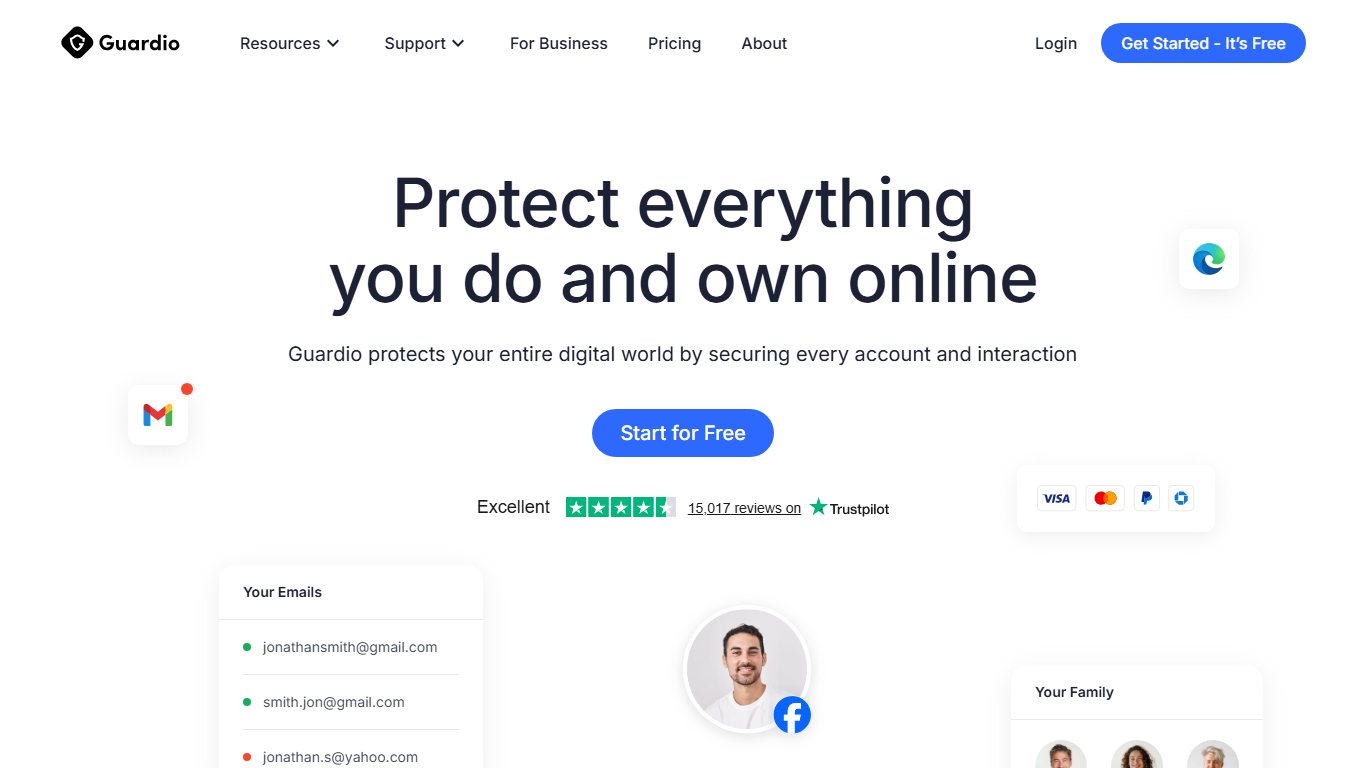
Guardio
Guardio is a security extension for Chrome. It blocks dangerous and phishing sites, warns you about harmful downloads and extensions, and alerts you if your details show up in a data breach. It is mainly a paid subscription. Reviews published in 2026 list prices from about $9.99 to $14.99 a month on monthly billing, and less if you pay for a year. Keep in mind that Guardio protects the browser. It is not a full antivirus and can’t replace a system scan.
Norton Power Eraser (discontinued)
Norton Power Eraser was a free Windows tool. It used aggressive scanning to find hard-to-detect malware. Norton discontinued it on April 30, 2026. It no longer works and gets no updates. Norton says there is no direct replacement and that the tool’s features now live in its main security apps, such as Norton 360. Don’t download old copies from third-party download sites. They are unsupported and could be out of date or tampered with.
Malwarebytes
Malwarebytes is one of the best-known malware removal tools, with a long record of finding adware, hijackers and other unwanted programs. The free version scans for and removes infections when you run it. The paid Premium version adds real-time protection. The company also offers Malwarebytes Browser Guard, a free extension for Chrome that blocks malicious sites, intrusive ads and trackers.
Bitdefender
Bitdefender is known for strong threat detection. Its security suites include web protection that helps keep your Chrome browser secure, along with real-time protection, advanced threat defense and multi-layered ransomware protection. Bitdefender also offers a free antivirus for Windows that covers basic scanning and removal.
Microsoft Defender
If you use Windows 10 or Windows 11, Microsoft Defender Antivirus is already installed and turned on. To run a deeper check, open Windows Security > Virus & threat protection > Scan options and choose Full scan. You can also choose Microsoft Defender Offline scan, which restarts the PC and scans before Windows loads. That helps with malware that hides while Windows is running.
How to get the most from a malware removal tool
Installing a tool is only the first step. These three settings are what make it work.
Run regular scans
Schedule regular scans so malware gets caught before it does damage. Most tools let you set automatic scans, for example a quick scan every day and a full scan every week.
Turn on real-time protection
Real-time protection watches files, downloads and websites all the time and blocks threats before they can infect your system. In many products this is only in the paid tier. Microsoft Defender includes it for free on Windows.
Keep the software updated
Update your malware removal tool regularly. Updates include detection for newly discovered threats, so an out-of-date tool misses the newest malware. Turn on automatic updates if the tool offers them.
Making Chrome more secure beyond removal tools
Removal tools are only one layer. These four habits close most of the gaps.
- Keep Chrome updated. Google releases security fixes for Chrome often. Go to Settings > About Chrome to check for updates, then click Relaunch to install one.
- Use secure connections. Use websites with encrypted (HTTPS) connections whenever you can. Chrome warns you before it loads a site that doesn’t use HTTPS if you turn on “Always use secure connections” under Settings > Privacy and security > Security.
- Download carefully. Only download files and apps from sources you trust, such as the developer’s own website, the Chrome Web Store or your operating system’s official app store.
- Use Google Safe Browsing. Safe Browsing warns you before you visit a site known to be dangerous. Standard protection is on by default. For stronger protection, go to Settings > Privacy and security > Security and select Enhanced protection. Enhanced protection shares more browsing data with Google in exchange for faster warnings about new threats.
What Chrome still does about malware
For years, Chrome on Windows had a built-in Chrome Cleanup Tool that scanned for harmful software. Google began removing it in Chrome 111 in March 2023. Google said Safe Browsing and antivirus software now block unwanted software better than the tool did. The “Reset and clean up” scan option and the background scans were removed with it.
Chrome’s built-in protection now comes from these features:
- Safe Browsing blocks dangerous sites and downloads.
- Safety Check lives under Settings > Privacy and security. It flags outdated versions, compromised passwords and extensions that may be harmful.
- Reset settings undoes changes made by unwanted programs. Go to Settings > Reset settings > Restore settings to their original defaults, then click Reset settings. This turns off your extensions and clears temporary data like cookies, but it keeps your bookmarks, history and saved passwords.
Google’s own advice is to remove unwanted programs from your computer before you reset Chrome. If you reset first, the software can simply change your settings back. On Windows, go to Settings > Apps > Installed apps. On a Mac, open the Applications folder. Uninstall anything you don’t recognise, then reset Chrome and run a full malware scan.
Preventing malware
Removing malware fixes today’s problem. Prevention stops the next one.
Safe browsing habits
Safe browsing habits cut the risk more than anything else. Avoid suspicious websites. Don’t click links in unexpected emails or messages. Don’t download software or “free” versions of paid apps from untrustworthy sources. Be especially careful with pop-ups that say your computer is infected and ask you to call a number or install something. Those are scams.
Use an ad blocker
Malware sometimes spreads through infected ads, a trick known as malvertising. An ad blocker or a security extension with ad blocking reduces that risk. Malwarebytes Browser Guard and Guardio both block malicious ads. Only install blockers from well-known developers through the Chrome Web Store, since fake ad blockers are a common way to spread adware.
Back up your data regularly
If ransomware or another serious infection gets through, a recent backup can save your files. Back up important data often to an external drive, a cloud service, or both. Keep at least one copy disconnected from your computer so ransomware can’t reach it.
Keep learning about new threats
Threats change constantly. Following reputable security news sources and official vendor security blogs helps you spot new scams before they reach you. Knowing what to look for is a big part of staying safe.
Putting tools and habits together
The best protection combines a good security program with careful browsing. An extension like Guardio or Browser Guard filters what reaches Chrome. A full scanner like Microsoft Defender, Malwarebytes or Bitdefender cleans the computer. Chrome’s own Safe Browsing and reset options handle the rest.
If you have reset Chrome, removed suspicious programs and run a full scan, and the pop-ups or redirects still come back, stop there. Get help from the vendor of your security software, the Chrome Help Community or a trusted local repair shop. This is especially important if the computer holds banking or work data.
FAQ
Does Chrome still have a built-in malware scanner?
No. Google removed the Chrome Cleanup Tool for Windows starting with Chrome 111 in 2023. Chrome now relies on Safe Browsing to block dangerous sites and downloads, and on your antivirus to scan the computer. You can still undo hijacked settings with Settings > Reset settings > Restore settings to their original defaults.
Can a Chrome extension remove malware from my computer?
Not fully. Extensions like Guardio and Malwarebytes Browser Guard protect what happens inside the browser, such as blocking bad sites and ads. They can’t uninstall programs that have installed themselves on Windows or macOS. For that, you need a full scanner such as Microsoft Defender, Malwarebytes or Bitdefender.
Is Norton Power Eraser still available?
No. Norton discontinued Norton Power Eraser on April 30, 2026, and the tool no longer works or receives updates. Norton says its features are now built into its main security products. Avoid old copies on third-party download sites.
Will resetting Chrome delete my bookmarks and passwords?
No. Resetting Chrome keeps your bookmarks, history and saved passwords. It restores your startup page, new tab page, search engine and pinned tabs, turns off all extensions, and clears temporary data such as cookies. You can turn trusted extensions back on afterwards at chrome://extensions.
Why does the malware come back after I reset Chrome?
Usually a program installed on the computer, or a synced extension, is changing the settings back. Uninstall unknown programs first, remove suspicious extensions, then reset Chrome and run a full scan. If you use Chrome sync, check your extension list on every device you’re signed in on, because a bad extension can sync back to the cleaned one.
Is the free version of Microsoft Defender enough?
For most home users on Windows 10 and 11, Microsoft Defender together with Chrome’s Safe Browsing gives solid basic protection. Paid suites add extras such as stronger web filtering, ransomware rollback and support. A second on-demand scanner like the free Malwarebytes is useful when you suspect something Defender missed.
Sources
- Google Chrome Help: Remove unwanted ads, pop-ups & malware
- Google Chrome Help: Choose your Safe Browsing protection level in Chrome
- Google Security Blog: Thank you and goodbye to the Chrome Cleanup Tool
- Norton Support: End-of-Life announcement for Norton Power Eraser