You need two things to open a password protected zip file: the password, and a tool that understands the encryption the sender used. Older ZipCrypto zips open in File Explorer: right-click the file, choose Extract All, and type the password when asked. Windows 10 and Windows 11 cannot open AES-256 encrypted zips, so use a free archiver such as 7-Zip from its official site instead. If you don’t know the password, ask the person who sent the file, because Windows has no supported way to get around it.
Zip files make attachments smaller, and they can also be locked with a password so other people can’t read them. This guide shows how to extract password protected zip files on Windows 10 and Windows 11, from the built-in option to the tools that handle the cases Windows can’t.
How password protected zip files work
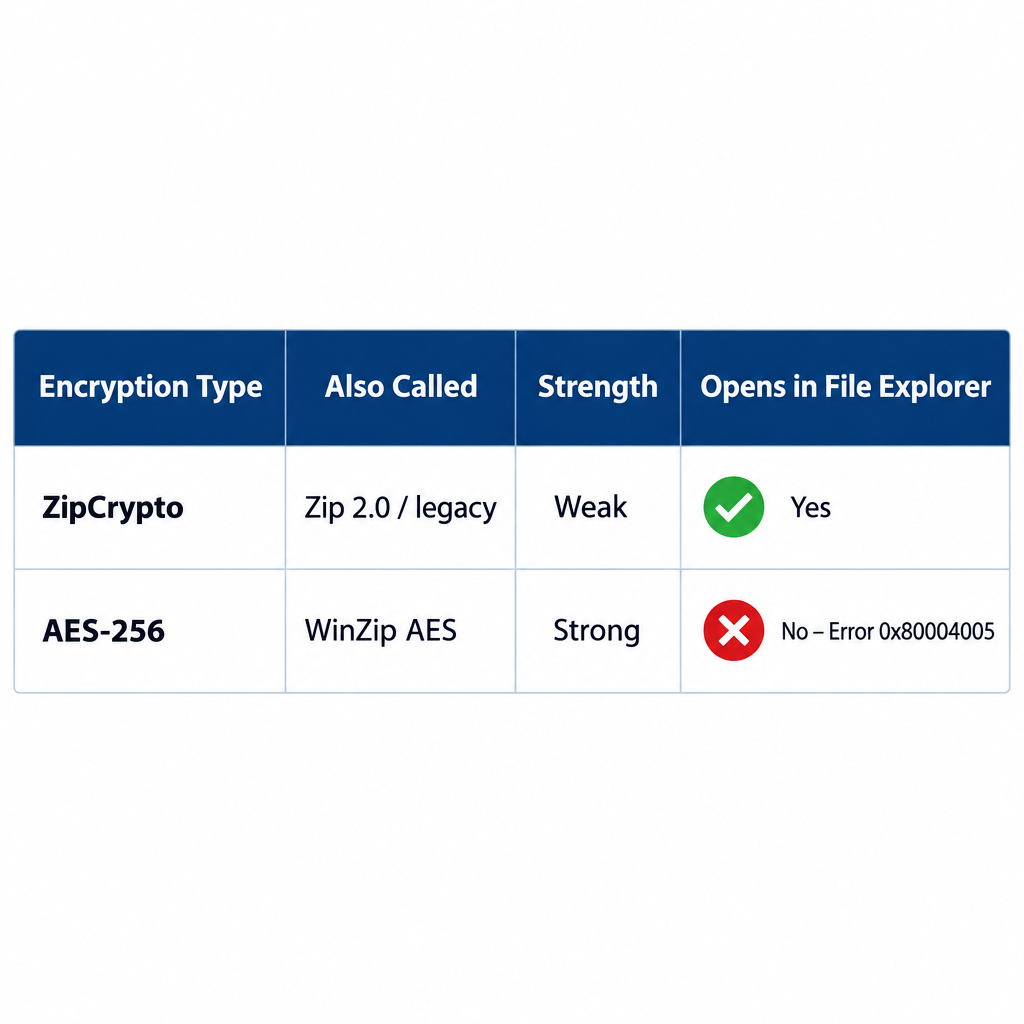
A zip file compresses files and folders so they take up less space and are easier to send. The zip format can also encrypt its contents with a password. It supports two kinds of encryption:
| Encryption type | Also called | Strength | Opens in File Explorer |
|---|---|---|---|
| ZipCrypto | Zip 2.0, legacy encryption | Weak, outdated | Yes |
| AES-256 | WinZip AES | Strong | No (error 0x80004005) |
Which kind you get depends on the program that made the zip. 7-Zip, WinZip, WinRAR and PeaZip can all create AES-256 zips, and 7-Zip offers both ZipCrypto and AES-256 when you set a password.
The safest way to share sensitive documents is to email an AES-encrypted zip and send the password some other way, such as a text message. Then anyone who intercepts the email still can’t open the files. Software vendors and websites also publish compressed zip files because they are smaller to download and attach.
Remote and hybrid work made zipped attachments part of everyday work. Teams zip up everything from client contracts to strategy decks, such as a deck titled “Business intelligence in strategic management” or a research brief on “Artificial intelligence in affiliate marketing”. When those files are confidential, a password keeps the contents private.
Manual method: extract a password protected zip in File Explorer
File Explorer can extract zips encrypted with ZipCrypto, with no extra software. It works the same way in Windows 10 and Windows 11.
If your mail system renamed the attachment
Some company mail systems change the extension of zip attachments so that email filters don’t block them. The file then ends in .zi_ instead of .zip, and the name is often a date and time stamp, for example 201409121831.zi_. Windows won’t recognise the file until you change the extension back.
- Save the attachment to your PC, for example to your Desktop or Downloads folder.
- Make file extensions visible. In Windows 11, open File Explorer and choose View > Show > File name extensions. In Windows 10, open the View tab and tick File name extensions.
- Right-click the file and choose Rename (in Windows 11 this is the rename icon at the top of the right-click menu, or you can press F2).
- With the name selected, change the underscore “_” at the end to a lower-case “p”, so .zi_ becomes .zip.
- Windows warns that the file might become unusable if you change its extension. Click Yes.
- Check that the extension now reads .zip and that the icon has changed to a zipped folder icon.
If your file already ends in.zip, skip straight to the next steps.
Extract the files with the password
- Right-click the zip file and choose Extract All…
- Pick the folder where the files should go, then click Extract.
- When the Password needed box appears, type the password and click OK.
If the password is correct, the files are extracted to the folder you picked.
If you get Error 0x80004005: Unspecified error or a message that Windows cannot complete the extraction, and you are sure the password is right, the zip is probably AES-256 encrypted. File Explorer can’t handle that, so use one of the tools in the next section.
Windows 11 also opens RAR, 7z and TAR archives natively since version 23H2. Password protected RAR and 7z archives are a different story: File Explorer reports that encrypted archive support is unavailable, so those need a dedicated archiver too.
Use a dedicated archive tool for AES-encrypted or damaged zips
A free archiver handles both common types of zip encryption, ZipCrypto and AES-256, so it is the right choice when File Explorer fails. 7-Zip is free and open source, and it is the simplest option. Download it only from its official website, 7-zip.org, and avoid look-alike download sites, which often bundle unwanted software.
If the zip opens but is damaged, for example after an interrupted download, a repair tool can sometimes save the files. SysTools Zip Repair is one paid example. It fixes problems such as invalid CRC checksums and broken file headers and directory structures, and it can save the recovered files compressed or uncompressed. The vendor offers a free demo and lists a full licence at $20. A repair tool still needs the correct password for an encrypted zip. It fixes damage. It does not unlock a file you have no password for.
Before you buy anything, download the zip again or ask the sender to send it again. That fixes most corrupted zips for free.
Steps to extract a password protected zip in Windows 11 or 10 with 7-Zip
These steps take a couple of minutes on Windows 10 or Windows 11.
- Download 7-Zip from 7-zip.org, choosing the 64-bit Windows installer for most PCs, and run it.
- Right-click the zip file. In Windows 11, choose Show more options (or press Shift+F10) to see the full menu.
- Choose 7-Zip > Extract to “folder name\” to extract everything into a new folder with the same name.
- Type the password when 7-Zip asks for it and click OK.
If you want to see what’s inside first, choose 7-Zip > Open archive. You can browse the file list there and extract only the files you need. If 7-Zip reports “Wrong password”, check that Caps Lock is off and that the password was copied without a trailing space.
For a damaged zip, the process in a repair tool such as SysTools Zip Repair is similar: install the tool from the vendor’s website, load the zip, preview the files it recovered, and click Extract to save them.
Why a dedicated tool helps
File Explorer is fine for simple zips. A dedicated tool is better in these situations:
- It supports more encryption methods. 7-Zip, WinRAR, WinZip and PeaZip open AES-256 zips that File Explorer rejects.
- It handles more archive types. Password protected 7z and RAR archives and split archives such as.7z.001 open in 7-Zip but not in File Explorer.
- It’s faster on big archives. In one published test, File Explorer took about 130 seconds to unpack a 6 GB 7z archive, while 7-Zip took about 20 seconds.
- Repair tools can save damaged files. A repair tool can recover files from a broken zip when you have the correct password.
Which method to use
Try File Explorer’s Extract All first, since it’s built in and works for many zips. If you get error 0x80004005 or an “unsupported” message, install 7-Zip from its official site and extract the file there. Pay for repair software only if a fresh copy of the zip is still damaged.
If you’re still on Windows 10, keep in mind that Microsoft ended mainstream support on October 14, 2025. Consumer Extended Security Updates now run until October 12, 2027, so make sure your PC is enrolled before you open attachments from other people.
FAQ
Can Windows 10 or 11 open password protected zip files without extra software?
Yes, if the zip uses the older ZipCrypto encryption. Right-click the file, choose Extract All, and enter the password. AES-256 encrypted zips fail with error 0x80004005, and you need a tool such as 7-Zip for those.
Why do I get error 0x80004005 when extracting a zip?
The most common cause is AES-256 encryption, which File Explorer’s built-in zip handler doesn’t support. The same error appears with zips compressed using methods such as BZip2, LZMA or PPMd. If 7-Zip also fails, the file is probably corrupt and should be downloaded again.
What if I forgot or never received the password?
Ask the sender for it. Microsoft confirms there is no supported way in Windows or File Explorer to bypass an unknown archive password. How hard a password is to guess depends on the password itself, and AES-256 encryption does not make a weak password safe.
Can Windows 11 open password protected RAR or 7z files?
Not with File Explorer. Windows 11 can extract RAR and 7z archives natively, but encrypted ones show an “unavailable” message. Free 7-Zip opens both when you enter the password.
Is 7-Zip safe to install?
Yes, when you download it from the official site, 7-zip.org. It is free and open source. Keep it up to date, because older versions have had security fixes, and avoid third-party download sites that copy its name.
Can I create a password protected zip in File Explorer?
No. File Explorer’s compress options in Windows 11 don’t include a password field. To create one, use 7-Zip: right-click the files, choose 7-Zip > Add to archive…, pick zip as the format, enter a password and choose AES-256 as the encryption method.
Sources
- 7-Zip official download page
- Microsoft: End of support for Windows 10, Windows 8.1, and Windows 7
- Microsoft Q&A: Removing the password to extract a file
- SysTools Zip Repair product page