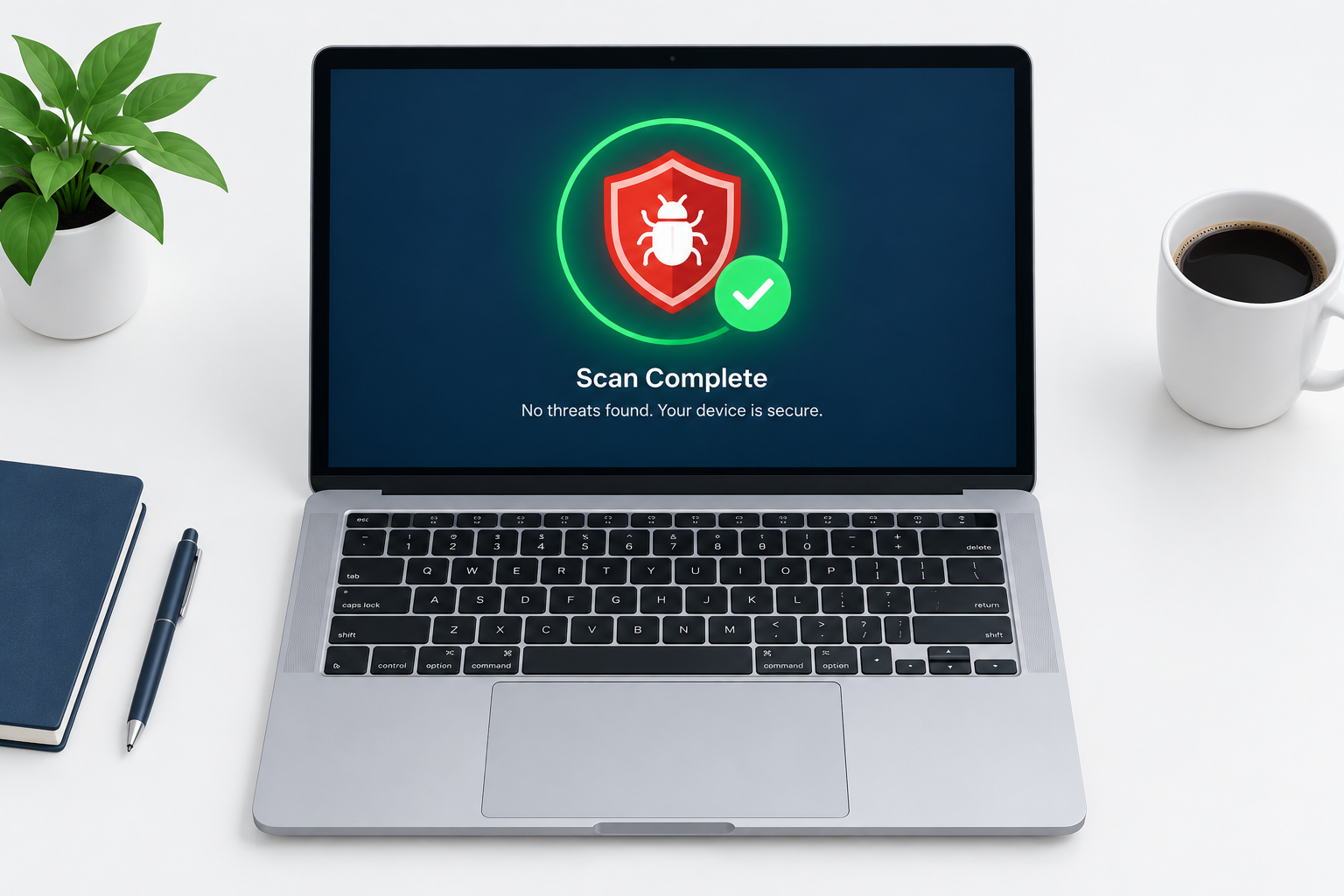
To get rid of malware on a Mac in November 2026, start by updating to the latest macOS (macOS 27.2 Golden Gate, released 26 October 2026). Then run a scan with a reputable anti-malware app and remove anything suspicious from Login Items, the Applications folder and your browser extensions. If you typed a command into Terminal because a website told you to, assume your passwords were stolen and change them from another device. If the problems keep coming back, back up your files, then erase the Mac and reinstall macOS or take it to Apple.
Malware is any malicious code or program designed to harm a computer, network or server. Many people believe Macs are safe from malware, but that is not true. Information stealers such as Atomic macOS Stealer (AMOS) went after Mac users throughout 2026. The steps below, along with the extra detail at this link, show how to get rid of malware on a Mac.
What is malware
Malware is the umbrella term for many kinds of harmful programs. It includes keyloggers, which record your keystrokes, and ransomware, which locks your files or screen until you pay. It also covers fake download managers, adware and other viruses. Malware can get your credit card details and other private data into criminals’ hands, or damage your device outright.
On Macs today, the most common threats are adware and information stealers. Security researchers at Jamf, Malwarebytes and Microsoft tracked AMOS campaigns through 2026. AMOS goes after Keychain data, saved browser passwords, cookies, credit card details and cryptocurrency wallets. Some variants, such as the “Odyssey” strain that Broadcom described, set themselves up as Launch Agents so they start every time you log in.
How to know if you have malware on your Mac
There are clear warning signs, but none of them proves an infection on its own. The only real proof is seeing the app yourself or getting a warning from macOS or anti-malware software. Common symptoms include:
- Slow performance or freezing
- Random ads, even on sites that normally have none
- A default search engine or homepage you did not choose
- Random restarts
- Fake security alerts telling you your Mac is “infected”
- Browser extensions or apps you do not remember installing
macOS has its own malware scanner, called XProtect. When it finds known malware, it blocks the file, moves it to the Bin and shows you an alert in the Finder. If you see one of these alerts, pay attention to it. A pop-up inside a web page that says your Mac is infected is different. That is almost always a scam.
The fastest way to remove malware
The fastest way to remove malware is to use anti-malware software. These apps find malicious files and remove them, which takes a person much longer to do by hand. Software spots known patterns better than people do, and one click can scan and clean the whole Mac.
Only use credible software from established security companies, such as Malwarebytes for Mac or Intego. Download it from the Mac App Store or the company’s own website. Fake “Mac cleaner” apps are a common way to spread malware, so steer clear of any app that a pop-up ad pushes on you.
Before you scan, install the latest updates in Apple menu > System Settings > General > Software Update. Updates also refresh XProtect’s malware definitions. By default, macOS checks for those every day.
Manual removal of malware
You can also remove malware by hand. For it to work, you usually need to do every step below, in this order.
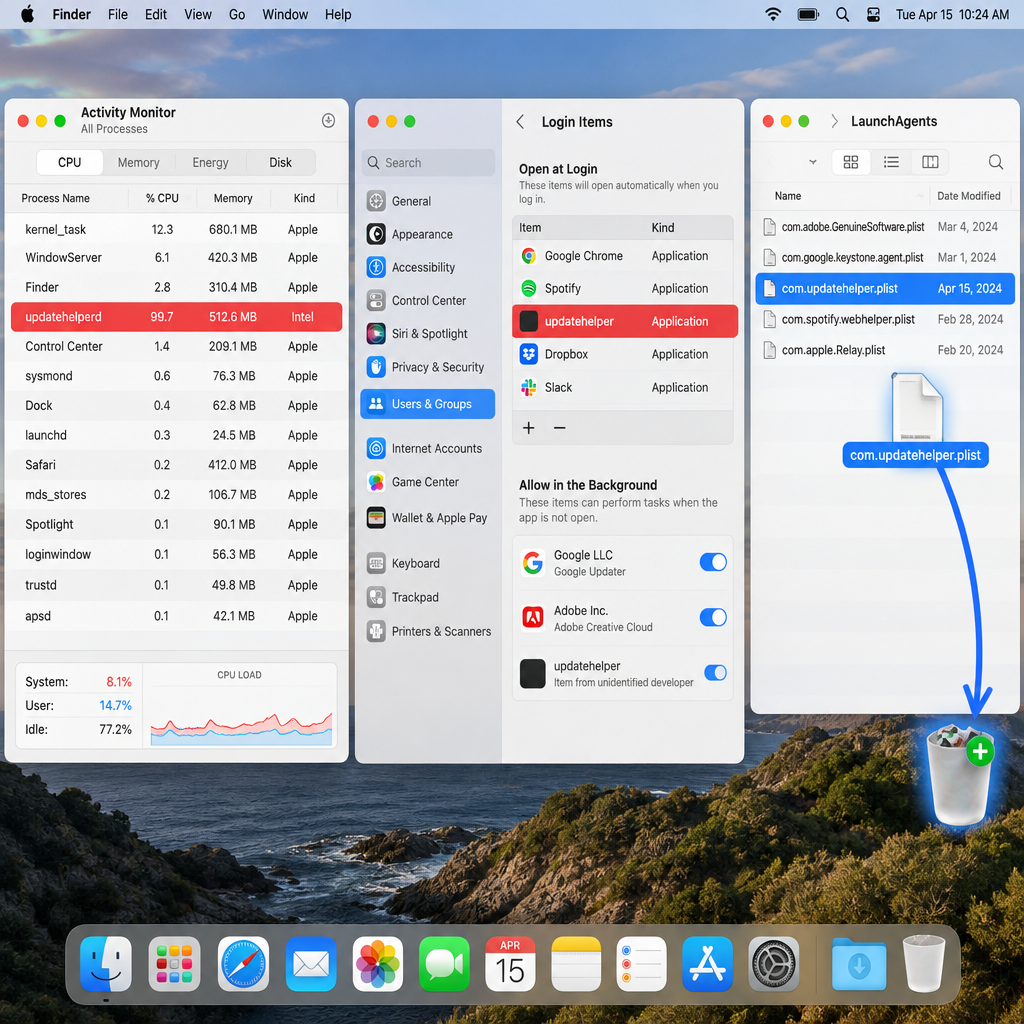
- Check Activity Monitor. Open Activity Monitor (it is in Applications > Utilities) and look for apps that use a lot of CPU or Memory. If one looks suspicious, write down its name and search for it online. Then select it and click the Stop (X) button to quit it.
- Check your Login Items. Go to Apple menu > System Settings > General > Login Items & Extensions. (On macOS Monterey and earlier, the path was System Preferences > Users & Groups > Login Items.) Under Open at Login, select anything you do not recognise and click the minus (-) button. Write down the names, then look elsewhere on the Mac for files that go with them. Also check the Allow in the Background list on the same screen.
- Delete the apps themselves. Look in the Applications folder and the Downloads folder. Drag suspicious apps to the Bin, then empty the Bin.
- Remove Launch Agents and Daemons. Malware often starts itself through small.plist files in three folders: ~/Library/LaunchAgents, /Library/LaunchAgents and /Library/LaunchDaemons. To open them, use Go > Go to Folder in the Finder. Only move files to the Bin if their names match the suspicious app you found. Many legitimate apps keep files here too. Empty the Bin, then restart. You can also check ~/Library/Caches for leftover folders with the same name.
- Check for configuration profiles. Some adware installs a profile that locks your browser settings. Go to System Settings > General > Device Management. If you see a profile you did not add and your Mac is not managed by work or school, select it and remove it.
- Clean up your browsers. Adware lives in browser extensions. In Safari, go to Safari > Settings > Extensions and uninstall anything you do not recognise. Then reset your homepage in Safari > Settings > General and your search engine in Safari > Settings > Search. Do this in every browser on your Mac. In Chrome, extensions are under the three-dot menu > Extensions > Manage Extensions.
- Block pop-ups. In Safari, go to Safari > Settings > Websites and click Pop-up Windows in the sidebar, near the bottom of the list. Set “When visiting other websites” to Block, or to Block and Notify. Do the same for Chrome: go to the three-dot menu > Settings > Privacy and security > Site settings > Pop-ups and redirects, and choose not to allow sites to send pop-ups. Apple notes that if pop-ups continue after you block them, the Mac may have unwanted software.
If you think a stealer ran on your Mac, cleaning the Mac is only half the job. Use a different, clean device to change your important passwords, starting with email, banking and your Apple Account. Then turn on two-factor authentication and contact your bank about any cards that were saved in the browser.
If the malware keeps coming back, stop and get help. Back up only your personal files, not apps. Then erase the Mac and reinstall macOS, or book a visit with Apple Support or an Apple Authorised Service Provider.
How to prevent your Mac from getting malware
Preventing malware comes down to two things: the software you run and how you behave online. For software, always keep your Mac up to date. If you fall behind on macOS updates, you miss the latest security fixes and take on much more risk.
In System Settings > General > Software Update, click the info (i) button next to Automatic Updates. Make sure “Install Security Responses and system files” is turned on. This lets Apple install XProtect updates and Background Security Improvements without a full macOS update. Background Security Improvements replaced the older Rapid Security Responses.
Also check System Settings > Privacy & Security. Under Security, “Allow applications from” should say App Store, or App Store & Known Developers. Do not try to get around Gatekeeper’s warnings for an app you are unsure about.
As mentioned earlier, anti-malware software is also useful before anything goes wrong. It can run in the background and flag suspicious files the moment they appear, which catches an infection early.
In the end, your own behaviour is the biggest risk to your Mac. Opening suspicious links in messages and clicking pop-up ads are among the main causes of infection. The biggest Mac threat of 2026 is the “ClickFix” trick. A fake “verify you are human” or “fix your Mac” page asks you to paste a command into Terminal or run a script in Script Editor. Genuine websites and genuine macOS fixes never ask you to do this. macOS 26.4 added a check for pasted Terminal commands, but attackers quickly moved on to Script Editor, so do not rely on the check alone. It is worth learning how phishing attacks work so you do not take needless risks.
Avoiding the shady side of the internet also helps a lot. Illegal streams, torrent sites and adult websites carry a lot of risk. Their pop-up ads can sometimes hijack your browser on their own, so it is best to avoid these sites completely. In 2026, attackers also took over legitimate small-business WordPress sites and built lookalike “Download for macOS” pages, so a familiar-looking site is not proof that it is safe. Stick to the App Store when you download software. Research any app from outside the App Store carefully and download it only from the developer’s own site. And keep your Mac up to date.
FAQ
Can Macs get viruses and malware?
Yes. Macs get less malware than Windows PCs, but adware and information stealers aimed at macOS are common. AMOS and similar stealers were spread widely in 2026 through fake websites and ClickFix pages.
Does a Mac need antivirus software?
macOS has built-in protection: XProtect, Gatekeeper and Apple’s notarization checks for apps. For many careful users, that plus regular updates is enough. A reputable anti-malware app is still worth having if you download a lot from outside the App Store, or if you want a second opinion after something strange happens.
Is the “your Mac is infected” pop-up in my browser real?
Almost never. Scam pages show these warnings to push you into installing fake cleaners or calling fake support lines. Close the tab, or quit the browser if the page will not let you leave. Do not call any number on the page or download anything it offers.
Will erasing my Mac remove malware?
Erasing the Mac and reinstalling macOS removes almost all malware. Restore only your personal files from the backup, not old apps, or you may bring the infection back. It will not undo stolen passwords, so change those from a clean device either way.
What should I do if I pasted a command into Terminal from a website?
Disconnect from the internet, then run a scan with a reputable anti-malware app and check your Login Items and LaunchAgents folders. Change your passwords from a different device and tell your bank about any saved cards. If you kept cryptocurrency on the Mac, move it to a new wallet created on a clean device.
Sources
- Apple Support: Safely open apps on your Mac
- Apple Platform Security: Protecting against malware in macOS
- Apple Mac User Guide: Open items automatically when you log in
- Apple Safari User Guide: Allow or block pop-ups in Safari on Mac
- Apple Support: About background updates in macOS
- Google Chrome Help: Block or allow pop-ups in Chrome