If several people answer the same address, such as support@ or info@, you need a shared inbox tool, not a shared password. As of November 2026, the strongest choices are Front, Help Scout, Missive and Helpwise if your team wants a separate app, Hiver, Drag or Gmelius if your team wants to stay inside Gmail, and Emailgistics if you live in Outlook and Microsoft 365. Cerb suits teams that want to host the system on their own servers. Outpost, which used to appear on lists like this one, was discontinued in December 2021, so leave it off your shortlist.
A shared inbox is an email inbox that several users can open, usually under an alias like support@ or info@. No single person owns it. A team runs it instead. For example, the whole customer support team can work in support@, and together they make sure every email gets a quick answer.
Why you need shared inbox software
Without assignment, two agents reply to the same customer with different answers, threads nobody claimed sit unanswered for days, and with one shared login you can’t tell who sent what. A shared inbox tool fixes all three: every conversation has one owner, a teammate’s reply shows up before you start typing, and each agent signs in with their own login, so you get an audit trail and can revoke access per person.
Do you need a tool, or will Google Groups or a Microsoft 365 shared mailbox do?
If your team is small, handles one address and mostly needs everyone to see the same mail, the free built-ins are enough. Once you need collision warnings, internal notes, response-time reports or more than one channel, a dedicated tool pays for itself.
Google Workspace has the Collaborative Inbox feature in Google Groups, and Microsoft 365 has the shared mailbox. Here is how they compare on the features that matter most.
| Feature | Google Groups Collaborative Inbox | Microsoft 365 shared mailbox |
|---|---|---|
| Assignment | Yes: assign a conversation to a member or take it yourself | No built-in assignment |
| Status tracking | Mark conversations as resolved or no action needed | None beyond read/unread, flags and folders |
| Collision detection | No | No |
| Internal notes | No | No |
| User limits | Set by group membership | No fixed cap; each person who opens it needs their own Exchange Online license |
| Storage | Group archive in Google Groups | 50 GB without a license, 100 GB with an Exchange Online Plan 2 license |
| External access | Can receive mail from outside; outside members only if your admin allows it | Built for licensed users in your organization; Microsoft says not to sign in to the mailbox account directly |
| Price | Included with Google Workspace | Included with Microsoft 365 business plans that include Exchange Online; the mailbox itself needs no license up to 50 GB |
The weak spot for both is collaboration. Neither one warns you that a teammate is already replying, and neither has notes that customers can’t see. That gap is exactly what tools like Hiver and Emailgistics sell into, since they add those features on top of the inbox you already have.
How to access a shared inbox
How you open a shared inbox depends on the system behind it. Your admin has to give you access first in all three cases.
- Outlook (Microsoft 365 shared mailbox): If you were given Full Access, classic Outlook for Windows usually adds the mailbox to your folder list by itself after a restart. To add it by hand, go to File > Account Settings > Account Settings, select your account, click Change > More Settings > Advanced, then click Add and type the shared mailbox name. In new Outlook and Outlook on the web, right-click Folders (or your account name) and choose Add shared folder or mailbox.
- Google Groups: Go to groups.google.com, open the group and select Conversations. A group owner turns on the feature under Group settings > Enable additional Google Groups features > Collaborative Inbox. After that, members can assign conversations and mark them resolved.
- Gmail delegation: The account owner opens Settings (gear icon) > See all settings > Accounts (or Accounts and Import), then chooses Grant access to your account > Add another account. The delegate accepts the invite, then switches to the shared account from their profile picture menu in Gmail. On Google Workspace, an admin has to allow delegation first.
Shared inbox software features
Most shared inbox tools are built around these six capabilities.
1. Group email management
Every shared inbox tool’s core job is handling addresses like support@ and info@. When all your shared inboxes sit in one place, nobody has to log into separate accounts or switch between windows. Your team answers faster and fewer emails get missed. Assigning each new email to a specific person also tells everyone what they are responsible for, which prevents duplicate replies and forgotten emails.
2. Collision detection
A collision happens when two people on your team answer the same customer and give them different information. A shared inbox prevents this by assigning incoming emails to specific agents. Assignment can be automatic, through routing rules, or manual, where agents claim the next conversation in the queue. Many tools also show a live warning when a teammate is already viewing or replying to a message.
3. Automated emails
Most shared inbox tools offer macros and canned responses (also called saved replies or templates). For simple customer questions, these let your team answer faster and spend more time on the harder cases. Because the replies are tested and reused, answers also stay consistent and accurate.
4. Internal discussions
Internal notes let your team add context directly to an email. They save time and help you write personal replies, because everyone on the team can see the relevant details. Most shared inbox tools let you talk with colleagues in comments on the original email, so you don’t need to forward it or hit “reply all”.
5. Insights and analytics
Not every shared inbox tool includes analytics, but it is well worth having. Tracking response times and team performance shows whether you are hitting your targets, when you need to hire more support staff, and where you need to improve. Customer retention metrics tell you the rest of the story: if response times are climbing and repeat customers are dropping, your inbox is likely part of the reason.
6. AI triage and reply drafting
Most shared inbox tools now sell AI features. They are worth testing, but the pricing varies more here than anywhere else. Check four things:
- Auto-tagging and routing: Can it read an incoming email, tag it (billing, refund, bug) and send it to the right person or team? This saves the most time, because it cuts out the manual sorting at the top of the queue.
- Suggested replies: Does it draft an answer from your saved replies and past conversations, or from generic text? Drafts built from your own help content need far less editing.
- Summaries: A short summary of a long thread speeds up handoffs between agents and shifts.
- Human review: Can you require that an agent approves every AI draft before it sends? Features that answer customers on their own should come with clear limits and an easy way to pass the conversation to a person.
Watch how AI is billed. Front charges per seat for Copilot plus a fee per conversation for Autopilot. Help Scout charges per AI resolution. Missive meters AI usage through credits. A tool that looks cheap per seat can cost a lot more once AI is switched on for the whole team.
Quick comparison
The tools below were picked for where your email already lives, how well they handle the basics (assignment, collision detection and notes) and how clearly they publish their prices. Prices are per user (or seat) per month on annual billing unless noted.
| Tool | Works with | Best fit | Starting price | Free plan? | AI features |
|---|---|---|---|---|---|
| Helpmonks | Gmail, Microsoft 365, mail forwarded from your own server | Teams that want inbox plus CRM features | Per-user plans | Free trial | Check plan |
| Kayako | Gmail, Microsoft 365 | Help desk with email, chat and social in one place | Single Kayako One plan | Free trial | Sold as an AI-first help desk |
| Front | Gmail, Microsoft 365 | Multichannel teams with many integrations | $25 per seat | No | Copilot $20 per seat add-on; Autopilot billed per conversation |
| Missive | Gmail, Microsoft 365, iCloud, any IMAP account | Teams that want one app for all email and messaging | $14 (Starter, up to 5 users) | No (30-day trial) | AI Assistant on Productive and Business, usage metered |
| Hiver | Gmail (Outlook support is newer) | Gmail teams that don’t want a new interface | $25 (Growth) | No (7-day trial) | Varies by plan |
| Helpwise | Gmail, Microsoft 365, mail forwarded from your own server | Email plus SMS, WhatsApp and live chat | Per-user plans | Free trial | Check plan |
| Help Scout | Any email provider (via forwarding) | Support teams that also want a knowledge base | $25 (Standard) | Yes (5 users, 1 inbox) | AI Answers $0.75 per resolution |
| Cerb | Your own mail server, self-hosted or Cerb Cloud | Teams that want deep customization | First self-hosted seat free | Yes (1 self-hosted seat) | Check plan |
| DragApp | Gmail and Google Workspace | Kanban-style boards inside Gmail | $12 (Starter) | No (7-day trial) | Varley AI from the $18 plan |
| Gmelius | Gmail and Google Workspace | Gmail teams that want shared inboxes plus automation | $25 (Growth, first tier with shared inboxes) | Free trial | Check plan |
| Emailgistics | Outlook and Microsoft 365 shared mailboxes | Microsoft 365 teams that want to stay in Outlook | $11 (Starter) | No (14-day trial) | Check plan |
Looking for an Outpost replacement? Missive, Drag and Helpmonks all publish pages aimed at former Outpost teams.
1. Helpmonks
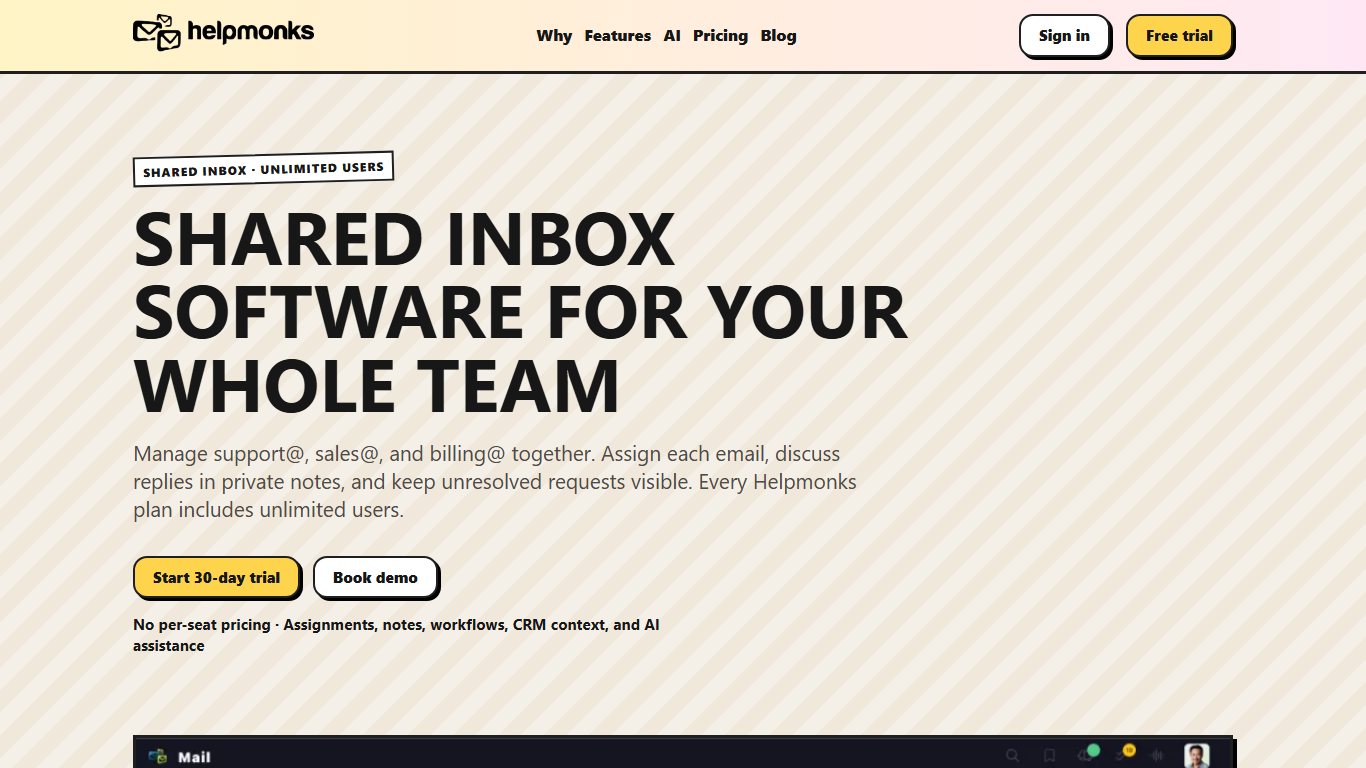
Best for: Teams that want a shared inbox with CRM-style customer records
Supported email inboxes: Gmail and Microsoft 365, plus mail forwarded from your own server
Price: Per-user paid plans
Free plan: No, free trial
Helpmonks is one of the few shared inbox tools that works with mail from your own server while still offering the basics: internal notes, email assignment, auto-tagging and automatic replies. It can also store customer data, which turns your shared inbox into a full CRM. That makes it a good fit for small businesses where the same people handle sales questions and support requests and want one history per customer. Check Helpmonks’ current plans for any AI features before you count on them.
Why it stands out
- Automated triggers tag, sort and assign conversations to the right team based on their content, which takes the chaos out of a shared inbox.
- Several agents can work in the inbox at once, and built-in collision protection keeps them off the same emails.
Watch out for
- The CRM side adds setup work. If you only need assignment and notes, a lighter tool will be quicker to roll out.
2. Kayako

Best for: Support teams that want email, social and chat in one help desk
Supported email inboxes: Gmail, Microsoft 365
Price: Single plan, Kayako One
Free plan: No, free trial
Kayako is a full-featured help desk that includes a shared inbox. The inbox brings a customer’s email, Facebook, X (formerly Twitter) and live chat conversations into one place, organized and easy to find. Its SingleView feature shows each customer’s full history on one record. Kayako also reports on customer satisfaction and first reply time. The company has since moved to a single plan called Kayako One and now markets itself as an AI-first help desk, so AI sits at the center of the product rather than as a bolt-on.
Why it stands out
- All customer conversations across social channels sit in one shared inbox, and emails are assigned automatically based on their content.
- Your team can chat behind the scenes to ask questions and make sure customers get the most relevant answer.
Watch out for
- With one plan instead of tiers, a small team can’t start on a cheaper entry level. Check the current plan details before you sign up.
3. Front
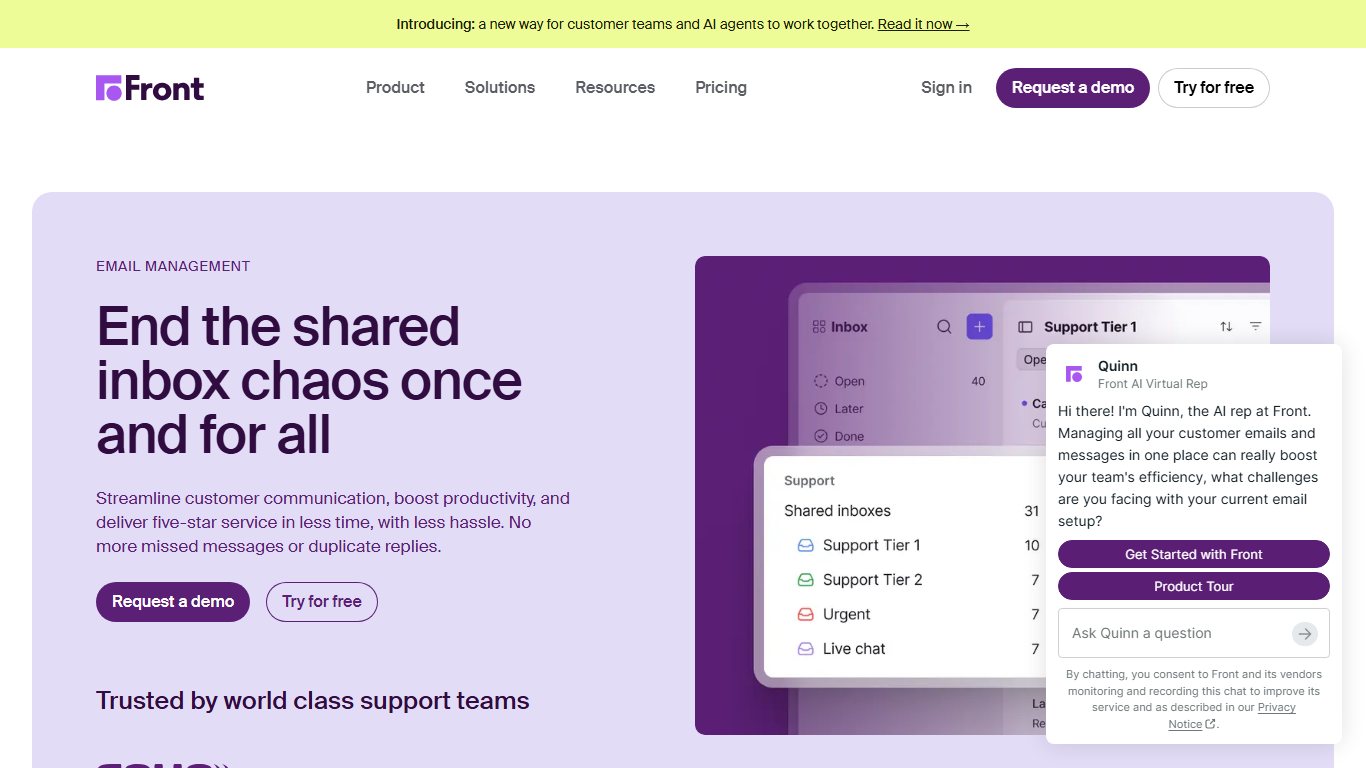
Best for: Multichannel teams that need many integrations
Supported email inboxes: Gmail, Microsoft 365
Price: From $25 per seat per month (Starter, up to 10 seats), $65 (Professional, up to 50 seats) or $105 (Enterprise), billed annually
Free plan: No
Front is one of the best-known shared inbox tools, and its focus is saving time by bringing all your accounts into one place. You can answer email, SMS, WhatsApp, Facebook, X and live chat messages in the app. WhatsApp is an add-on that a company admin has to enable before teammates can connect a number to an inbox. Front also lets a team edit a draft email together, much like Google Docs, and it connects to a long list of other apps, from Asana to HubSpot.
AI costs extra on Starter and Professional: Copilot is $20 per seat per month, and Autopilot bills each conversation once, at $0.05 for triage, $0.39 for a handoff or $0.89 for a resolution.
Why it stands out
- Collaboration is easy: you tag people in email comments to ask questions or get context.
- It integrates with popular CRMs and business apps, so it fits around the way your team already works.
Watch out for
- Add Copilot to Professional and each seat costs $85 a month, not $65.
- Starter stops at 10 seats, and Enterprise is annual billing only.
4. Missive
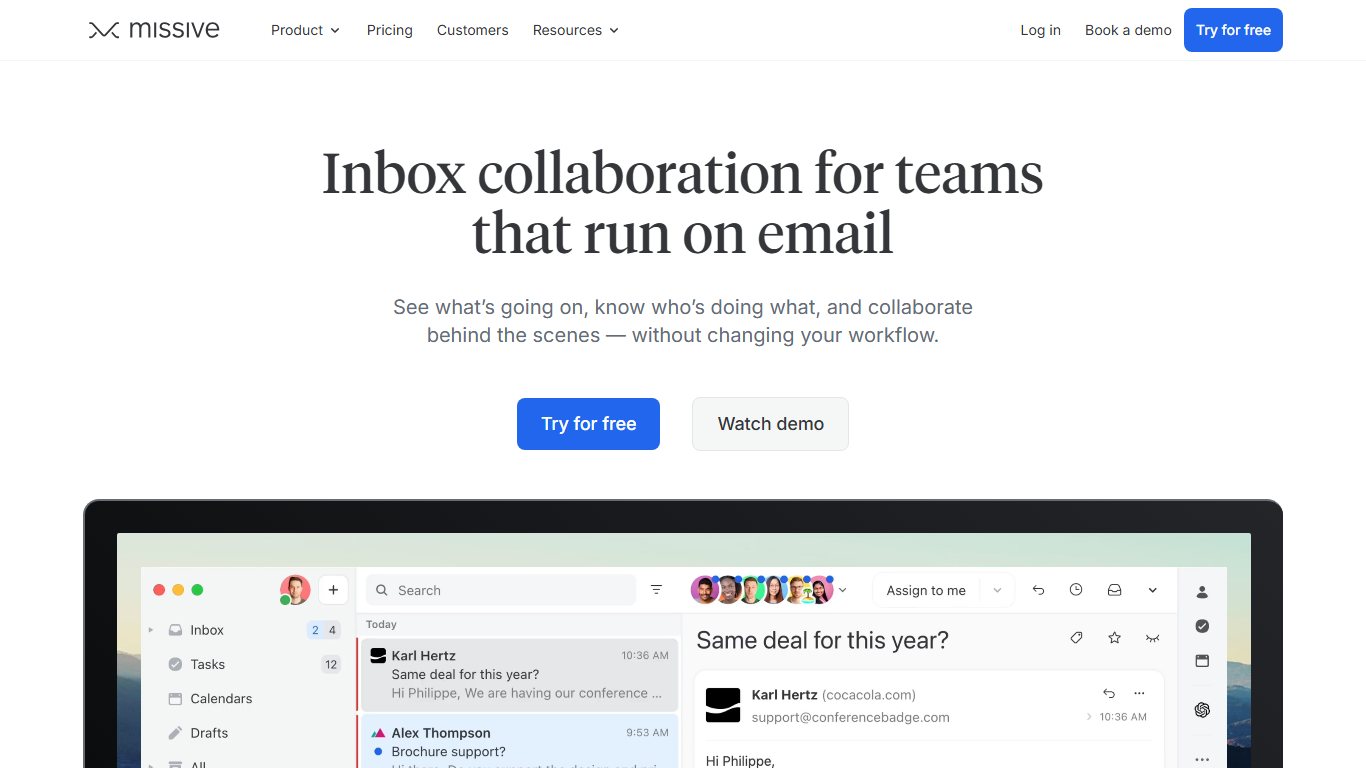
Best for: Teams that want one app for all their email and messaging
Supported email inboxes: Gmail, Microsoft 365, Outlook, Exchange, iCloud and any IMAP account
Price: $14 per user per month (Starter, up to 5 users), $24 (Productive, up to 50 users) or $36 (Business), billed yearly; $18, $30 and $45 billed monthly
Free plan: No, a 30-day trial of Productive
Missive isn’t strictly a shared inbox tool. It is a full email client. The company’s philosophy is that “the email part of the application needs to be so excellent, that users want to consume all their email accounts in it.”
That’s why Missive shows all your email accounts, personal ones included. It connects to Gmail and Outlook through a normal sign-in and to other providers through IMAP. It also handles WhatsApp Business, SMS (through Twilio), Messenger, Instagram and website live chat. Missive runs on the web, Mac, Windows, iOS and Android. On phones, new-message alerts reach you through Apple’s and Google’s Push Notification Services, so the team sees urgent messages even with the app closed.
The AI Assistant comes with Productive and Business, not Starter, and usage is metered through Missive AI credits.
Why it stands out
- It assigns conversations to the right teams based on their content, which ends the confusion of sorting through emails.
- Support teams can easily work together in email comments, including inside WhatsApp conversations.
Watch out for
- Your whole team moves into Missive’s app instead of staying in Gmail or Outlook.
- Missive no longer has a free plan, and Starter caps you at five users with no AI.
5. Hiver
Best for: Gmail teams that don’t want a new interface
Supported email inboxes: Gmail (Outlook support is newer)
Price: $25 per user per month (Growth), $55 (Pro) or $85 (Elite), billed annually; $35, $65 and $95 billed monthly
Free plan: No longer listed; a 7-day trial instead
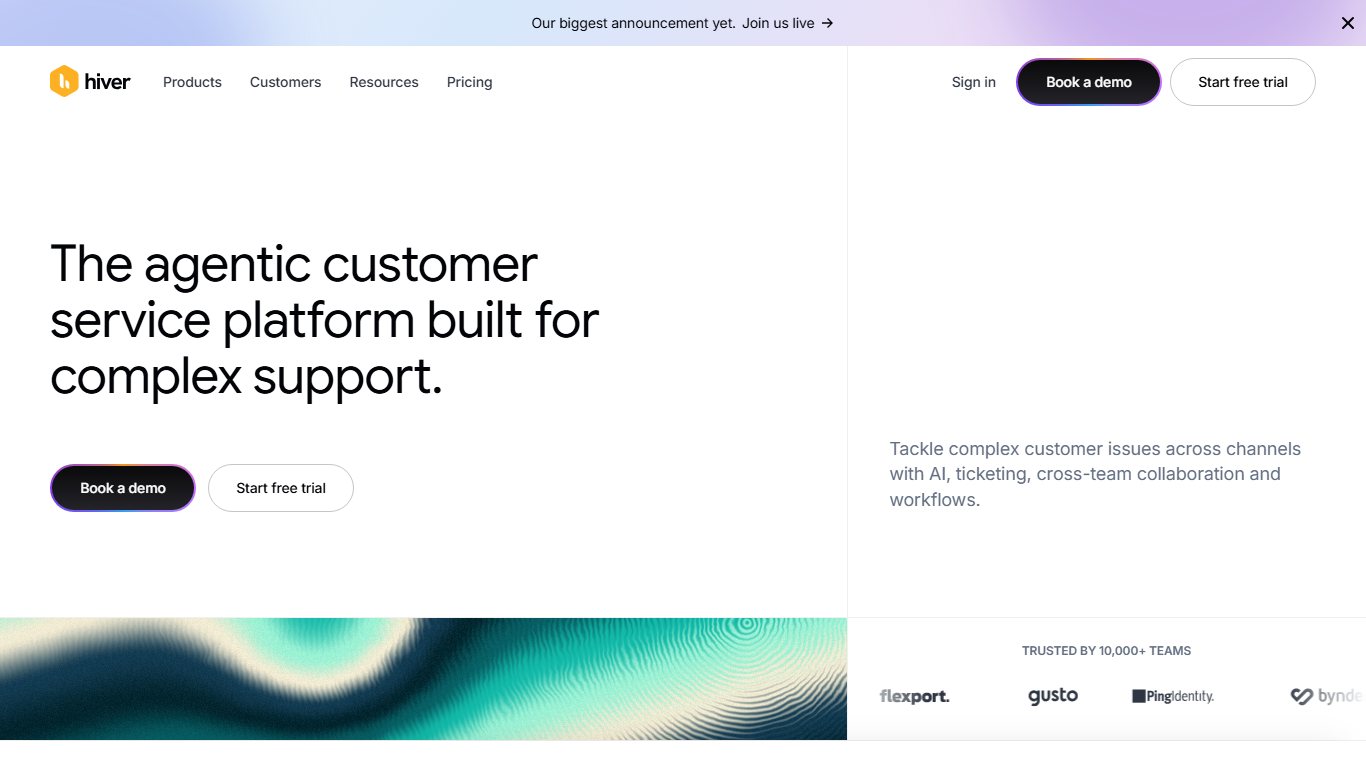
If your team uses Gmail, Hiver is a strong choice. It runs as a Chrome extension and lets you manage and share inboxes right inside Gmail. Because you keep the Gmail interface you already know, there is very little to learn. It covers the usual shared inbox features: automation, tags, internal discussions, collision detection, SLA tracking and email assignment. AI features vary by tier, so confirm which ones your plan includes before you roll it out.
Why it stands out
- You can easily hand off tasks and track each email’s progress, so customers get help on time.
- You can comment, chat and share notes with your team without leaving Gmail.
Watch out for
- Hiver has added Outlook support, but it is still newer and less mature than the Gmail version.
- Growth is capped at 10 users, so a growing team will have to move up to Pro.
6. Helpwise
Best for: Teams that handle email alongside SMS, WhatsApp and live chat
Supported email inboxes: Gmail, Microsoft 365, Helpwise servers, and mail forwarded from your own server
Price: Per-user plans, with more channels on higher tiers
Free plan: No, free trial
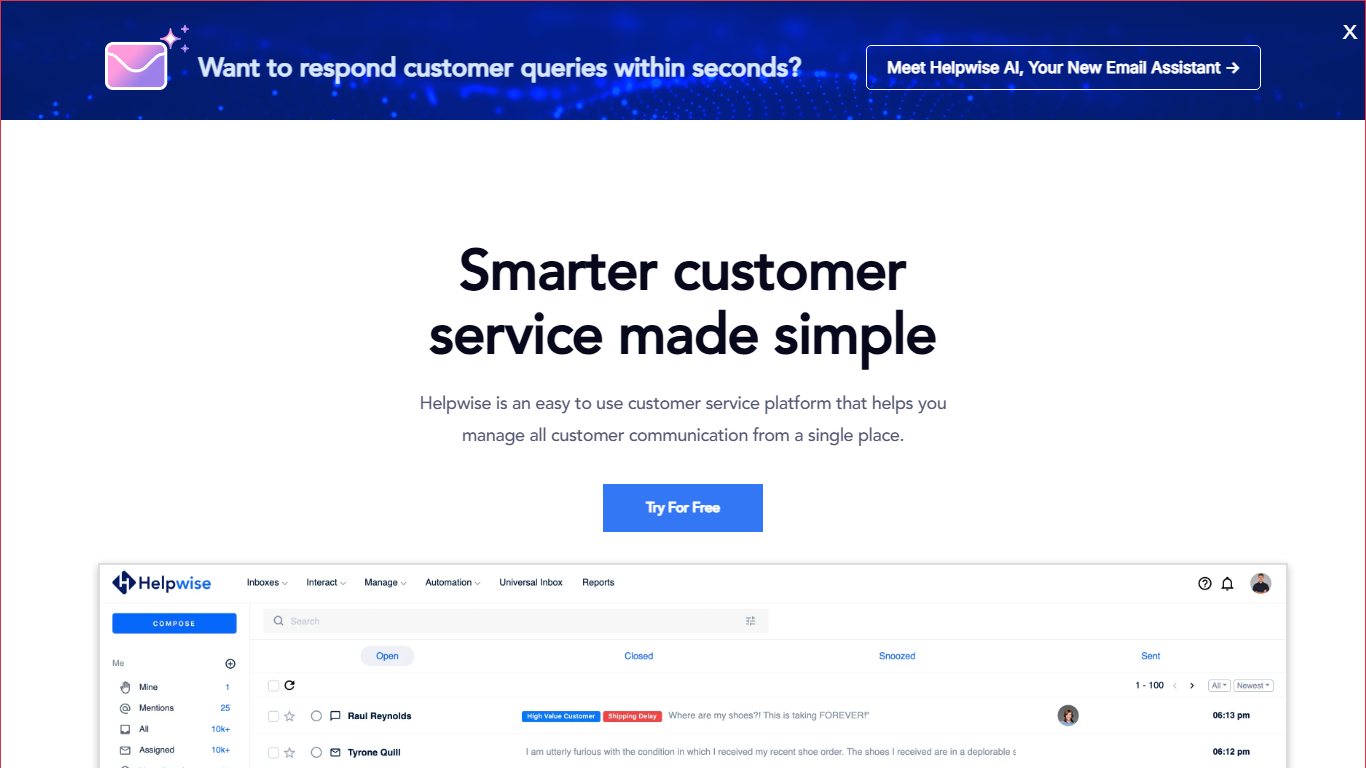
Helpwise is a shared inbox for email, SMS, WhatsApp, live chat and social media. There’s no shared password to pass around. Each user signs in with their own account, so access can be revoked for one person without changing the inbox password for everyone else. You can chat with teammates in real time and assign or tag messages to the right person. Built-in collision detection prevents duplicate replies. Check the current plan list for AI features, since they aren’t on every tier.
Why it stands out
- You can see customer conversations from all your support channels in one place, from SMS and email to WhatsApp and social media.
- It integrates with popular business tools, so your team has the customer’s context before replying.
Watch out for
- Some channels are only included on higher plans, so check which ones your plan covers before you promise WhatsApp or SMS support.
7. Help Scout
Best for: Support teams that also want a knowledge base
Supported email inboxes: Any email provider
Price: $25 per user per month (Standard), $45 (Plus) or $75 (Pro), billed annually; Standard is $30 billed monthly
Free plan: Yes, up to 5 users, one shared inbox, one Docs site and 100 helped contacts a month
Help Scout puts its shared inbox first, but it is a complete platform with a knowledge base and website live chat. Your team can see all the activity for a contact, including saved replies and private notes. The interface is clean, and automated workflows cut the time agents spend on each task. It also integrates with HubSpot. Paid plans include unlimited customer contacts. The AI Answers feature costs $0.75 per resolution after a free trial, charged only when the AI resolves a question without passing it to a person.
Why it stands out
- You can set up automatic replies to emails with certain subject lines, which handles basic questions and frees your team for the complicated ones.
- Mentions let you tag other agents in a conversation to bring an issue to their attention.
Watch out for
- The free plan has no live chat, and it stops at 100 helped contacts a month.
- AI Answers bills per resolution, so costs climb as volume grows.
8. Cerb
Best for: Technical teams that want full control and deep customization
Supported email inboxes: Your own mail server, self-hosted or through Cerb Cloud
Price: First self-hosted seat free; paid seats and Cerb Cloud for larger teams
Free plan: Yes, one self-hosted seat
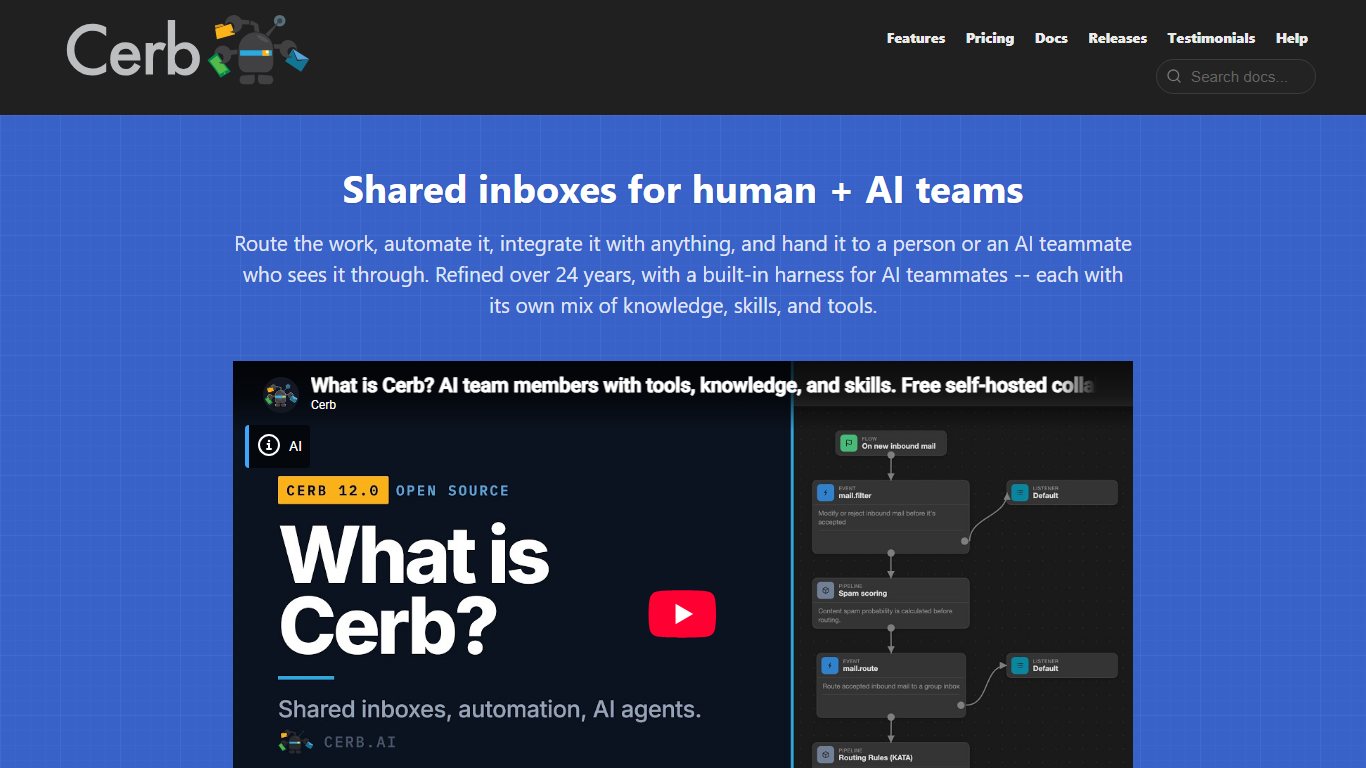
Unlike the ready-made tools on this list, Cerb is a fully customizable platform for building your own team workspaces. Along with the shared inbox, it offers notifications, calendars, project boards and community portals. It also comes with webhooks, plugins, a REST API and a workflow automation editor. You can run Cerb yourself in Docker on your own hardware, or use the hosted Cerb Cloud, which stores data in the US, Frankfurt or Sydney. Its pitch centers on rule-based automation through the workflow editor, so confirm any AI features with Cerb directly.
Why it stands out
- It is a highly customizable shared inbox that you can shape around how you serve customers.
- Project tools like SLA tracking and calendars keep the team’s workflow simple.
Watch out for
- Cerb’s flexibility takes far more setup than lighter tools, so plan time for someone technical to configure it.
- Self-hosting means you handle servers, backups and upgrades yourself.
9. DragApp
Best for: Gmail teams that think in task boards
Supported email inboxes: Gmail and Google Workspace
Price: $12 per user per month (Starter), $18 (Plus) or $24 (Pro), billed annually
Free plan: No, a 7-day trial with no credit card and no seat minimum
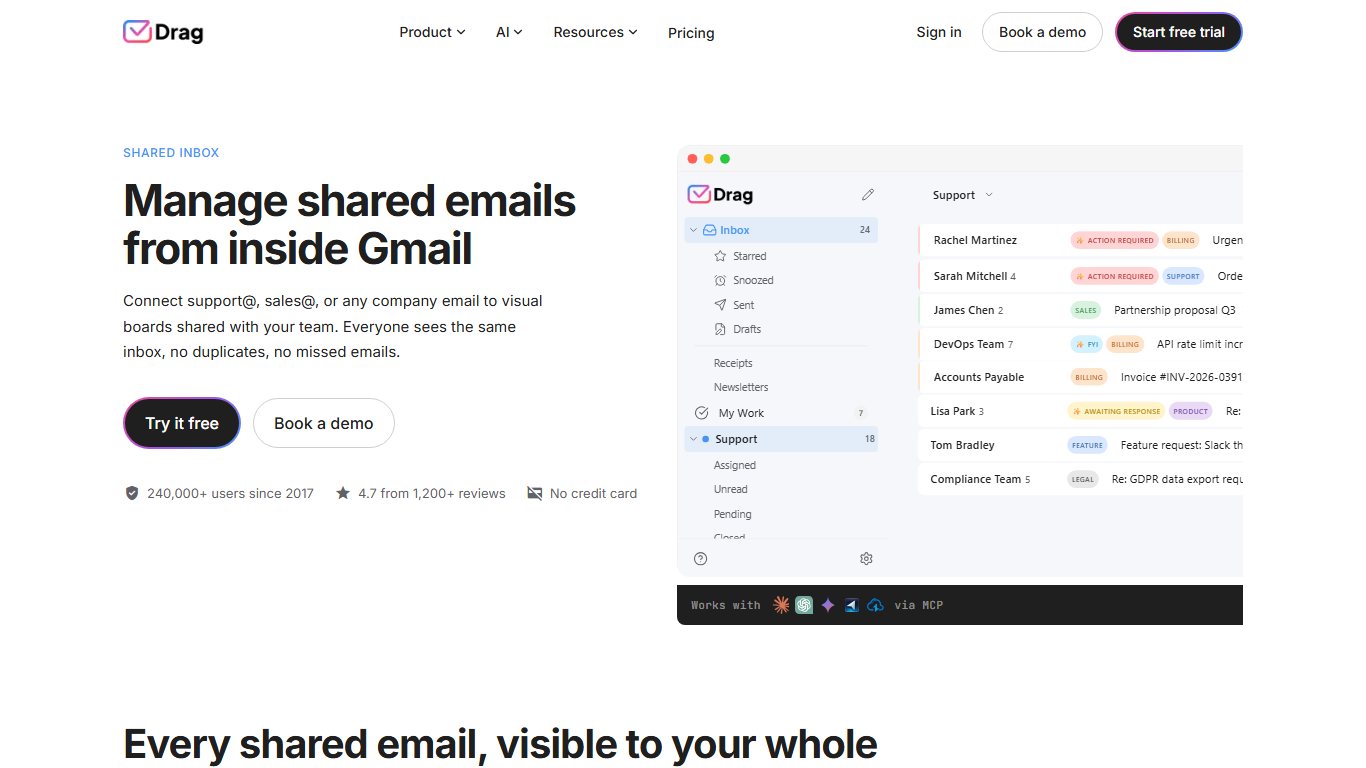
DragApp (now usually just called Drag) is a shared workspace that promises “everything teams need to get work done.” It combines a shared inbox, task management and team chat. The shared inbox includes an activity log, email assignment and notes, shared drafts, collision detection and automated workflows. You can reply as yourself, as your team or as the shared address, such as support@. Drag runs as a Gmail add-on with a Chrome extension, and it has iOS and Android apps. Its AI, called Varley, is included from the $18 plan up.
Why it stands out
- Kanban-style boards let you set up columns inside Gmail that sort emails by content, so each person quickly finds their conversations.
- No seat minimum makes it easy to start with two or three people.
Watch out for
- It only works with Gmail and Google Workspace, so a team on Outlook can’t use it.
10. Gmelius
Best for: Gmail teams that want shared inboxes plus workflow automation
Supported email inboxes: Gmail and Google Workspace
Price: Shared inboxes start on Growth at $25 per user per month, billed annually; Pro is $40, and Enterprise is quote-only with a 50-user minimum
Free plan: No, free trial
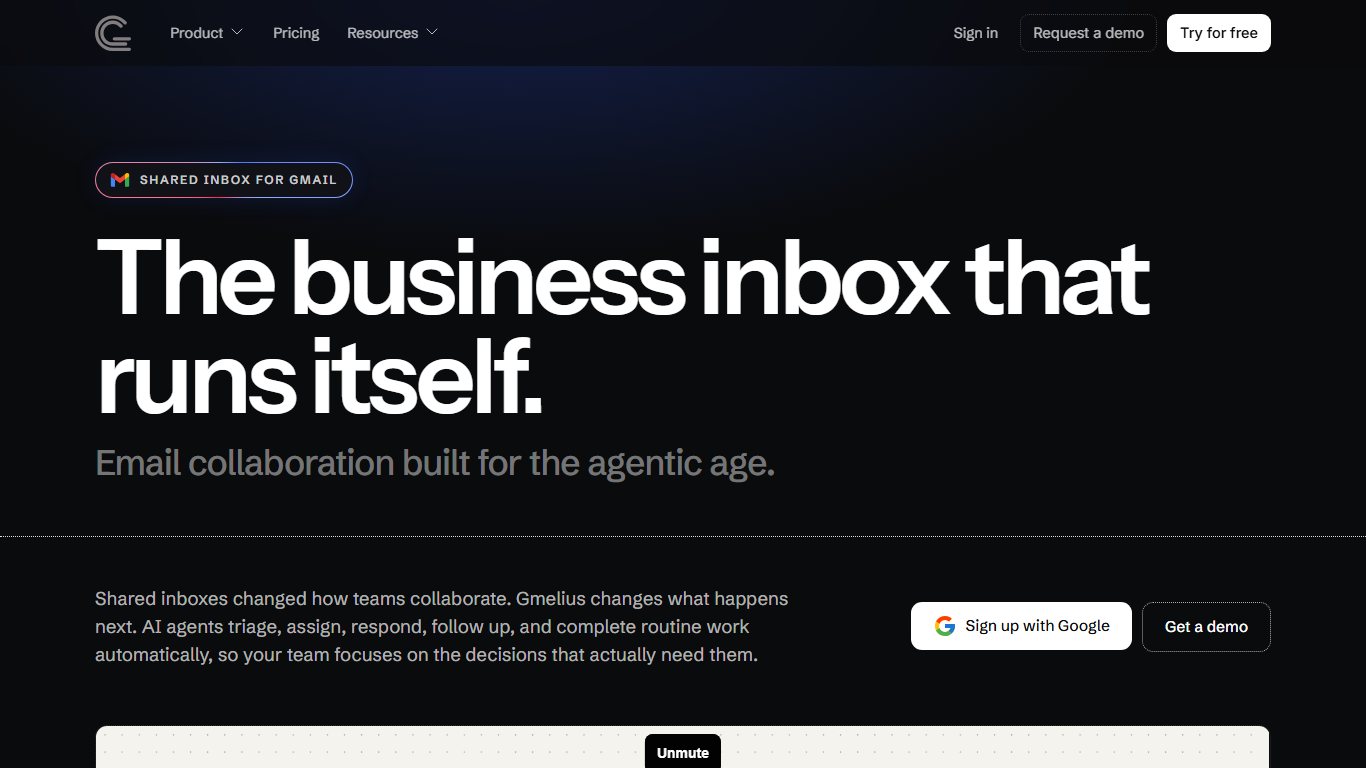
Gmelius is a direct rival to Hiver and Drag: it adds shared inboxes, assignment, shared labels, notes and automation on top of Gmail, so your team keeps working in the interface it knows. Pricing is per user, not per shared inbox, so adding a second address such as billing@ doesn’t add cost. That suits small teams that run several aliases with the same few people. Check which AI features come with each tier before you pick one.
Why it stands out
- It works inside Gmail, so there is almost nothing new to learn.
- Per-user pricing covers as many shared inboxes as you need.
Watch out for
- The cheapest tier, Meli at $19, has no shared inboxes, so older reviews that quote a lower starting price can mislead you.
- It works only with Gmail and Google Workspace.
11. Emailgistics
Best for: Microsoft 365 teams that want to stay in Outlook
Supported email inboxes: Outlook and Microsoft 365 shared mailboxes
Price: $11 per user per month (Starter), $26 (Professional) or $46 (Enterprise), billed annually; from $13 billed monthly
Free plan: No, a 14-day free trial after a demo
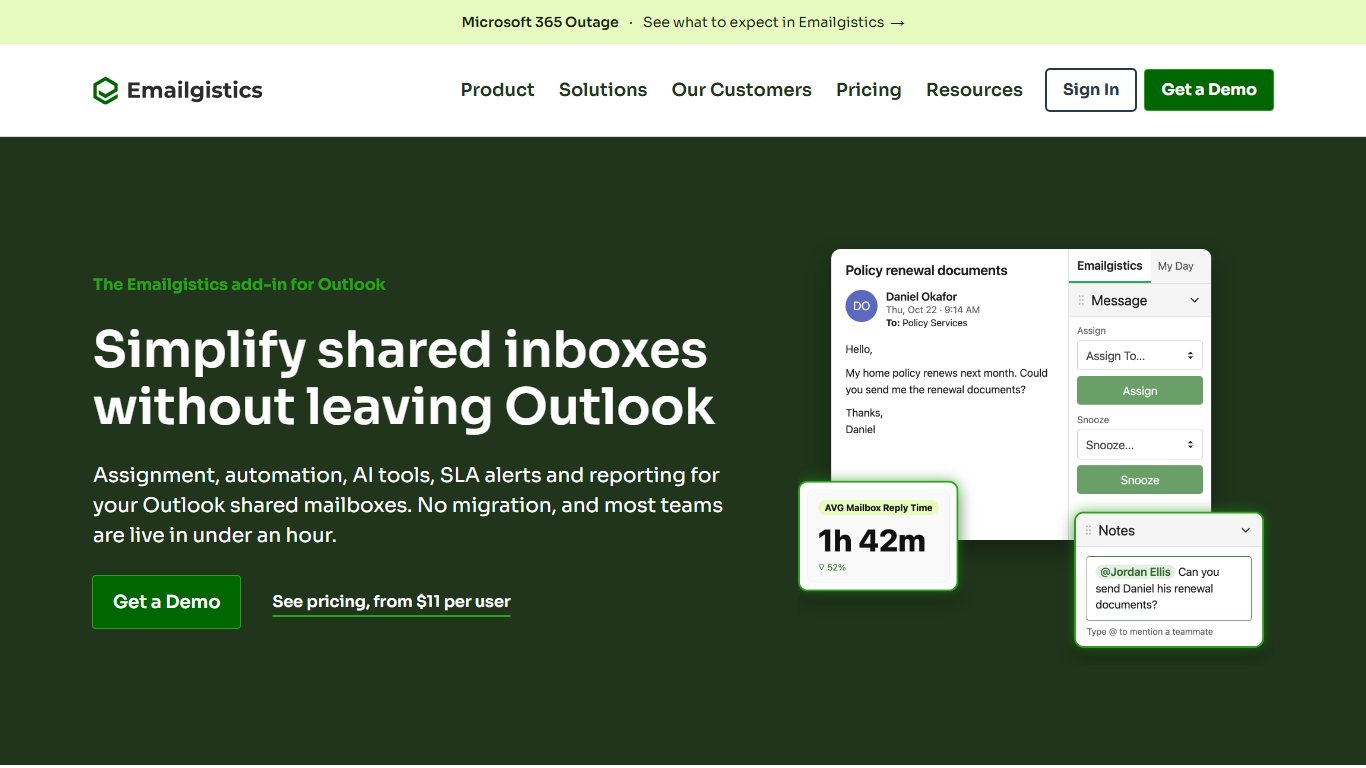
Emailgistics is the Outlook answer to Hiver. It adds assignment, collision prevention, routing and reporting to the Microsoft 365 shared mailboxes you already have, so agents keep working in Outlook. The price is per user and stays the same whether your team works from one shared inbox or five. Emailgistics now promotes AI features as well, so ask which plan includes them during the demo.
Why it stands out
- It builds on Microsoft 365 shared mailboxes, so there’s no new email system to migrate to.
- It fills the exact gaps a plain shared mailbox has: assignment, collision detection and reporting.
Watch out for
- Every person using it needs a Microsoft 365 license with access to the shared mailbox, on top of the Emailgistics fee.
- The trial starts after a demo, not with a self-serve sign-up.
When you need a full help desk: Zendesk or Freshdesk
Best for: Support teams that have outgrown a shared inbox and need formal ticketing
Supported email inboxes: Any provider, through forwarding to the help desk
Price: Per-agent plans, with advanced AI sold as add-ons
Free plan: Free trials on both
A shared inbox stops being enough once you need strict SLAs, a public help center, customer portals, multi-step approval workflows and reports that management reads every week. Zendesk and Freshdesk (from Freshworks) are the usual next step. Both turn every email into a numbered ticket, route it by rules and track it through statuses. Both sell their most advanced AI separately: Zendesk through its Copilot add-on and Freshdesk through Freddy AI Copilot.
Why it stands out
- Ticketing, SLAs, help centers and reporting come built in, with no extra tools to wire together.
- Both scale to large teams across email, chat, phone and social.
Watch out for
- Customers get ticket-style emails rather than personal replies, which can feel cold for a small business.
- Setup and admin take real time, and AI add-ons raise the per-agent cost.
Other options worth a look
These two tools have a narrower fit, but they are worth a look if your needs match.
- ClientFlow works much like an email client with task management built for client service teams. It brings email conversations, tasks and timesheets into one platform on Gmail, and you can assign conversations to teams based on their skills. Agencies that bill by the hour will get the most out of it.
- Helprace is a ticketing system with shared inbox features for Gmail. It routes tickets automatically by the sender’s user group or company, sorts messages into four channels (questions, ideas, problems and praise), and lets you brand replies so they look like normal emails instead of a help desk template.
What is the best way to manage a shared inbox?
The best way to manage a shared inbox is to give every conversation exactly one owner and a clear status, then let rules and templates handle the routine work. Most of the practices below work in a free Google Group too, but the tools above automate them.
- One owner per conversation. Assign every thread to one person, even if others comment. All eleven tools support assignment; Google Groups does too, while a plain Microsoft 365 shared mailbox has no built-in assignment (Emailgistics adds it).
- Routing rules by topic. Send billing, refunds and technical questions to the right person automatically. Helpmonks, Kayako, Missive and Front route by content; Helprace routes by sender group or company.
- A status workflow. Use open, pending (waiting on the customer) and closed so nothing slips between states. Help Scout, Front and Hiver are built around this; Google Groups offers a lighter version with resolved and no action needed.
- Response-time targets. Set a first-reply goal, such as four business hours, and track it. Hiver and Cerb offer SLA tracking, and Help Scout and Kayako report on first reply time.
- Saved replies. Write tested answers for your 10 most common questions. Every dedicated tool here has templates; Help Scout can also send automatic replies by subject line.
- Weekly tag cleanup. Merge duplicate tags (refund vs. refunds) and delete unused ones, or your reports drift. Do this in the tag settings of Front, Hiver, Helpmonks or Helpwise.
- Handoff notes. Before a shift ends or someone goes on leave, leave an internal note on each open thread: what was promised and what comes next. Internal notes in Missive, Front, Drag and Help Scout keep this out of the customer’s view, and AI summaries in tools that offer them speed up the handoff.
Free shared inbox options
You can run a shared inbox for free, but each free option has a ceiling. The right one depends on how many people answer email and how much collaboration you need.
- Help Scout Free: The most complete free plan here: up to 5 users, one shared inbox, one Docs site and 100 helped contacts a month, with assignment and private notes. It has no live chat.
- Cerb: The first self-hosted seat is free. That suits a technical solo operator, but you run the server yourself.
- Google Groups Collaborative Inbox: Included with Google Workspace. You get assignment and resolved status, but no collision warnings or internal notes.
- Microsoft 365 shared mailbox: Included with Microsoft 365 business plans that include Exchange Online, and the mailbox itself needs no license up to 50 GB. Everyone who opens it still needs their own Exchange Online license, and there is no built-in assignment.
- Missive: Missive no longer has a free plan. New organizations get one 30-day trial of Productive, with up to 25 users and 10 shared accounts, after which Starter costs $14 per user per month billed yearly.
Gmail delegation is also free on any Gmail account, but it only gives delegates access. It doesn’t track who owns what.
How to choose the right shared inbox tool
Start with where your team already works. Gmail teams should try Hiver, Drag or Gmelius first. Teams on Microsoft 365 that want to stay in Outlook should look at Emailgistics, and teams with a mix of providers should look at Front, Missive or Helpwise. If you need a knowledge base as well, Help Scout covers both, and if you need formal ticketing and SLAs, step up to Zendesk or Freshdesk.
Budget for the real per-seat cost, including any AI add-on, not the headline price. Then run one real inbox through your top choice for a week during the trial or on the free plan. Pay attention to how many duplicate replies and unanswered threads it catches before you commit.
FAQ
What is the difference between a shared inbox and a shared mailbox?
A shared mailbox, like the one in Microsoft 365, is a single mailbox that several people can open. It has no built-in way to assign emails, leave internal notes or stop two people from replying at once. Shared inbox tools add those features on top of your existing email.
Can several people just log in to the same email account instead?
They can, but it is a poor idea. Everyone ends up sharing one password, you can’t tell who sent which reply, and two people can easily answer the same customer. Microsoft also advises against signing in to a shared mailbox account directly. Tools like Helpwise and Help Scout give each person their own login with their own permissions.
Is there a free shared inbox tool?
Yes. Help Scout has a free plan for up to 5 users and one shared inbox, capped at 100 helped contacts a month, and Cerb’s first self-hosted seat is free. Google Groups Collaborative Inbox and the Microsoft 365 shared mailbox come with those subscriptions. The free shared inbox options section above compares them.
Which shared inbox tool is best for Gmail?
Hiver, Drag and Gmelius all work inside Gmail, so your team keeps the interface it already knows. Hiver leans toward customer support features like SLA tracking. Drag focuses on Kanban-style boards and has the lowest starting price of the three at $12 per user per month. Gmelius charges per user no matter how many shared inboxes you run.
Which shared inbox tool is best for Outlook and Microsoft 365?
Emailgistics is built for Microsoft 365 shared mailboxes and keeps your team inside Outlook, starting at $11 per user per month billed annually. Front, Missive and Helpwise also connect to Microsoft 365, but they move your team into their own apps.
Do shared inbox tools include AI?
Most now do, but it is often billed separately. Front charges $20 per seat per month for Copilot on Starter and Professional, Help Scout charges $0.75 per AI resolution, Missive includes its AI Assistant on Productive and Business with usage credits, and Drag includes Varley from its $18 plan.
What happened to Outpost?
Palo Alto Software discontinued Outpost on December 15, 2021, and the product is no longer available to new or existing users. If you still have an old Outpost workflow documented, Missive, Drag and Helpmonks are common replacements.
Do shared inbox tools handle WhatsApp and SMS?
Several do. Front, Missive and Helpwise can all bring WhatsApp and SMS into the same inbox as email. These channels often require a higher plan or an add-on, and WhatsApp usually also requires a Meta business account.
Sources
- Front help center: How to set up a WhatsApp channel
- Front pricing
- Missive docs: Connected accounts
- Missive docs: Pricing and plans
- Missive: WhatsApp inbox collaboration
- Hiver: Shared Inbox
- Hiver pricing
- Helpwise pricing
- Help Scout pricing
- Cerb documentation
- Drag: Shared Inbox feature
- Drag: Free shared inbox options
- Drag: Outpost alternative (discontinued December 2021)
- Gmelius pricing
- Emailgistics pricing
- Microsoft Learn: About shared mailboxes
- Google Workspace Admin Help: Use a group as a Collaborative Inbox