Last updated: November 16, 2026
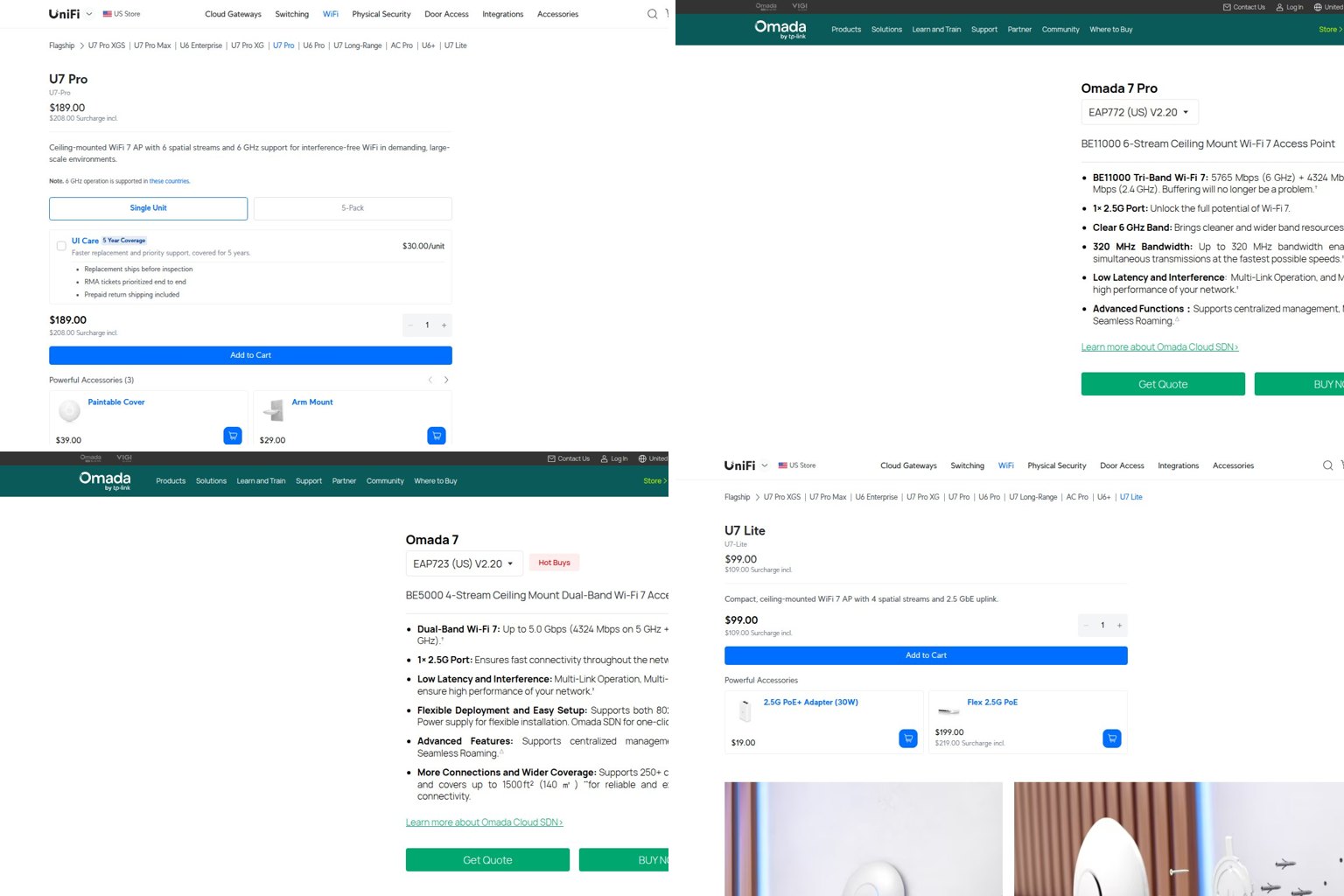
For most homes and small offices in 2026, the best wireless access point is a Wi-Fi 7 model with a 2.5GbE port, such as the Ubiquiti UniFi U7 Pro ($189) or TP-Link Omada EAP772 (about $170). The comparison table, current US prices and where to buy each pick come first. After that you’ll find plain-English help on routers vs extenders vs mesh, PoE, setup, and turning an old router into an access point.
Key takeaways
- An access point adds Wi-Fi to your wired network. Your router still handles IP addresses, NAT and the firewall.
- Buy Wi-Fi 7 now. Wi-Fi 8 is still a draft standard, with final ratification aimed at 2028.
- A Wi-Fi 7 AP on a gigabit switch port tops out at 1 Gbps. Use 2.5GbE ports and Cat6 cable.
- Check the PoE class before you buy. The UniFi U7 Pro needs 802.3at (PoE+), not basic 802.3af.
- A spare router in AP mode is the cheapest fix, but only if you connect it correctly so you don’t get double NAT.
Fact-checked
We checked these key facts against the sources named, on November 16, 2026:
- For most homes and small offices in 2026, the best wireless access point is a Wi-Fi 7 model with a 2.5GbE port, such as the Ubiquiti UniFi U7 Pro ($189) or TP-Link Omada EAP772 (about $170) (source: store.ui.com)
- It runs under a Cisco Catalyst 9800 wireless controller with Cisco licensing. Price: new C9130AXE-B units (the external-antenna model) mostly list between about $1,770 and $2,200 at US IT resellers (source: ormsystems.com)
Wireless access point comparison table (November 2026)
The table covers all 10 picks with their Wi-Fi generation, uplink, power needs and current US prices. The last column tells you where to check today’s price. The ranking criteria are explained in “How these picks were chosen” below the table.
| Model | Wi-Fi / bands | Uplink | Power | Management | Price (US, Nov 16, 2026) | Check price at | Best for |
|---|---|---|---|---|---|---|---|
| Ubiquiti UniFi U7 Pro | Wi-Fi 7, 2.4/5/6 GHz | 2.5GbE | 802.3at PoE+ | UniFi Network (no fees) | $189 (Ubiquiti store); $208.99 at Micro Center | Ubiquiti store, Micro Center | Best overall |
| Ubiquiti UniFi U7 Lite | Wi-Fi 7, 2.4/5 GHz | 2.5GbE | PoE | UniFi Network | $99; $109.99 at Micro Center | Ubiquiti store, Micro Center | Cheap UniFi coverage |
| Ubiquiti UniFi U6+ | Wi-Fi 6, 2.4/5 GHz | 1GbE | 802.3af PoE | UniFi Network | About $129; $142.99 at Micro Center | Ubiquiti store, Micro Center | Existing U6 networks only |
| TP-Link Omada EAP772 | Wi-Fi 7 BE9300, 2.4/5/6 GHz | 2.5GbE | 802.3at PoE+ | Omada app/controller or standalone | $169.99 MSRP; up to about $191 | TP-Link Omada store, US resellers | Tri-band value |
| TP-Link Omada EAP723 | Wi-Fi 7 BE5000, 2.4/5 GHz | 2.5GbE | PoE | Omada or standalone | $89.99 list; about $90 to $120 street | TP-Link Omada store, US resellers | Budget Wi-Fi 7 |
| TP-Link Omada EAP772-Outdoor | Wi-Fi 7 BE9300, tri-band | 2.5GbE | PoE | Omada | $249.99 MSRP | TP-Link Omada store, US resellers | Patios, yards, outbuildings |
| TP-Link EAP225-Outdoor | Wi-Fi 5 AC1200, 2.4/5 GHz | 1GbE | PoE | Omada or standalone | About $70 to $76 | Microcom, CDW | Cheap outdoor coverage |
| NETGEAR WAX620 | Wi-Fi 6 AX3600, 2.4/5 GHz | 2.5GbE | PoE (adapter SKU available) | NETGEAR Insight or local web | About $226 to $260 street ($229.99 launch) | Dell, Microcom, B&H | NETGEAR-based offices |
| HPE Aruba Instant On AP22 | Wi-Fi 6 2×2, 2.4/5 GHz | 1GbE | PoE or included adapter | Instant On app | About $185 to $250 | Staples, US resellers | Hands-off small business |
| Cisco Catalyst 9130AX | Wi-Fi 6, 2.4/5 GHz | Multi-gig | High-power PoE | Catalyst 9800 controller, licensing | About $1,770 to $2,200 new at US resellers (C9130AXE-B); volume by partner quote | Cisco partners, IT resellers | Enterprise campuses |
Did you know?
According to Dell’Oro Group, Wi-Fi 7 passed 50% of WLAN market sales in the second quarter of 2026. That’s only about two and a half years after the Wi-Fi Alliance started certifying it in January 2024.
Where to buy (prices checked November 16, 2026)
Buy from the vendor’s own store or an authorized US reseller, so the warranty and firmware support are valid. All the prices above were checked on November 16, 2026. AP prices are trending up rather than down, so expect some movement.
- Ubiquiti UniFi: Ubiquiti’s US store usually has the lowest price. Micro Center charges about $10 to $20 more but lets you pick up the same day.
- TP-Link Omada: TP-Link’s Omada store lists MSRPs. US resellers sell close to that, and sometimes slightly above.
- NETGEAR WAX620: Dell lists the WAX620-100NAS at $225.99 and Microcom at $229.00. Some resellers ask $259.99 or more. The WAX620PA-100NAS SKU comes with a power adapter, which helps if you have no PoE switch. CompSource lists that version at about $226.
- Cisco Catalyst 9130AX: new C9130AXE-B units mostly list between about $1,770 and $2,200 at US IT resellers. Much lower listings are usually refurbished or excess stock, so check the condition and whether Cisco support coverage applies before you order. Organizations buying in volume should get a quote from a Cisco partner.
Price-check tip
Compare the exact SKU, not just the model name. The WAX620-100NAS and WAX620PA-100NAS cost about the same, but only the PA version includes a power adapter.
Best access point for each use case
Your pick depends on three things: how many devices you have, whether you can run Ethernet, and how much management you want.
- Best overall for homes and small offices: Ubiquiti UniFi U7 Pro. Tri-band Wi-Fi 7, a 2.5GbE uplink and no subscription fees.
- Best Wi-Fi 7 on a budget: TP-Link Omada EAP723. Dual-band Wi-Fi 7 for about $90 to $120.
- Best tri-band value: TP-Link Omada EAP772. It does what the U7 Pro does for a little less, and Omada switches cost less too.
- Cheapest UniFi entry: UniFi U7 Lite at $99. It has no 6 GHz radio.
- Best outdoor Wi-Fi 7: TP-Link Omada EAP772-Outdoor ($249.99 MSRP).
- Cheapest outdoor coverage: TP-Link EAP225-Outdoor, about $70 to $76. It’s old Wi-Fi 5, but it’s enough for a yard or a barn.
- Best for NETGEAR shops: NETGEAR WAX620, about $226 to $260.
- Simplest small-business option: HPE Aruba Instant On AP22.
- Enterprise: Cisco Catalyst 9130AX, at roughly $1,770 to $2,200 per AP before licensing.
- Zero cost: your spare router in AP mode.
How these picks were chosen
The rankings are based on spec sheets, current US vendor and retailer prices, and how well each product fits a home or small-office network in late 2026. Nothing here was hands-on tested. The criteria were weighted like this:
- Wi-Fi generation and uplink (30%). Wi-Fi 7 with a 2.5GbE port scores highest, because you’ll keep the AP for five years or more.
- Total cost per AP (25%). This includes any per-device subscription and the PoE switch or injector the AP needs.
- Management and ecosystem (20%). Free controller software, a usable phone app, guest networks and VLANs.
- Power and cabling demands (15%). How easily it runs on hardware you already own.
- Lifecycle status (10%). Whether it’s still sold new and still getting firmware updates.
The best wireless access points, reviewed
Each review covers price, what matters, limitations and the closest alternative. The first three get the most detail, because most readers should choose one of them.
Ubiquiti UniFi U7 Pro: best overall
If you can run one Ethernet cable to each AP, the U7 Pro is the default choice. It’s a ceiling-mount, tri-band Wi-Fi 7 access point with one 2.5GbE RJ45 uplink, powered by 802.3at PoE+.
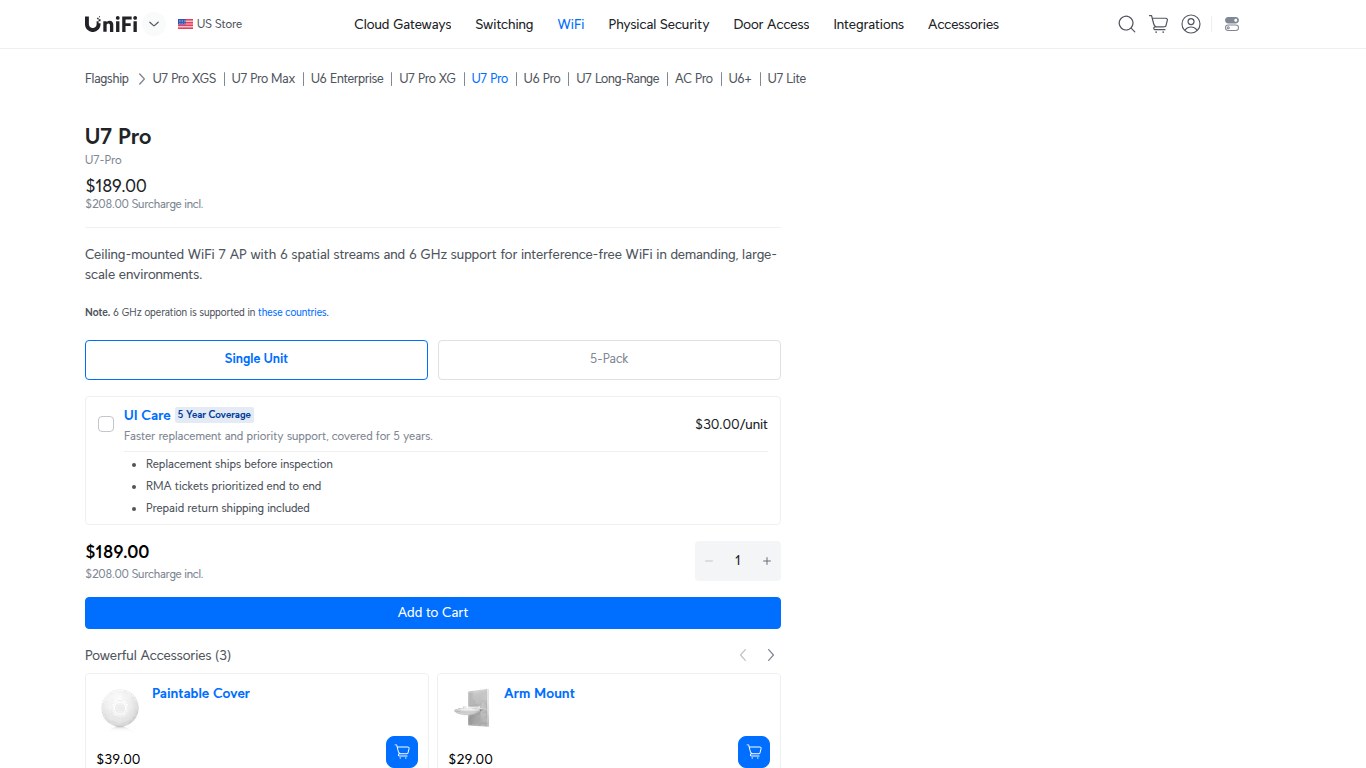
Price: $189 from Ubiquiti’s US store, or $208.99 at Micro Center. There’s no subscription. The UniFi Network software is free on a UniFi gateway, a Cloud Key or your own computer.
What matters: the 6 GHz radio gives Wi-Fi 7 phones and laptops a clean, wide channel. The 2.5GbE port means the cable won’t cap it at 1 Gbps. UniFi’s dashboard handles roaming, guest networks and VLANs well.
Limitations: it needs PoE+, so an old 802.3af injector won’t work. You get the most out of it as part of a full UniFi setup (gateway, switch and AP), and that costs more than a single box.
Versus the EAP772: the specs are close. The U7 Pro has the more polished software, while the EAP772 and Omada’s switches cost less. One reseller estimates a three-AP Wi-Fi 7 network at about $1,175 on UniFi vs about $1,010 on Omada.
TP-Link Omada EAP772: best tri-band value
The EAP772 is TP-Link’s answer to the U7 Pro: a BE9300 tri-band Wi-Fi 7 ceiling AP with a 2.5GbE uplink on PoE+. It’s a good fit for small offices and larger homes that want 6 GHz without paying UniFi prices for every part.
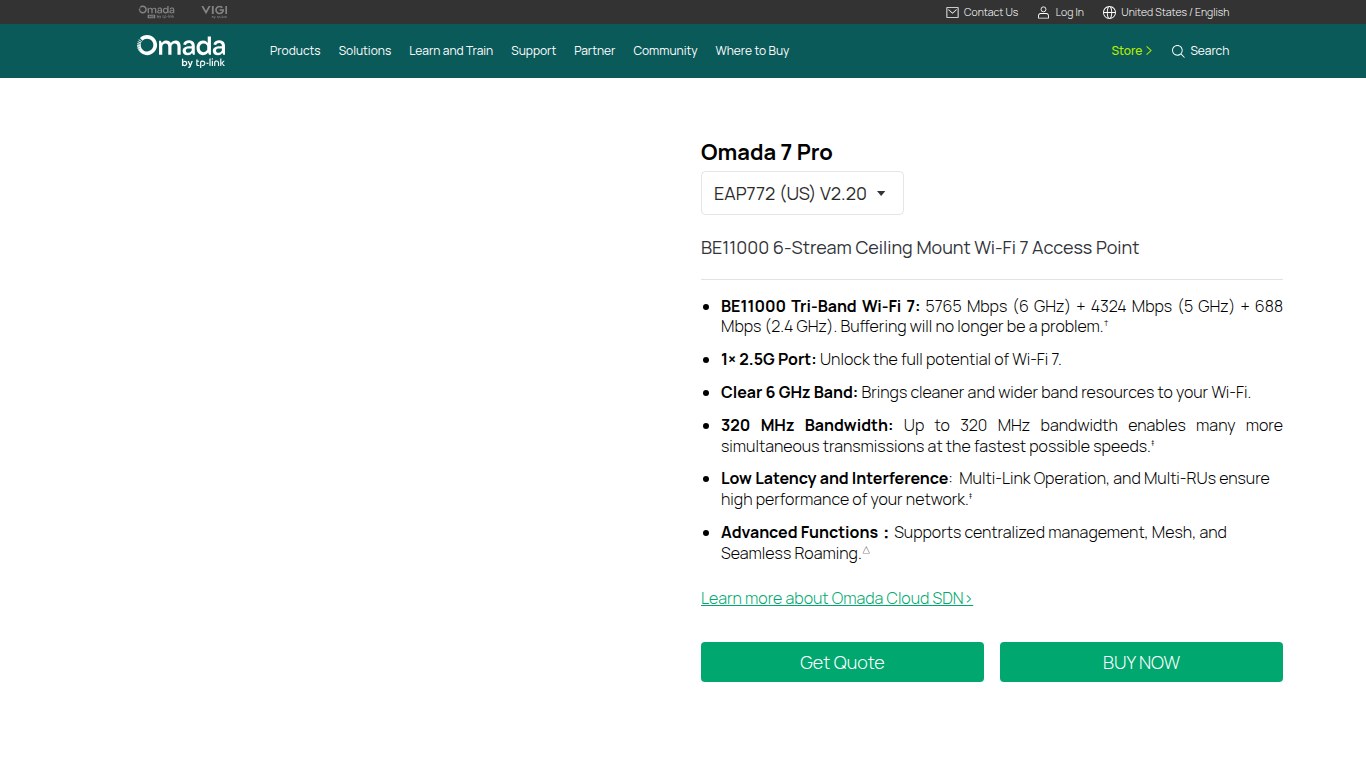
Price: $169.99 MSRP. Retailers charge up to about $191.
What matters: you can run it standalone through its own web page, or adopt it into an Omada controller (hardware, software or cloud) for multi-AP roaming and central settings.
Limitations: Omada’s interface is less refined than UniFi’s. A standalone EAP doesn’t give you the fleet view you get with a controller.
Versus the EAP723: you pay roughly $80 more for the 6 GHz radio. That’s worth it if you own Wi-Fi 7 or 6E phones and laptops.
TP-Link Omada EAP723: best budget Wi-Fi 7
The EAP723 is a BE5000 dual-band (2.4 and 5 GHz) Wi-Fi 7 access point. It’s for anyone who wants current-generation Wi-Fi and a 2.5GbE port at a Wi-Fi 6 price.
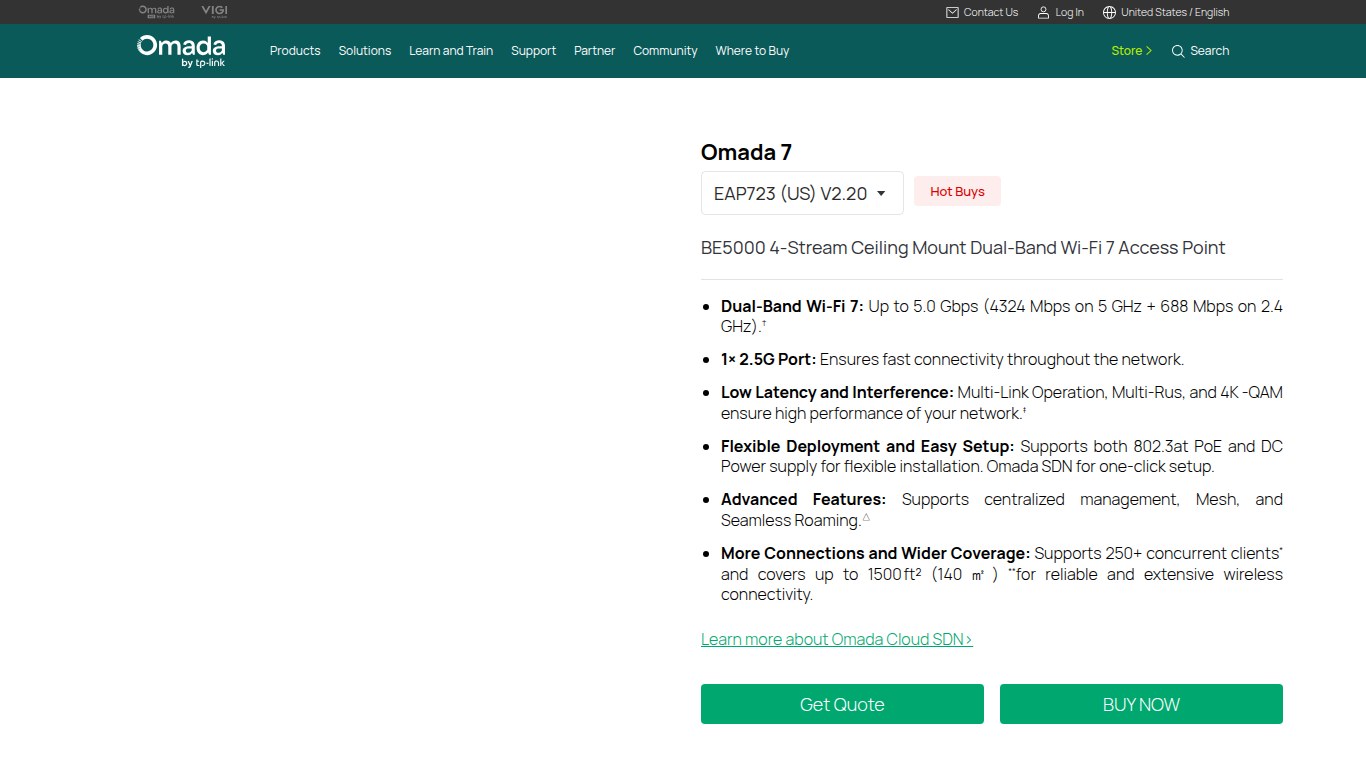
Price: $89.99 in TP-Link’s Omada store guide. US street prices run about $90 to $120.
What matters: you still get Wi-Fi 7 features on 5 GHz, plus Omada management.
Limitations: there’s no 6 GHz radio. That rules out 320 MHz channels, which Wi-Fi 7 only allows on 6 GHz.
Versus the UniFi U7 Lite: they’re nearly the same idea. Pick the one that matches the rest of your network.
Ubiquiti UniFi U7 Lite: cheapest way into UniFi Wi-Fi 7
The U7 Lite is a compact dual-band Wi-Fi 7 AP. Use it to fill in rooms around a U7 Pro, or on its own in a small apartment.
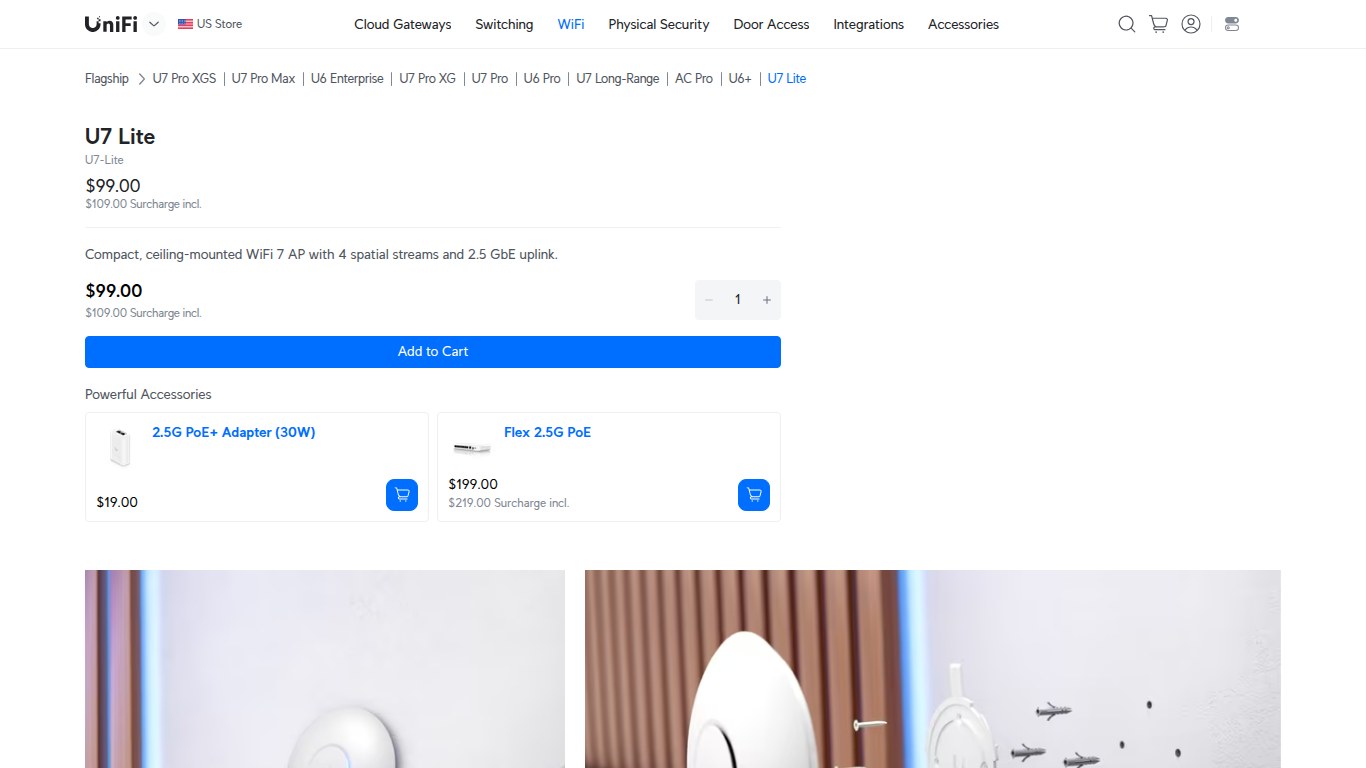
Price: $99 from Ubiquiti’s store, or $109.99 at Micro Center.
Limitations: it has no 6 GHz radio. That’s the main thing the U7 Pro’s extra $90 buys you.
Versus the U6+: the U7 Lite is cheaper, uses a newer standard and has a faster port. There’s very little reason left to buy the U6+ new.
Ubiquiti UniFi U6+: only for matching an existing setup
The U6+ is a dual-band Wi-Fi 6 AP with a gigabit port that runs on 802.3af power. It sells for about $129, or $142.99 at Micro Center.
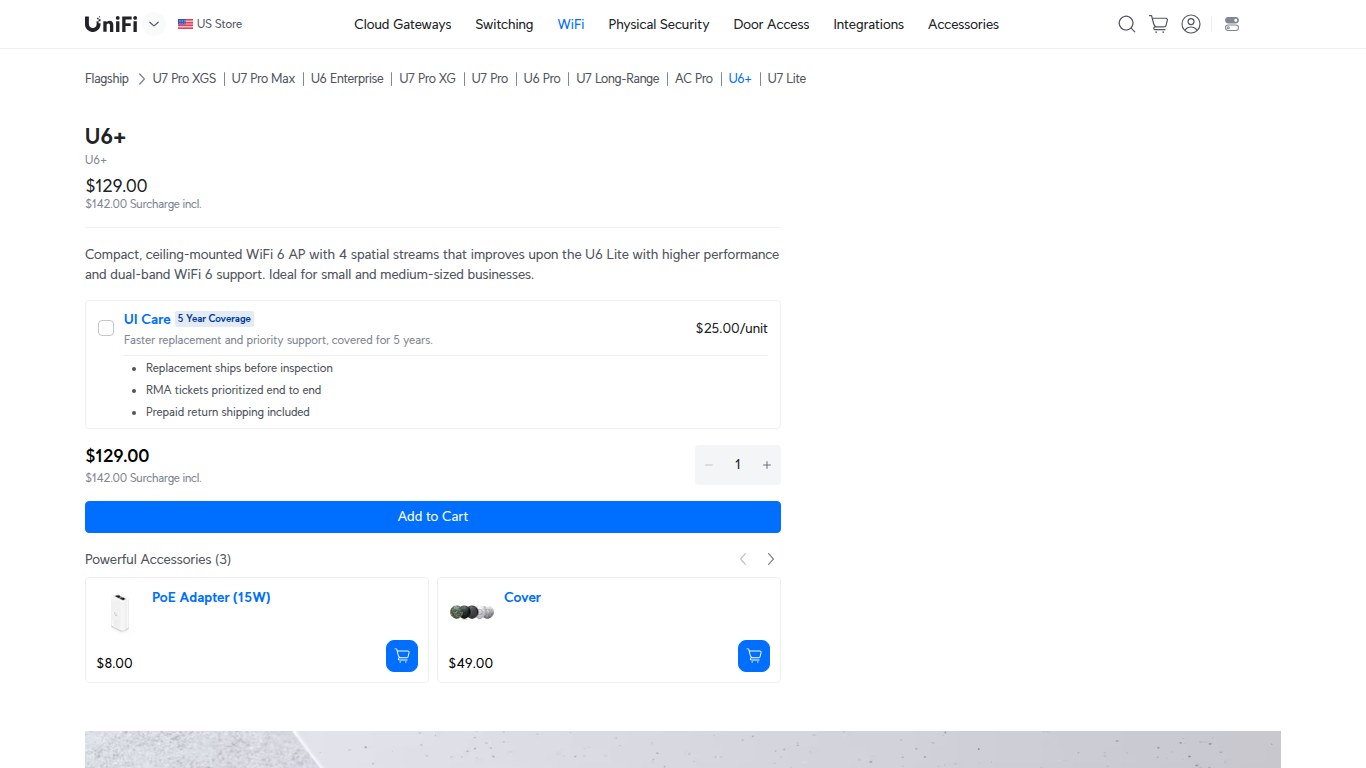
It still makes sense in one case: your PoE switch only supplies 802.3af and you’re adding to a network of U6 APs. Otherwise, the $99 U7 Lite is the better buy.
TP-Link Omada EAP772-Outdoor: best outdoor Wi-Fi 7
This is the weatherproof version of the EAP772. It’s built for patios, pools, yards and the space between a house and a detached workshop.
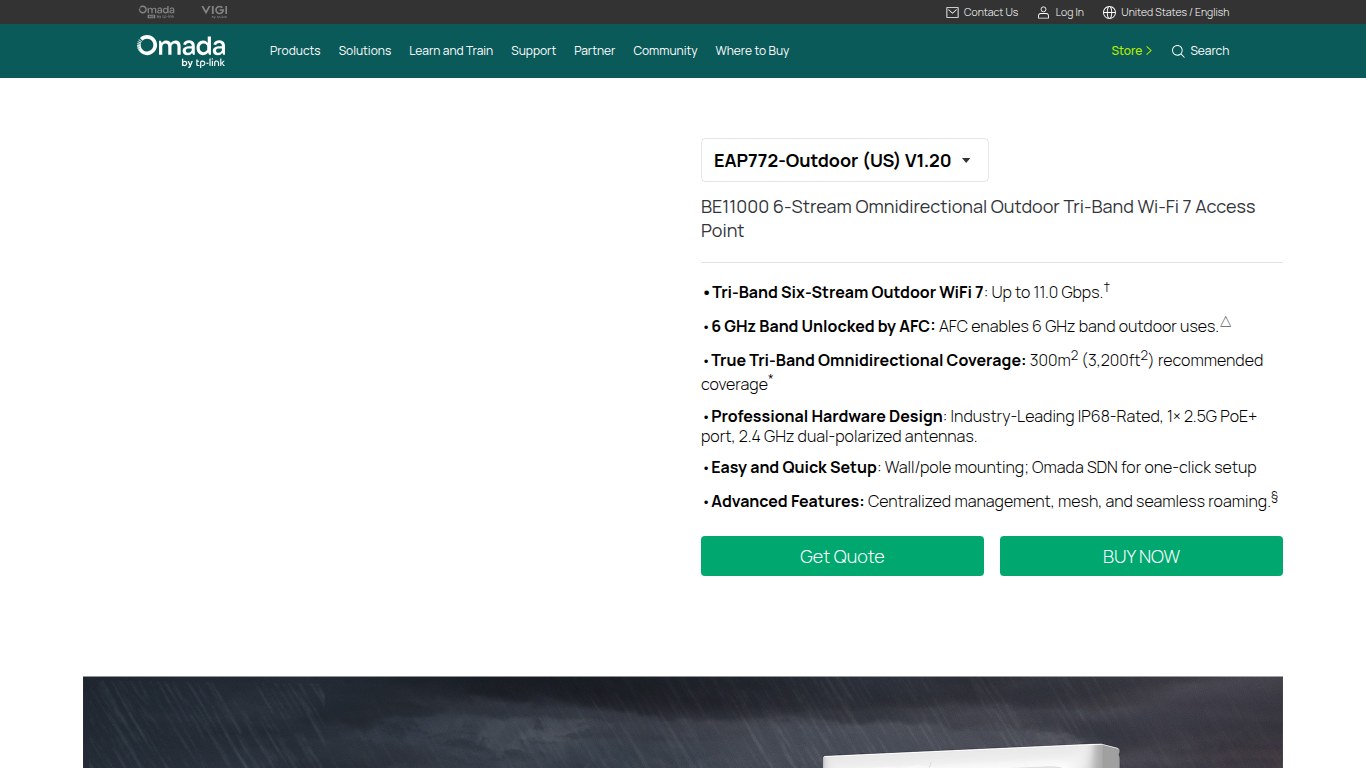
Price: $249.99 MSRP.
Limitations: in the US, ordinary 6 GHz Wi-Fi (low power indoor) is only allowed indoors. Outdoors, 6 GHz needs AFC standard power or the newer geofenced power class, both explained below. Check that the firmware supports AFC before you count on that band. Outside, 2.4 and 5 GHz will carry most of the traffic.
Versus the EAP225-Outdoor: it costs more than three times as much. Choose it if you’ll have many devices outside or need faster speeds there.
TP-Link EAP225-Outdoor: cheapest outdoor coverage
The EAP225-Outdoor is the only product from the older version of this list that still earns a place. It’s an AC1200 Wi-Fi 5 outdoor AP with a gigabit port, good enough for doorbell cameras, garden speakers and phones on the porch.
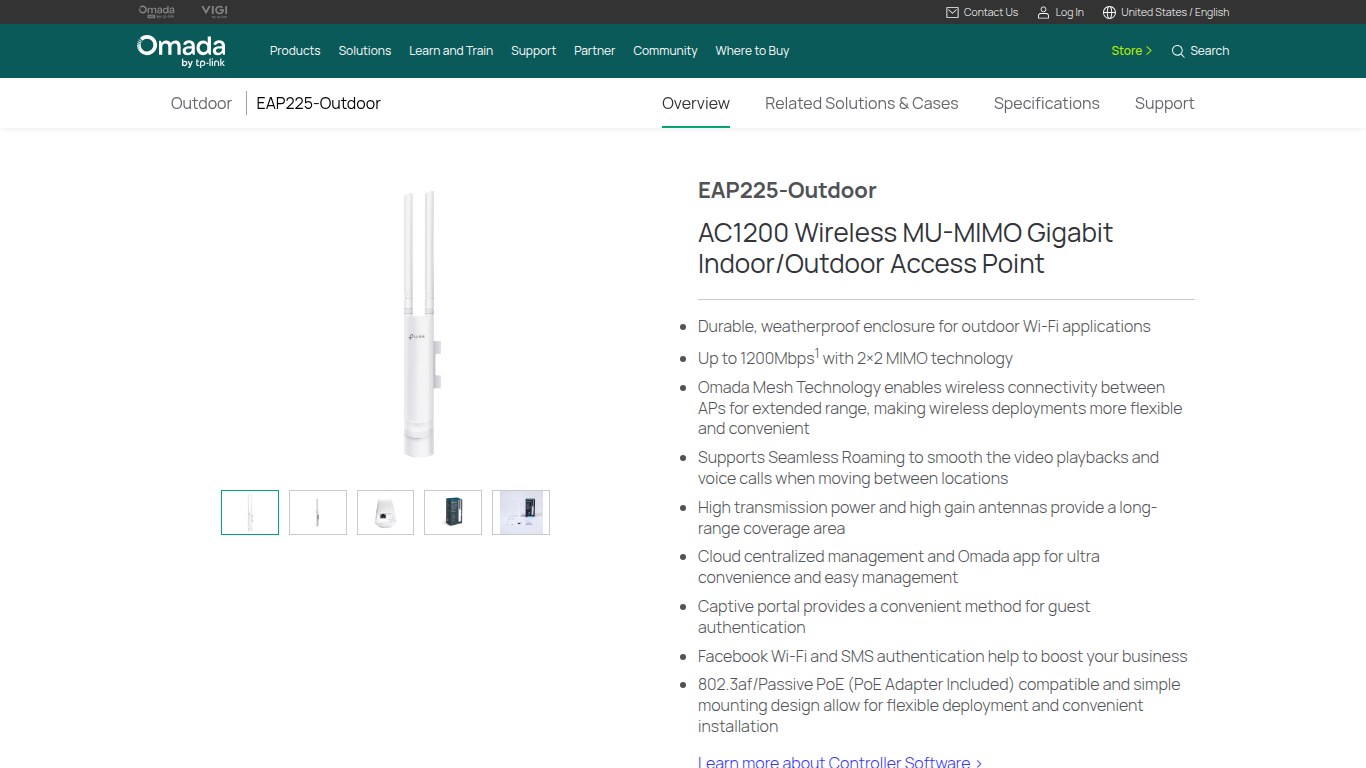
Price: about $69.95 to $76 at US retailers, including Microcom and CDW.
Limitations: it’s Wi-Fi 5, and at least one reseller (SHI) lists it as end of life, so stock is getting thinner. If you install one today, plan to replace it within a few years.
NETGEAR WAX620: best for NETGEAR-based offices
The WAX620 is NETGEAR’s Insight Managed Wi-Fi 6 AX3600 dual-band access point with a 2.5GbE uplink. It suits offices that already run NETGEAR switches and want one dashboard for everything.
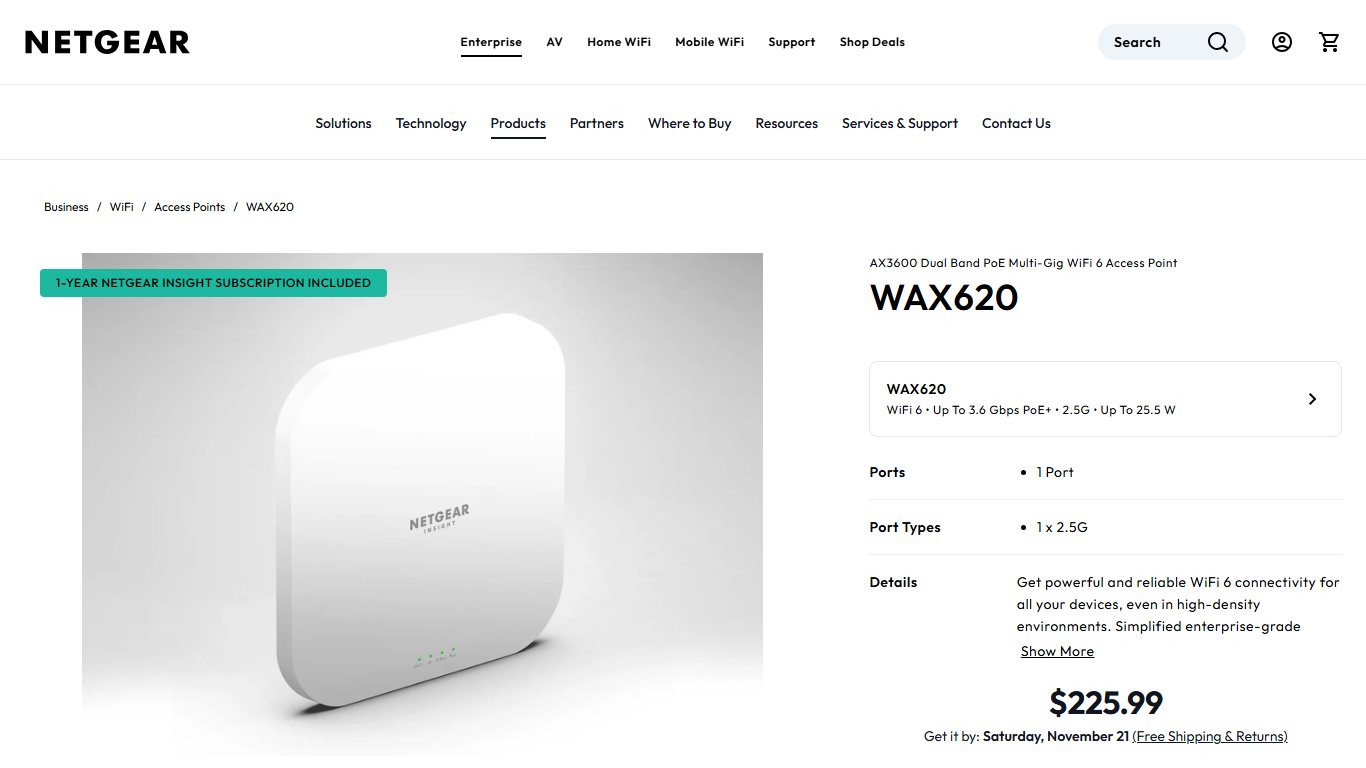
Price: it launched at $229.99. In November 2026, US street prices run about $226 to $260: Dell lists the WAX620-100NAS at $225.99 and Microcom at $229.00. The WAX620PA-100NAS includes a power adapter, so you don’t need PoE.
Management: NETGEAR Insight cloud management no longer has a free tier. It costs about $10 (Premium) or $22 (Pro) per device per year. You can also manage the AP locally in a browser with no subscription.
Limitations: it’s Wi-Fi 6, at a price where TP-Link and Ubiquiti sell tri-band Wi-Fi 7. NETGEAR’s Wi-Fi 7 Insight models cost more: B&H lists the WBE718 at $339.99.
Versus the EAP772: the EAP772 is newer, cheaper and has no subscription. Choose NETGEAR only if you want to stay in the Insight ecosystem.
HPE Aruba Instant On AP22: simplest small-business setup
The AP22 is a 2×2 Wi-Fi 6 access point managed through the Aruba Instant On app. It’s aimed at shops, clinics and offices with no IT person.
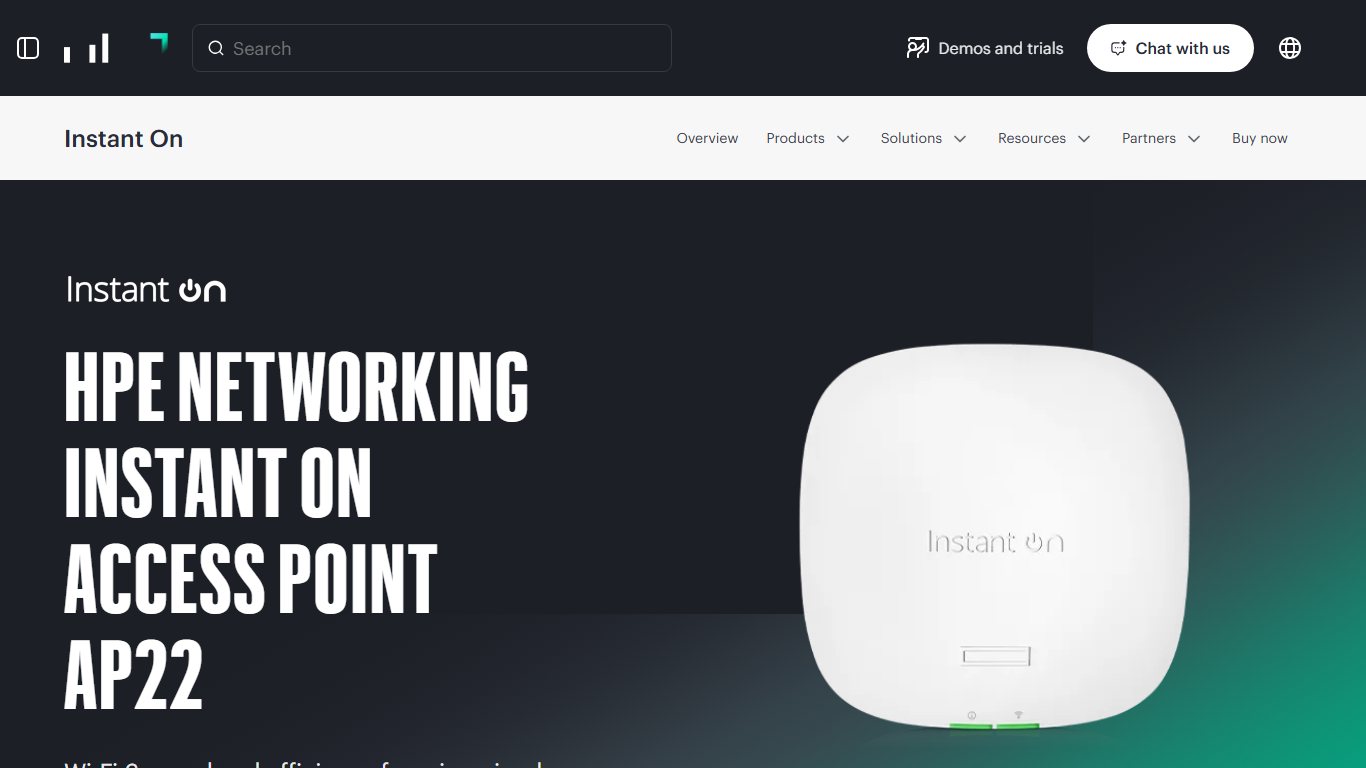
Price: about $185 (Staples) to $250 at US retailers. The R6M49A SKU includes a power adapter, so you don’t need a PoE switch.
Limitations: it’s Wi-Fi 6 with a gigabit port, and it costs more than TP-Link’s Wi-Fi 7 options.
Versus the WAX620: both are small-business Wi-Fi 6 boxes. Instant On is simpler to run, and the NETGEAR has the faster port.
Cisco Catalyst 9130AX: enterprise grade
The Catalyst 9130AX is Cisco’s high-end Wi-Fi 6 (802.11ax) access point for campuses, hospitals and large offices. It runs under a Cisco Catalyst 9800 wireless controller with Cisco licensing.
Price: new C9130AXE-B units (the external-antenna model) mostly list between about $1,770 and $2,200 at US IT resellers. Volume pricing comes through a Cisco partner quote. That price doesn’t include controller licensing or support contracts.
Wi-Fi 6, not 6E: some retailers list the 9130AX as Wi-Fi 6E, but it has no 6 GHz radio. Cisco’s Wi-Fi 6E indoor model is the Catalyst 9136, which adds a 6 GHz radio, multi-gig uplinks up to 5 Gbps and UPOE power. The Catalyst 9163E is Cisco’s outdoor 6E model.
Who it’s for: organizations with network staff, compliance needs and a support contract. It’s the wrong tool for a home. You’d pay for controller licensing and power infrastructure you’ll never use.
End of sale: Cisco announced the 9130AX’s end of life on March 30, 2026. The last day to order it is December 31, 2026, and Cisco support runs until December 31, 2031. For a new rollout, look at Cisco’s newer Wi-Fi 6E and Wi-Fi 7 access points instead.
Dropped from the older list
The UniFi UAP-AC-PRO (which CDW lists as discontinued since February 15, 2021), the UAP-AC-LR and the nanoHD are no longer sold new. Their Wi-Fi 7 replacements cost about the same.
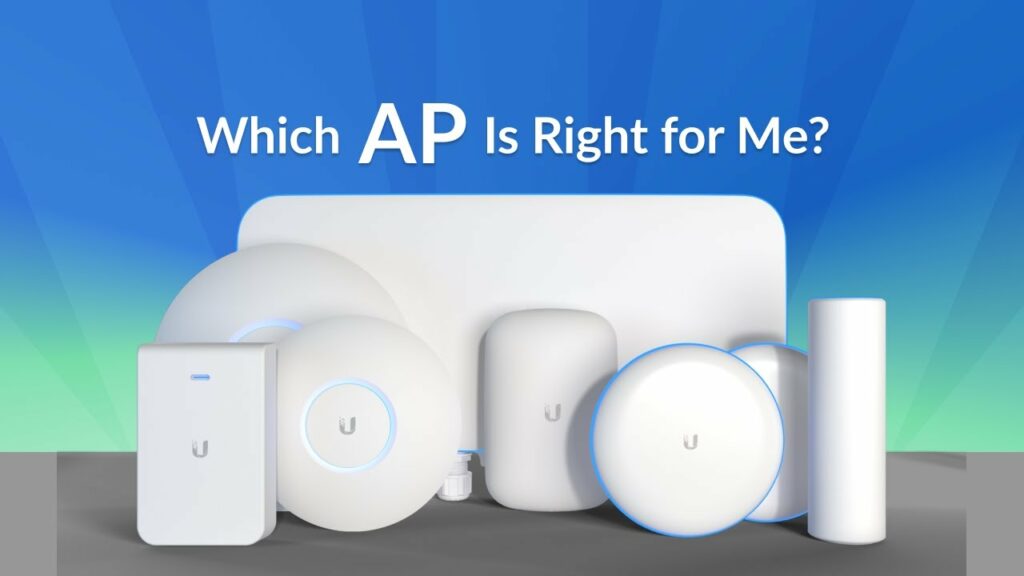
The NETGEAR WAC104 is a Wi-Fi 5 desktop unit, and newer budget APs now beat it. The NETGEAR WAX214 is still a decent standalone Wi-Fi 6 AP, but the $90 EAP723 gives you Wi-Fi 7 and a 2.5GbE port for less.


The TP-Link CPE210 is an outdoor point-to-point bridge for linking two buildings. It isn’t an AP for phones and laptops, so it doesn’t belong on this list.

What is a wireless access point?
A wireless access point (WAP) plugs into your router or switch with an Ethernet cable and broadcasts Wi-Fi, so wireless devices can join your wired network. It doesn’t route traffic, hand out IP addresses or act as a firewall. Your router does those jobs.

Access point in one sentence
If a quiz asks which description best fits a wireless access point, the answer is: a device that connects wireless clients to a wired network.
What an AP does NOT do
An access point doesn’t run DHCP (handing out IP addresses). It doesn’t do NAT (sharing one public IP address across your devices), and it doesn’t hold your firewall or port-forwarding rules. All of that stays on the router or ISP gateway.
That’s why adding APs doesn’t change your internet speed. It changes how far and how reliably your Wi-Fi reaches.
How does a WAP work?
Traffic flows modem → router → switch (optional) → AP over Ethernet. The AP’s radios convert Wi-Fi traffic to Ethernet traffic and back again. Your router still gives every phone or laptop its IP address, even when that device connects through the AP.
The Ethernet uplink (backhaul)
The cable between the AP and your router or switch is called the backhaul. Because it’s a wire, the AP doesn’t spend airtime repeating data over the air the way an extender does. That one difference explains most of the stability gap between a wired AP and a wireless repeater.
Radios and bands: 2.4, 5 and 6 GHz
- 2.4 GHz: goes through walls well but is slow and crowded. Best for smart plugs and sensors.
- 5 GHz: fast, with moderate range. Most of your devices use this band.
- 6 GHz: the fastest and cleanest band, but it has the shortest range and only works with Wi-Fi 6E and Wi-Fi 7 devices.
One network name across several APs
When every AP broadcasts the same SSID, password and security type, your phone treats them as one network and moves to a stronger AP as you walk around. Controllers such as UniFi Network, Omada and NETGEAR Insight push identical settings to every AP for you.
Pro tip
Give every AP the same network name (SSID), password and security type (WPA2/WPA3) as your main router. Phones and laptops will then move between them without you having to re-join.
Why would you use a wireless access point?
Use an AP when you can run a cable to the spot where Wi-Fi is weak, or when one router can’t handle all your devices. Because the backhaul is wired, you get close to full speed at the far end, which no wireless repeater can match.
Typical cases:
- A detached garage, studio or home office with a buried Ethernet run.
- A basement where the builder already installed Ethernet.
- Plaster-and-lath, brick or concrete walls that block signal.
- Dozens of smart-home devices, cameras and video streams overloading a single router.
- An ISP gateway with weak Wi-Fi that you can’t replace.
Signs an AP is the right fix
Speed is good next to the router but drops sharply two rooms away. Video calls stutter only in certain rooms. You already have Ethernet jacks, or a route for a cable, near the dead zone.
When an AP won’t help
If a speed test is slow even right next to your router, the bottleneck is your internet plan, the modem or the router itself. An AP spreads the same connection further. It doesn’t make that connection faster.
Test before you buy
Run a speed test right next to your router, then again in the dead zone. If it’s slow next to the router too, the problem is your plan or your router, and an access point won’t fix it.
Access point vs router vs extender vs mesh
A wired access point is the most stable way to add coverage. Mesh is the easiest option when you can’t run cable, and an extender is the cheapest but weakest. A router manages your whole network, and many routers can also work as an AP.
Access point vs router
A router connects your network to the internet and handles DHCP, NAT and the firewall. An access point only provides Wi-Fi. Most home “routers” do both in one box, and when you put one into AP mode it stops routing and bridges your wireless devices to the existing network.
Access point vs Wi-Fi extender
An extender picks up your existing Wi-Fi and rebroadcasts it. A single-radio extender has to receive and transmit on the same airtime, so throughput at the far end often drops sharply. An AP connected by cable doesn’t have that problem.
Access point vs mesh system
Mesh systems such as NETGEAR Orbi coordinate several nodes under one network name. When the nodes talk to each other over the air, they share bandwidth. With Ethernet backhaul, a mesh node works much like a wired AP.
Do you need wired backhaul, or is wireless mesh enough?
Wireless mesh is fine for browsing, streaming and video calls in most homes. Choose wired backhaul if you game online, upload large files or have thick masonry walls, where every wireless hop costs noticeable speed and latency.
Quick decision table: which fixes your Wi-Fi?
| Device | What it does | Needs Ethernet to each unit? | Speed impact | Best for | Typical gotcha |
|---|---|---|---|---|---|
| Wired access point | Adds Wi-Fi to a wired network | Yes | Near full speed at each AP | Homes and offices you can cable | Needs PoE or a power outlet, plus a cable run |
| Wi-Fi extender | Repeats an existing signal | No | Noticeable drop | One small dead spot on a budget | A separate network name on some models; slow |
| Mesh system | Coordinated nodes, one network | Optional | Good wired, moderate wireless | Larger homes without cabling | Costs more; nodes need careful placement |
| Router in AP mode | Old router reused as an AP | Yes | Near full speed (limited by its Wi-Fi generation) | Free fix with a spare router | Double NAT if you wire it wrong |
Pick this if…
- You can run a cable: access point.
- You can’t run cable and the house is large: mesh.
- You have one problem room and $40: extender.
- You have a spare router and an Ethernet path: router in AP mode.
Turn an old router into an access point (step by step)
You can reuse almost any spare router as an access point. Either switch on its AP mode, or turn off its DHCP server and connect it LAN port to LAN port. Set up properly, it joins your main network without adding a second layer of NAT.
Before you start
Write down your main router’s LAN IP address and DHCP range first. A factory reset on the spare router erases all of its settings.
Routers with a built-in AP mode
On many NETGEAR Nighthawk models, the setting is under Advanced > Advanced Setup > Router / AP Mode. Orbi has a similar option in its advanced settings. Many TP-Link Archer routers use Advanced > System > Operation Mode.
Follow the vendor’s cabling instructions closely. Built-in AP modes often expect the cable from your main router to go into the spare router’s Internet (WAN) port, because the firmware reuses that port as the uplink.
Manual method for routers without AP mode
Fix it
- Factory reset the spare router and connect a laptop to it by cable.
- Log in at its default address (printed on the label).
- Set its LAN IP to an unused address in your main router’s subnet, outside the DHCP pool (for example 192.168.1.2 if the pool is 192.168.1.100 to 199).
- Turn off the spare router’s DHCP server and save.
- Set the same SSID, password and WPA2/WPA3 mode as your main network.
- Run a cable from a LAN port on the main router to a LAN port on the spare. Leave the spare’s WAN port empty.
- Reconnect a device and check that its IP address comes from the main router’s range.
Avoiding double NAT
Double NAT happens when two routers each do NAT, one behind the other. It’s what triggers the “Double NAT detected” warnings on Xbox and PlayStation after someone adds a second router.
AP mode fixes double NAT when the second router was the one doing the extra routing. In AP mode, or with the manual LAN-to-LAN setup, the second router stops doing NAT, so your console only sees the main router.
Should you switch your router to AP mode behind an ISP gateway?
If your own router sits behind an ISP gateway, switch it to AP mode unless the gateway is already in bridge mode. Pick one fix: either your router goes into AP mode, or the ISP gateway goes into bridge mode. Don’t do both, or nothing on the network will be routing.
What stops working in AP mode
Many settings disappear in AP mode, and that’s normal. Port forwarding, parental controls, QoS, DHCP and the firewall now live on the main router, so that’s where you change them.
If you lose Wi-Fi after switching modes
If you turned on AP mode on a Nighthawk and now there’s no Wi-Fi, or devices can’t get an IP address, check the cable first. In AP mode, the router needs a live uplink to a router that hands out addresses. Plug the uplink into the port the manual specifies. If you still can’t reach it, hold the reset button (usually for about 10 seconds) and start over.
Pro tip
Set the AP’s own IP address outside your main router’s DHCP range, or reserve it in the router. That way you can always find its settings page.
How to access wireless access point settings
You can reach an AP’s settings in three ways. Type its IP address into a browser, use the vendor’s app or controller, or factory reset it and use the default address on the label.
Find the AP’s IP address (Windows, Mac, iPhone, Android)
The quickest way is your main router’s connected-devices or DHCP client list. Look for the AP’s brand or MAC address.
- Windows:
ipconfigshows your default gateway (the router).arp -alists the other devices on your network. - Mac: System Settings > Network > Wi-Fi > Details > TCP/IP shows the router.
arp -ain Terminal lists the devices. - iPhone: Settings > Wi-Fi, then tap the (i) next to your network to see the Router address. Open that address to find the client list.
- Android: Settings > Network & internet > Internet, tap the gear next to your network and look for the gateway. Menu names vary by phone maker.
Standalone vs controller-managed APs
A standalone AP has its own web page. A controller-managed AP (UniFi Network, TP-Link Omada, NETGEAR Insight) gets its settings pushed from the controller or app. Once you adopt an AP into a controller, you change its settings there, not on the AP.
Locked out? Factory reset safely
With the AP powered on, hold the reset pinhole. Most need 5 to 15 seconds, so check the manual. The AP goes back to its default address and login, which are printed on the label or in the quick-start guide.
First five settings to change
- Change the default admin password.
- Update the firmware.
- Set security to WPA3, or WPA2/WPA3 mixed if you have older devices.
- Match the SSID and password to your other APs.
- Turn off any remote management you don’t use.
Powering an AP: PoE explained
Power over Ethernet (PoE) carries power and data over one cable, so a ceiling AP doesn’t need a power outlet. Your switch or injector has to supply at least the PoE standard the AP needs.
| Standard | Common name | Power at the port | Example APs | Notes |
|---|---|---|---|---|
| IEEE 802.3af | PoE | 15.4 W | UniFi nanoHD, UniFi U6+ | Fine for older dual-band APs |
| IEEE 802.3at | PoE+ | 30 W | UniFi U7 Pro, TP-Link EAP772 | Baseline for tri-band Wi-Fi 7 |
| IEEE 802.3bt | PoE++ (Type 3/4) | 60 W / 90 W | High-end enterprise APs | Large multi-radio enterprise models |
PoE injector or PoE switch?
An injector powers one AP and costs little, so it’s ideal for one or two APs. A PoE switch powers several APs and lets a controller reboot them remotely. Check the switch’s total PoE budget as well as the power per port.
Check the AP’s power class before you buy
A PoE+ AP on an 802.3af source may boot with its radios disabled, or keep rebooting. Check the spec sheet, then buy a PoE+ injector or switch to match. Both Ethernet and PoE work over cable runs of up to 100 m (328 ft).
Wi-Fi 6, 6E, 7 and 8: which AP should you buy in 2026?
Buy Wi-Fi 7. It’s now the mainstream standard: IDC puts it at 53.0% of enterprise dependent-AP revenue in 2Q 2026, with Wi-Fi 6 down to 29.4%. Wi-Fi 8 won’t be ratified until 2028.
| Generation | IEEE standard | Bands | Max channel width | Key feature | Status in 2026 |
|---|---|---|---|---|---|
| Wi-Fi 5 | 802.11ac | 5 GHz | 160 MHz | MU-MIMO (downlink) | Legacy; being phased out |
| Wi-Fi 6 | 802.11ax | 2.4/5 GHz | 160 MHz | OFDMA, uplink MU-MIMO | Budget tier |
| Wi-Fi 6E | 802.11ax | 2.4/5/6 GHz | 160 MHz | Adds 6 GHz | Overtaken by Wi-Fi 7 |
| Wi-Fi 7 | 802.11be | 2.4/5/6 GHz | 320 MHz | MLO, 4K-QAM | Majority of sales |
| Wi-Fi 8 | 802.11bn | 2.4/5/6 GHz | 320 MHz (draft) | Reliability focus | Draft; ratification aimed at 2028 |
What Wi-Fi 7 actually changes
The Wi-Fi Alliance launched Wi-Fi CERTIFIED 7 in January 2024. Its headline features are:
- 320 MHz channels: double the widest channel in Wi-Fi 6. They’re only available on 6 GHz, in countries that open that band to Wi-Fi.
- Multi-Link Operation (MLO): a device can use multiple links across the 2.4, 5 and 6 GHz bands at the same time, improving throughput and/or reducing latency.
- 4K-QAM: packs more data into each transmission, for up to 20% higher peak rates than the 1024-QAM used in Wi-Fi 6 under comparable conditions.
The market is moving quickly. Dell’Oro reported record AP shipments of more than 10 million units in 2Q 2026. IDC put enterprise WLAN revenue for the quarter at $3.2 billion, up 23.2%. ABI Research forecasts 117.9 million Wi-Fi 7 AP shipments in 2026, up from 26.3 million in 2024. The Wi-Fi Alliance forecasts about 1.1 billion Wi-Fi 7 devices shipping this year.
Did you know?
Access point prices could rise rather than fall. Dell’Oro Group links the record 2Q 2026 shipments to buyers ordering ahead of price increases driven by memory chip shortages.
Don’t bottleneck it: 2.5GbE ports and cabling
A gigabit switch will bottleneck a Wi-Fi 7 access point. Plug the AP into a 1 Gbps port and that’s its ceiling, whatever the box says. Standard small-business UniFi and Omada switches with gigabit access ports set exactly that limit.
Use a 2.5GbE PoE+ switch port, and Cat6 for new cable runs. Cat5e can usually carry 2.5GbE over normal home distances, but Cat6 gives you more headroom.
Should you wait for Wi-Fi 8?
No. IEEE 802.11bn passed its Draft 2.0 working-group letter ballot in September 2026. Intel and Broadcom have shown prototypes from different vendors working together, but that was an engineering demo, not Wi-Fi Alliance certification.
TP-Link unveiled the Archer 8 Ultra router at IFA 2026. It’s rated at 19 Gbps, with regional pre-orders from September 30, 2026, and it’s pre-standard hardware. Dell’Oro expects some Wi-Fi 8 revenue as early as 2027, but your phones and laptops won’t support Wi-Fi 8 for years. A Wi-Fi 7 AP bought today will see you through that change.
6 GHz power rules in the US (LPI, AFC standard power, 2026 GVP)
The FCC limits how much power 6 GHz devices can transmit, so they don’t interfere with licensed users such as fixed microwave links. That’s why indoor 6 GHz has a short range and why outdoor 6 GHz is restricted.
| Class | Max EIRP | Where it’s used | Requires | Effective |
|---|---|---|---|---|
| Low power indoor (LPI) | 30 dBm (5 dBm/MHz) | Indoors only | Indoor-only design | 2020 rules |
| Standard power | 36 dBm (23 dBm/MHz); clients capped at 30 dBm | Indoor and outdoor, U-NII-5 and U-NII-7 | Automated Frequency Coordination (AFC) check | AFC operators approved February 2024 |
| Geofenced variable power (GVP) | 24 dBm (11 dBm/MHz); clients at least 6 dB lower | U-NII-5 and U-NII-7 | Location awareness and geofence data | April 27, 2026 |
In February 2024, the FCC approved seven AFC system operators: Qualcomm, Broadcom, Comsearch, Federated Wireless, Sony, the Wi-Fi Alliance and the Wireless Broadband Alliance. An AFC-capable AP checks with one of these systems before it raises its power.
Home vs business access points
For a single household, a consumer router’s AP mode or a mesh system is enough. Prosumer gear (UniFi, Omada, NETGEAR Insight) adds central management, VLANs and seamless roaming for a few hundred dollars. Enterprise gear (Cisco Catalyst) adds controllers, licensing and support contracts.
Popular AP ecosystems compared
| Ecosystem | Management cost | Strength | Weakness | Best for |
|---|---|---|---|---|
| Ubiquiti UniFi | Free software | Polished dashboard, strong Wi-Fi 7 lineup | Hardware costs a little more | Enthusiast homes, small offices |
| TP-Link Omada | Free software/app; hardware controller optional | Lowest Wi-Fi 7 cost | Less refined interface | Budget-conscious offices |
| NETGEAR Insight | About $10 to $22 per device per year (cloud) | One app for NETGEAR switches and APs | Subscription; pricier Wi-Fi 7 | NETGEAR-based networks |
| Aruba Instant On | App-based | Very simple setup | Fewer advanced controls | Shops and clinics |
| Cisco Catalyst | Controller plus licensing; APs about $1,770 to $2,200 each | Scale, support, compliance | Complexity and cost | Enterprises |

Is UniFi or Omada worth it for a home Wi-Fi 7 setup?
Yes, once you have two or more APs and want proper roaming plus a guest network. With a single AP, either brand works in standalone mode, so you can skip the controller and still get Wi-Fi 7.
Where to put an access point (and how many you need)
Mount the AP high and central to the area it covers, ideally on the ceiling. Start with one per floor or zone, and only add more where testing shows weak spots.
Ceiling vs wall vs desk
Ceiling-mount APs are designed to send signal down and out, so the ceiling is where they work best. Keep them away from metal ducts, mirrors, aquariums and microwaves. Wall-plate models suit hotel-style rooms, and a desk is a fallback.
How many APs for a typical house
A good starting point is one AP per floor in a 1,500 to 2,500 sq ft home, plus one for any detached building.
Too many APs can hurt. Overlapping APs on the same channels compete for airtime, and phones may “stick” to a distant AP instead of moving to a closer one. Lowering the transmit power (output power) on each AP helps devices roam to the nearest one.
Test your coverage
Check signal strength room by room with a free Wi-Fi analyzer app on Android, or with your laptop’s wireless diagnostics. Aim for about -67 dBm or better anywhere you need video calls.
Troubleshooting common access point problems
Most AP problems come down to cabling, power or addressing. Work through the table from the top.
| Symptom | Likely cause | Fix |
|---|---|---|
| AP has no IP address | No DHCP on the uplink, or a bad cable | Connect to a router LAN port; try a known-good cable |
| Devices stick to a far AP | Transmit power too high | Lower the power on each AP; enable roaming features in the controller |
| Speeds stuck below 1 Gbps | Gigabit switch port, or a 2.4 GHz-only connection | Use a 2.5GbE port; check the device is on 5 or 6 GHz |
| Can’t reach the login page | Wrong IP, or the AP is adopted by a controller | Check the router’s client list; manage it from the controller |
| AP keeps rebooting | Not enough PoE | Switch to an 802.3at (PoE+) injector or switch |
| Double NAT warning on Xbox/PlayStation | Two routers doing NAT | Put the second router in AP mode, or bridge the ISP gateway |
If a TP-Link router shows limited access after the change, recheck its DHCP and gateway settings before you blame the AP. If an AP still fails after a factory reset, with a known-good cable and power source, contact the vendor’s support or your reseller about a warranty replacement.
FAQ
Which of the following best describes a wireless access point?
A device that connects wireless clients to a wired network.
Is an access point the same as a router?
No. An AP only provides Wi-Fi. Most home routers combine routing and an AP in one box.
Do I need a controller for one access point?
No. The TP-Link Omada EAPs, the NETGEAR WAX620 and many others have a local web page for standalone use. UniFi APs are set up through the UniFi app or Network software, which is free. A controller becomes useful at two or more APs, for roaming and pushing the same settings to every AP.
Can I mix UniFi and Omada access points?
Yes, on the same network, but not in the same controller. Give both brands the same SSID, password and security type, and phones will connect to either. Each brand still needs its own app, and roaming between brands is less smooth than within one system.
Do I need a PoE switch for an access point?
No. A single PoE injector, or a model sold with a power adapter such as the WAX620PA-100NAS or Aruba’s R6M49A, works fine. A PoE switch makes more sense once you have three or more APs.
Does an access point need to be wired to the router?
For the best results, yes, either directly or through a switch. Some APs can mesh wirelessly, but they lose throughput when they do.
Is Wi-Fi 6E worth buying in 2026?
Rarely. Wi-Fi 7 tri-band APs such as the EAP772 now cost about the same as 6E models used to. They also add 320 MHz channels and MLO.
Why is the Cisco 9130AX so much more expensive than a UniFi AP?
You’re paying for enterprise radios, controller integration and Cisco’s support ecosystem. Each AP costs roughly $1,770 to $2,200 new before licensing. For a home or small office, a $189 U7 Pro is the better tool.
Can too many access points hurt my Wi-Fi?
Yes. APs on overlapping channels compete for airtime and can confuse roaming. Lower the transmit power before you add another unit.
Next step: map your cable runs before you buy
Before you choose a model, sketch where Ethernet can realistically reach: through the attic, along the basement ceiling or from an existing wall jack. That map matters more than any spec sheet. If you can get Cat6 and a 2.5GbE PoE+ port to a central ceiling spot on each floor, buy a UniFi U7 Pro or TP-Link EAP772 and you’re set for years. If you can’t run cable, mesh is the better buy.