
The internet has changed how people talk to each other and stay in touch. It’s easier than ever to reach friends and family anywhere in the world, but it’s also easier for criminals to reach you. The more your household relies on technology, the more you need to know the risks and take steps to protect yourself and your family.
Your family probably uses several phones, tablets, laptops and game consoles, each signed in to many accounts. That keeps everyone connected, but every device and every account is a way in for scammers and privacy threats. The tips below are ordered from the quickest, highest-impact steps to the extras.
Use Strong, Unique Passwords
One of the most important things you can do to protect your online presence is to use strong passwords, and a different one for every account. The current advice puts length ahead of complexity. NIST’s latest digital identity guidelines (SP 800-63B-4) call for at least 15 characters when a password is the only thing protecting an account. CISA recommends at least 16 characters, made of random characters or a passphrase of 5 to 7 unrelated words.
Reuse is the bigger danger. When one site leaks its passwords, criminals try the same email and password on banks, email providers and shopping sites. That means one weak family password can open many accounts.
If coming up with strong passwords is hard, a password manager can create and store them for you. You have several good options:
- Norton Password Manager is free. It has browser extensions for Chrome, Firefox and Microsoft Edge. On a Mac, you add it to Safari by installing the Norton Safe Web Plus app from the Mac App Store and then turning on the Password Manager extension. Norton says it may limit the number of entries in the free version.
- Apple Passwords and Google Password Manager come built into iPhone, Mac and Android. They work well if your family mostly uses one platform.
Where a site offers a passkey, use it. A passkey replaces the password with your device’s fingerprint, face or PIN unlock, so there is nothing to guess and nothing to type into a fake website. Apple, Google and Microsoft accounts all support passkeys, and most password managers can store them.
Enable Two-Factor Authentication
Two-factor authentication (2FA) adds a second check when you sign in. Turn it on first for email, banking and the main Apple, Google or Microsoft account on each device. With 2FA on, you need a code, an app prompt or a security key as well as your password. A criminal who steals the password still can’t get in.
Most major websites and services offer 2FA. You’ll usually find it in the account’s security settings, under a name like “2-Step Verification” or “Two-factor authentication.”
Not every type is equally strong. Text-message codes are better than nothing, but scammers can intercept them or trick you into reading them out. An authenticator app, a passkey or a hardware security key gives better protection. Protect the family email accounts first, because anyone who controls your email can reset almost every other password.
Use a VPN
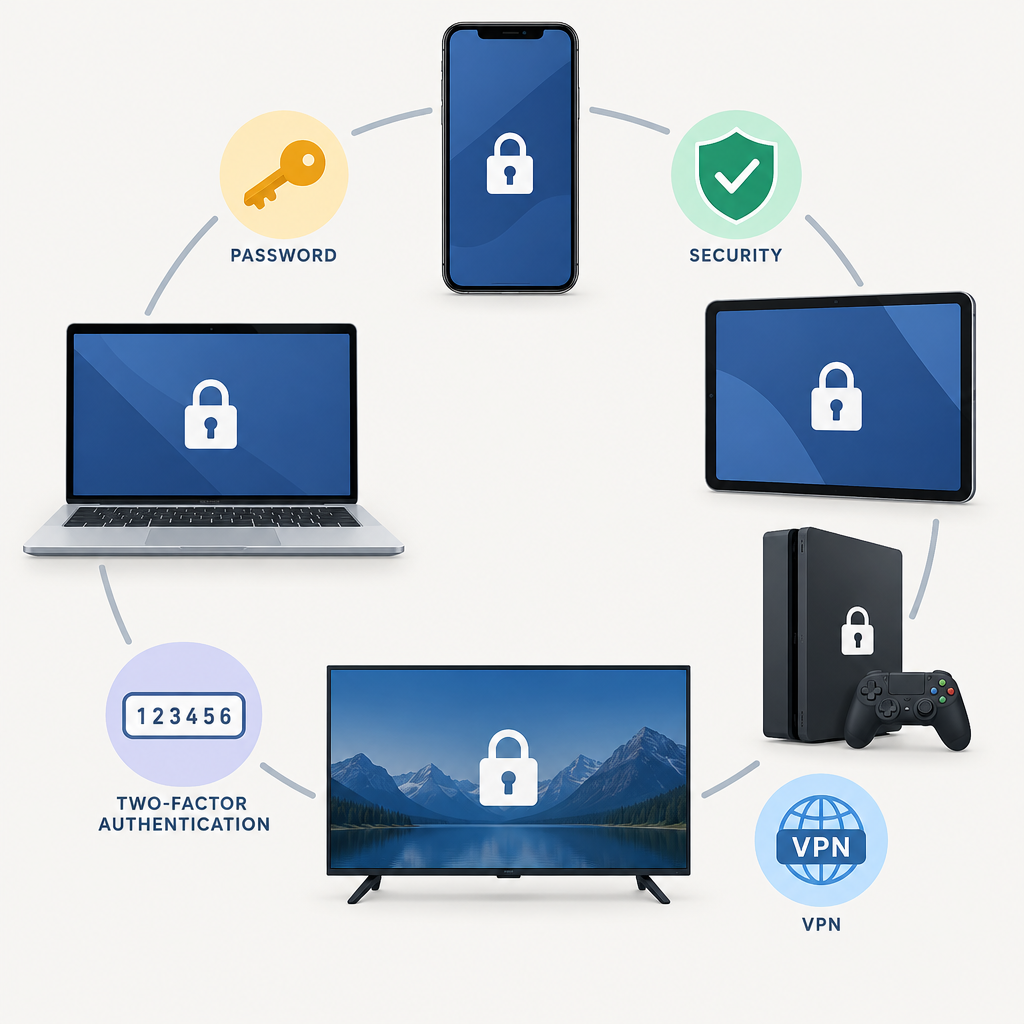
A virtual private network (VPN) encrypts your internet traffic and sends it through a server somewhere else. People on the same network, such as a café hotspot, can’t easily see what you’re doing, and websites see the VPN server’s address instead of yours.
A VPN helps most on public Wi-Fi. The Federal Trade Commission notes that a network with no password isn’t secure, and it suggests a VPN if you often sign in to accounts on public networks. Most websites now use HTTPS encryption anyway, so a VPN is a useful extra layer rather than a must-have at home.
Choose with care, because all your traffic passes through the VPN company:
- Pick an established, paid provider with an independently audited no-logs policy.
- Avoid unknown free VPN apps, which often make money from your data.
- Install it only from the official website, the App Store or Google Play.
- Check how many devices one subscription covers, so the whole family is included.
Set Up Parental Controls on Kids’ Devices
Every major platform includes free parental controls, and they work best when you set them up before your child starts using the device.
- iPhone and iPad: Family Sharing must be set up first, and the child needs their own Child Account. On your own device, go to Settings > Family, tap your child’s name, then tap Screen Time and follow the prompts. Set the Screen Time passcode on your device, not the child’s.
- Android: Install Google Family Link on your phone and link it to your child’s Google account. On recent Pixel phones you can also start from Settings > Digital Wellbeing & parental controls. Remove any other accounts from the child’s phone first, because an extra account lets them get around the controls.
- Windows: Open Windows Security > Family options. This opens Microsoft Family Safety, where you can set screen time limits and content filters for your child’s Microsoft account.
These tools only control the device and app store. Apps like TikTok, Instagram and Roblox have their own privacy and family settings, so check each one your child uses.
Limit Personal Information Online
Another way to protect your family is to share less personal information, such as your home address, date of birth and phone number. Scammers use these details to answer security questions, guess passwords and make phishing messages more convincing.
Be careful what you post on social media, and only accept people you know and trust. Set profiles to private, and turn off location tags on photos of your children. Don’t hand over personal details on websites that don’t need them.
Antivirus and Anti-Malware Protection
Every computer in your home needs protection against malware, the malicious software that steals personal information or damages your system. Windows 11 already includes Microsoft Defender Antivirus in the Windows Security app. Android phones have Google Play Protect, and Macs have Apple’s built-in protections. Make sure these are switched on.
A paid suite adds extras in one subscription. Norton 360 with LifeLock combines antivirus and malware protection for multiple devices with a VPN, a password manager, parental controls and US identity theft monitoring. The plans run from Select through Advantage to Ultimate Plus, and Norton’s Advantage plan covers up to 10 devices. First-year prices are discounts, and renewal prices are noticeably higher, so check the renewal cost and the device limit before you buy.
Be honest about what you need. If your family mainly wants malware protection, the built-in tools are enough. A suite is worth paying for if you also want identity monitoring and one dashboard for everyone’s devices.
Keep Software Up-to-Date
Keeping all your software up to date is another key step. This includes your:
- Operating system
- Web browser
- Installed apps
Developers release updates regularly to fix security holes, so install them as soon as they arrive. The easiest way is to turn on automatic updates:
- Windows 11: Settings > Windows Update
- Mac: System Settings > General > Software Update
- iPhone and iPad: Settings > General > Software Update > Automatic Updates
- Android: Settings > System > Software updates (the menu name varies by phone maker)
Also check for devices that no longer get updates. Windows 10 reached end of support on October 14, 2025. Microsoft’s consumer Extended Security Updates program was first due to end on October 13, 2026, but in June 2026 Microsoft added another year. Enrolled home PCs now get critical and important security fixes through October 12, 2027, and you can still enroll until then. A home PC still running Windows 10 without Extended Security Updates no longer gets security fixes. Either way, it’s a temporary fix. Upgrade it to Windows 11 if the hardware supports it, or plan to replace it before October 12, 2027.
Get the Protection Your Family Deserves
The biggest gains come from two things: a password manager everyone actually uses, and two-factor authentication on each person’s main email account. Set those up together this week, one family member at a time. Then add parental controls, automatic updates and the rest from this list.
FAQ
What is the single most important step to protect my family online?
Secure each person’s main email account with a long, unique password and two-factor authentication. Email is where password reset links go, so whoever controls it can take over most other accounts. Do this before anything else on the list.
Do I need to pay for antivirus software?
Not for basic protection. Windows 11 includes Microsoft Defender Antivirus, and Android, iPhone and Mac have built-in protections that are on by default. A paid suite makes sense if you want extras such as identity theft monitoring, a VPN and parental controls under one subscription.
Is it safe to use the passwords saved in my browser?
Yes, for most families. The password managers built into Chrome, Safari and Edge encrypt your passwords and can create strong ones. A separate manager like Norton Password Manager helps when your family mixes iPhones, Android phones and Windows PCs, because it works across all of them.
Do I need a VPN at home?
Usually not. Your home Wi-Fi is protected by its password, and most websites already encrypt traffic with HTTPS. A VPN helps most on public Wi-Fi in hotels, airports and cafés, or when you don’t want your internet provider to see which sites you visit.
How do I make parental controls work on every device my child uses?
Give your child their own account on each platform: an Apple Child Account through Family Sharing, a Google account managed in Family Link, and a Microsoft account in Microsoft Family Safety. Controls follow the account, so they apply on any device your child signs in to. Then check the privacy settings inside each social and gaming app separately.
Are passkeys better than passwords?
Yes. A passkey can’t be guessed, reused or typed into a fake login page, because it only works with the real website and your own device. Use passkeys wherever a service offers them, and keep a password manager for the accounts that still need passwords.
Sources
- NIST: Special Publication 800-63B-4, Digital Identity Guidelines: Authentication and Authenticator Management
- CISA: Secure Our World, Use Strong Passwords
- Federal Trade Commission: Tips for Using Public Wi-Fi Networks
- Apple Support: Use Screen Time to manage your child’s iPhone or iPad
- Microsoft Support: Family options in the Windows Security app
- Microsoft: Windows 10 Consumer Extended Security Updates (ESU)
- Norton Support: Download and install the Norton Password Manager browser extension
- Norton Support: Install Norton Safe Web Plus for Safari on Mac
- Norton: Norton 360 with LifeLock Advantage and Ultimate Plus product pages