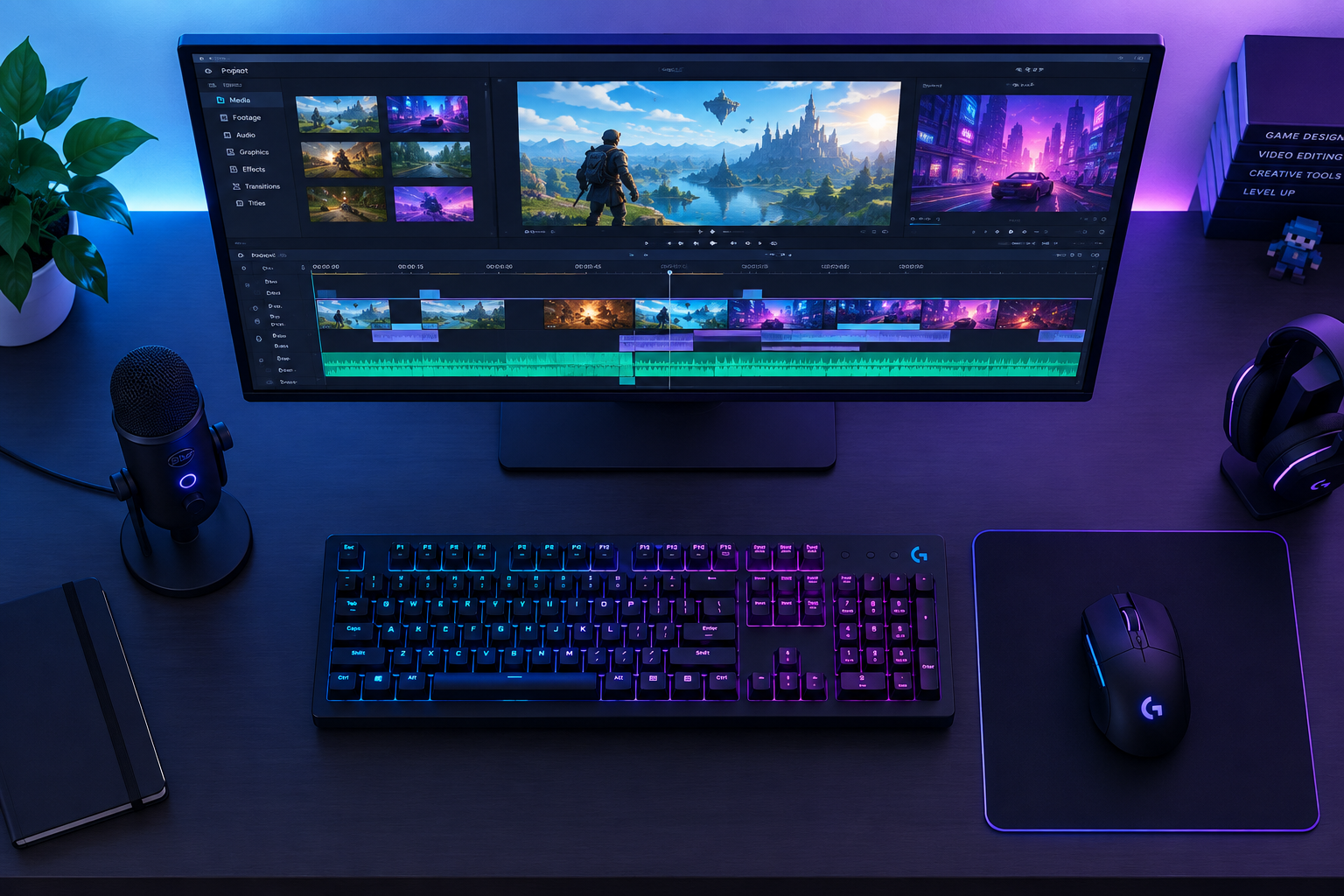
To edit a gaming video, record clean footage first, then cut it in an editor, add commentary and royalty-free music, and finish with a strong thumbnail. On Windows 11 you can record with Xbox Game Bar (Windows + Alt + R). Free editors such as DaVinci Resolve, Clipchamp or iMovie handle the cuts. If you plan to earn money from the video on YouTube, add real commentary or instruction rather than uploading long, untouched playthroughs.
YouTube is full of raw, unedited gameplay, and most of it gets very few views. Basic editing software and a few simple techniques are enough to turn your sessions into videos people actually want to watch.
When you are just starting out, the habits you build early matter most. Tight edits help you stand out, reach the right viewers and grow a following. The techniques below cover gear, workflow, software, recording quality and thumbnails, roughly in the order you will need them.
Start with the right recording gear
You don’t need expensive equipment for your first videos. Your phone’s built-in microphone works. On an iPhone, the Voice Memos app records audio of any length, and most Android phones come with a recorder app that does the same job.
If you want to talk while you play, a dedicated USB microphone is the first upgrade worth buying. Your computer’s built-in microphone works, but it picks up fan noise and keyboard clicks, and the sound is usually poor.
For a face camera, your laptop’s webcam is fine unless your reaction shots are a big part of the video. If they are, a better webcam is a worthwhile investment.
You also need to decide whether to add commentary. Many popular gaming channels use it, and it matters for money: YouTube says videos that simply show someone playing a game for long periods may not be accepted for monetization. Commentary that teaches or adds something is what YouTube looks for.
Keep an efficient editing workflow
A video goes through several stages: recording, sorting clips, cutting, adding audio and graphics, exporting and uploading. A fixed workflow lets you, and anyone helping you, move through those stages quickly without losing files or redoing work.
Treat the workflow as a roadmap so everyone knows where the project is going and how to get there. File organization does most of the work. A simple setup:
- Make one folder per video, named with the date and game.
- Inside it, keep subfolders for raw footage, audio, music, graphics and exports.
- Move recordings out of the default capture folder as soon as you finish a session.
- Name the final export with the video title so you can find it later.
Choose the right video editing software
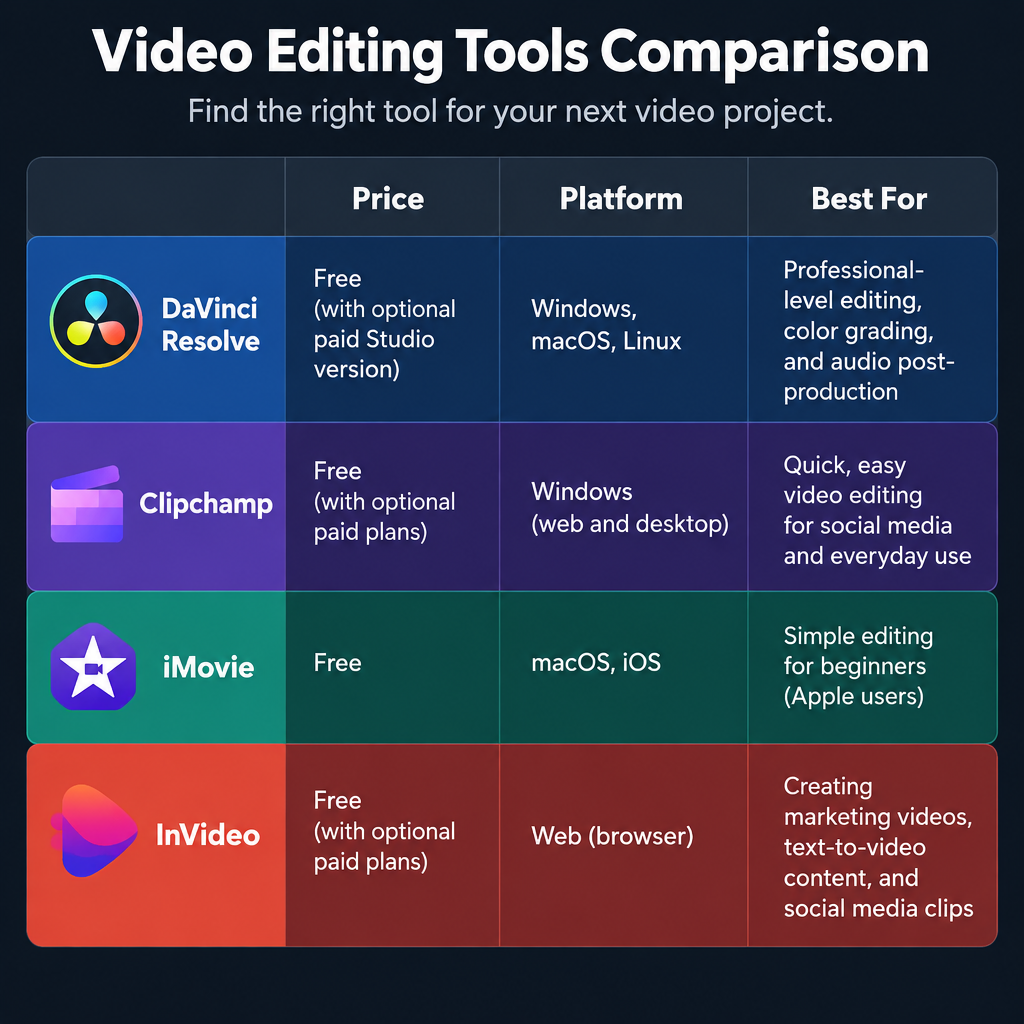
The best editor is the one that fits your budget, your computer and how complex your videos are. The huge choice of tools can confuse beginners, and not every editor suits gaming footage, which is often long, high-frame-rate and heavy on audio.
| Editor | Price | Platforms | Good for |
|---|---|---|---|
| DaVinci Resolve 20 | Free; Studio version $295 | Windows, Mac, Linux | Full editing, color and audio tools at no cost |
| Clipchamp | Free tier | Built into Windows 11, browser | Quick edits on Windows |
| iMovie | Free | Mac, iPhone, iPad | Simple edits for Apple users |
| InVideo | Free tier, paid plans | Browser | Templates and stock music |
DaVinci Resolve from Blackmagic Design is the strongest free option. Version 20, released in final form in May 2025, added more than 100 new features, including AI tools. It has a learning curve, though, and needs a reasonably powerful computer.
InVideo is a browser-based editor with thousands of templates. According to InVideo’s help center, all of its music is royalty-free, mostly licensed from Storyblocks. Royalty-free music lowers the risk of copyright claims on your channel, which matter because in-game and popular music are a common source of claims on gaming videos.
Look at the editing features each tool offers and pick the one that best fits what you want to make.
Make sure your gameplay footage is good
Good editing can’t save blurry, laggy footage, so recording quality comes first. Use a screen recorder to capture your sessions, and choose it based on your budget, how long you plan to record and how complex your videos will be.
The main recording options in 2026:
- Windows 10 and 11: Xbox Game Bar is built in. Press Windows + Alt + R to start and stop recording. This works even in full-screen games where the bar doesn’t appear. Clips are saved to Videos > Captures by default.
- Any PC or Mac: OBS Studio is free and open source. It records the game, your webcam and your microphone as separate sources, which makes editing much easier.
- Mac: Press Shift + Command + 5 to open the screen recording toolbar.
- PlayStation 5 and Xbox Series X|S: Use the Create button or the Share button on the controller to capture recent gameplay.
If Game Bar’s shortcut does nothing, click inside the game window so it has focus. Then open Game Bar with Windows + G and check that the app is marked as a game.
You will want the camera and microphone recording at the same time as the game, so your reactions and remarks line up with the footage. Play at the highest resolution your computer can handle without lag. Your PC also needs enough power to run the game and the recorder smoothly together, because stutter during play shows up directly in the recording. Meet these requirements and your raw footage will be sharp enough to edit well.
Add an eye-catching thumbnail
The thumbnail decides whether people click, so it deserves as much care as the edit. Most editors and free design tools make thumbnails easy, and YouTube recommends 1280 x 720 pixels in a 16:9 ratio.
What works:
- The game itself: a clear, dramatic frame from the moment the video is about.
- Your face: if you appear in your videos, a strong reaction shot works well.
- Big text: a few large, readable words, not a sentence.
- Bright colors: they stand out in a crowded feed and set the tone of the video.
A good thumbnail makes viewers feel they will miss something important if they don’t watch. Avoid graphic violence in the thumbnail, though. YouTube’s advertiser-friendly guidelines say it can limit ads on gaming videos when it appears in the thumbnail or the first seven seconds.
Picture the end result before you edit
Editing goes faster when you know what the finished video should look like. Start by studying popular videos in your game or genre and how they are edited: how long the clips are, how often they cut, where they put music and text.
Then think about what your target audience wants to see. Do they prefer polished, heavily produced edits or a rougher, more personal style? Answering that question gives you a clear picture of the final video, and every editing decision gets easier.
Don’t overthink quality
Making a good-looking video is much easier than it used to be. Even a smartphone camera records sharp high-definition video, and modern editors put high-quality output first.
What separates a polished video from raw footage is the editing: cutting dead time, balancing audio and keeping the pace up. Spend your effort there rather than chasing perfect equipment.
Final word
YouTube says around 500 hours of video are uploaded every minute, so the competition for attention is real. For beginners and small channels on a budget, basic editing skills are the cheapest way to stand out. Gaming video editing can feel hard if you are new to it or to computers. The fastest way to improve is to publish one short, tightly edited video, see what viewers watch and skip, and use that to shape the next one.
FAQ
What is the easiest free way to record and edit gaming videos on Windows 11?
Record with Xbox Game Bar using Windows + Alt + R, which saves clips to Videos > Captures. Then open them in Clipchamp, which comes with Windows 11, for basic cuts, text and music. When you outgrow that, move to DaVinci Resolve, which is free and far more powerful.
Can you make money from gameplay videos on YouTube?
Yes, but it depends on two things. First, the game publisher’s license must allow commercial use, and policies differ between companies such as Nintendo and Capcom. Second, YouTube says long videos that only show gameplay may not be accepted for monetization, while commentary with instructional or educational value can be.
How do you avoid copyright claims on gaming videos?
Use royalty-free music from your editor’s library or YouTube’s Audio Library instead of popular songs. Be careful with in-game soundtracks and cutscenes, which some publishers claim. Check the publisher’s video policy before you upload.
Do you need commentary in a gaming video?
No, but it helps. Commentary makes the video more personal and easier to tell apart from other uploads of the same game, and it supports monetization. If you leave it out, use captions, text overlays or tight editing to add value.
What resolution should you record gaming videos at?
Record at the highest resolution your computer can handle without lag, usually 1080p at 60 frames per second for most mid-range PCs. 1440p or 4K looks better on large screens but needs a much more powerful PC and far more storage. A smooth 1080p recording beats a stuttering 4K one.
Sources
- YouTube Help: Video game and software content
- YouTube Help: Advertiser-friendly content guidelines
- Microsoft Support: Fix problems with Xbox Game Bar on Windows
- InVideo Help: Are InVideo music tracks royalty-free?
- Post Magazine: Blackmagic Design releases DaVinci Resolve 20